REMOTEOPS

Manage Windows
and Linux.

Remote support and system administration from one portal.

  • Remote desktop, PowerShell, SSH and files
  • Windows updates and software deployment
  • Linux performance graphs and Windows/Linux monitoring alerts
  • Browsing visibility and content filtering
  • Automation packages, forms and AI tools

What can RemoteOps do?

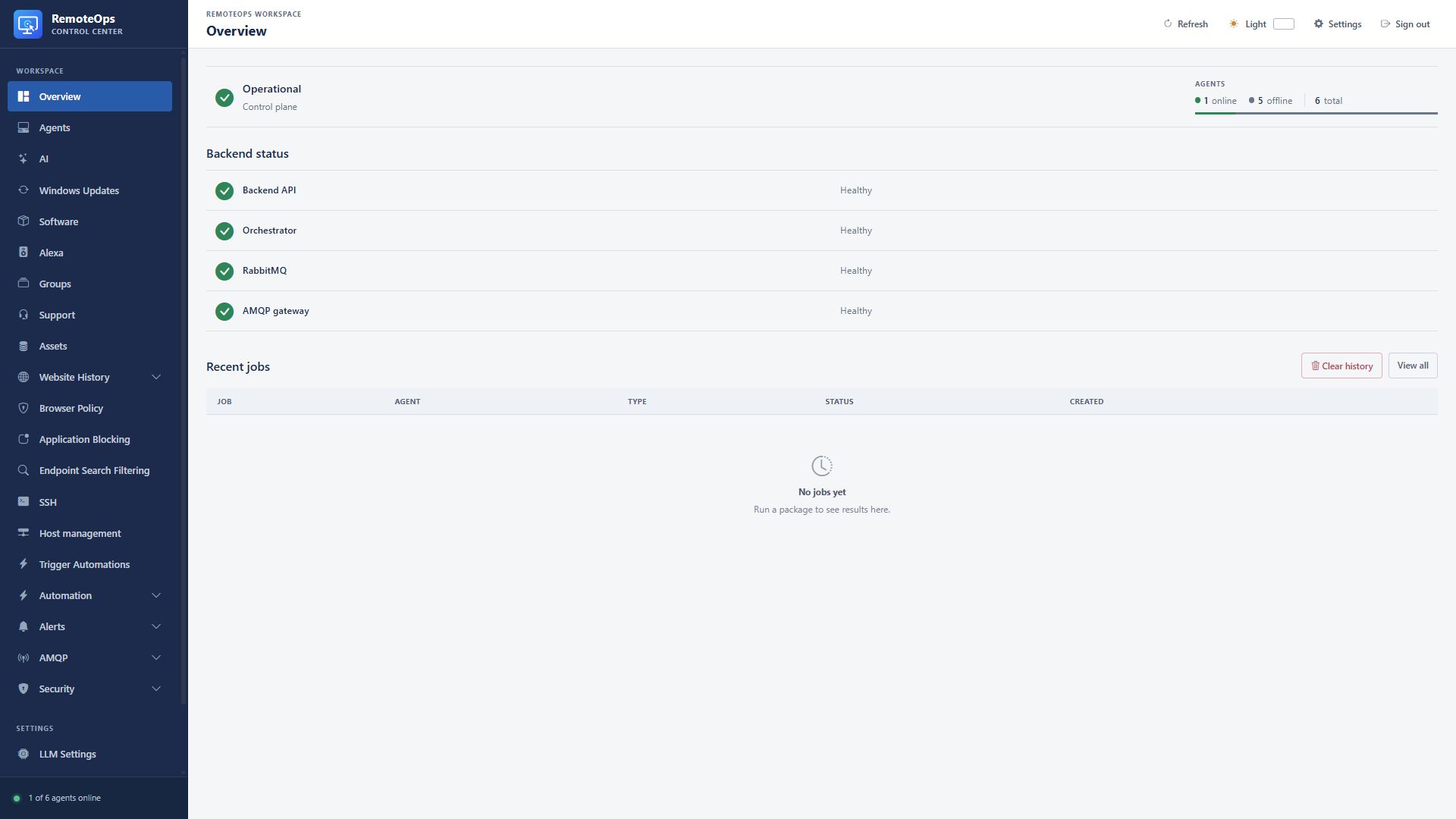
Manage your devices from one portal

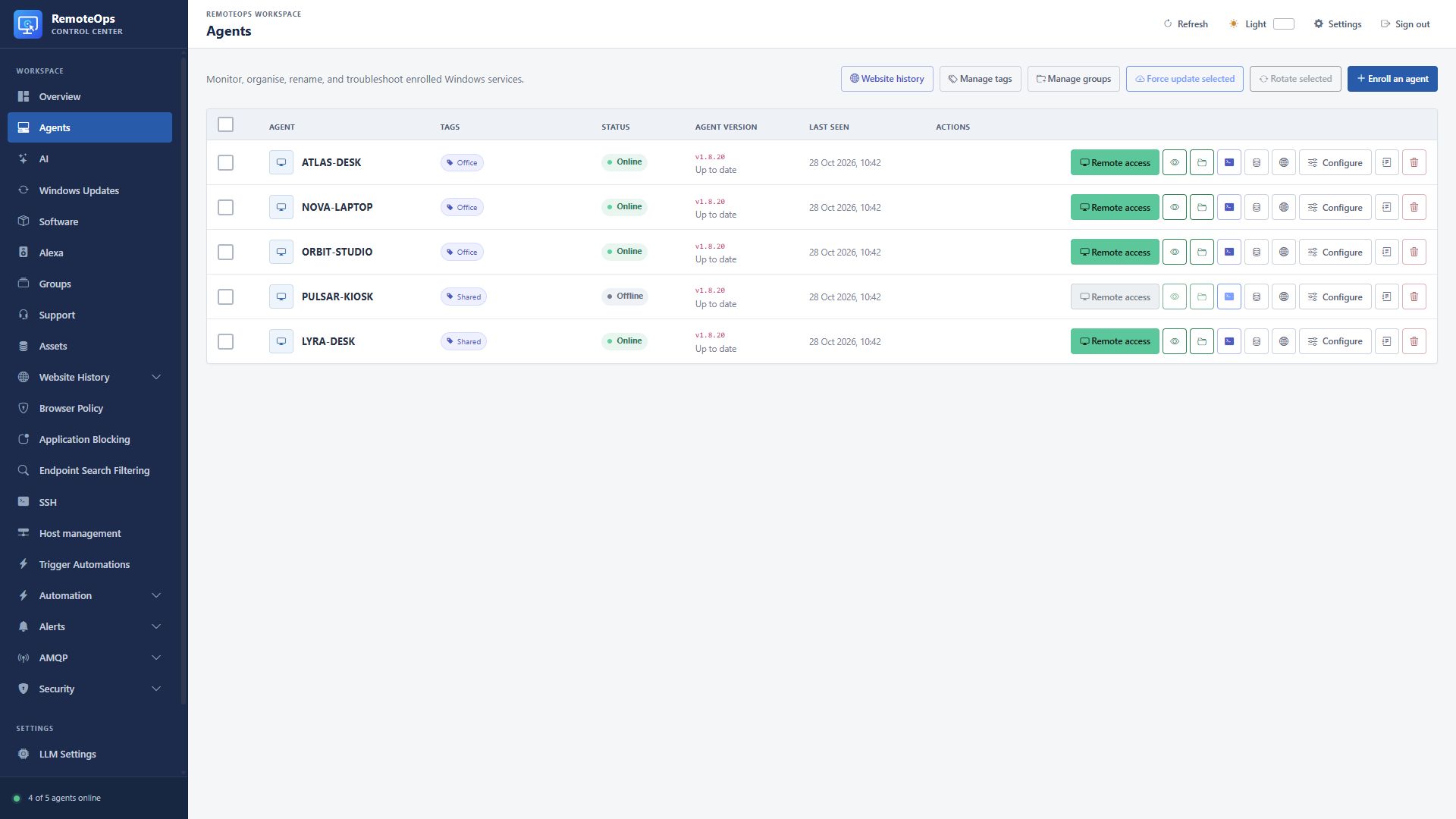
  • See every Windows agent in a searchable device table, with connection status, version and last-seen time.
  • Organise devices with groups, display names and tags.
  • Open remote desktop, view-only, PowerShell, files, inventory and browsing history from the device row.
  • Rename device display names and use selected-device bulk actions.
  • Rename supported Windows computers and storage volumes; computer renames require a restart.
  • Request agent updates, rotate runtime credentials and remove enrolled devices.
  • Enable per-device diagnostic logging when investigating a fault.
See screenshots and details ↓

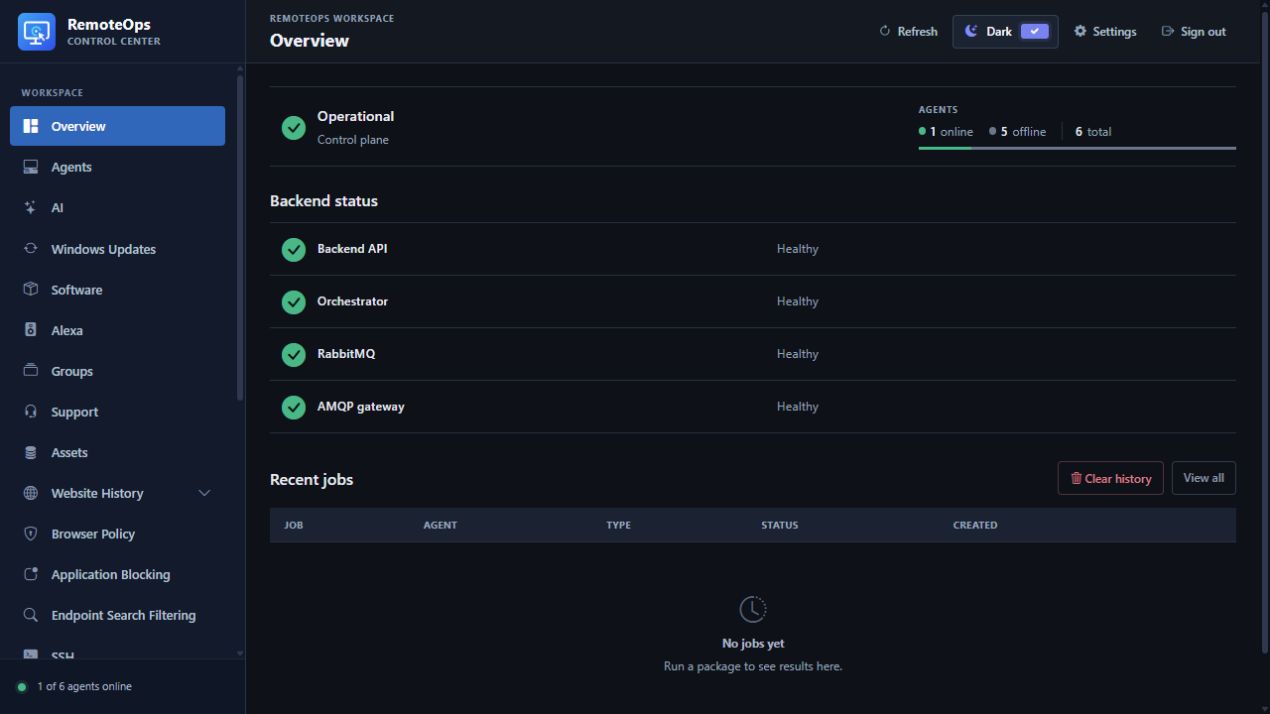
Choose light or dark mode

  • Switch the portal between light and dark themes.
  • Use the same navigation and management tools in either theme.
See screenshots and details ↓

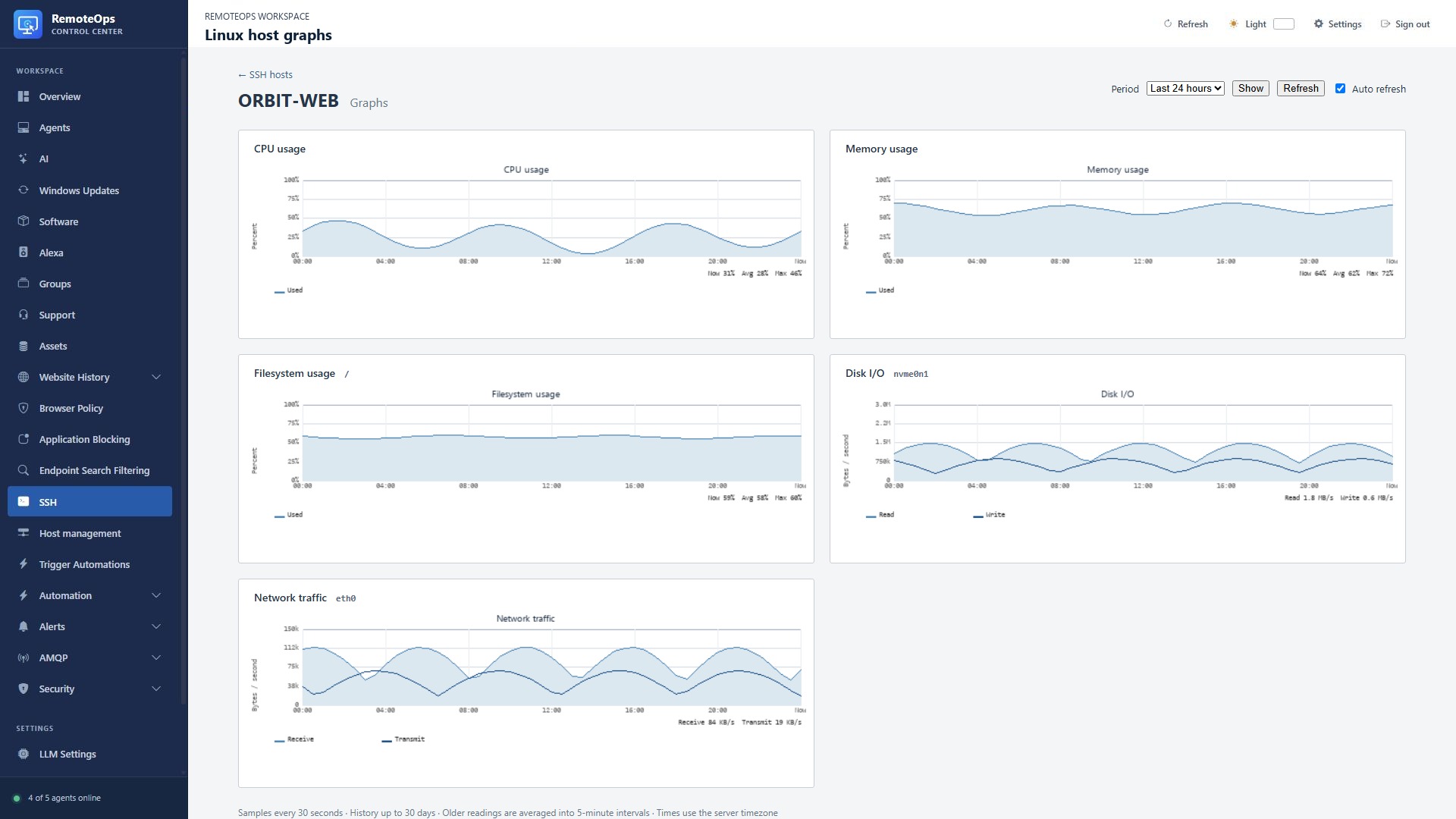
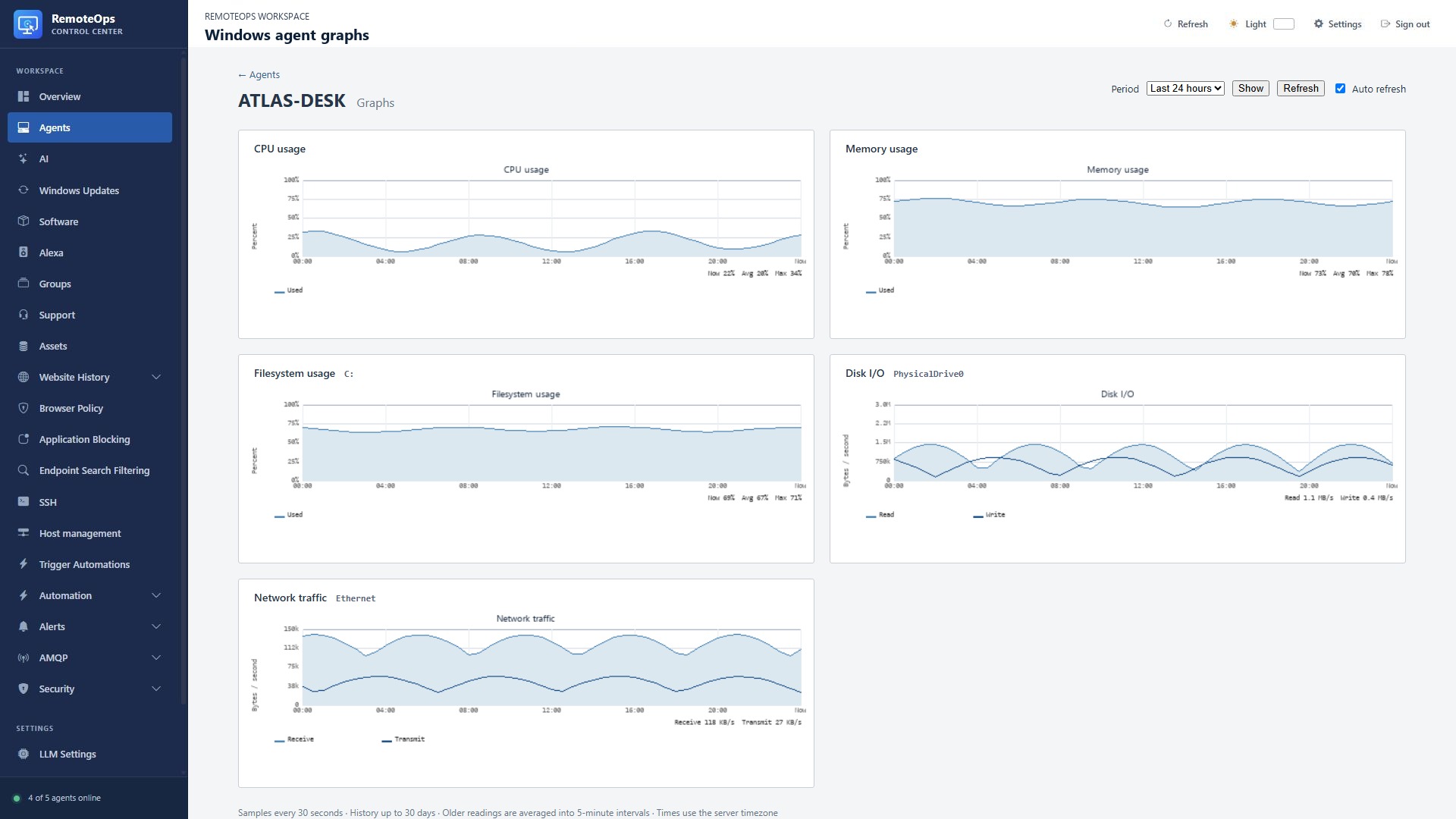
Explore Linux and Windows performance graphs

  • View CPU, memory, filesystem, disk I/O and network history for monitored hosts.
  • Switch between one hour, 24 hours, seven days and 30 days of samples.
  • Install the Linux monitor from an SSH profile; samples arrive about every 30 seconds and history is retained up to 30 days.
  • Enable statistics for a Windows agent to view the same metric history and chart types.
  • Use Windows and Linux alert monitors alongside historical graphs.
See screenshots and details ↓

Remote desktop, PowerShell and file access

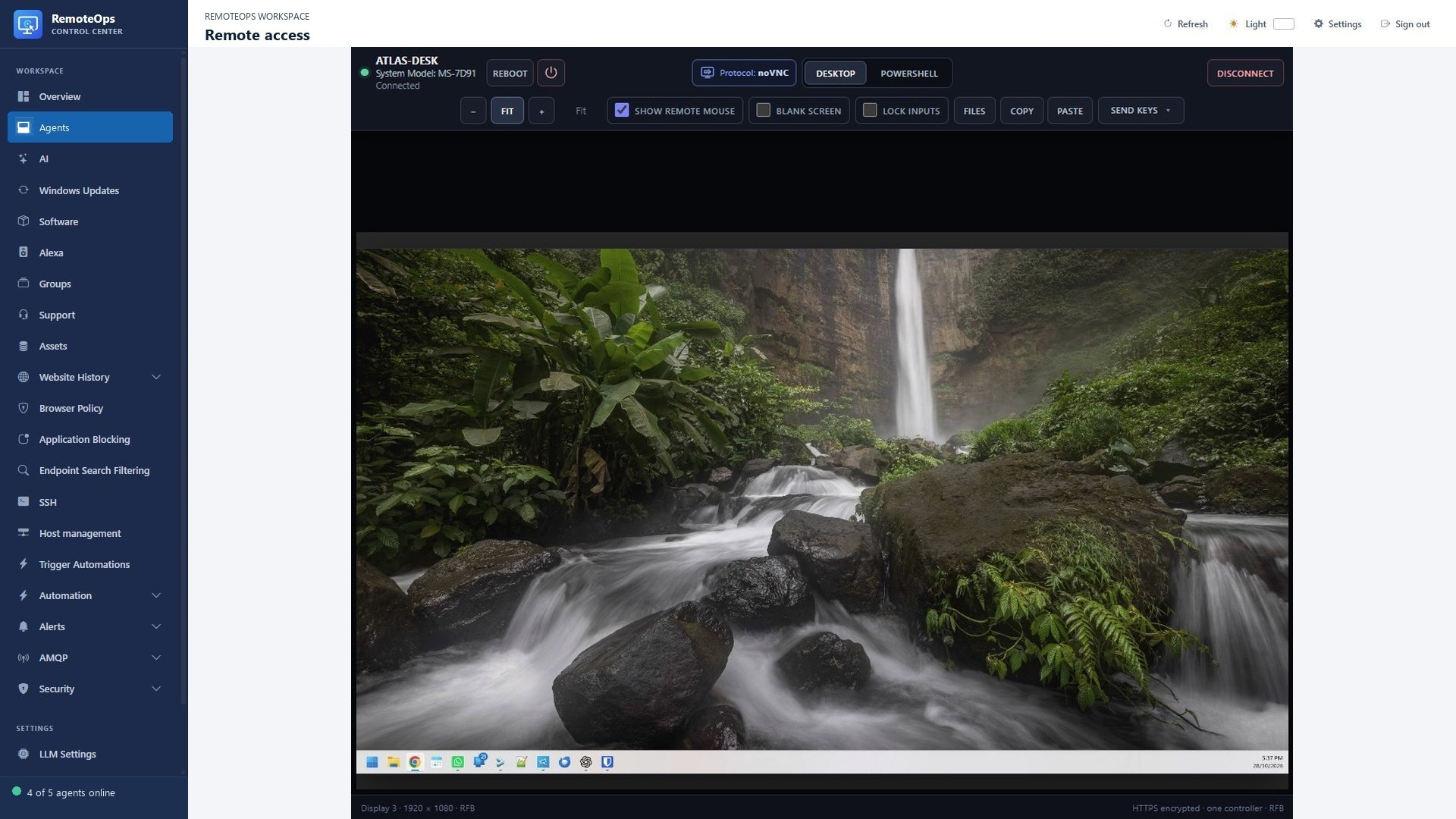
  • Control a Windows desktop in your browser or connect in view-only mode.
  • Use clipboard sharing, special keys, screen fitting and session privacy controls.
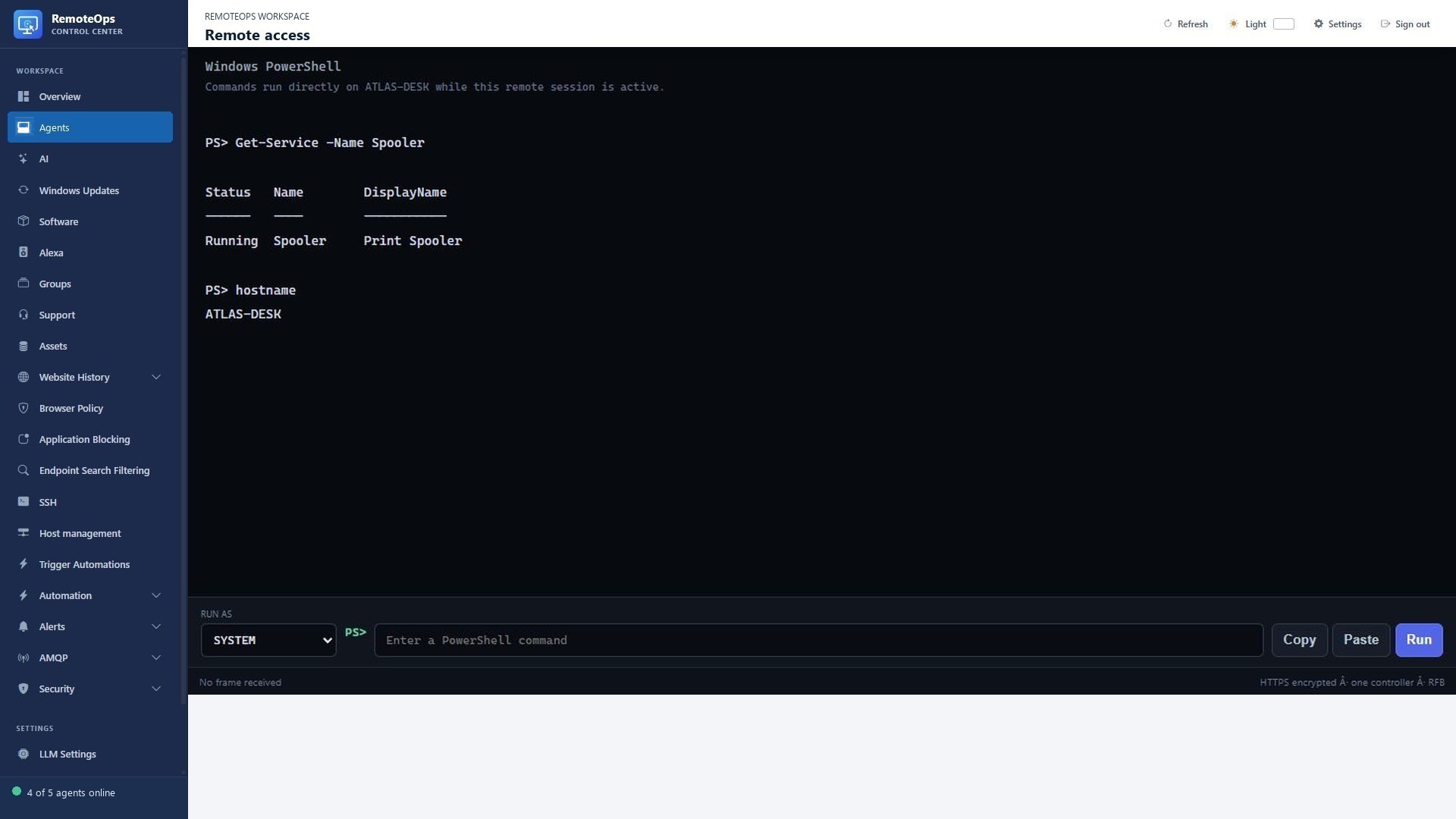
  • Run PowerShell as SYSTEM or the logged-in user while you investigate.
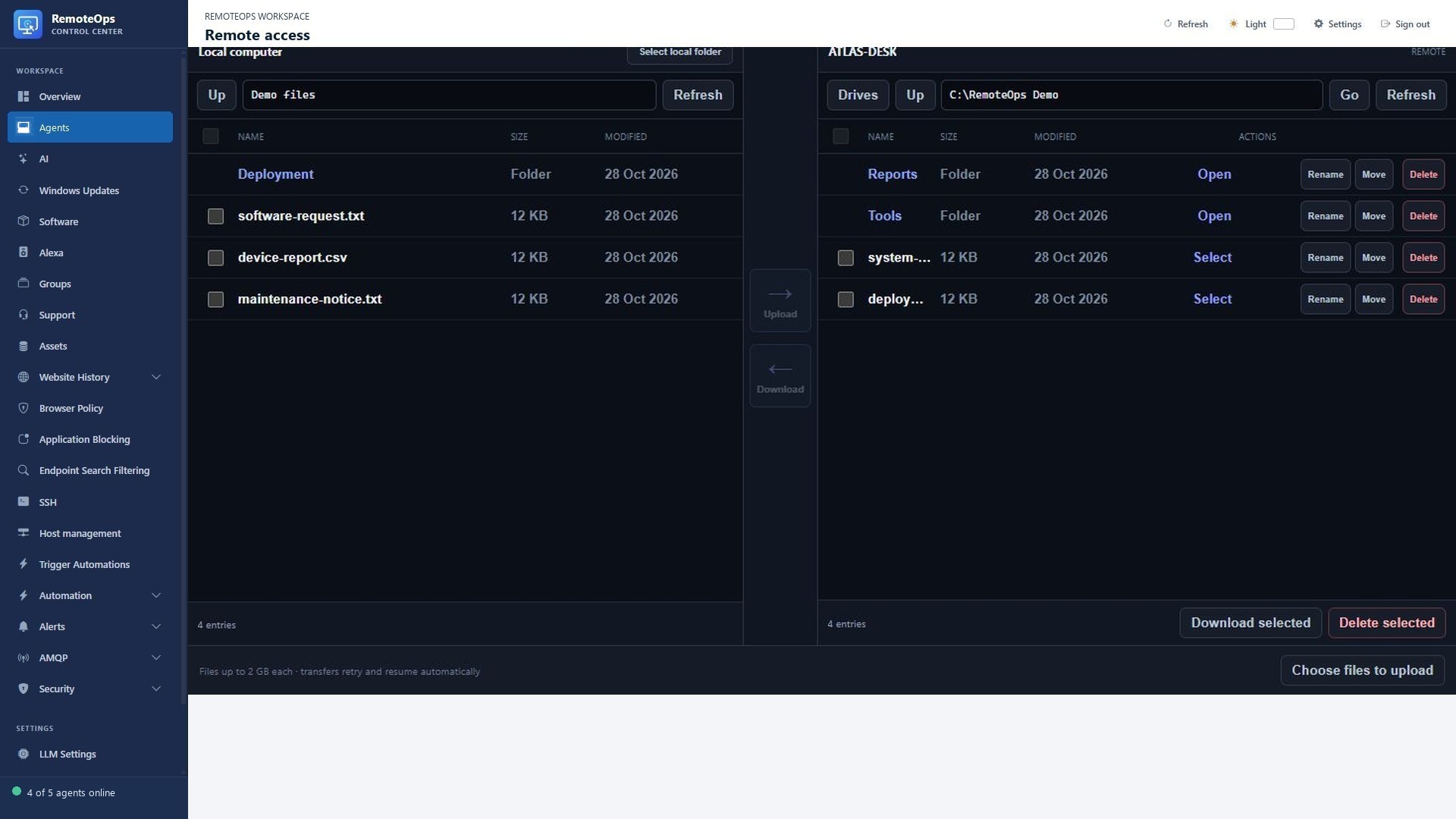
  • Transfer files without opening Explorer or taking over the user’s desktop.
  • Blank the physical displays and lock local keyboard/mouse input during eligible interactive sessions.
  • Send Windows security keys, lock the workstation, restart or shut down the device.
  • Show or hide the remote cursor and reconnect the viewer after a connection interruption.
See screenshots and details ↓

Manage Windows Updates

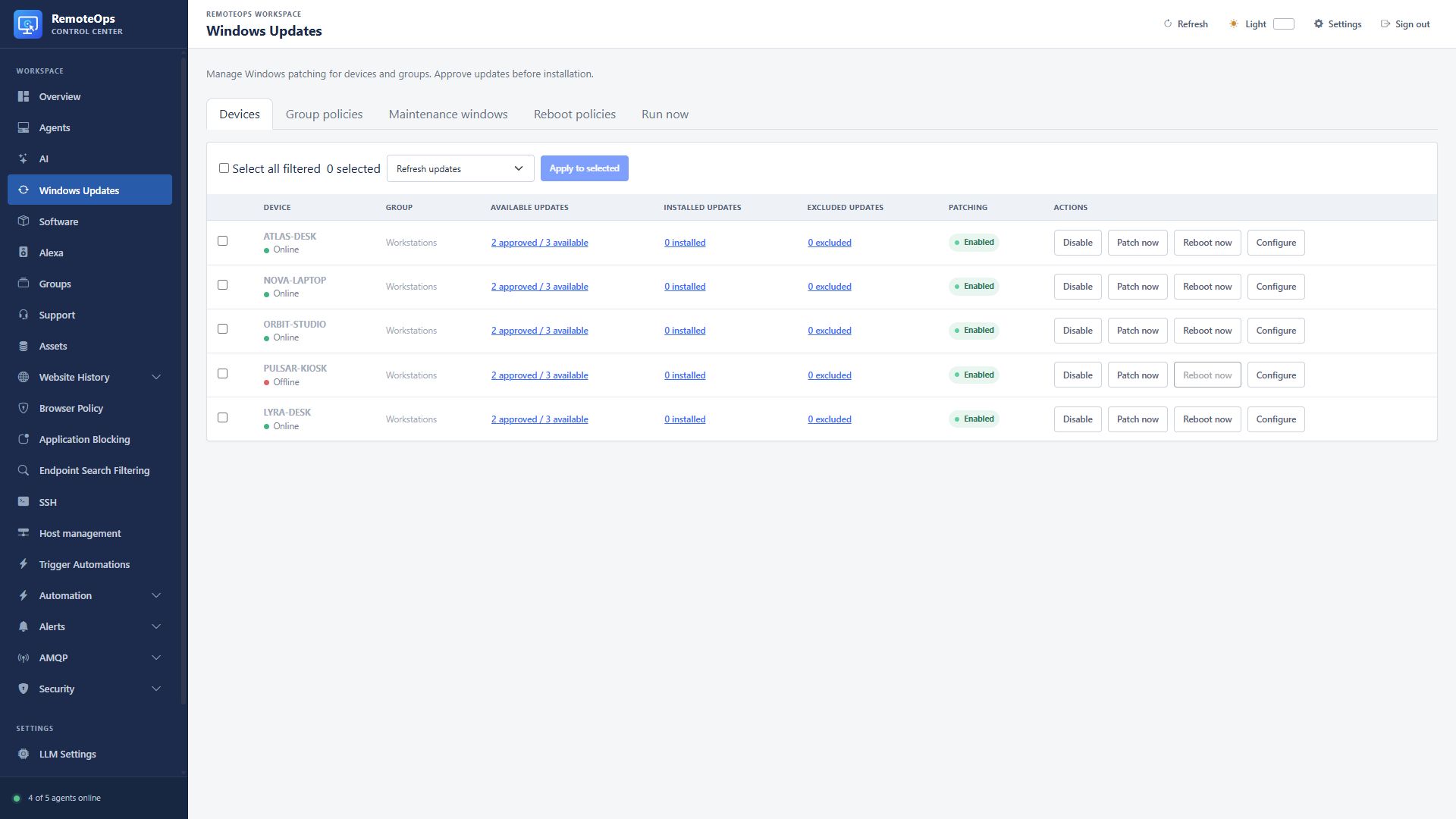
  • Scan devices and review available, installed and excluded updates.
  • Approve individual updates or apply group approval policies.
  • Set maintenance windows, reboot policies and device overrides.
  • Use Patch now on eligible devices and inspect update status before moving on.
  • Review Microsoft severity and RemoteOps priority before approving updates.
  • Auto-approve selected categories, priorities and severities, with explicit handling for unrated updates.
  • Apply group policies, exclusions and individual device overrides.
  • Select multiple devices to refresh scans, enable or disable patching, or request patching.
See screenshots and details ↓

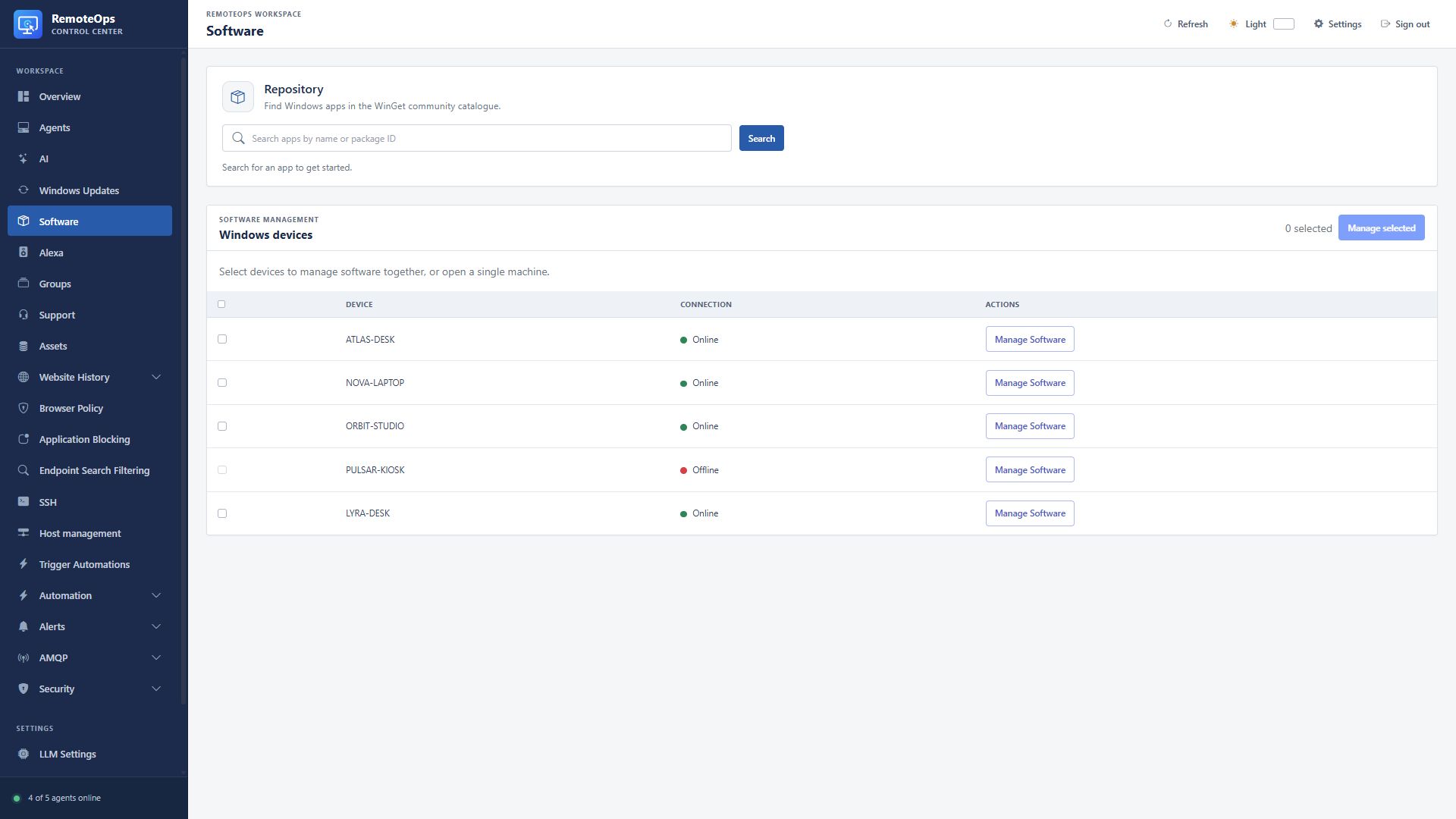
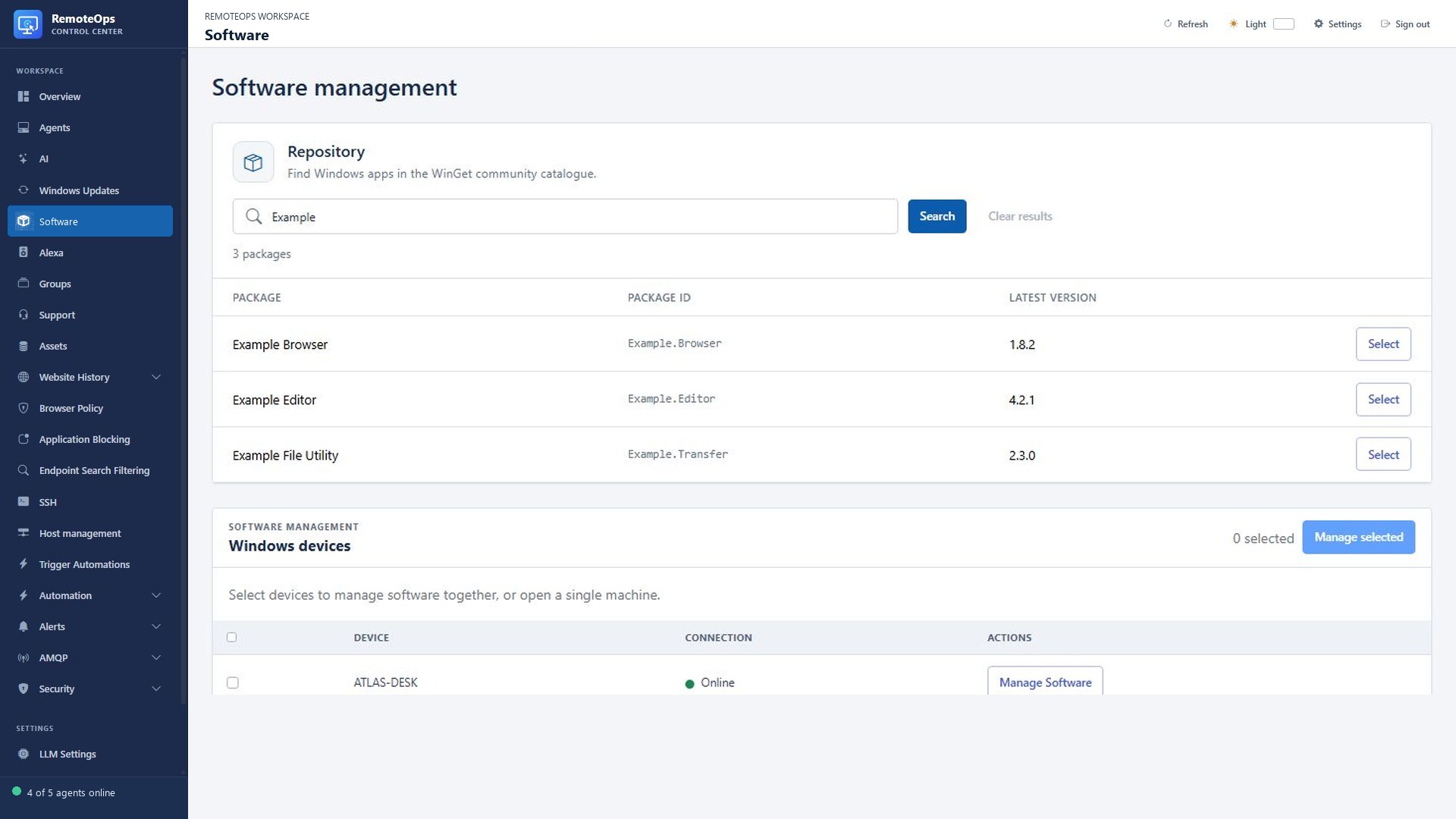
Find, install and manage Windows software

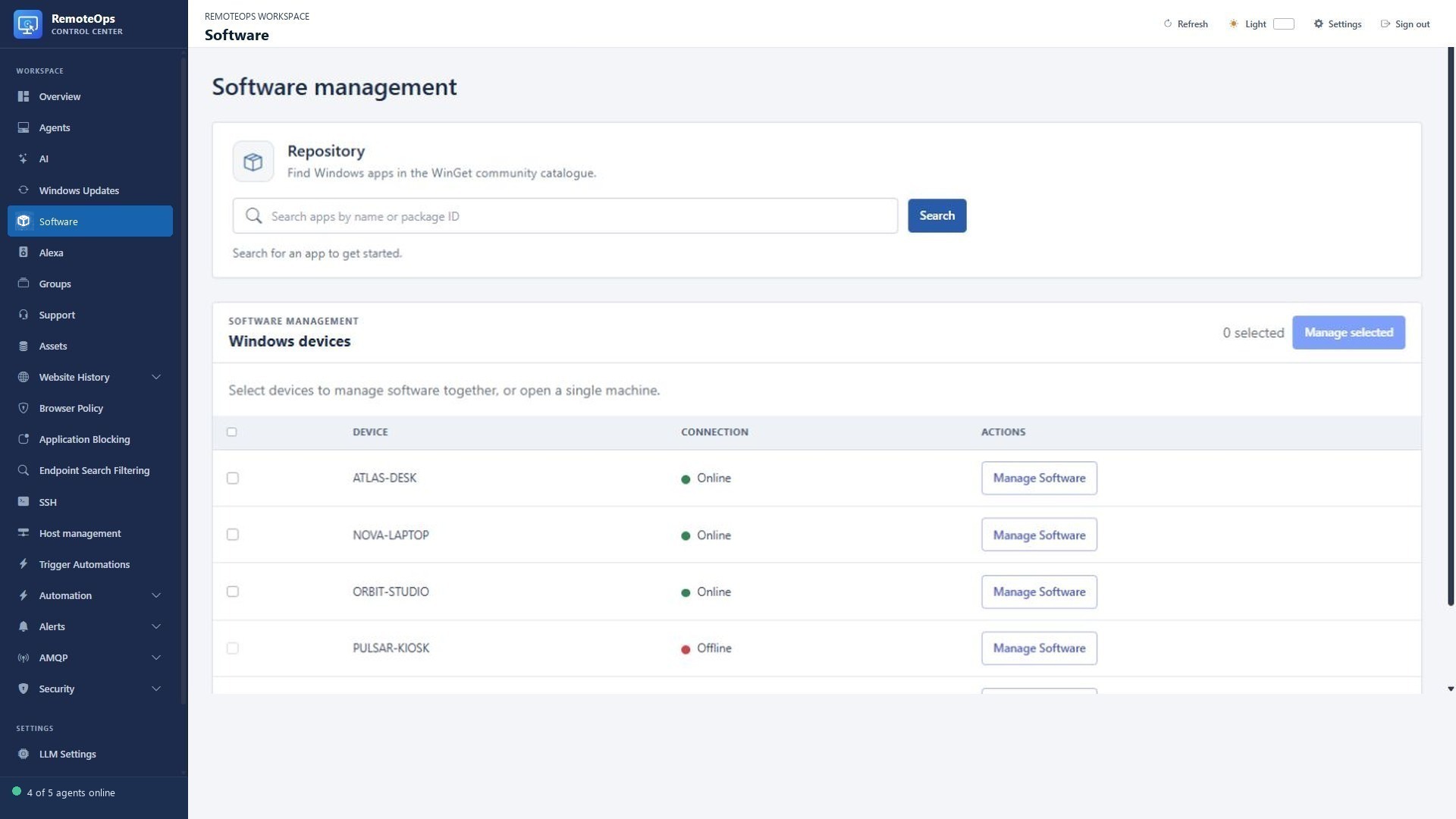
  • Search the WinGet community catalogue by application name or package ID.
  • Deploy a selected application to eligible online devices.
  • Review installed applications and versions; request fresh inventory.
  • Follow deployment results for each selected device.
  • Collect system-wide and current-user software inventory separately.
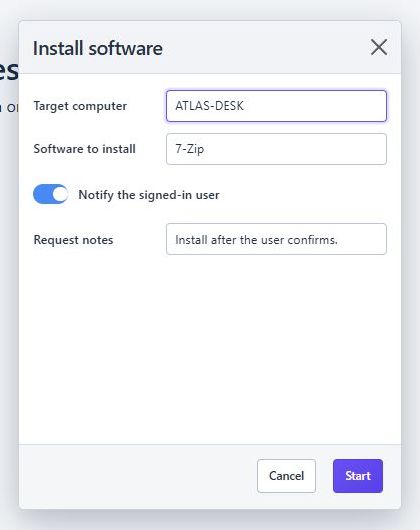
  • Install, update and uninstall managed software with the supported SYSTEM or current-user context.
  • Manage up to 200 eligible online devices in one software request, with separate device results.
See screenshots and details ↓

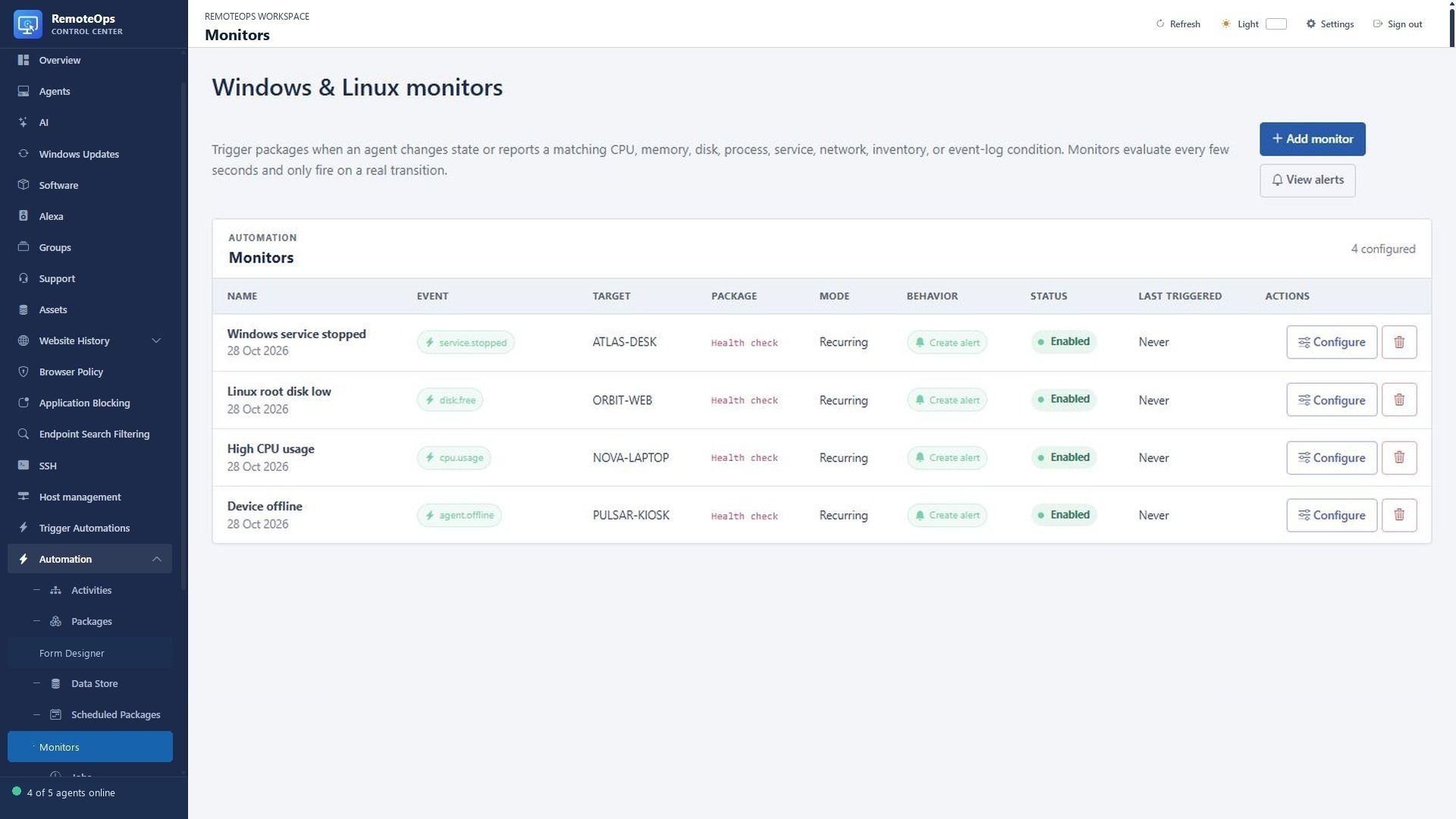
Monitor Windows and Linux hosts

  • Watch online/offline transitions, CPU, memory and disk-space thresholds.
  • Track supported process, service and network conditions.
  • Use Windows event-log text and inventory age in monitoring rules.
  • Install Linux monitoring from a saved SSH profile.
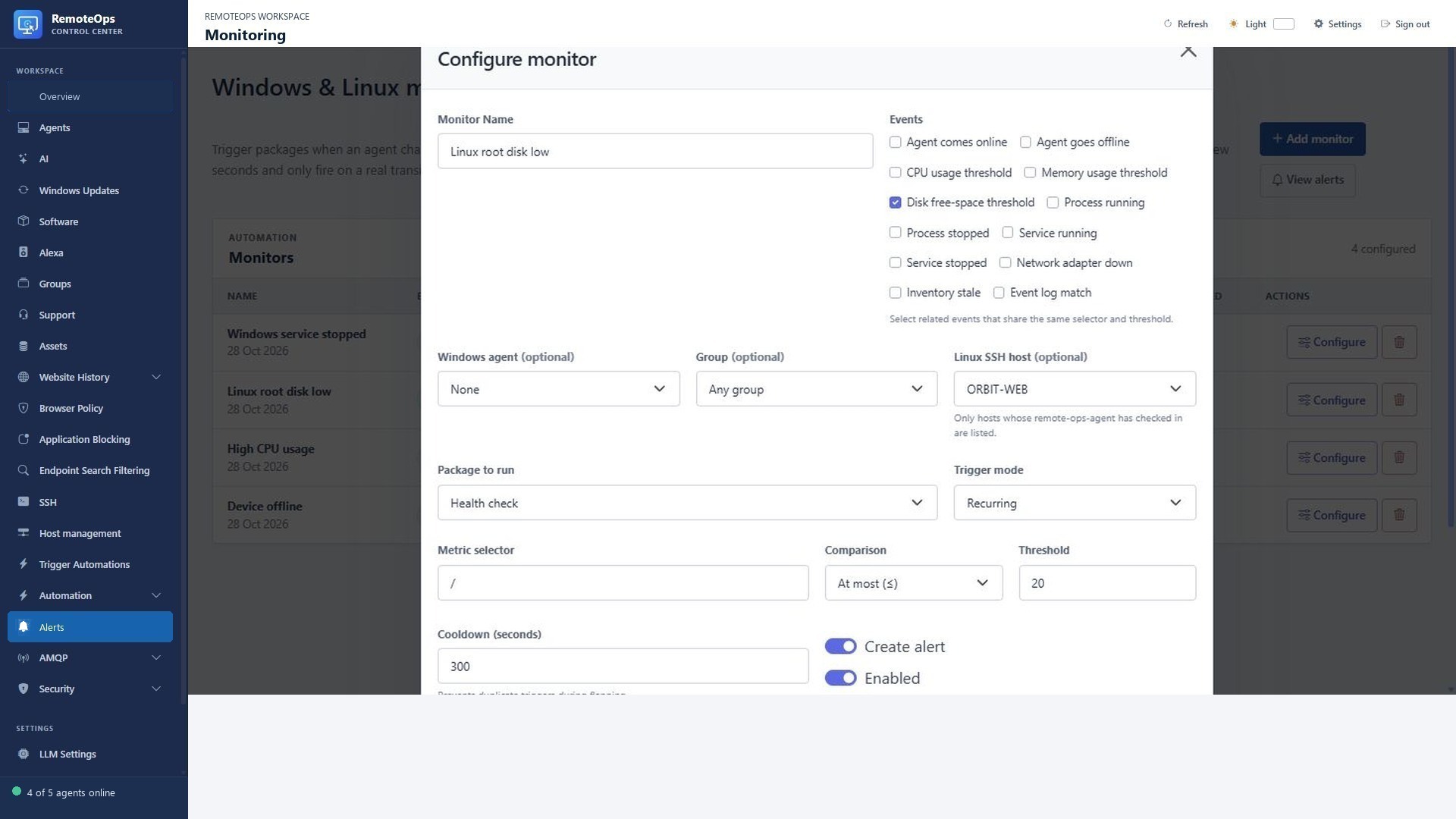
  • Create an alert, trigger a package, or do both; control repeat triggers with cooldowns.
  • Scope Windows rules to one agent, a group or the fleet, and Linux rules to eligible monitored SSH hosts.
  • Use recurring or one-time responses, cooldowns and optional alert creation.
  • Pass the original event, target, metric value and timestamp into the response package.
See screenshots and details ↓

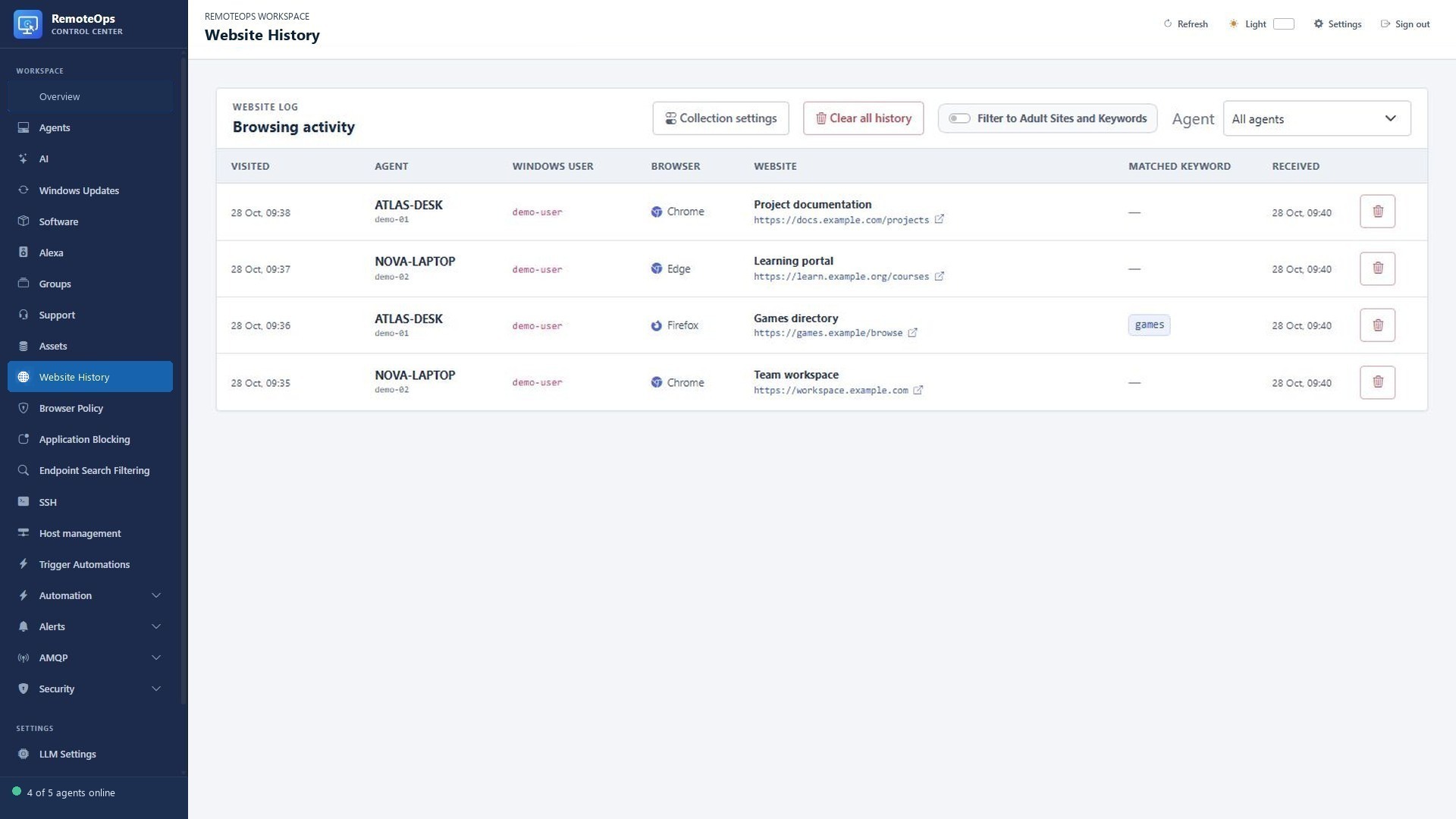
See the pages viewed on managed Windows devices

  • Collect saved Chrome, Edge and Firefox history on devices you enable.
  • Review page titles, URLs, visit timestamps, browser and Windows user.
  • Filter by device or keywords and request a fresh collection.
  • Apply classification keywords, URL exemptions and retention cleanup.
  • Inspect collection status and errors, refresh eligible online agents and clear stored portal history.
  • Classify saved visits by matched keywords without coupling collection to website blocking.
See screenshots and details ↓

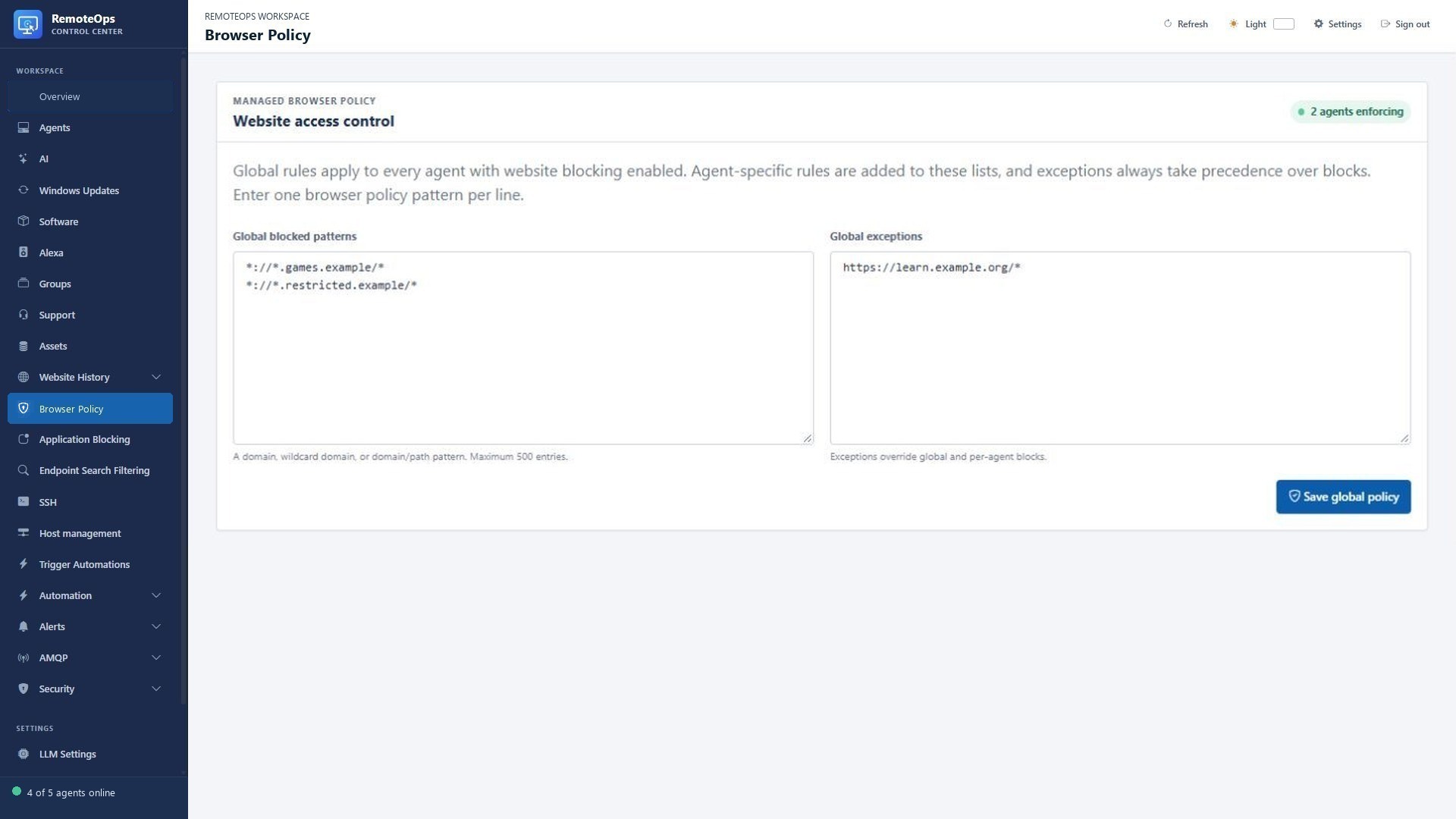
Control websites, searches and applications

  • Block domains, wildcard domains and specific URL paths, with allow exceptions.
  • Combine global website rules with device-specific policies.
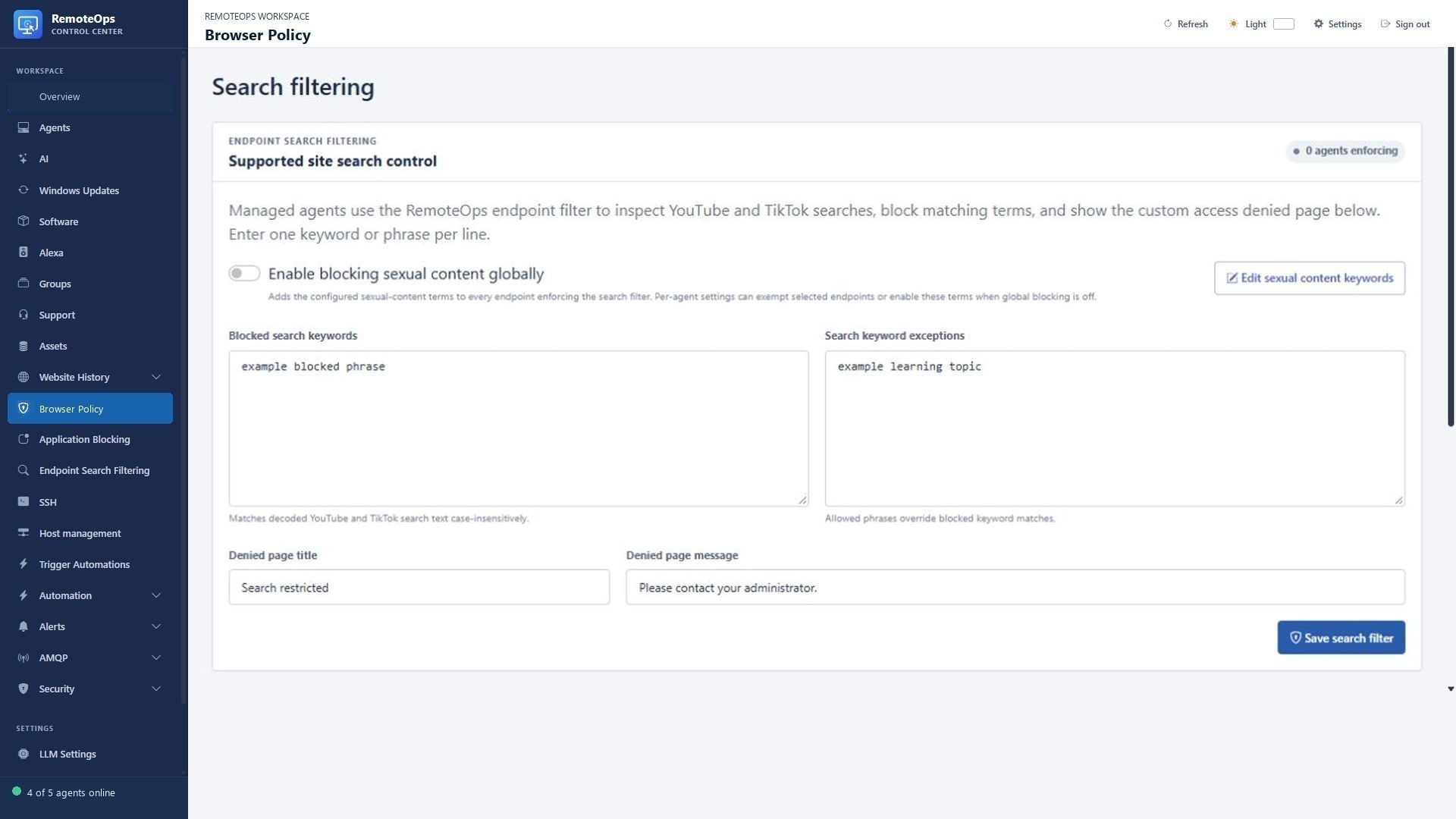
  • Filter supported YouTube and TikTok searches using keywords and exceptions.
  • Set the denied-page message and enforce the search filter per endpoint.
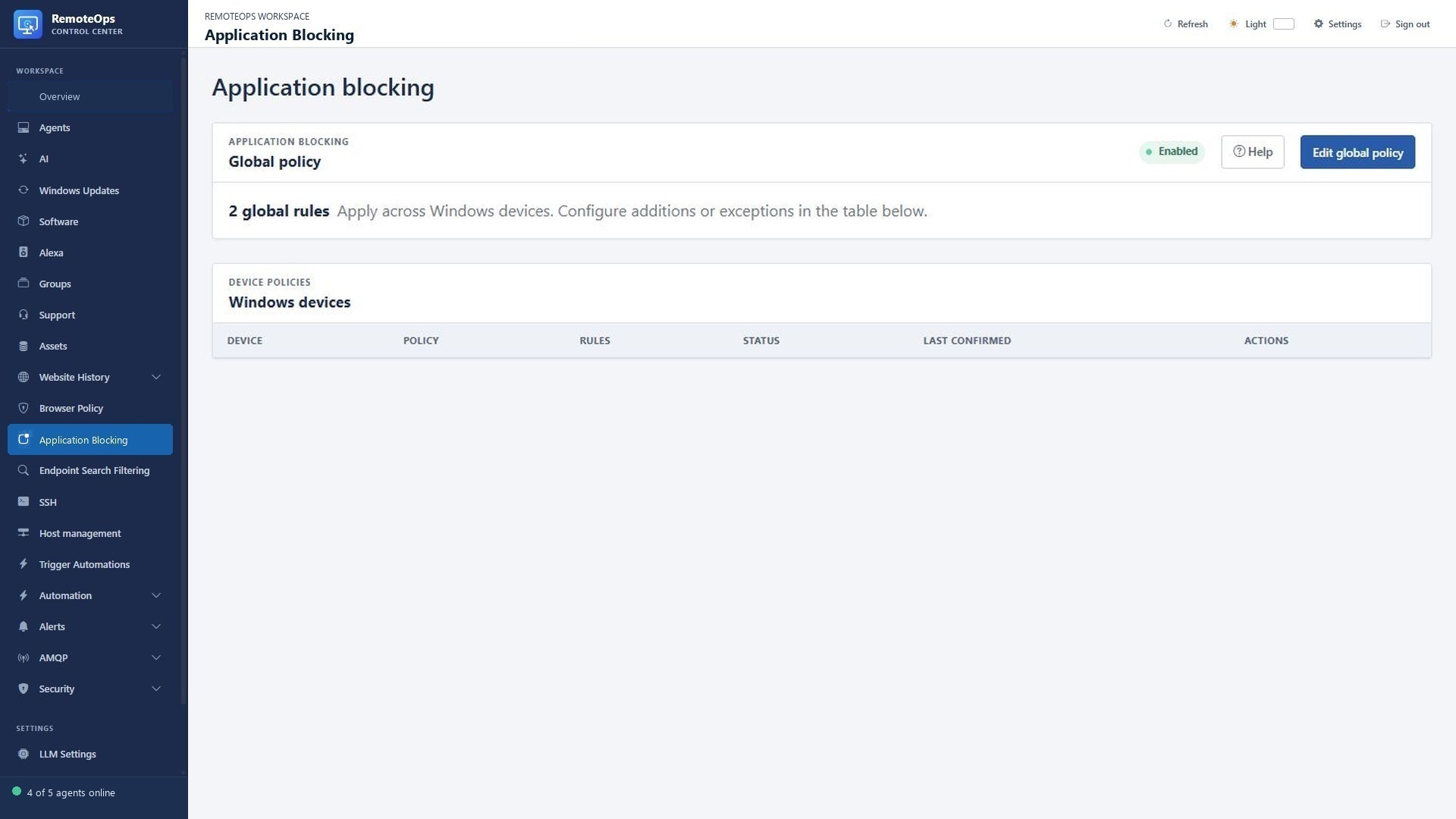
  • Apply supported Windows application blocking rules by executable, path, hash or packaged-app identity.
  • Enable or disable enforcement per endpoint while retaining its saved rules.
  • Combine global and device application policies with supported AppLocker executable, path, hash or packaged-app rules.
See screenshots and details ↓

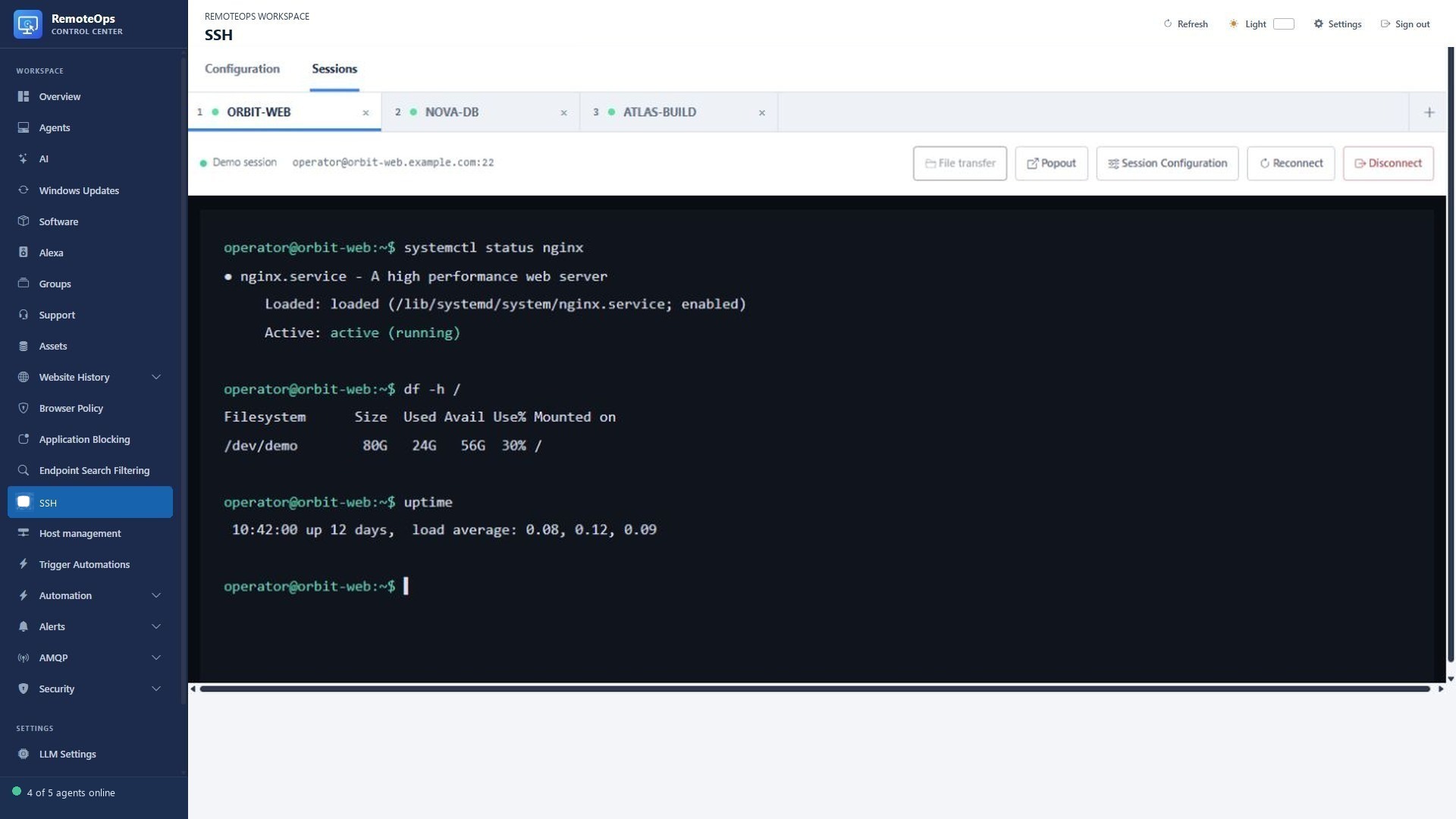
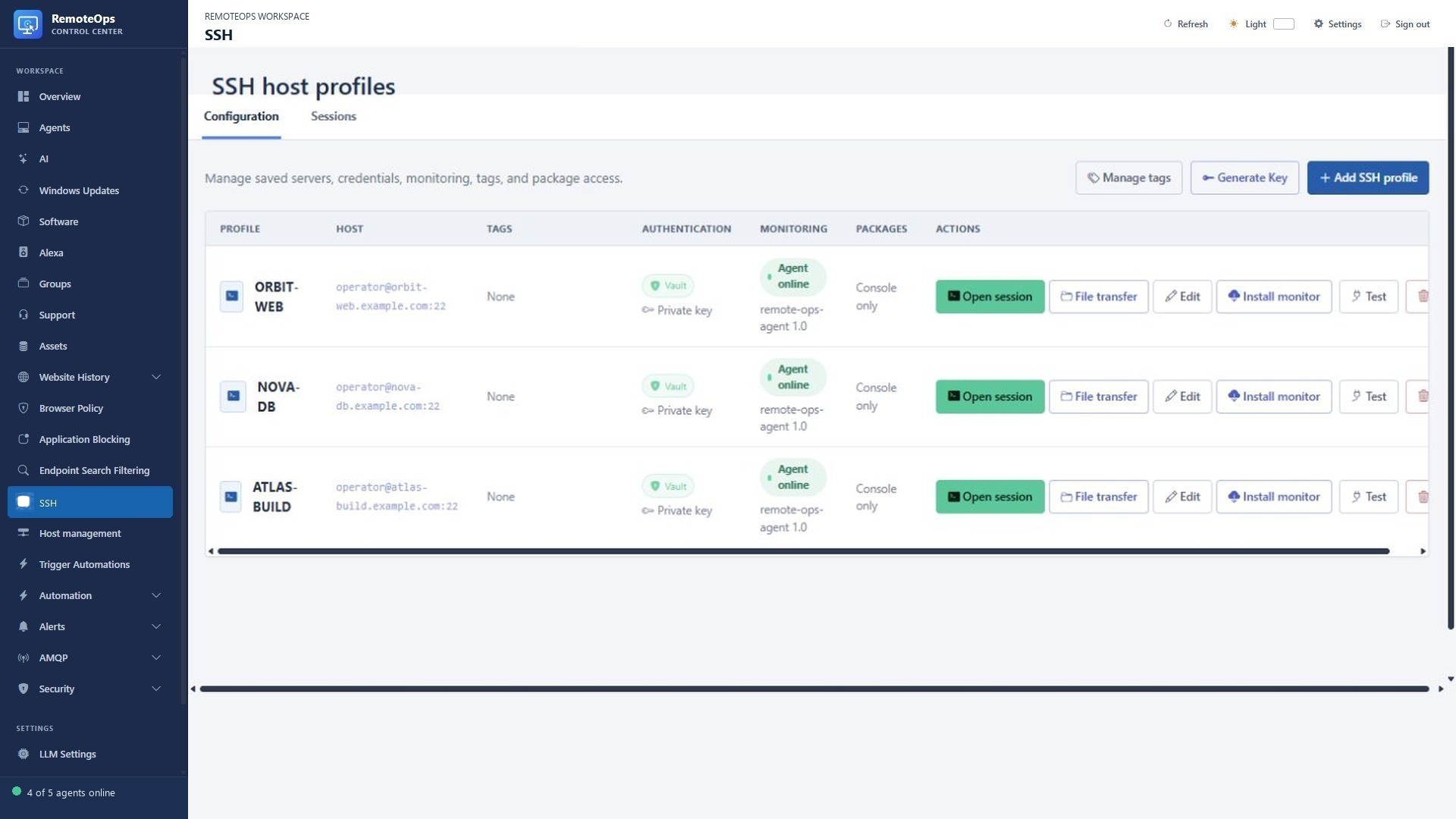
Administer Linux hosts in tabbed SSH sessions

  • Save named SSH profiles and open multiple terminal tabs.
  • Connect with encrypted saved credentials or request a password on connect.
  • Use SCP transfers alongside terminal work.
  • Run saved Bash and Python activities through eligible private-key SSH profiles.
  • Test saved connections and maintain known-host records.
  • Generate an Ed25519 key and install its public key on the selected host.
  • Save hostname aliases and import address/hostname mappings from CSV.
  • Pop out sessions and adjust terminal appearance.
See screenshots and details ↓

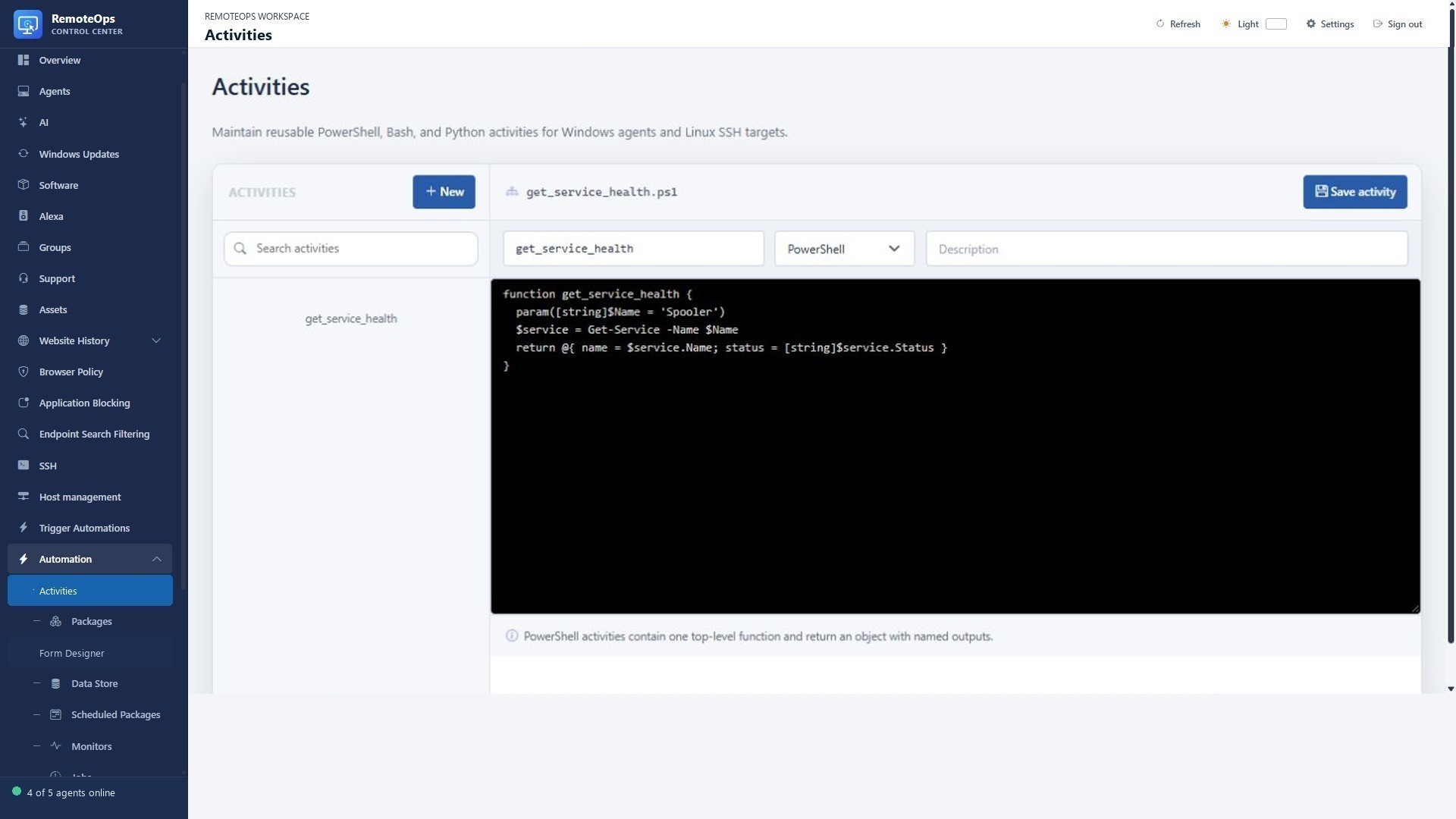
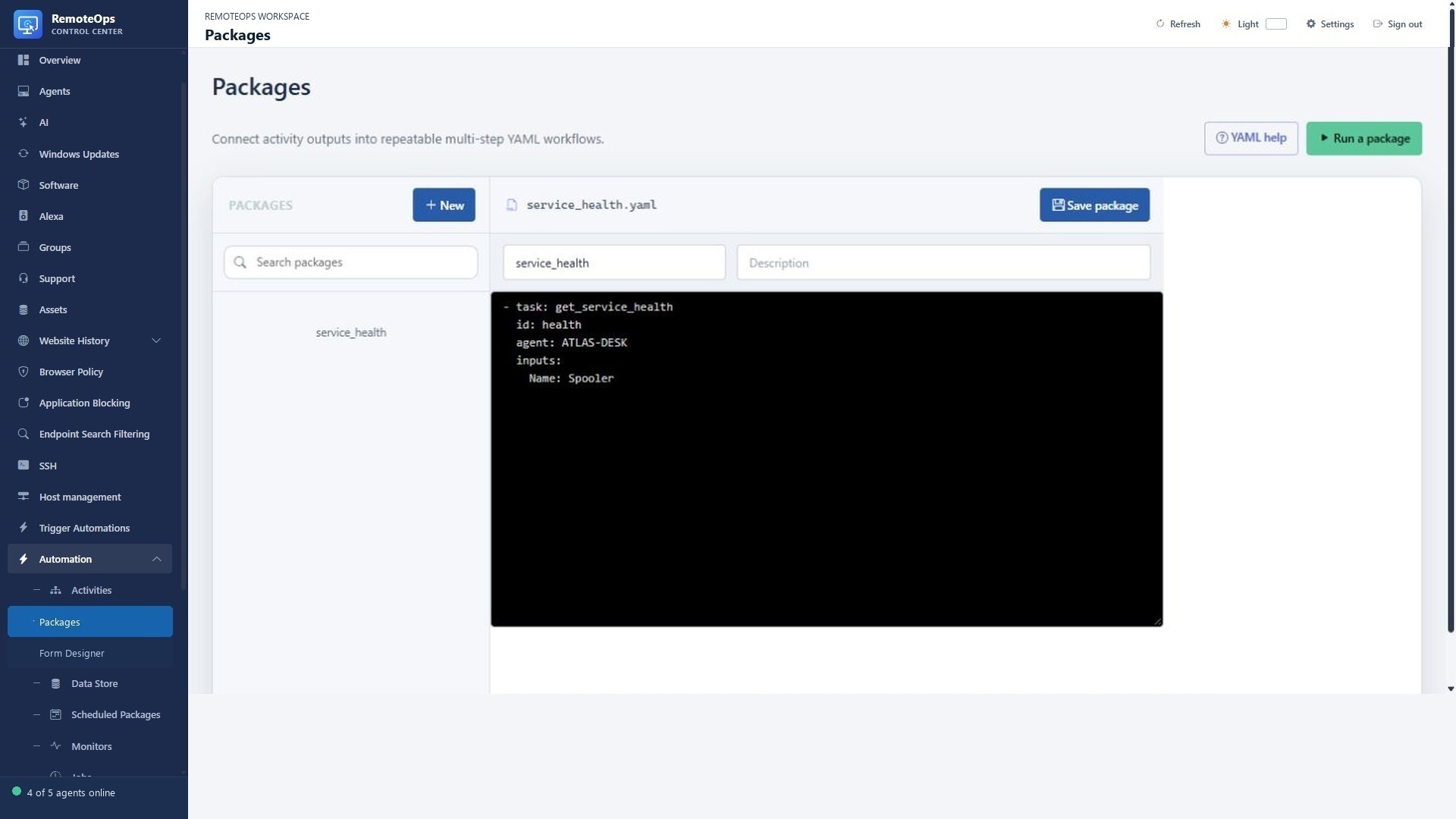
Turn scripts into repeatable workflows

  • Develop reusable PowerShell, Bash and Python activities.
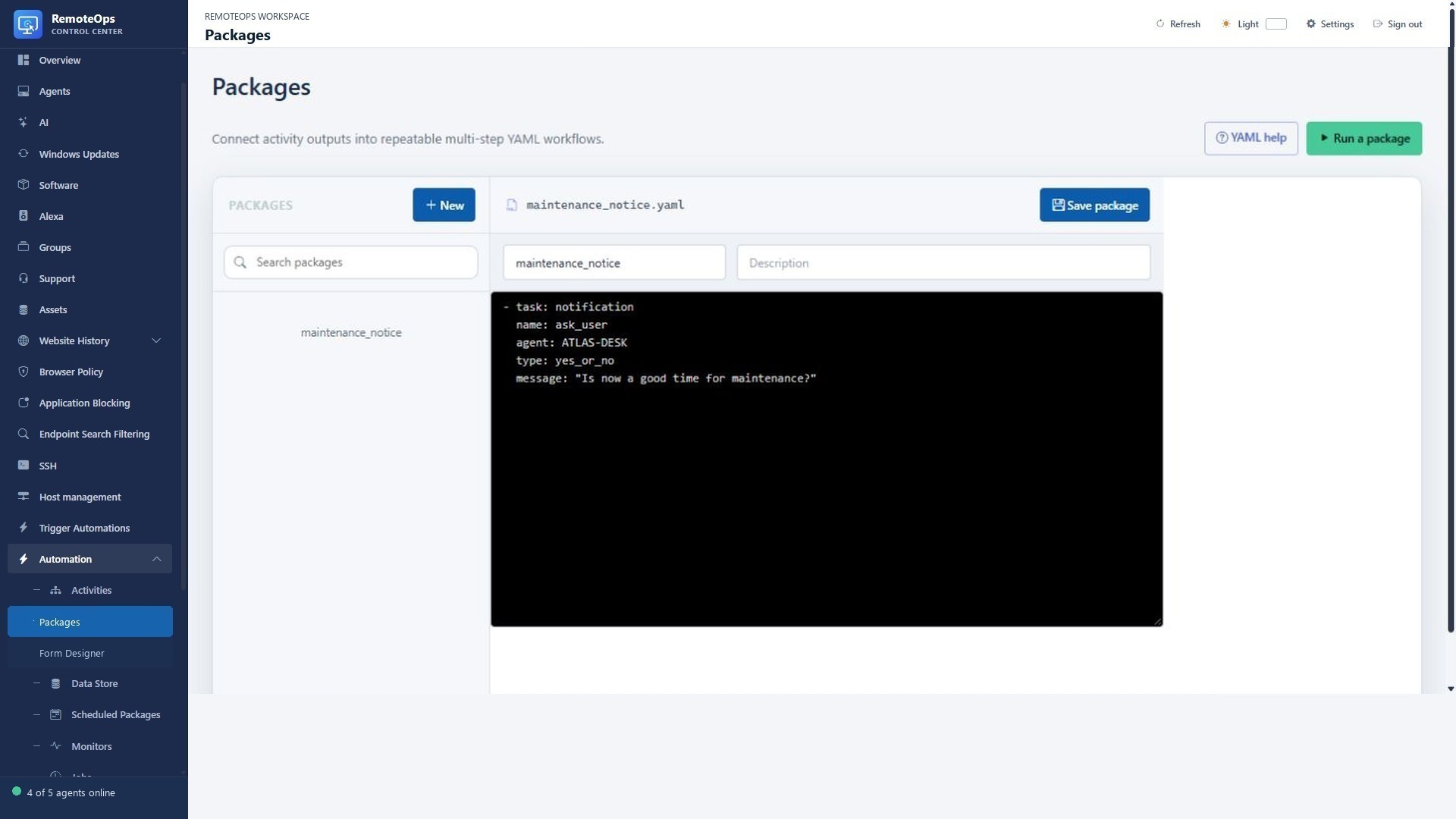
  • Connect tasks in YAML packages and pass structured outputs into later steps.
  • Use conditions, loops, parallel execution and explicit error handling.
  • Dispatch work to Windows agents and SSH hosts from the same package.
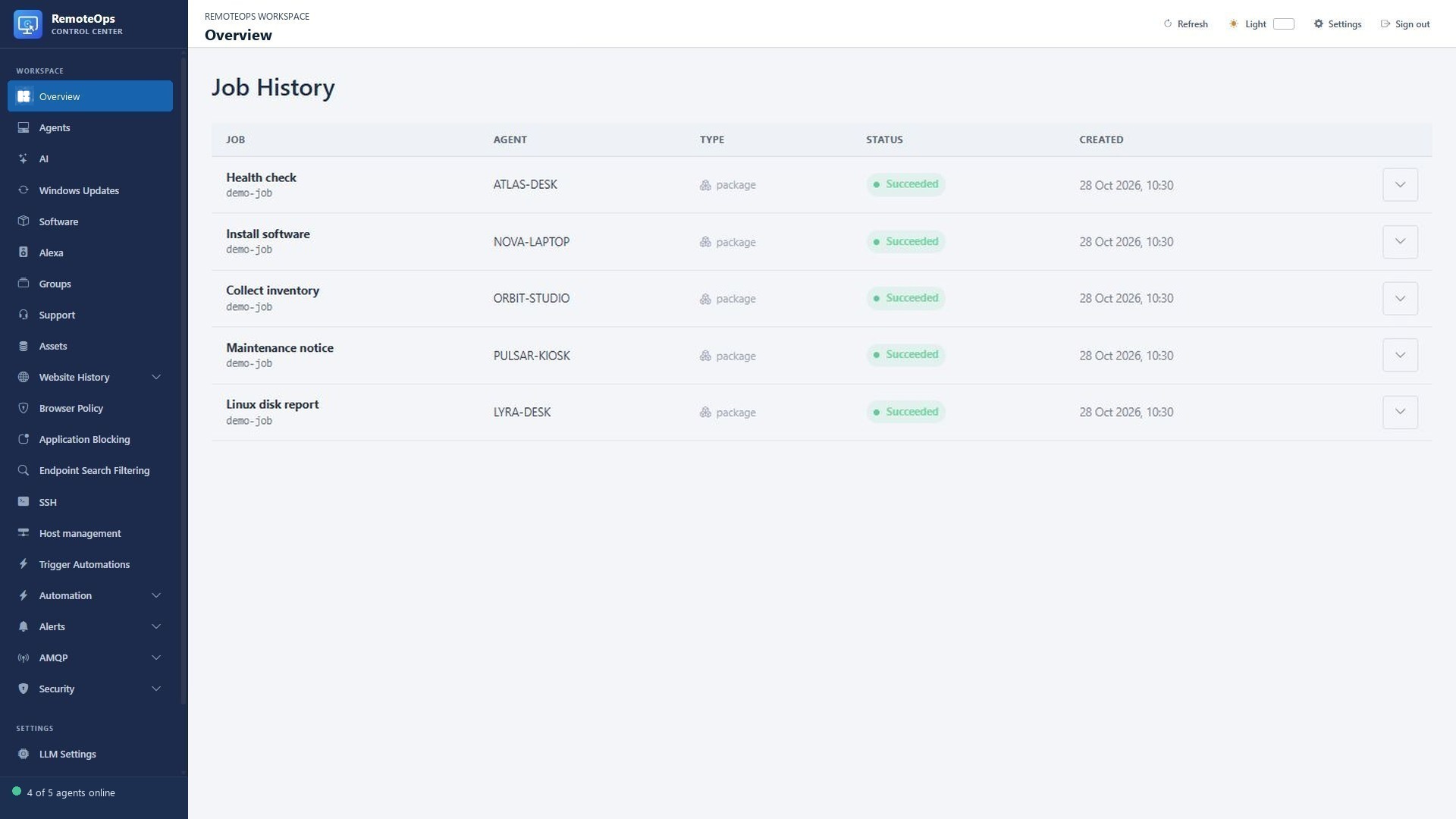
  • Review outputs and failures in Job History, then cancel or retry when needed.
  • Set task-level targets, execution context, conditional skips and explicit failure behavior.
  • Inspect stdout, stderr, JSON outputs, exit codes and task traces.
  • Retry a whole run or supported failed portions, and cancel running work.
  • Reuse supported embedded tasks instead of writing custom scripts for every integration.
See screenshots and details ↓

Build forms for your automation

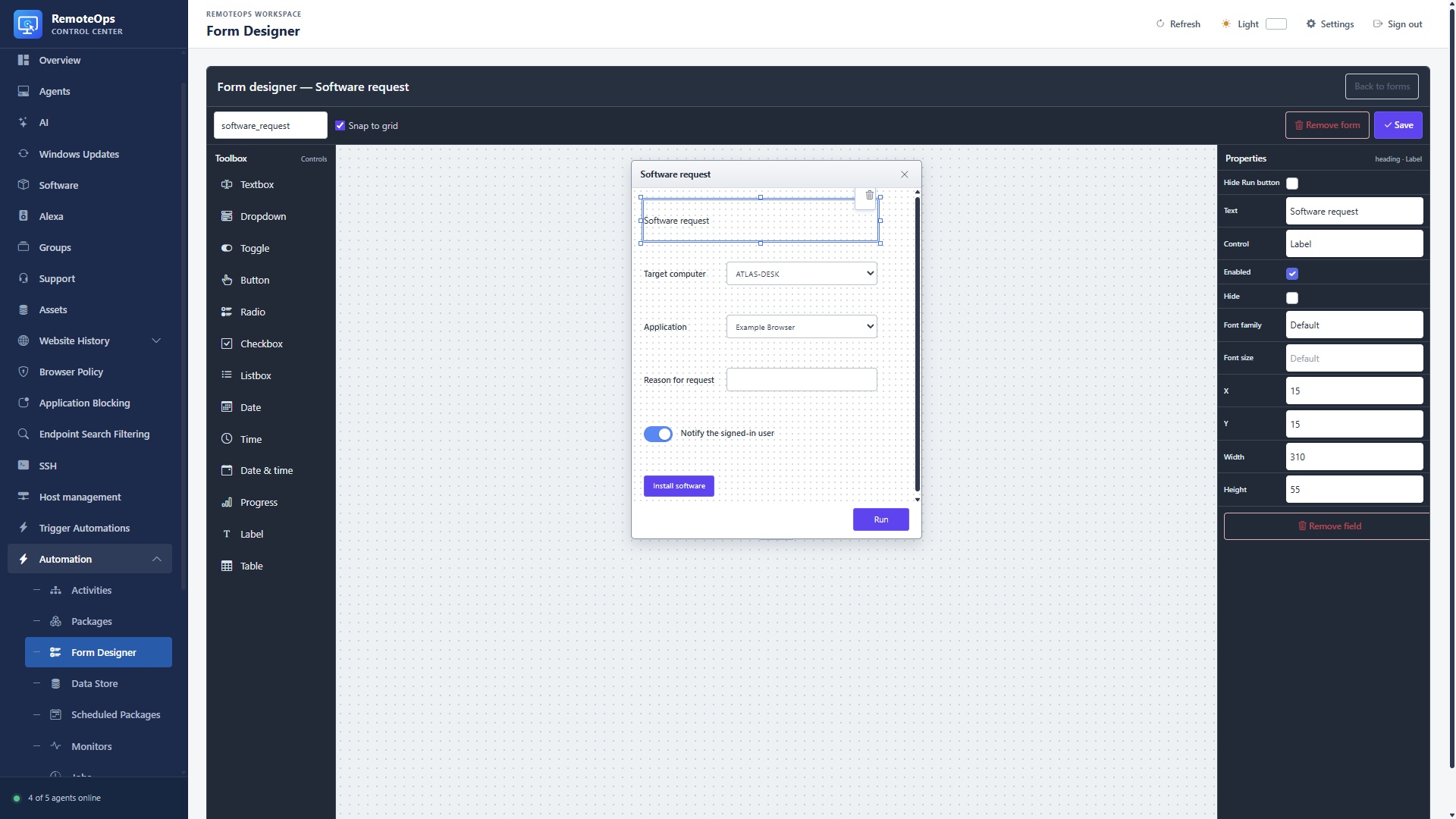
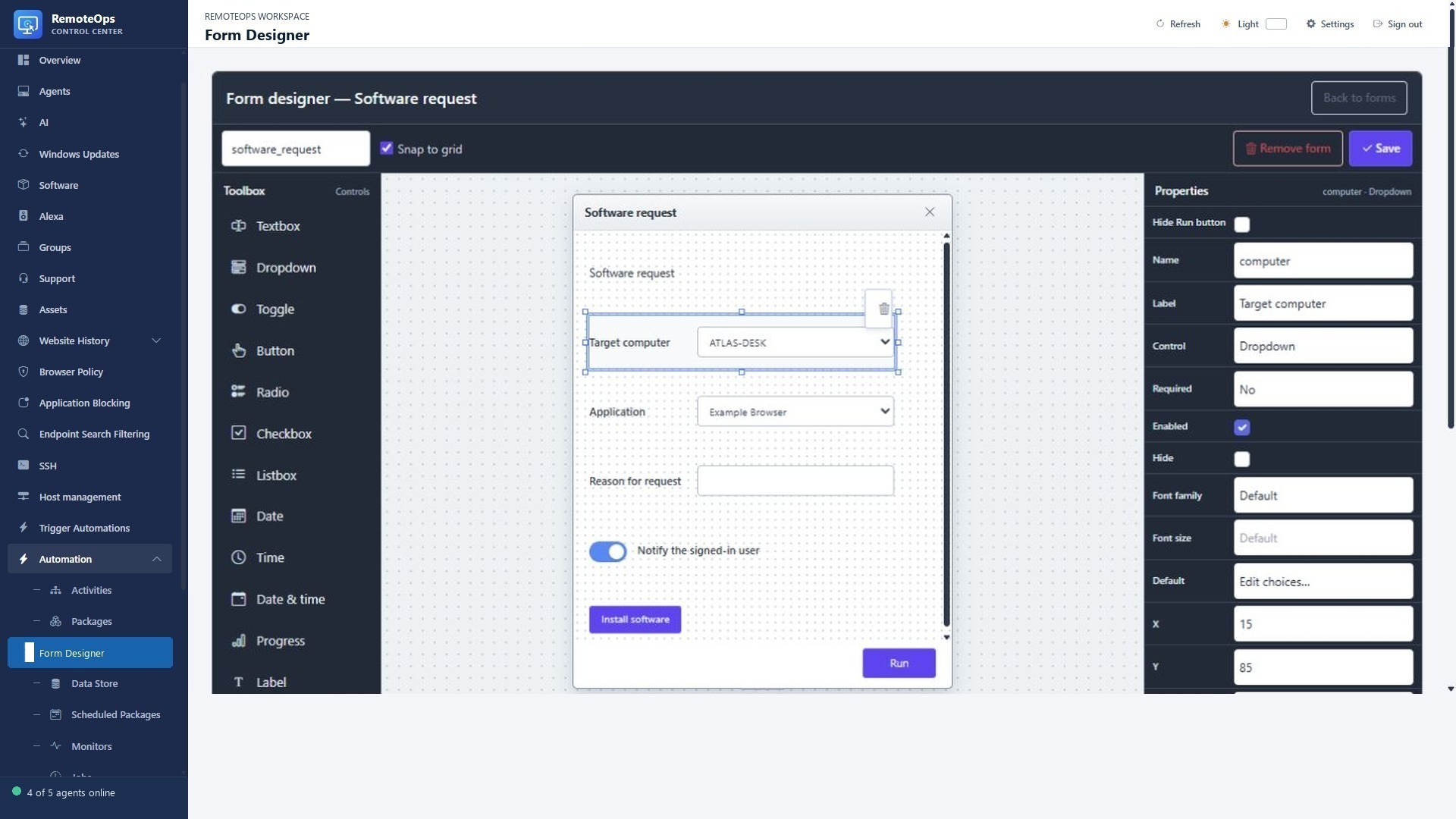
  • Use the visual Form Designer to place and resize controls.
  • Collect text, dropdowns, toggles, checkboxes, dates and times.
  • Display tables, progress and labels; populate choices from earlier outputs or activities.
  • Connect field changes and buttons to activities that update the form.
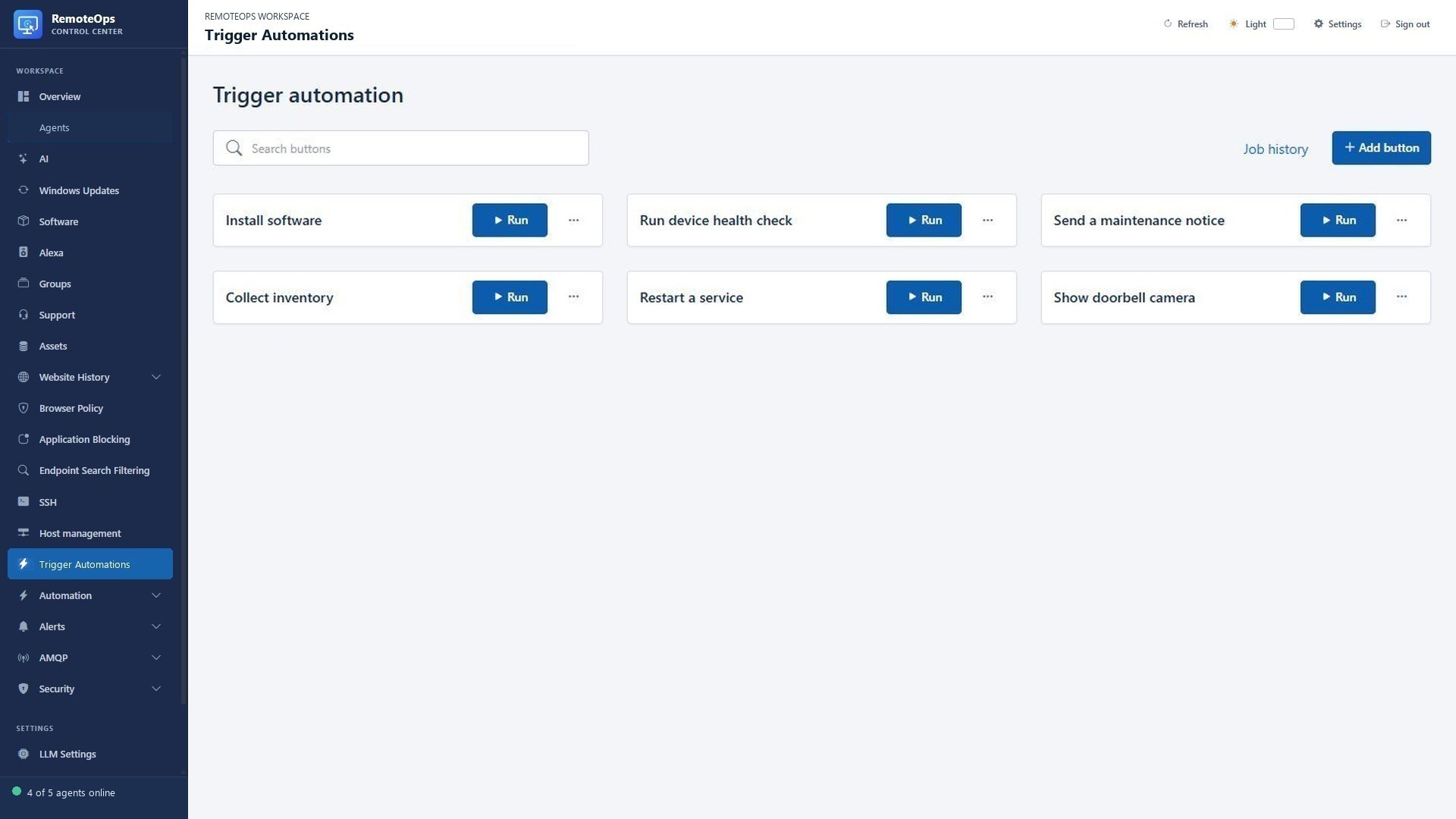
  • Expose the package as a named Trigger automation button.
  • Save designs in the form library and reuse them in packages.
  • Use radio/list selections, tables, progress indicators, labels and date/time controls.
  • Load choices from fixed JSON, earlier outputs or activity-driven queries.
  • Change visibility, required state, enabled state, fonts and geometry for individual controls.
See screenshots and details ↓

Notify users and act on their replies

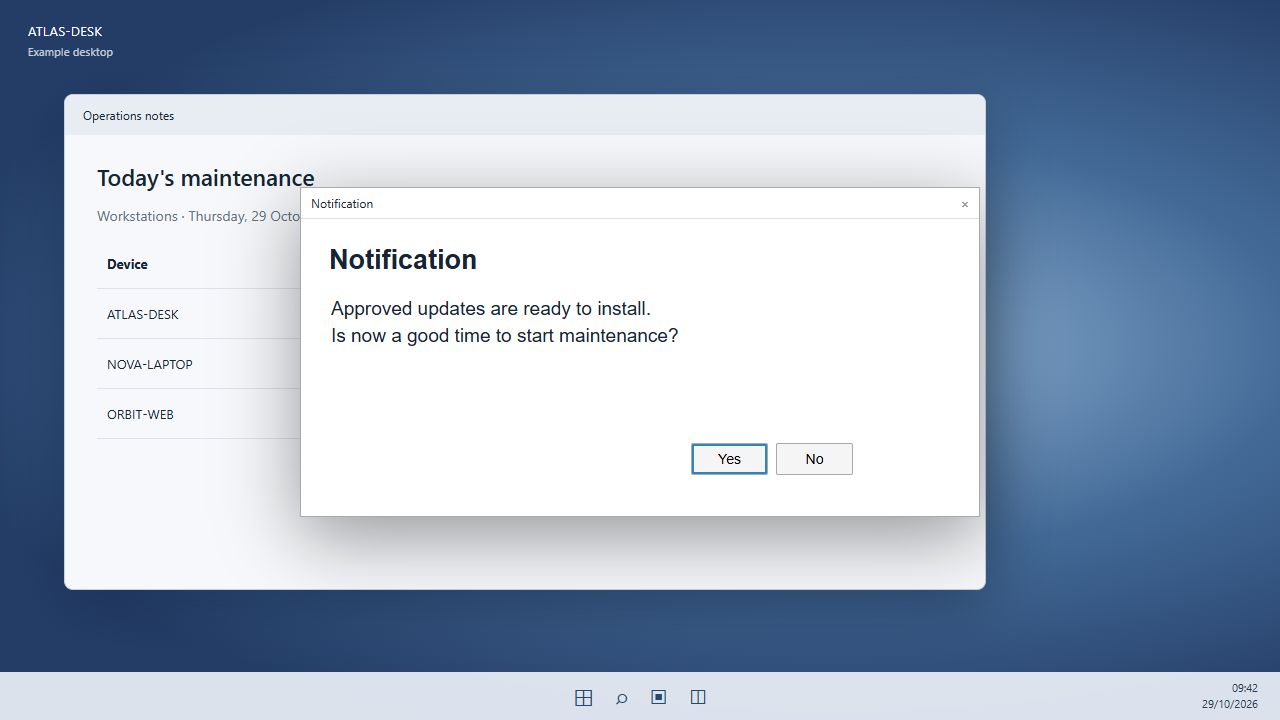
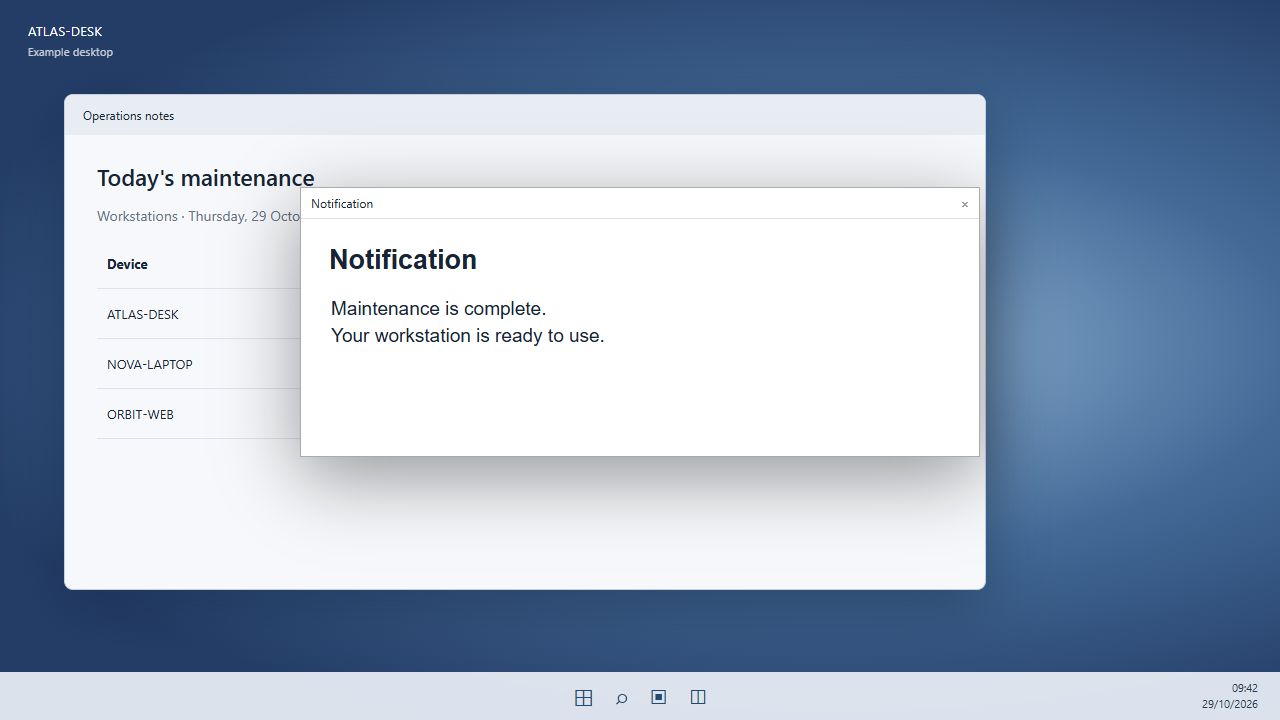
  • Send a Windows notification or a large desktop notice.
  • Ask a Yes/No question and branch on Yes, No or no reply.
  • Pause a workflow for the signed-in user’s decision before the next step.
  • Send plain-text or HTML reports with To, CC and BCC.
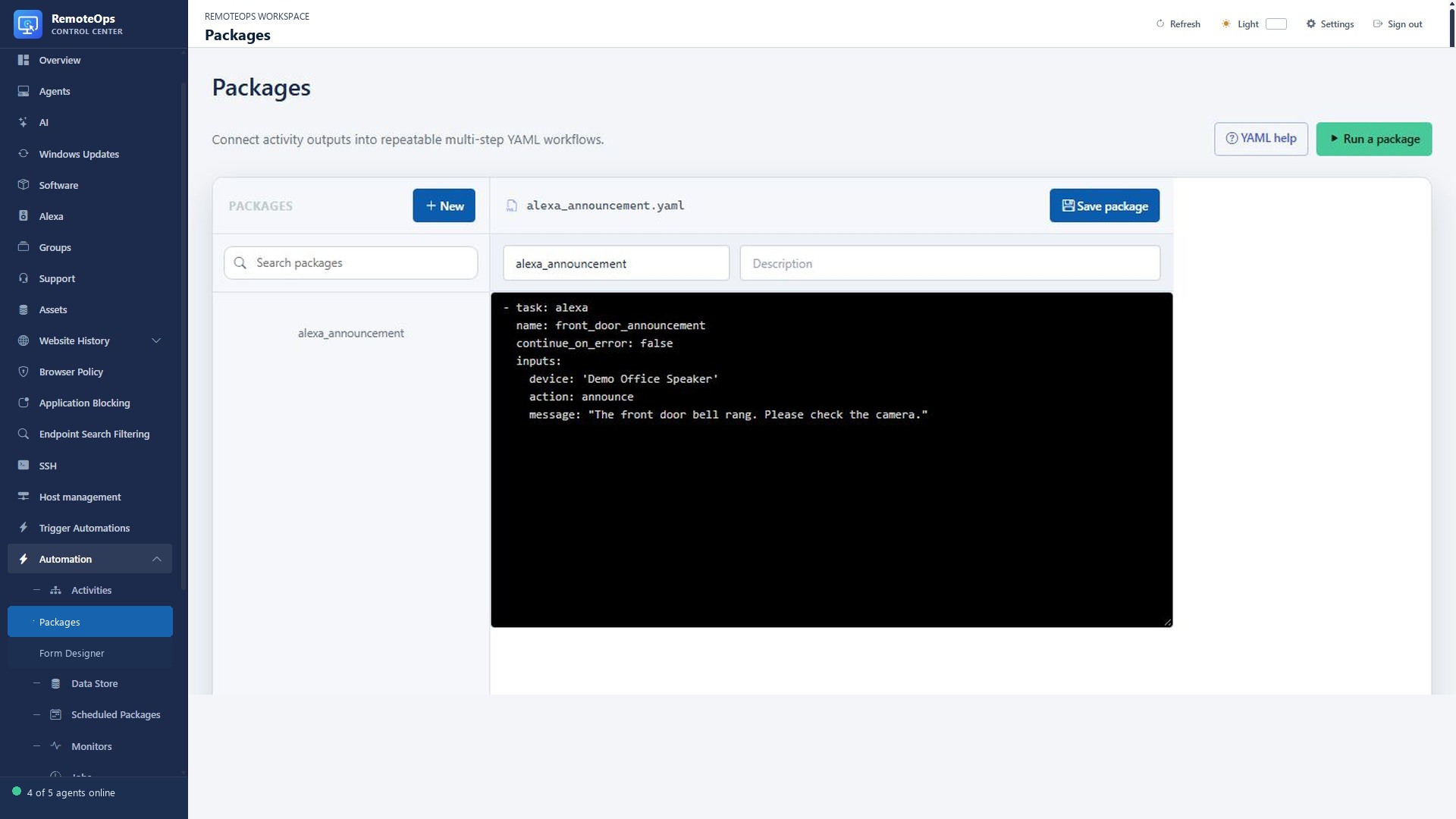
  • Use supported Alexa announcements as part of a saved package.
See screenshots and details ↓

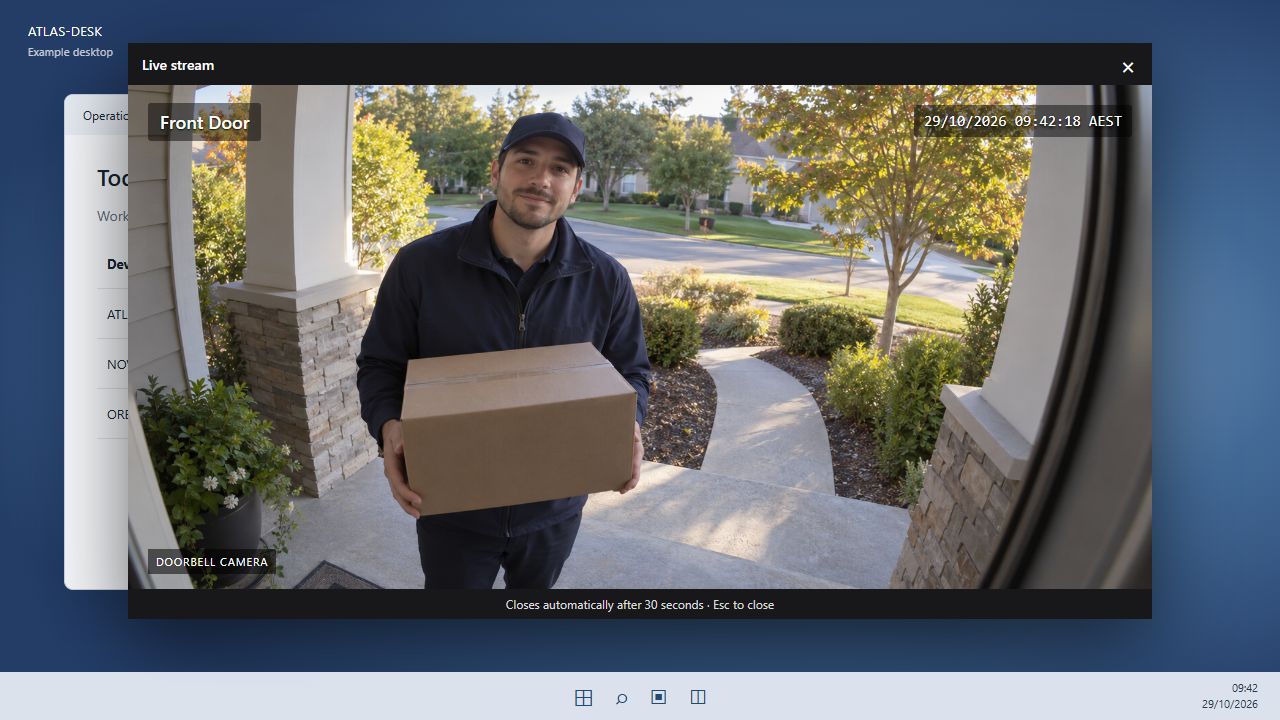
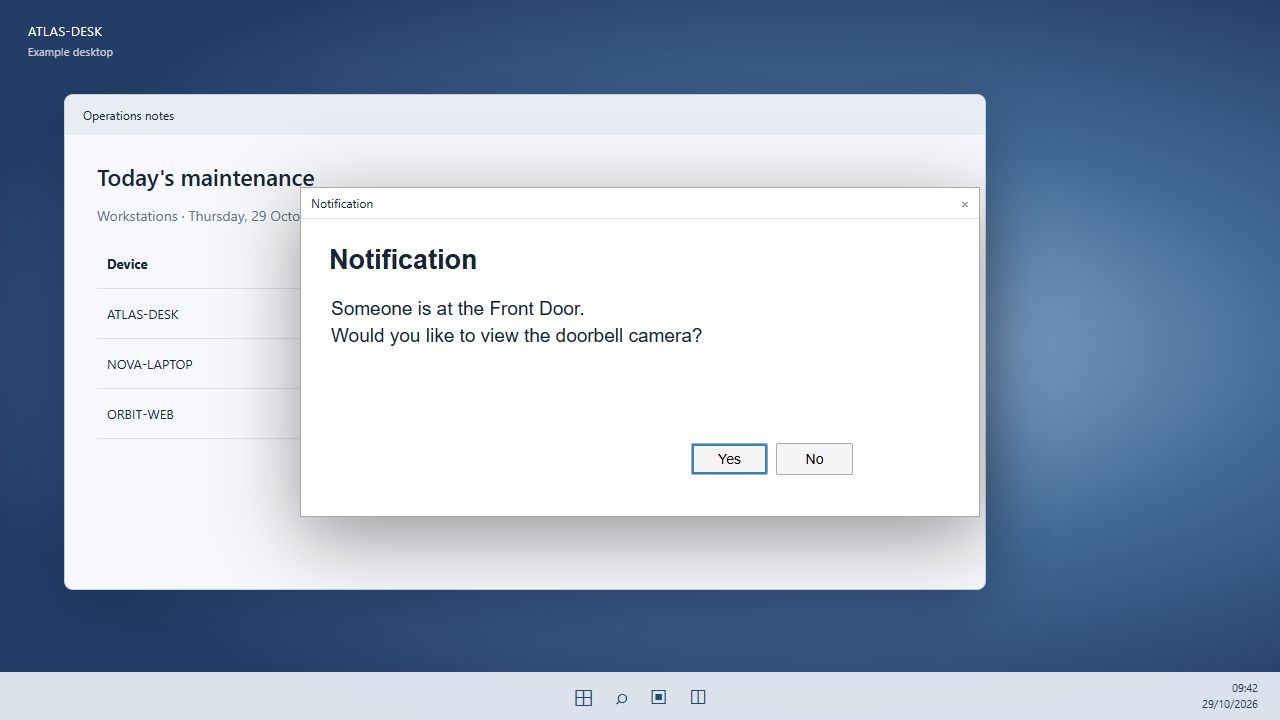
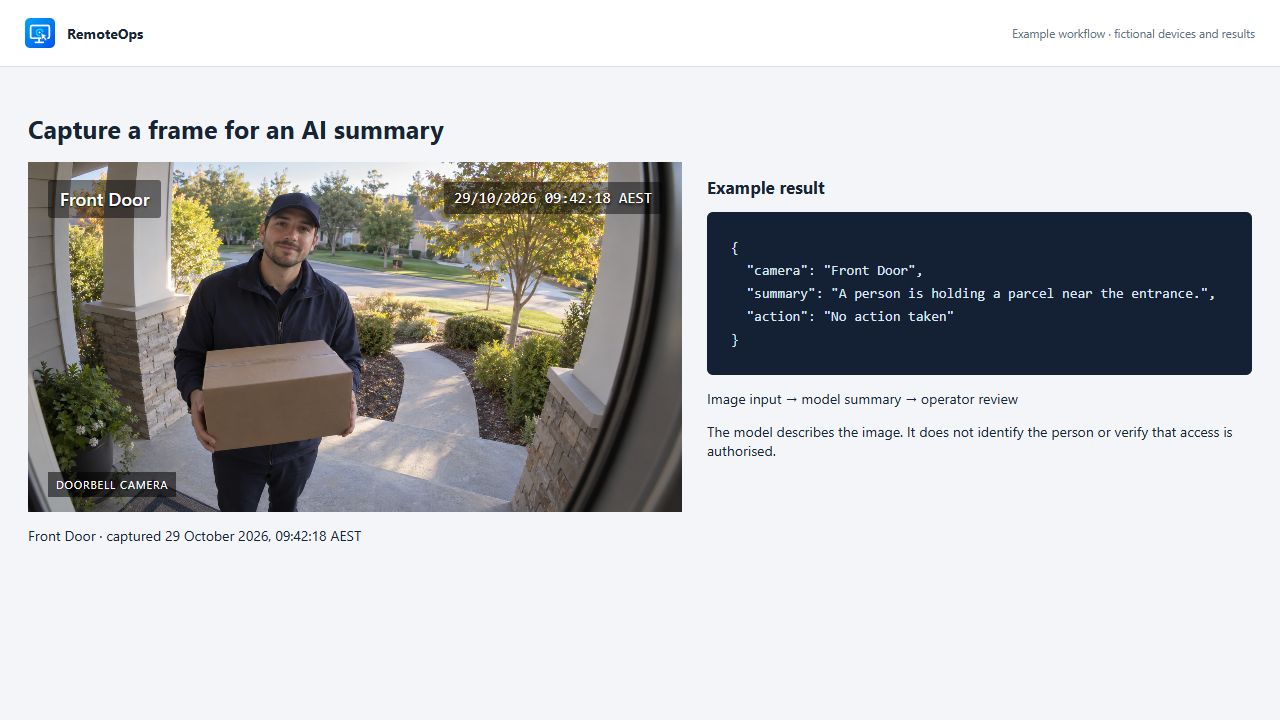
Show doorbell camera streams and capture frames

  • Display a timed RTSPS camera window on a selected Windows desktop.
  • Play a local doorbell sound and suppress events that arrive too late.
  • Ask whether to view the Front Door feed before opening it.
  • Capture a single RTSP/RTSPS frame for a report or an image-capable AI model.
See screenshots and details ↓

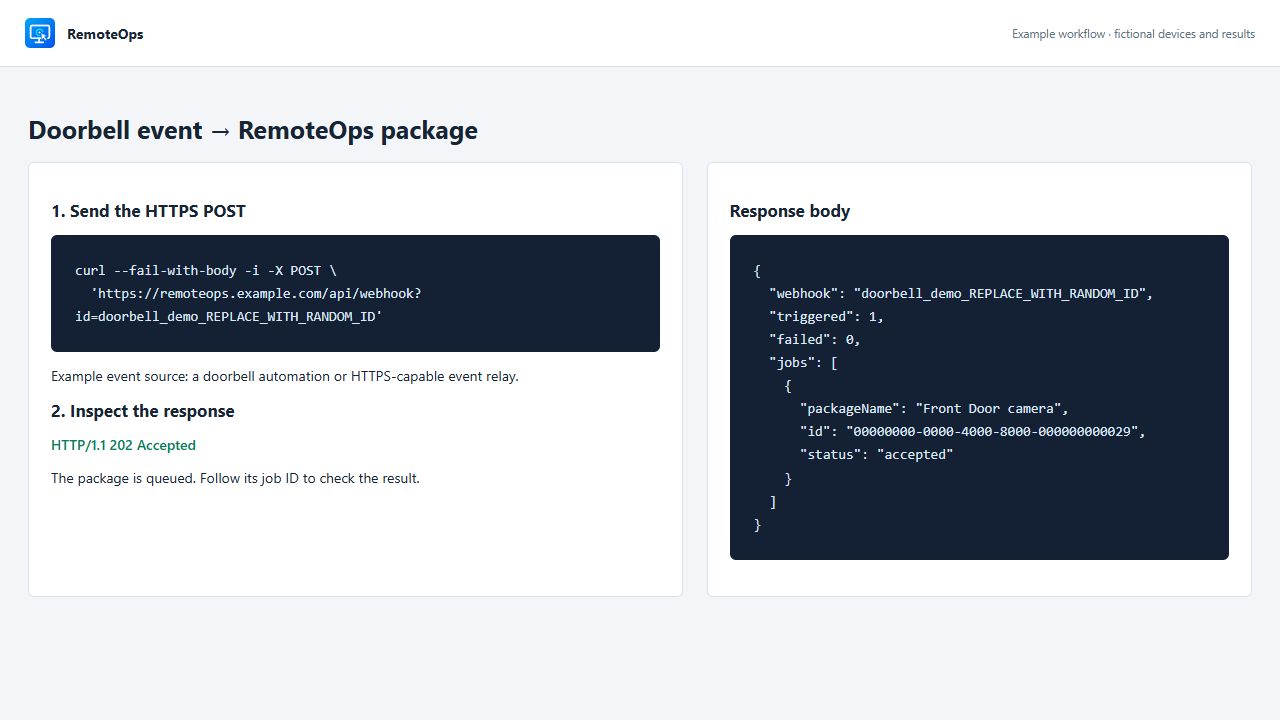
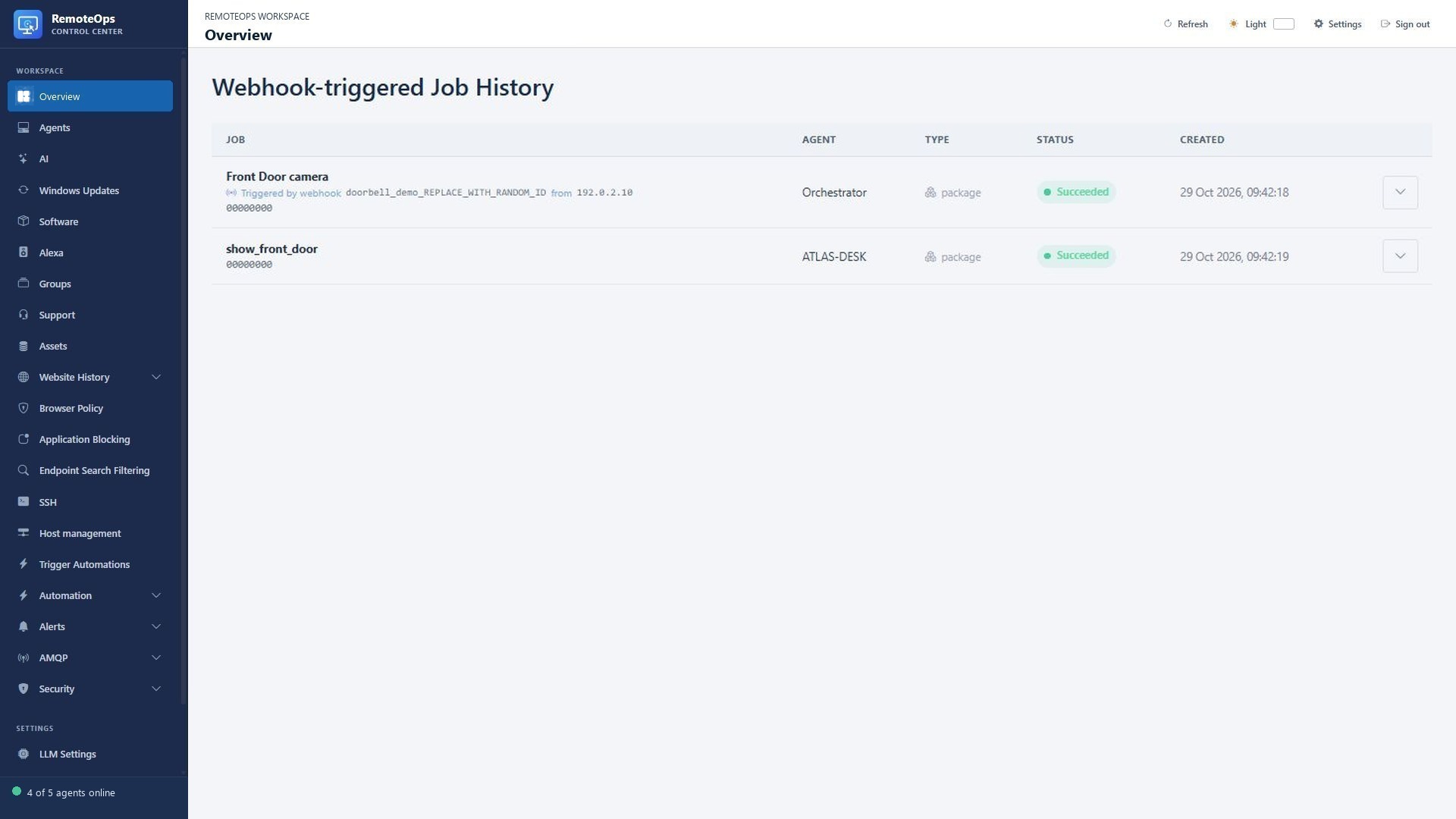
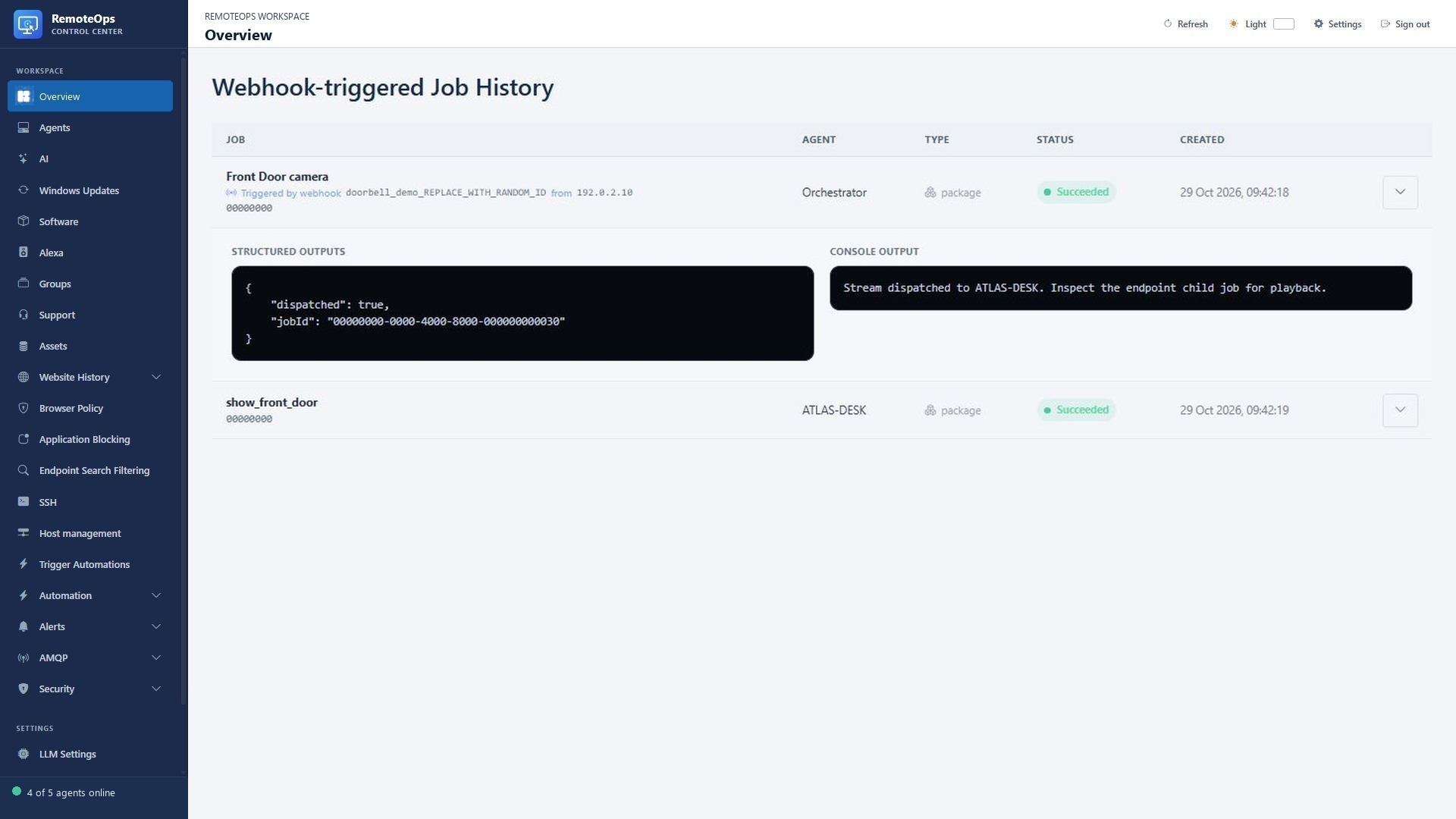
Trigger workflows from external events

  • Start saved packages with an HTTPS webhook from a doorbell relay or another event source.
  • Match one identifier to one or more saved packages.
  • Read the accepted-job response, then follow the job result in the portal.
  • Use documented curl, PowerShell and Python examples to build the integration.
See screenshots and details ↓

Build with the embedded task library

  • Use camera capture, model analysis, notifications, live streams, email and Alexa tasks.
  • Query agents, read Key Vault values and persist non-secret package data.
  • Add forms, waits, conditions, jumps, stop steps and event-driven responses.
  • Run inline Bash/Python over SSH, coordinator-side PowerShell and managed software operations.
  • Follow the complete built-in task directory for targets, fields, examples and output contracts.
See screenshots and details ↓

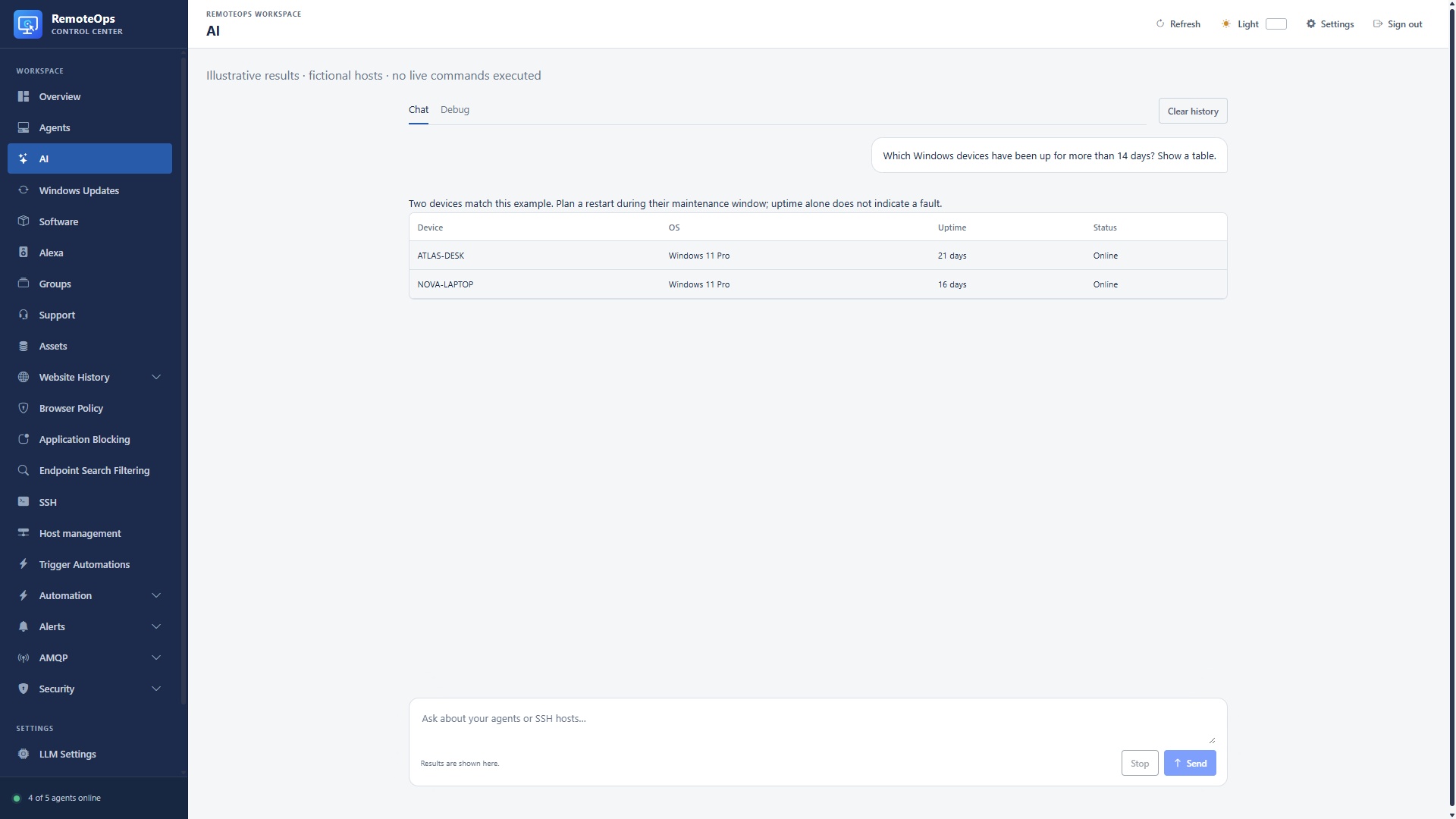
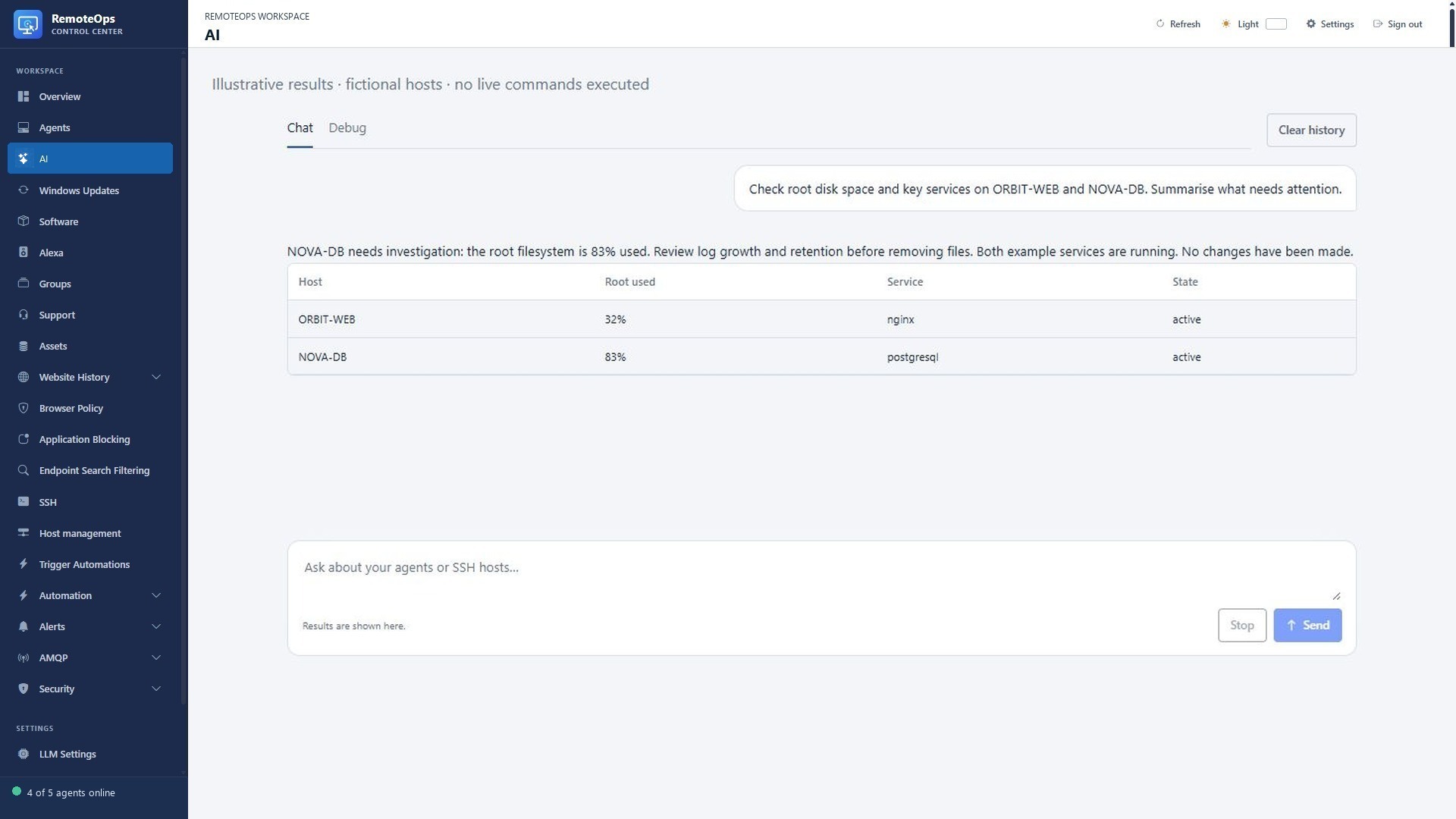
Use AI tools for Windows and Linux administration

  • Ask which Windows devices have long uptimes, missing inventory or a particular application.
  • Check Linux disk usage and services; ask for a summary of diagnostic output.
  • Find an existing package or Trigger automation and run it on a named target.
  • Search and inspect files, review jobs and prepare reusable scripts or packages.
  • Present findings in sortable tables and export supported results.
  • Add model analysis, structured JSON or image inputs to a package with the LLM task.
  • List Windows services and processes, inspect startup programs and search event logs.
  • Find large files with bounded disk-usage analysis and run targeted network diagnostics.
  • Restart an exact Windows service or stop a selected process with the supported scoped tools.
  • Check, install, schedule or cancel supported Windows update operations.
  • Schedule a one-shot reboot or a saved script, and inspect or cancel supported schedules.
  • Search the software catalogue and request supported software-management operations.
  • Create files or folders, inspect file metadata and refresh software inventory.
  • Create reusable scripts and packages, inspect existing definitions and follow job results.
See screenshots and details ↓

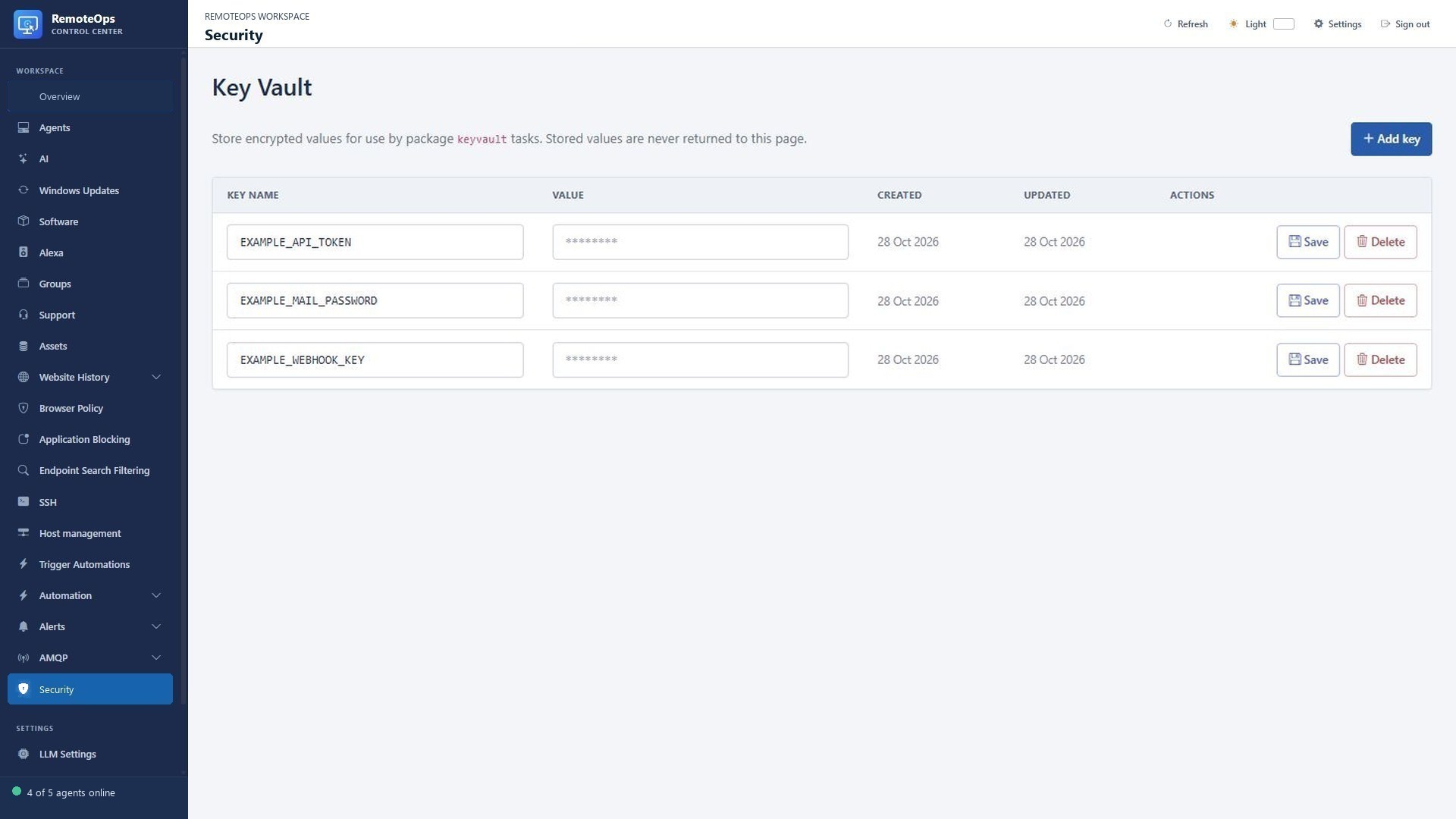
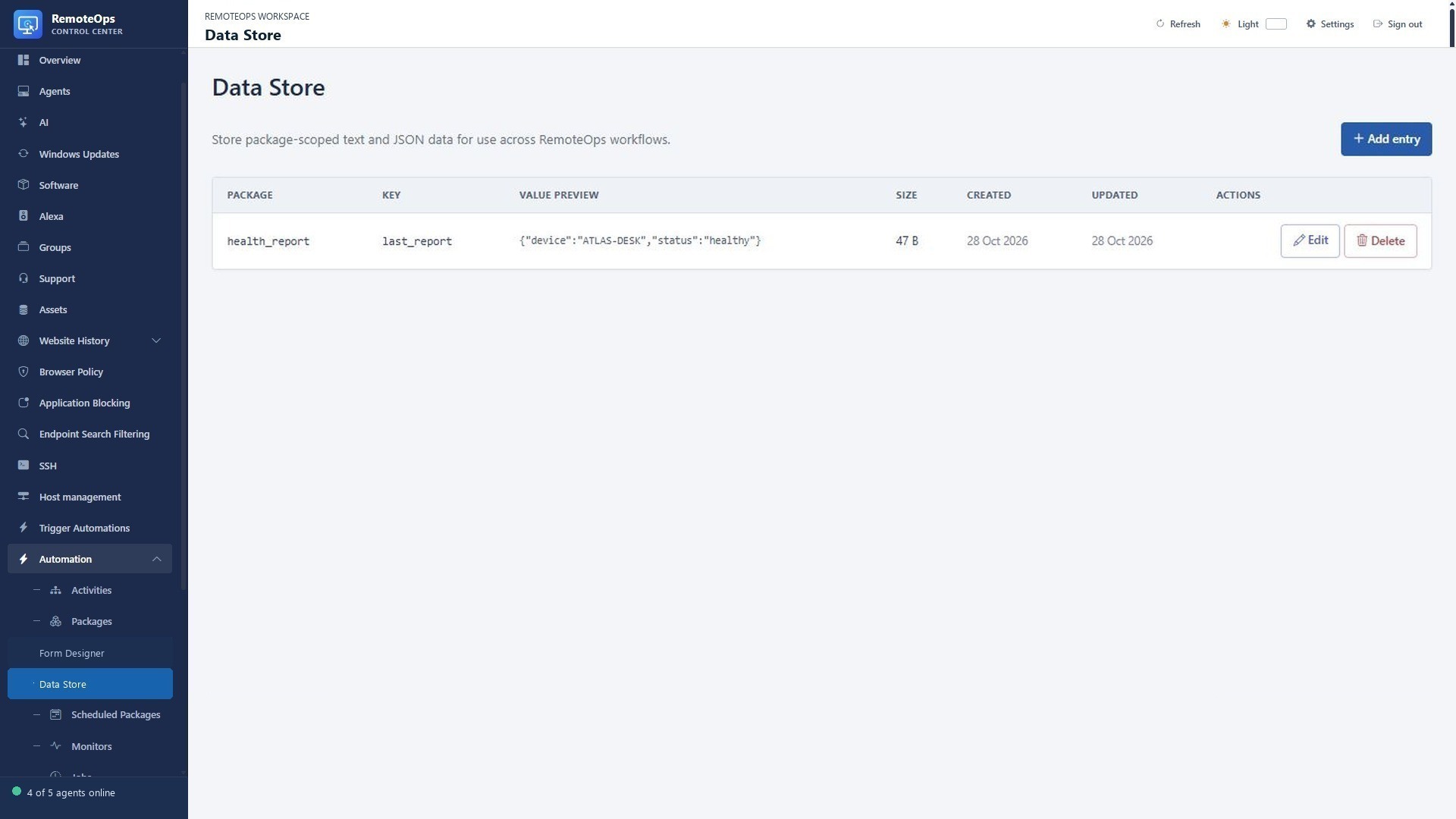
Keep workflow secrets and shared data organised

  • Read encrypted Key Vault values from packages without displaying their stored contents in the list.
  • Save non-secret package state as text or JSON in Data Store.
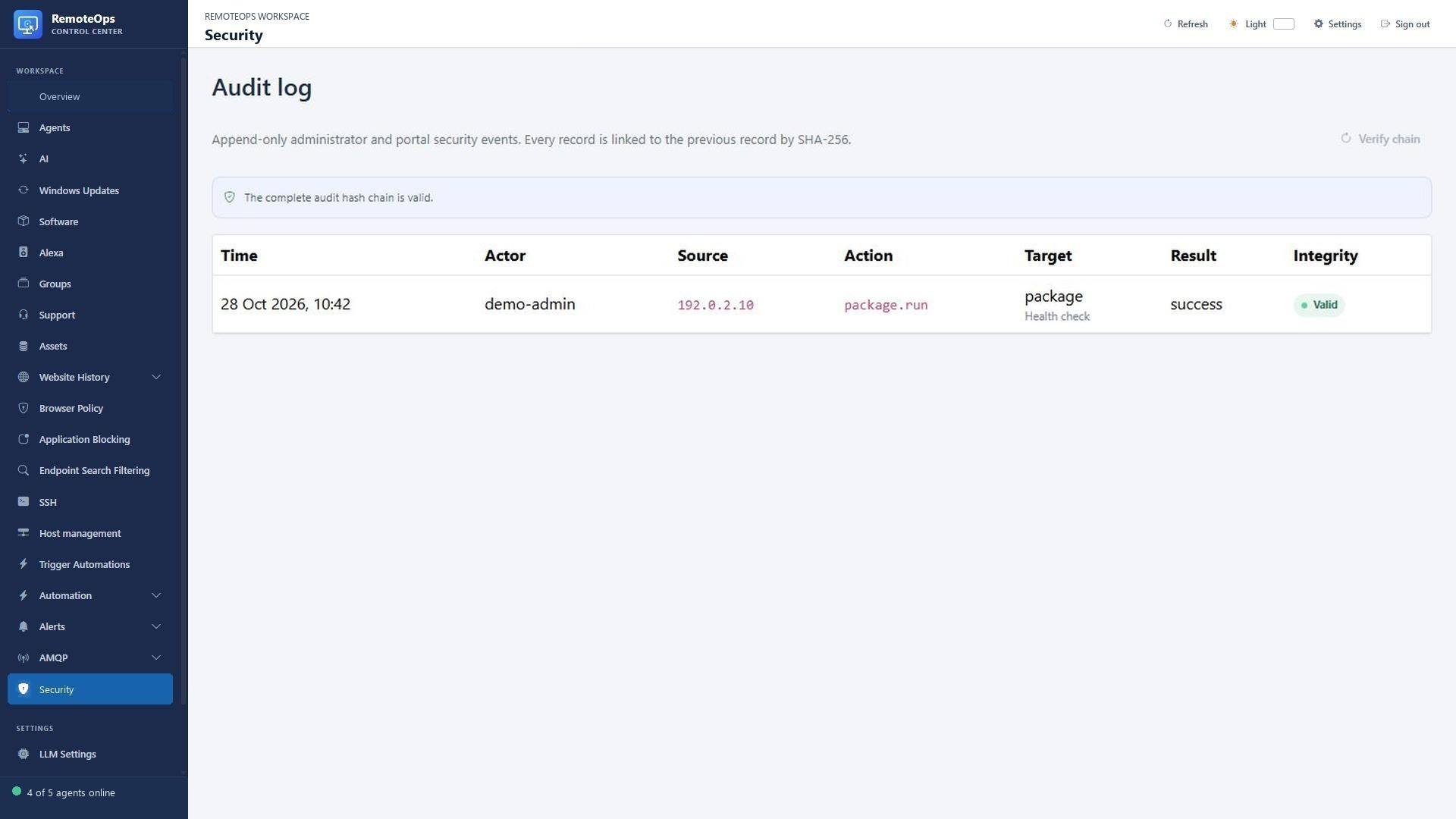
  • Review administrator events and audit-chain integrity.
  • Use encrypted credential export and restore for supported keys and profile metadata.
  • Read, add or delete Key Vault entries using the supported package task.
  • Keep separate Data Store namespaces for reusable text and JSON across package runs.
See screenshots and details ↓

Install the agent and connect your first device

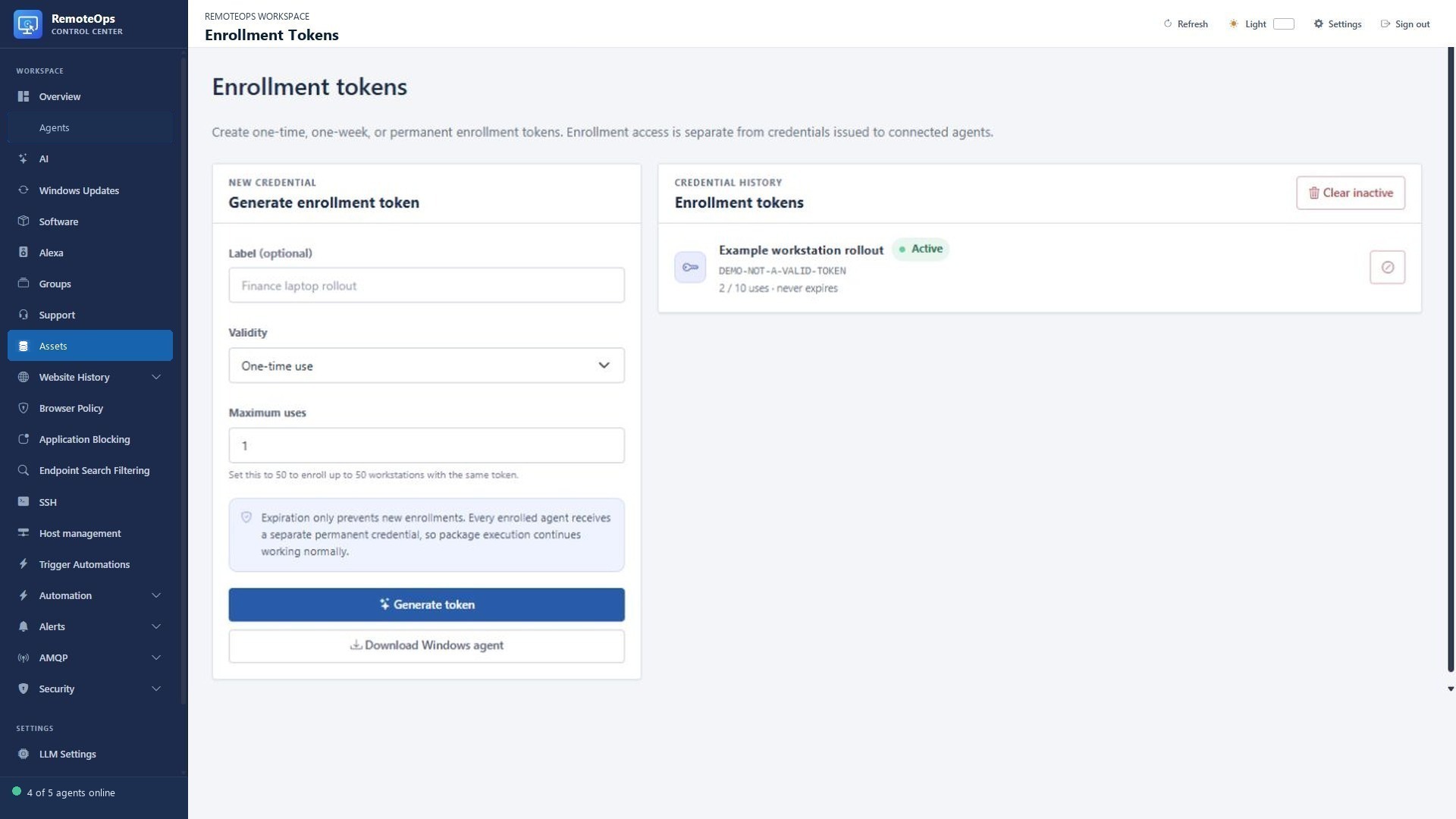
  • Create an enrollment token in your own RemoteOps tenant. Choose its validity and usage limit.
  • Download the Windows agent from the tenant’s downloads page.
  • Run the installer with administrator rights, supply the tenant address and enrollment token, and select the device name and group.
  • Confirm the device appears online in Agents, then open its inventory or first remote session.
  • Deploy unattended with the same executable and documented command-line options.
  • Use one-time, expiring or usage-limited enrollment codes.
  • Assign a default device group during interactive or unattended enrollment.
See screenshots and details ↓

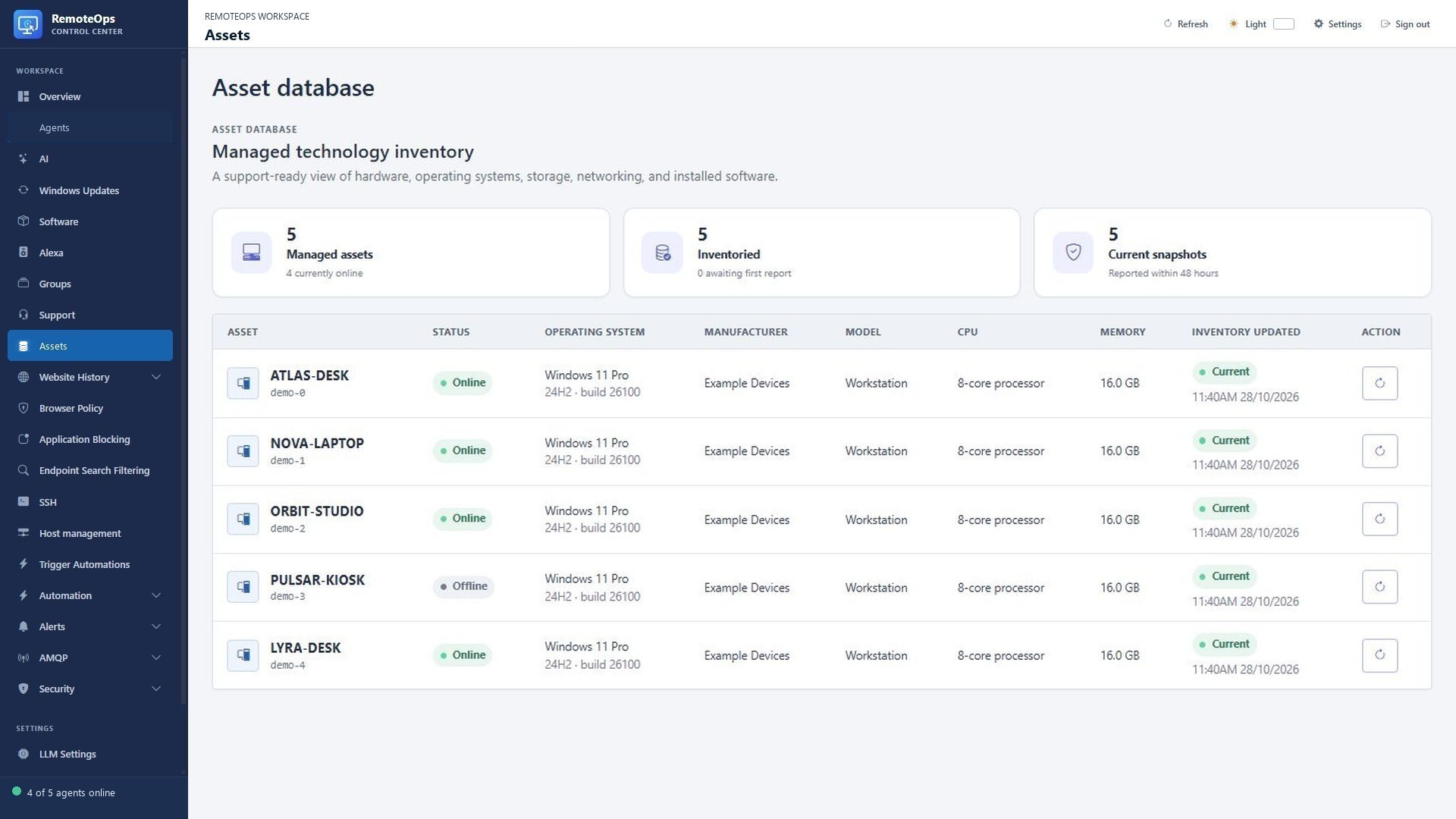
Inspect hardware and software inventory

  • Review operating system, version/build, manufacturer, model, CPU and installed memory.
  • Inspect storage drives, network adapters and installed software in the device inventory.
  • Check inventory timestamps and freshness before relying on a snapshot.
  • Request a fresh inventory collection from the portal.
See screenshots and details ↓

Transfer and manage remote files

  • Browse local and remote folders in separate panes.
  • Upload and download individual Windows files up to 2 GB.
  • Download multiple selected remote files.
  • Rename, move and permanently delete remote files or folders.
  • Drag selected entries onto supported destination folders.
  • Retry interrupted uploads and recover progress within the session.
  • Use SCP transfers for SSH hosts alongside terminal sessions.
See screenshots and details ↓

Schedule scripts and packages

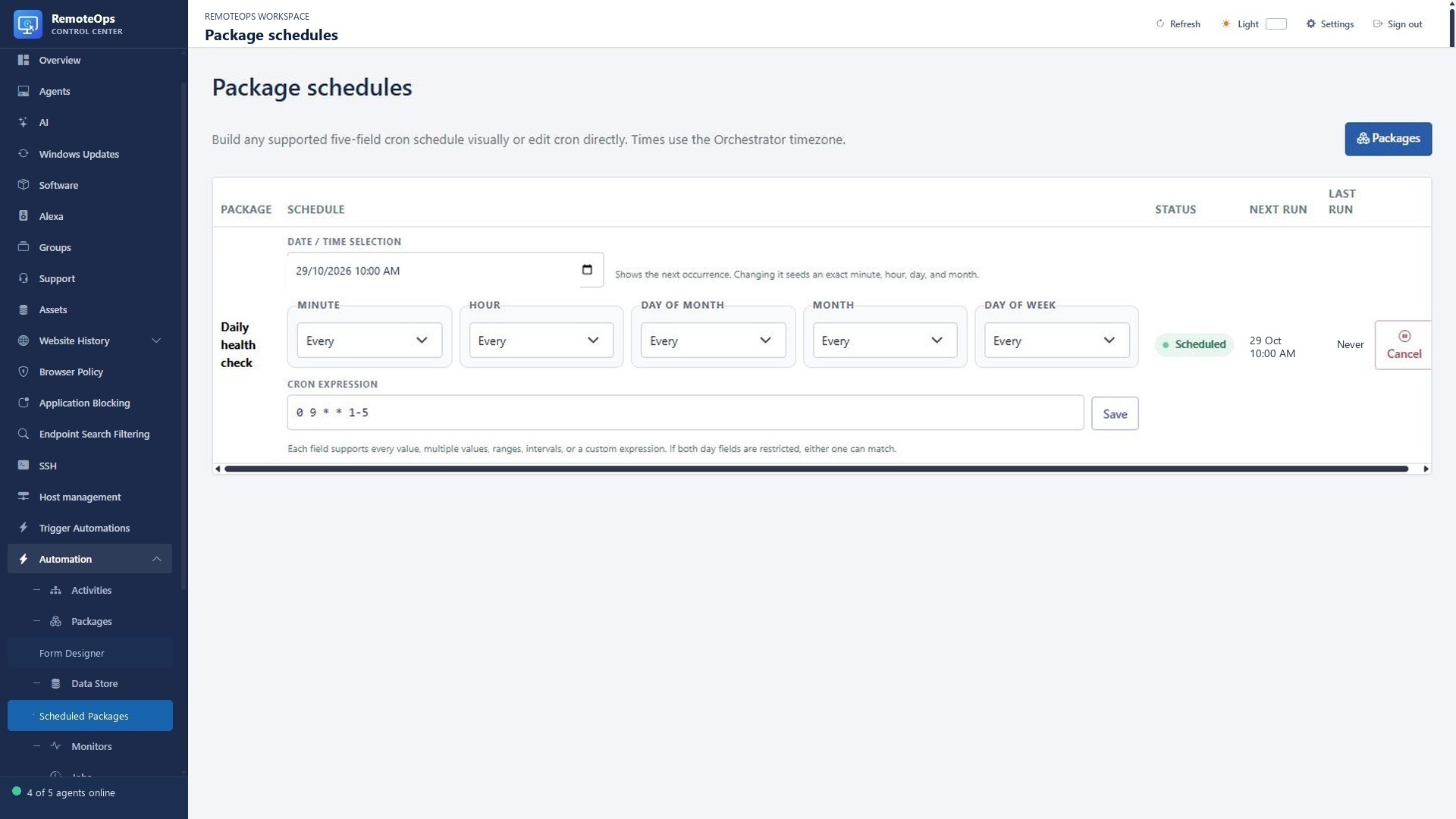
  • Schedule packages with five-field cron expressions.
  • Build schedules visually using individual values, ranges, multiple values and intervals.
  • Edit cron directly or seed the next occurrence with a date/time selection.
  • Review next-run and last-run times, then cancel or reschedule future work.
  • Use supported one-off script scheduling and inspect its saved schedule.
  • Set package timeouts and add bounded wait steps between operations.
See screenshots and details ↓

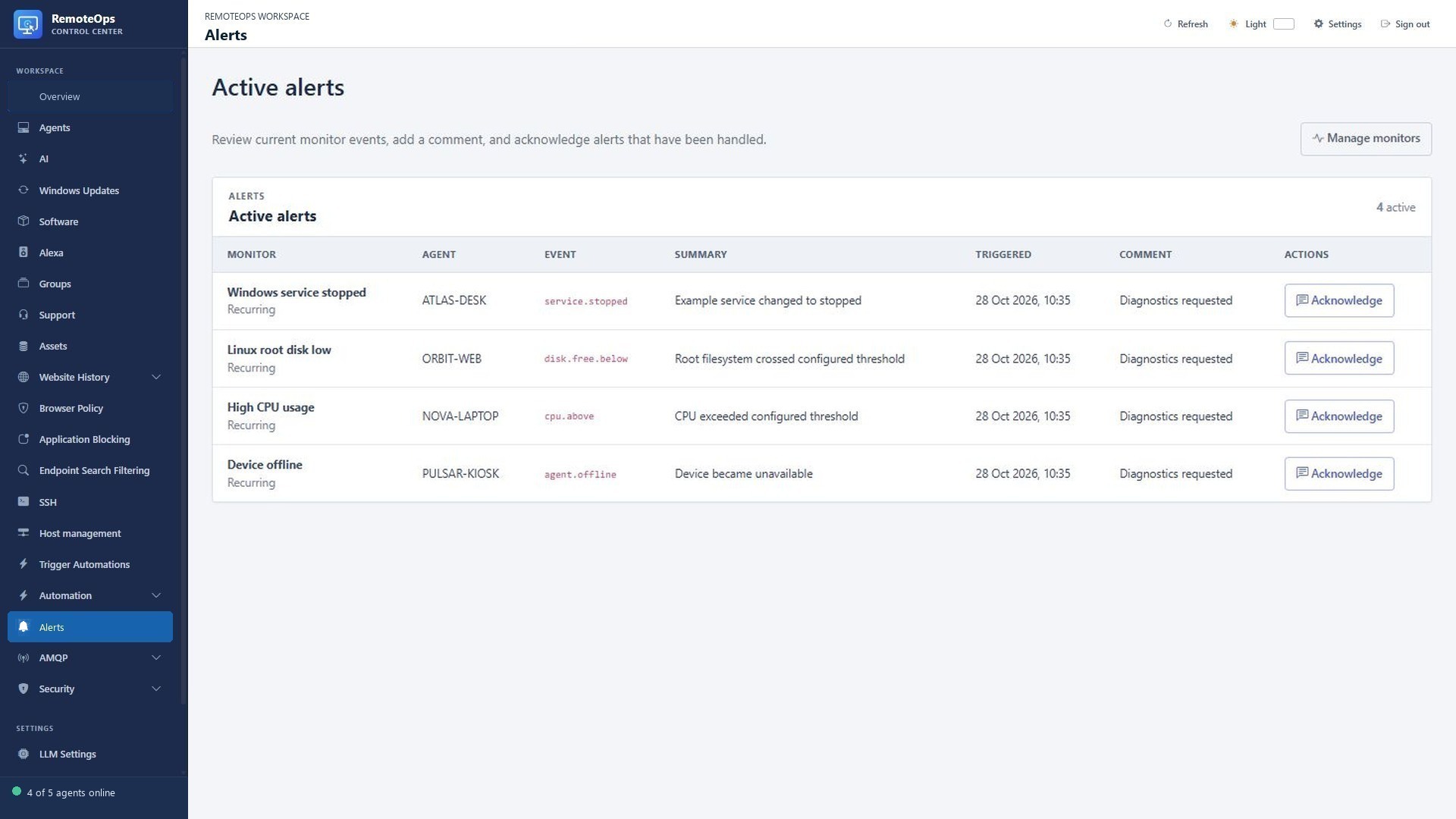
Triage alerts and follow the response

  • Review active and acknowledged monitoring alerts.
  • See the source monitor, device, event, condition summary and trigger time.
  • Add follow-up comments and acknowledge handled alerts.
  • Follow the related response job to inspect diagnostics and task results.
  • Run a response package without creating an alert when that is the configured behavior.
See screenshots and details ↓

Email reports and workflow results

  • Send plain-text or HTML messages through the configured SMTP relay.
  • Set To, CC and BCC recipients.
  • Build the subject, recipients and message from earlier task outputs.
  • Send a diagnostic summary or completion report after a workflow step.
  • Inspect the task’s relay-submission result and recipient counts.
See screenshots and details ↓

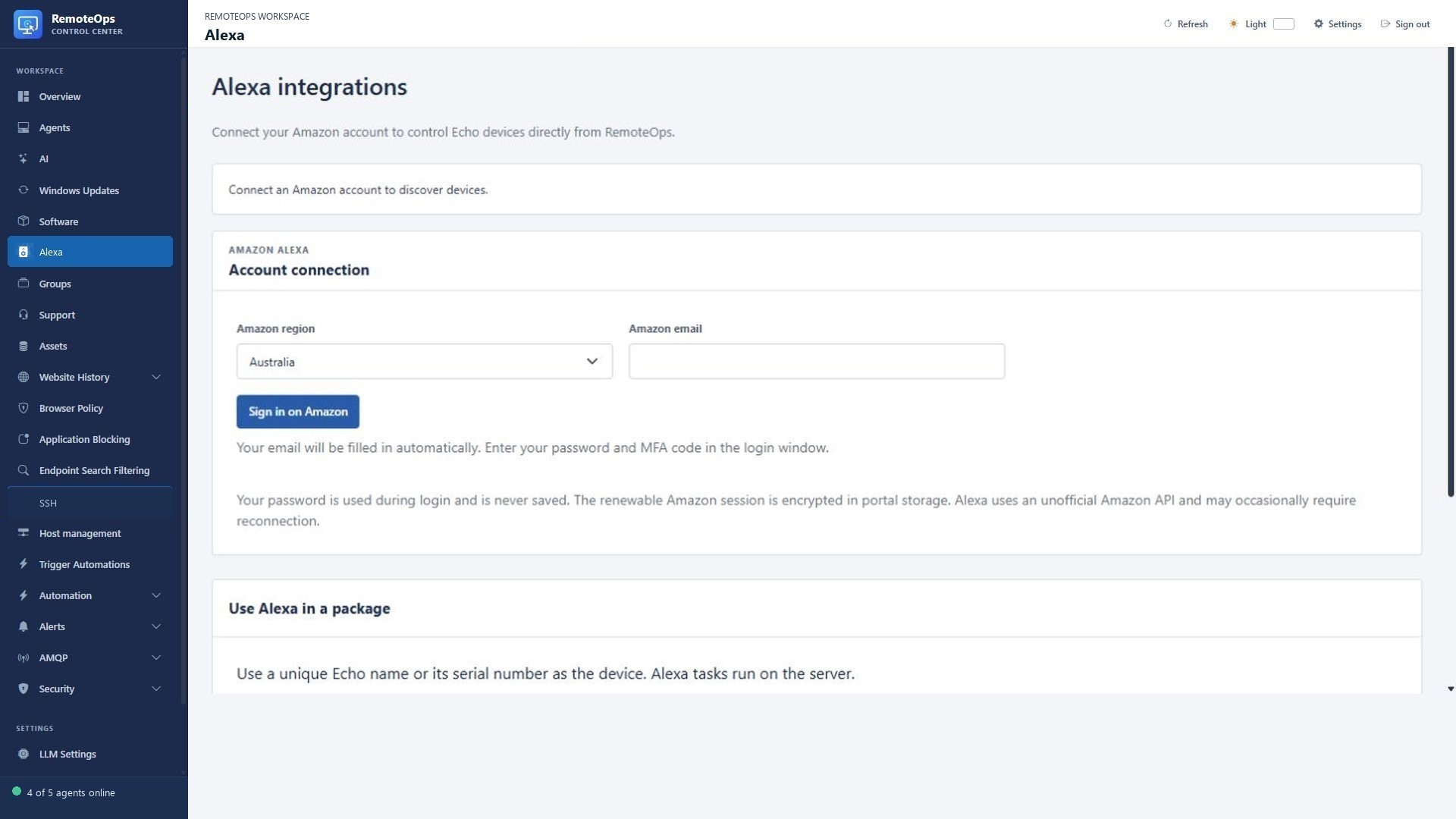
Control connected Alexa devices

  • Connect an Amazon account and discover its available Echo devices.
  • Send announcements or speech to a selected device.
  • Request supported music playback and choose a supported provider.
  • Set volume or send play, pause, next and previous commands.
  • Use a unique device name or serial in a reusable package.
See screenshots and details ↓

Provide temporary remote support

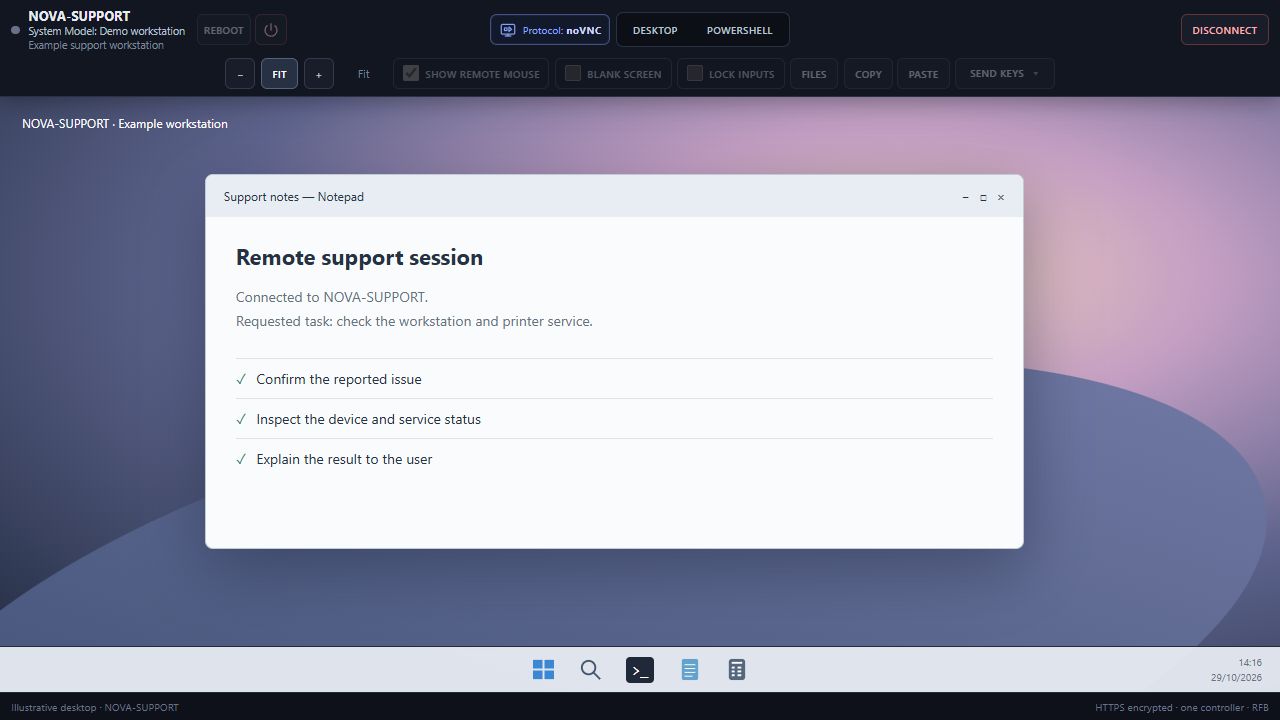
  • Use a guest support page and dedicated support client.
  • Start a code-based support flow separately from ongoing agent enrollment.
  • Open the supported remote desktop session to assist the user.
  • Use view-only when observation is sufficient, then disconnect when support is complete.
See screenshots and details ↓

Update agents and recover a failed main service

  • Use signed agent updates with downloaded-payload hash verification.
  • Keep an independent Windows recovery service alongside the main agent.
  • Use supported recovery updates to repair a stopped main service or rejected main credential.
  • Restore the previous main binary when an update fails its health checks.
  • Revoke runtime credentials during supported administrative removal or uninstall.
See screenshots and details ↓

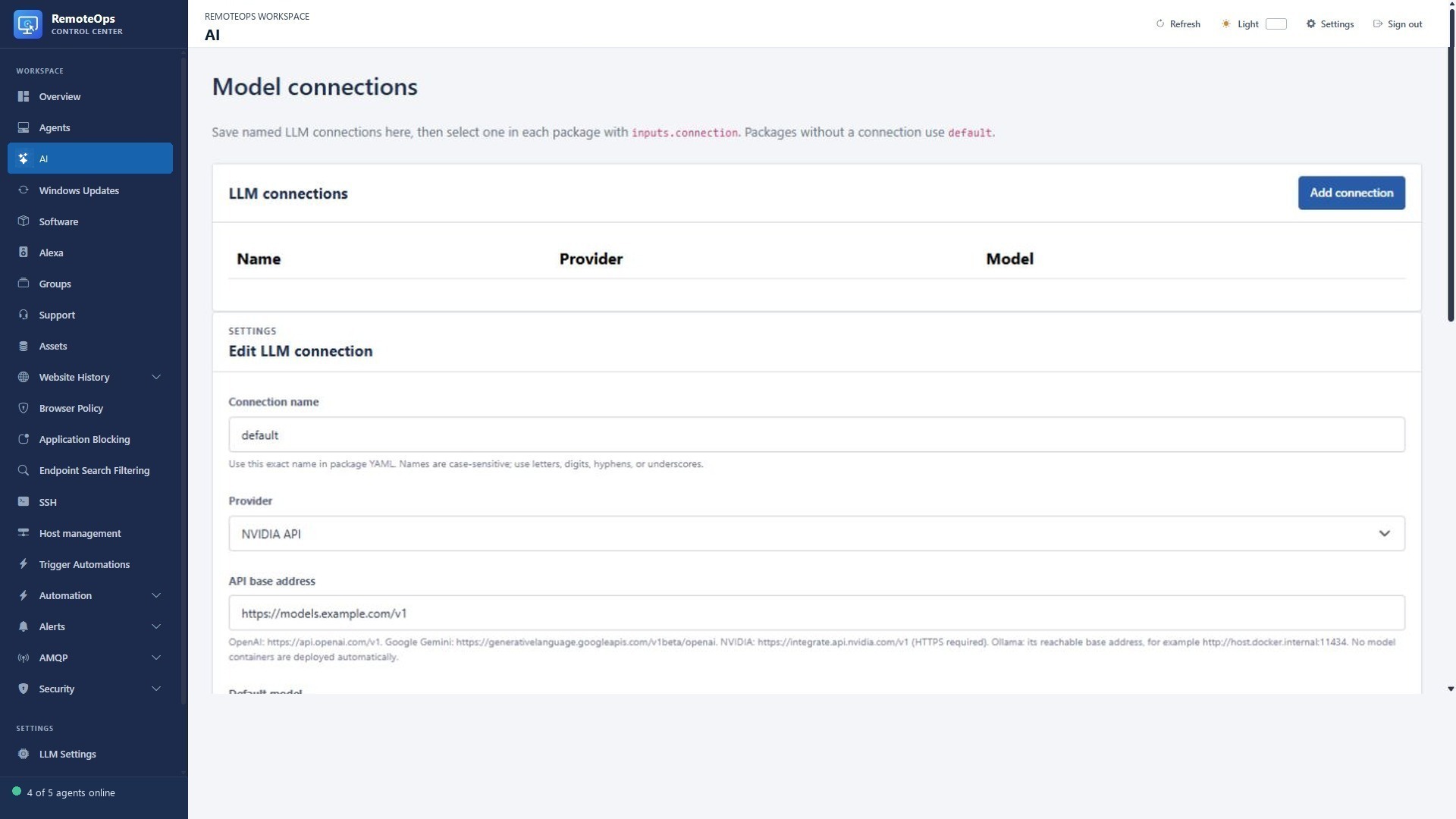
Configure AI models and result presentation

  • Configure supported model connections and their available management tools.
  • Use image-capable connections for captured-frame analysis.
  • Request structured JSON for a package to validate and use in later steps.
  • Present findings in sortable tables and create supported reports or exports.
  • Inspect job evidence and tool results behind an AI summary.
See screenshots and details ↓
01

Manage your devices from one portal

  • See every Windows agent in a searchable device table, with connection status, version and last-seen time.
  • Organise devices with groups, display names and tags.
  • Open remote desktop, view-only, PowerShell, files, inventory and browsing history from the device row.
  • Rename device display names and use selected-device bulk actions.
  • Rename supported Windows computers and storage volumes; computer renames require a restart.
  • Request agent updates, rotate runtime credentials and remove enrolled devices.
  • Enable per-device diagnostic logging when investigating a fault.
Capabilities and documentation ↗
02

Choose light or dark mode

  • Switch the portal between light and dark themes.
  • Use the same navigation and management tools in either theme.
Capabilities and documentation ↗
03

Explore Linux and Windows performance graphs

  • View CPU, memory, filesystem, disk I/O and network history for monitored hosts.
  • Switch between one hour, 24 hours, seven days and 30 days of samples.
  • Install the Linux monitor from an SSH profile; samples arrive about every 30 seconds and history is retained up to 30 days.
  • Enable statistics for a Windows agent to view the same metric history and chart types.
  • Use Windows and Linux alert monitors alongside historical graphs.
Capabilities and documentation ↗
04

Remote desktop, PowerShell and file access

  • Control a Windows desktop in your browser or connect in view-only mode.
  • Use clipboard sharing, special keys, screen fitting and session privacy controls.
  • Run PowerShell as SYSTEM or the logged-in user while you investigate.
  • Transfer files without opening Explorer or taking over the user’s desktop.
  • Blank the physical displays and lock local keyboard/mouse input during eligible interactive sessions.
  • Send Windows security keys, lock the workstation, restart or shut down the device.
  • Show or hide the remote cursor and reconnect the viewer after a connection interruption.
Capabilities and documentation ↗
05

Manage Windows Updates

  • Scan devices and review available, installed and excluded updates.
  • Approve individual updates or apply group approval policies.
  • Set maintenance windows, reboot policies and device overrides.
  • Use Patch now on eligible devices and inspect update status before moving on.
  • Review Microsoft severity and RemoteOps priority before approving updates.
  • Auto-approve selected categories, priorities and severities, with explicit handling for unrated updates.
  • Apply group policies, exclusions and individual device overrides.
  • Select multiple devices to refresh scans, enable or disable patching, or request patching.
Capabilities and documentation ↗
06

Find, install and manage Windows software

  • Search the WinGet community catalogue by application name or package ID.
  • Deploy a selected application to eligible online devices.
  • Review installed applications and versions; request fresh inventory.
  • Follow deployment results for each selected device.
  • Collect system-wide and current-user software inventory separately.
  • Install, update and uninstall managed software with the supported SYSTEM or current-user context.
  • Manage up to 200 eligible online devices in one software request, with separate device results.
Capabilities and documentation ↗
07

Monitor Windows and Linux hosts

  • Watch online/offline transitions, CPU, memory and disk-space thresholds.
  • Track supported process, service and network conditions.
  • Use Windows event-log text and inventory age in monitoring rules.
  • Install Linux monitoring from a saved SSH profile.
  • Create an alert, trigger a package, or do both; control repeat triggers with cooldowns.
  • Scope Windows rules to one agent, a group or the fleet, and Linux rules to eligible monitored SSH hosts.
  • Use recurring or one-time responses, cooldowns and optional alert creation.
  • Pass the original event, target, metric value and timestamp into the response package.
Capabilities and documentation ↗
08

See the pages viewed on managed Windows devices

  • Collect saved Chrome, Edge and Firefox history on devices you enable.
  • Review page titles, URLs, visit timestamps, browser and Windows user.
  • Filter by device or keywords and request a fresh collection.
  • Apply classification keywords, URL exemptions and retention cleanup.
  • Inspect collection status and errors, refresh eligible online agents and clear stored portal history.
  • Classify saved visits by matched keywords without coupling collection to website blocking.
Capabilities and documentation ↗
09

Control websites, searches and applications

  • Block domains, wildcard domains and specific URL paths, with allow exceptions.
  • Combine global website rules with device-specific policies.
  • Filter supported YouTube and TikTok searches using keywords and exceptions.
  • Set the denied-page message and enforce the search filter per endpoint.
  • Apply supported Windows application blocking rules by executable, path, hash or packaged-app identity.
  • Enable or disable enforcement per endpoint while retaining its saved rules.
  • Combine global and device application policies with supported AppLocker executable, path, hash or packaged-app rules.
Capabilities and documentation ↗
10

Administer Linux hosts in tabbed SSH sessions

  • Save named SSH profiles and open multiple terminal tabs.
  • Connect with encrypted saved credentials or request a password on connect.
  • Use SCP transfers alongside terminal work.
  • Run saved Bash and Python activities through eligible private-key SSH profiles.
  • Test saved connections and maintain known-host records.
  • Generate an Ed25519 key and install its public key on the selected host.
  • Save hostname aliases and import address/hostname mappings from CSV.
  • Pop out sessions and adjust terminal appearance.
Capabilities and documentation ↗
11

Turn scripts into repeatable workflows

  • Develop reusable PowerShell, Bash and Python activities.
  • Connect tasks in YAML packages and pass structured outputs into later steps.
  • Use conditions, loops, parallel execution and explicit error handling.
  • Dispatch work to Windows agents and SSH hosts from the same package.
  • Review outputs and failures in Job History, then cancel or retry when needed.
  • Set task-level targets, execution context, conditional skips and explicit failure behavior.
  • Inspect stdout, stderr, JSON outputs, exit codes and task traces.
  • Retry a whole run or supported failed portions, and cancel running work.
  • Reuse supported embedded tasks instead of writing custom scripts for every integration.
Capabilities and documentation ↗
12

Build forms for your automation

  • Use the visual Form Designer to place and resize controls.
  • Collect text, dropdowns, toggles, checkboxes, dates and times.
  • Display tables, progress and labels; populate choices from earlier outputs or activities.
  • Connect field changes and buttons to activities that update the form.
  • Expose the package as a named Trigger automation button.
  • Save designs in the form library and reuse them in packages.
  • Use radio/list selections, tables, progress indicators, labels and date/time controls.
  • Load choices from fixed JSON, earlier outputs or activity-driven queries.
  • Change visibility, required state, enabled state, fonts and geometry for individual controls.
Capabilities and documentation ↗
13

Notify users and act on their replies

  • Send a Windows notification or a large desktop notice.
  • Ask a Yes/No question and branch on Yes, No or no reply.
  • Pause a workflow for the signed-in user’s decision before the next step.
  • Send plain-text or HTML reports with To, CC and BCC.
  • Use supported Alexa announcements as part of a saved package.
Capabilities and documentation ↗
14

Show doorbell camera streams and capture frames

  • Display a timed RTSPS camera window on a selected Windows desktop.
  • Play a local doorbell sound and suppress events that arrive too late.
  • Ask whether to view the Front Door feed before opening it.
  • Capture a single RTSP/RTSPS frame for a report or an image-capable AI model.
Capabilities and documentation ↗

Illustrative desktop layouts with fictional camera imagery.

15

Trigger workflows from external events

  • Start saved packages with an HTTPS webhook from a doorbell relay or another event source.
  • Match one identifier to one or more saved packages.
  • Read the accepted-job response, then follow the job result in the portal.
  • Use documented curl, PowerShell and Python examples to build the integration.
Capabilities and documentation ↗
16

Build with the embedded task library

  • Use camera capture, model analysis, notifications, live streams, email and Alexa tasks.
  • Query agents, read Key Vault values and persist non-secret package data.
  • Add forms, waits, conditions, jumps, stop steps and event-driven responses.
  • Run inline Bash/Python over SSH, coordinator-side PowerShell and managed software operations.
  • Follow the complete built-in task directory for targets, fields, examples and output contracts.
Capabilities and documentation ↗
17

Use AI tools for Windows and Linux administration

  • Ask which Windows devices have long uptimes, missing inventory or a particular application.
  • Check Linux disk usage and services; ask for a summary of diagnostic output.
  • Find an existing package or Trigger automation and run it on a named target.
  • Search and inspect files, review jobs and prepare reusable scripts or packages.
  • Present findings in sortable tables and export supported results.
  • Add model analysis, structured JSON or image inputs to a package with the LLM task.
  • List Windows services and processes, inspect startup programs and search event logs.
  • Find large files with bounded disk-usage analysis and run targeted network diagnostics.
  • Restart an exact Windows service or stop a selected process with the supported scoped tools.
  • Check, install, schedule or cancel supported Windows update operations.
  • Schedule a one-shot reboot or a saved script, and inspect or cancel supported schedules.
  • Search the software catalogue and request supported software-management operations.
  • Create files or folders, inspect file metadata and refresh software inventory.
  • Create reusable scripts and packages, inspect existing definitions and follow job results.
Capabilities and documentation ↗
18

Keep workflow secrets and shared data organised

  • Read encrypted Key Vault values from packages without displaying their stored contents in the list.
  • Save non-secret package state as text or JSON in Data Store.
  • Review administrator events and audit-chain integrity.
  • Use encrypted credential export and restore for supported keys and profile metadata.
  • Read, add or delete Key Vault entries using the supported package task.
  • Keep separate Data Store namespaces for reusable text and JSON across package runs.
Capabilities and documentation ↗
19

Install the agent and connect your first device

  • Create an enrollment token in your own RemoteOps tenant. Choose its validity and usage limit.
  • Download the Windows agent from the tenant’s downloads page.
  • Run the installer with administrator rights, supply the tenant address and enrollment token, and select the device name and group.
  • Confirm the device appears online in Agents, then open its inventory or first remote session.
  • Deploy unattended with the same executable and documented command-line options.
  • Use one-time, expiring or usage-limited enrollment codes.
  • Assign a default device group during interactive or unattended enrollment.
Capabilities and documentation ↗

Unattended Windows installation

Run from an elevated command prompt. Replace the demo tenant and token with your own.

RemoteOps.Agent.exe --install --server-url https://remoteops.example.com --enrollment-token YOUR_TOKEN --default-group "Workstations"
Full installation steps and troubleshooting ↗
20

Inspect hardware and software inventory

  • Review operating system, version/build, manufacturer, model, CPU and installed memory.
  • Inspect storage drives, network adapters and installed software in the device inventory.
  • Check inventory timestamps and freshness before relying on a snapshot.
  • Request a fresh inventory collection from the portal.
Capabilities and documentation ↗
21

Transfer and manage remote files

  • Browse local and remote folders in separate panes.
  • Upload and download individual Windows files up to 2 GB.
  • Download multiple selected remote files.
  • Rename, move and permanently delete remote files or folders.
  • Drag selected entries onto supported destination folders.
  • Retry interrupted uploads and recover progress within the session.
  • Use SCP transfers for SSH hosts alongside terminal sessions.
Capabilities and documentation ↗
22

Schedule scripts and packages

  • Schedule packages with five-field cron expressions.
  • Build schedules visually using individual values, ranges, multiple values and intervals.
  • Edit cron directly or seed the next occurrence with a date/time selection.
  • Review next-run and last-run times, then cancel or reschedule future work.
  • Use supported one-off script scheduling and inspect its saved schedule.
  • Set package timeouts and add bounded wait steps between operations.
Capabilities and documentation ↗
23

Triage alerts and follow the response

  • Review active and acknowledged monitoring alerts.
  • See the source monitor, device, event, condition summary and trigger time.
  • Add follow-up comments and acknowledge handled alerts.
  • Follow the related response job to inspect diagnostics and task results.
  • Run a response package without creating an alert when that is the configured behavior.
Capabilities and documentation ↗
24

Email reports and workflow results

  • Send plain-text or HTML messages through the configured SMTP relay.
  • Set To, CC and BCC recipients.
  • Build the subject, recipients and message from earlier task outputs.
  • Send a diagnostic summary or completion report after a workflow step.
  • Inspect the task’s relay-submission result and recipient counts.
Capabilities and documentation ↗
25

Control connected Alexa devices

  • Connect an Amazon account and discover its available Echo devices.
  • Send announcements or speech to a selected device.
  • Request supported music playback and choose a supported provider.
  • Set volume or send play, pause, next and previous commands.
  • Use a unique device name or serial in a reusable package.
Capabilities and documentation ↗
26

Provide temporary remote support

  • Use a guest support page and dedicated support client.
  • Start a code-based support flow separately from ongoing agent enrollment.
  • Open the supported remote desktop session to assist the user.
  • Use view-only when observation is sufficient, then disconnect when support is complete.
Capabilities and documentation ↗
27

Update agents and recover a failed main service

  • Use signed agent updates with downloaded-payload hash verification.
  • Keep an independent Windows recovery service alongside the main agent.
  • Use supported recovery updates to repair a stopped main service or rejected main credential.
  • Restore the previous main binary when an update fails its health checks.
  • Revoke runtime credentials during supported administrative removal or uninstall.
Capabilities and documentation ↗
28

Configure AI models and result presentation

  • Configure supported model connections and their available management tools.
  • Use image-capable connections for captured-frame analysis.
  • Request structured JSON for a package to validate and use in later steps.
  • Present findings in sortable tables and create supported reports or exports.
  • Inspect job evidence and tool results behind an AI summary.
Capabilities and documentation ↗

CONTACT

Tell us what you need to manage.

Ask about RemoteOps, request a demonstration, or describe the workflow you want to automate.

Human verification

We’ll use these details to respond to your enquiry.

Product screenshot