 RemoteOpsGet started
 BUILD AUTOMATION
Schedules, timeouts and triggers
Visual cron, timezone, webhook triggers and run lifetime.
Examples use remoteops.example.com and fictional systems. Adapt them to your tenant.
Screen reference#
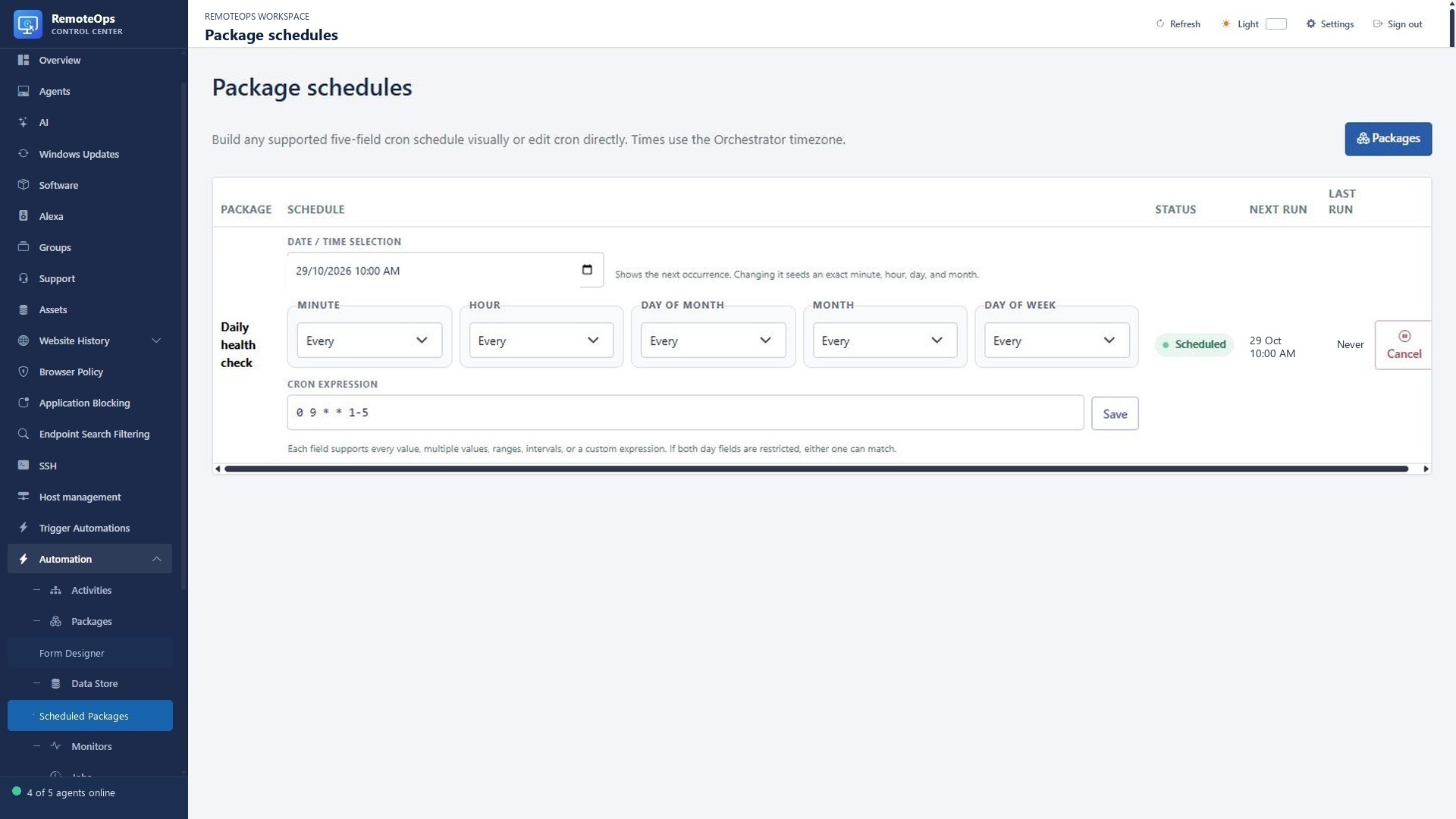
Package identifies the workflow. Schedule edits its five-field cron expression. Status enables or cancels future runs. Next run is the next calculated occurrence and Last run is the latest trigger. Editing a schedule does not prove that its next job will succeed.
Related walkthroughs#
For event-based starts and response tracing, see Webhooks.
Cron schedules#
- Five-field cron schedules attached to saved packages
- Visual controls for individual values, multiple values, ranges, and intervals
- A custom field mode for expressions the visual controls do not represent directly
- Direct cron editing that repopulates the visual controls where possible
- Date/time selection for seeding a specific occurrence
- Next-run and last-run display
- Cancel and reschedule controls
Schedules use the configured orchestrator timezone (REMOTEOPS_TIMEZONE). The supported format is:
minute hour day-of-month month day-of-week
Examples:
0 4 * * *        Every day at 04:00
0 4 * * 2        Every Tuesday at 04:00
0 * * * *        Every hour
*/15 * * * *     Every 15 minutes
0 9 1,15 * 1-5   At 09:00 on the 1st and 15th, or Monday-Friday
When both day-of-month and day-of-week are restricted, either field may match, following traditional cron behavior.
Package metadata#
- cron: '0 9 * * 1-5'
- timeout: 600
- task: inline_powershell
  name: scheduled_report
  inputs:
    script: |
      return @{ created = [DateTimeOffset]::UtcNow.ToString('o') }
This is a schedule example, not a guarantee of a particular tenant timezone. Inspect the schedule's next-run display and the configured tenant/orchestrator timezone. Traditional cron treats restricted day-of-month and day-of-week as an OR match.
Timeouts and waiting#
Package jobs normally have a 300-second overall timeout. Supported package metadata can set the package timeout from 1 to 86400 seconds. An explicitly supplied manual Run timeout can override the YAML metadata. Inline PowerShell has its own one-hour bound. Trigger automation buttons have their saved timeout. A wait task accepts a positive duration with ms/s/m/h/d units up to 24h and does not consume the execution timeout budget while waiting; cancellation still interrupts it.
- task: wait
  name: settle
  inputs:
    duration: '30s'
Wait/control-flow steps are sequential barriers rather than ordinary parallel tasks. See the task reference for exact supported fields.
Other ways to start a package#
- Manual execution from the package editor/Run dialog.
- A saved Trigger automation button.
- An exact-match public webhook identifier.
- A configured monitor transition.
- An eligible explicitly requested AI package/automation run.
Triggers do not all provide the same context. A monitor task requires a monitor-triggered run; a manually started or scheduled package cannot manufacture that context. See Integrations and Monitoring.