 RemoteOpsGet started
 GETTING STARTED
Install the Windows agent
Enrollment, interactive and unattended installs, verification and uninstall.
Examples use remoteops.example.com and fictional systems. Adapt them to your tenant.
Screen reference#
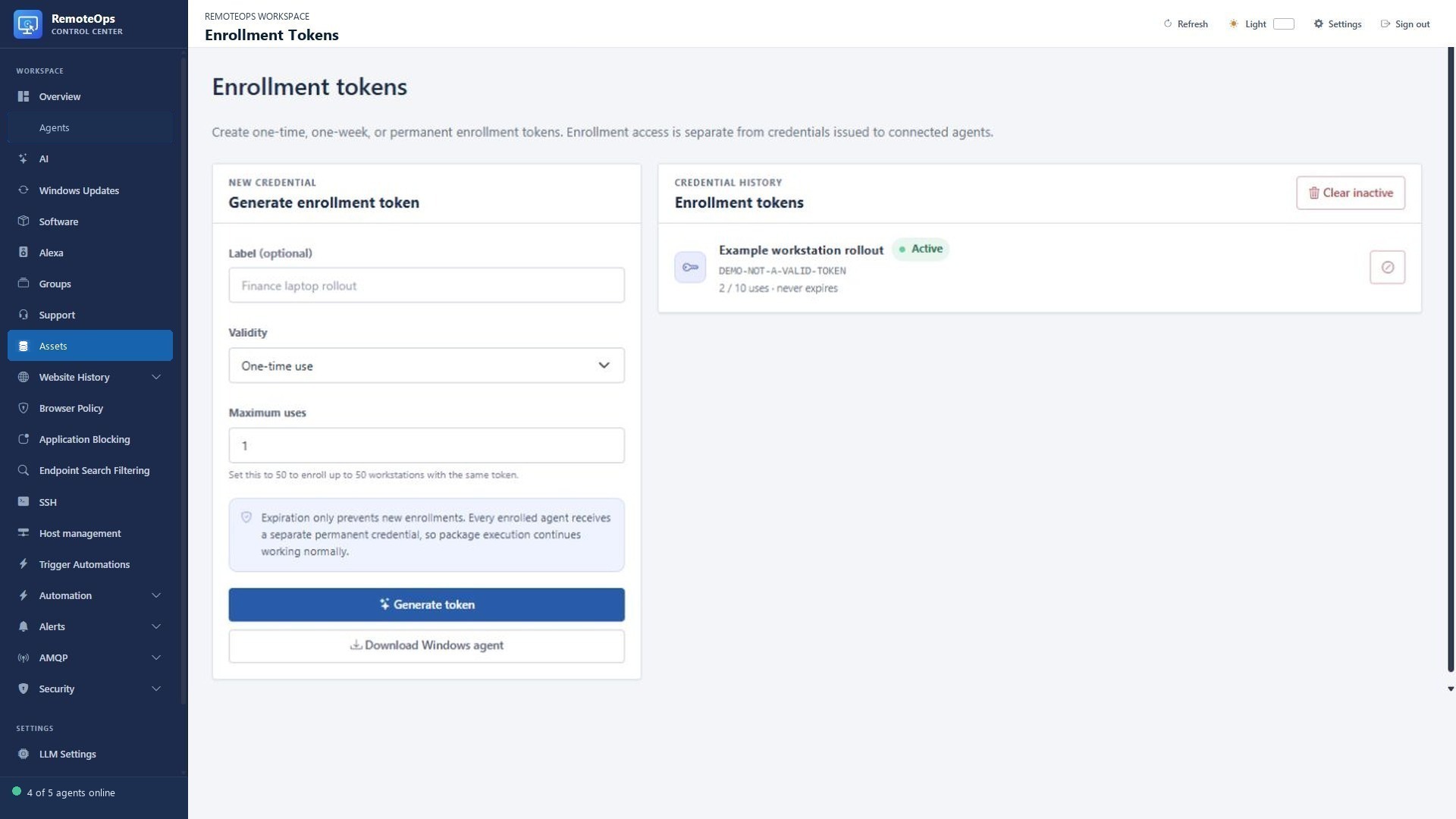
In Enrollment Tokens, choose a label, validity and maximum uses. Generate the token and copy it into the installer. Download Windows agent retrieves the installer; generating a token does not install anything.
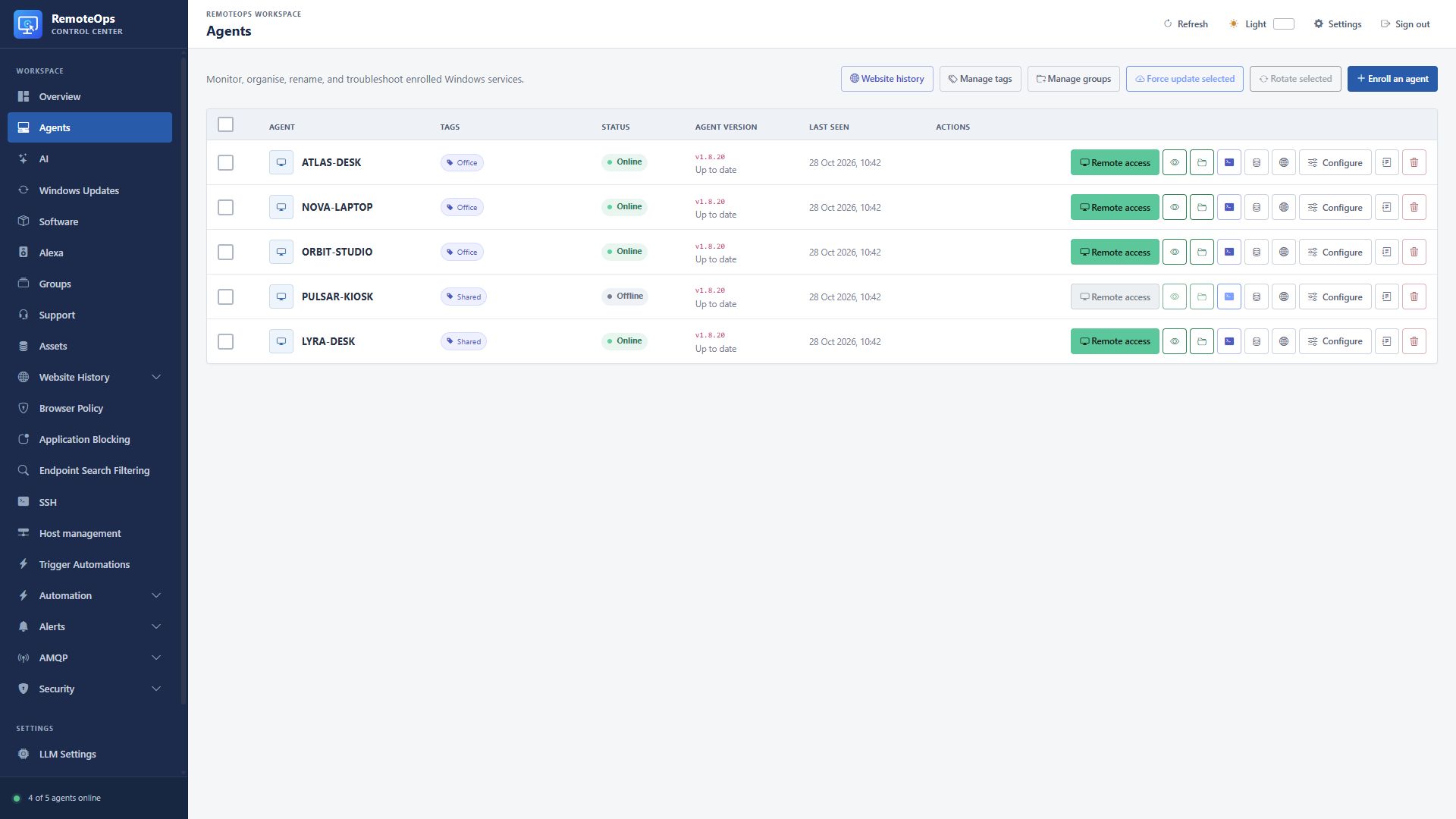
After installation, find the device in Agents. Status shows presence; Agent version shows the reported main version; Last seen shows the latest contact. Confirm the device is online before opening a session.
Before you begin#
Use the installer from your own tenant. The demo tenant in this guide is https://remoteops.example.com. Its hostname is illustrative and does not serve an actual installer. You need local administrator rights, a valid enrollment code, and network access to the tenant service. Silent installation must already be elevated; it does not show an elevation prompt.
Network requirements#
Windows management uses outbound AMQPS on TCP 5671 and HTTPS on TCP 443. HTTPS handles enrollment, fallback, updates and interactive-session traffic; recovery uses HTTPS. An inbound Windows management listener is not required. Optional video playback has a separate local-subnet UDP exception. Corporate proxies, TLS inspection and firewall policies must permit the configured tenant and agent trust relationship.
Install interactively or unattended#
The download page is available at:
https://remoteops.example.com/downloads/
Create an enrollment token in Enrollment tokens, download RemoteOps.Agent.exe, and open it on the target computer. Windows requests administrator approval. Enter or confirm the server address, enrollment token, agent name, and optional group, then select Install or update. A supplied group is created during enrollment when needed.
Windows Smart App Control can prevent helpers or updates from running even while the main service is online. Review the reported protection state and the specific Windows error before retrying. RemoteOps does not automatically disable this protection. Coordinate any protection-policy decision with your administrator.
The Windows Updates device table also supports selected-device update scans, Patch now, and enabling or disabling patching. Select all filtered selects matching devices across pages. Selected devices remain selected when the filter changes; the selection count includes those hidden by the current filter. Patching still requires enabled patching, approved available updates and a supported agent, and rejects devices with an active patch job. Bulk results report accepted requests and failures per device.
There is one download for graphical and command-line installation. For unattended deployment, run the same executable with --install from an elevated Command Prompt, deployment script, or computer GPO startup script. Silent mode does not display an elevation prompt:
start "" /wait ".\RemoteOps.Agent.exe" --install --server-url https://remoteops.example.com --enrollment-token YOUR_TOKEN --default-group "Workstations"
echo Exit code: %ERRORLEVEL%
--server-url and --enrollment-token are required. Replace the example address with your portal's HTTPS address; there is no sample-server fallback in the runtime. --default-group is optional and assigns the agent during enrollment, creating the named group when necessary. Group names are case-insensitive (Workstations and workstations refer to the same group). --agent-name is optional and defaults to %COMPUTERNAME%; a new agent without a group is unassigned.
PowerShell deployments can wait for and validate the process exit code:
$process = Start-Process -FilePath '.\RemoteOps.Agent.exe' -ArgumentList '--install --server-url "https://remoteops.example.com" --enrollment-token "REPLACE_WITH_TOKEN" --default-group "Workstations"' -WindowStyle Hidden -Wait -PassThru
if ($process.ExitCode -ne 0) {
    throw "RemoteOps installation failed with exit code $($process.ExitCode)."
}
A computer GPO startup script runs as LocalSystem and can invoke an installer held in NETLOGON or another computer-readable share:
start "" /wait "\\domain.example\NETLOGON\RemoteOps.Agent.exe" --install --server-url https://remoteops.example.com --enrollment-token YOUR_MULTI_USE_TOKEN --default-group "Domain Workstations"
exit /b %ERRORLEVEL%
Silent installation returns exit code 0 on success and 1 on failure. Failure details are written to C:\ProgramData\RemoteOps\installer-error.log. Use a suitably limited multi-use token for fleet deployment, protect it as a deployment credential, and revoke it after the rollout.
The installer creates:
RemoteOpsAgent, the main Windows service;RemoteOpsRecovery, the independent recovery updater;%ProgramFiles%\RemoteOps, containing the installed executables and configuration; and%ProgramData%\RemoteOps, containing runtime identity, recovery state, and diagnostic data.
The same executable provides graphical install, update, and uninstall operations. It is self-contained and does not require a separately installed .NET runtime or PowerShell installer script.
The installer embeds the public RemoteOps root CA and installs it into the local-machine trusted root store. It removes the certificate during uninstall only when that installation created the trust entry. The services default to LocalSystem. Interactive-session helpers and SID-based browser-history collection rely on those service privileges; a restricted service account is not a drop-in replacement and must be validated for the features you use.
The elevated installer also creates program-scoped Windows Firewall rules for outbound main-agent and recovery traffic. Stream playback receives a separate inbound UDP exception restricted to the local subnet, preventing the Windows network-access prompt without disabling firewall notifications globally. Uninstall removes only these RemoteOps-managed rules.
Verify installation#
Check local services from an elevated or otherwise authorised PowerShell session:
Get-Service -Name RemoteOpsAgent, RemoteOpsRecovery |
    Select-Object Name, Status, StartType
Check tenant connectivity without turning off certificate validation:
Test-NetConnection remoteops.example.com -Port 443
Test-NetConnection remoteops.example.com -Port 5671
The portal should show a recent heartbeat, expected display name/group, and the reported main/recovery versions. Refresh inventory and check that it completes. Start a read-only remote command and, where desktop support is required, verify an interactive desktop session. A running Windows service or open TCP port alone does not establish that the entire management path works.
Update an existing installation#
Use the same tenant installer or the portal's agent-update controls. Routine updates and independent recovery are explained in Credentials & recovery. Confirm the main and recovery services and the portal heartbeat after an update. Do not manually modify distributed installer bytes or local credentials to force an update.
Uninstall and remove a device#
The installer supports graphical uninstall, and the portal has remote uninstall handling. Uninstall attempts server deregistration first; failure of that request does not prevent local cleanup. Confirm that the services and owned files have been removed and that the portal no longer treats the old credentials as active. Local uninstall and deleting a portal record are different actions; inspect the result rather than assuming one proves the other.
Installation troubleshooting#
| Symptom | Check |
|---|---|
| Silent installer exits with 1 | Elevation, tenant URL, valid code, and C:\ProgramData\RemoteOps\installer-error.log. |
| Code rejected | Expiration, exhausted usage allowance, mistyped code, or the wrong tenant. |
| Service is running but offline | DNS, HTTPS/AMQPS reachability, time/TLS trust, and portal registration. |
| Main agent online but desktop helper blocked | Interactive user state, supported Windows environment and Smart App Control diagnostics. |
| Main agent stopped | Recovery service health, recovery credentials and HTTPS trust. |
| Reinstall or update fails | Existing installation permissions and logs; do not weaken data-directory ACLs as a shortcut. |