 RemoteOpsGet started
 MONITOR AND RESPOND
Notifications, replies, email and camera overlays
Message types, timeouts, outputs, SMTP and secure video overlays.
Examples use remoteops.example.com and fictional systems. Adapt them to your tenant.
Screen reference#
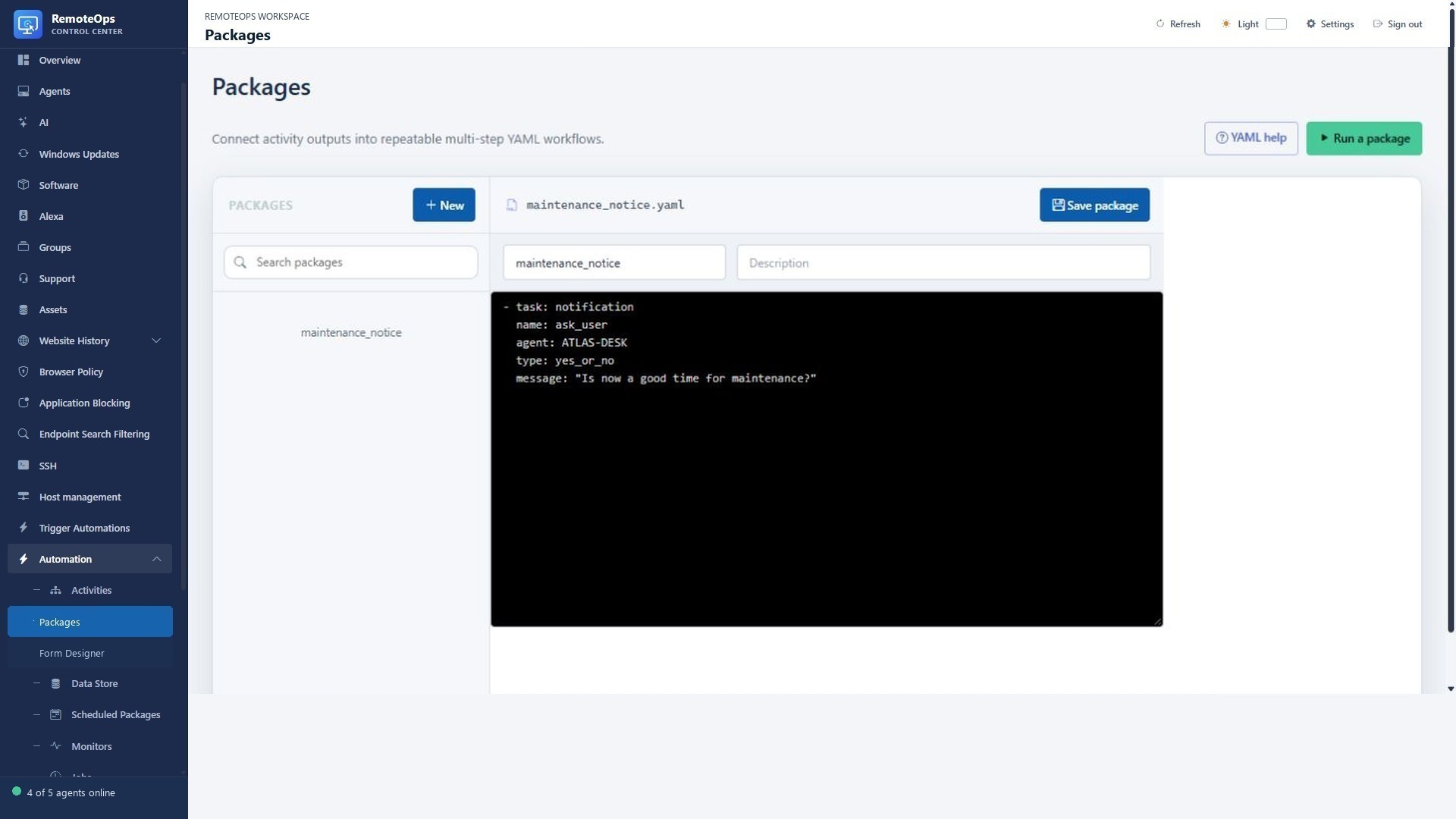
This package asks a Yes/No question on ATLAS-DESK. The real user-facing notice appears on the endpoint; this screenshot shows its workflow configuration, not a delivered notification.
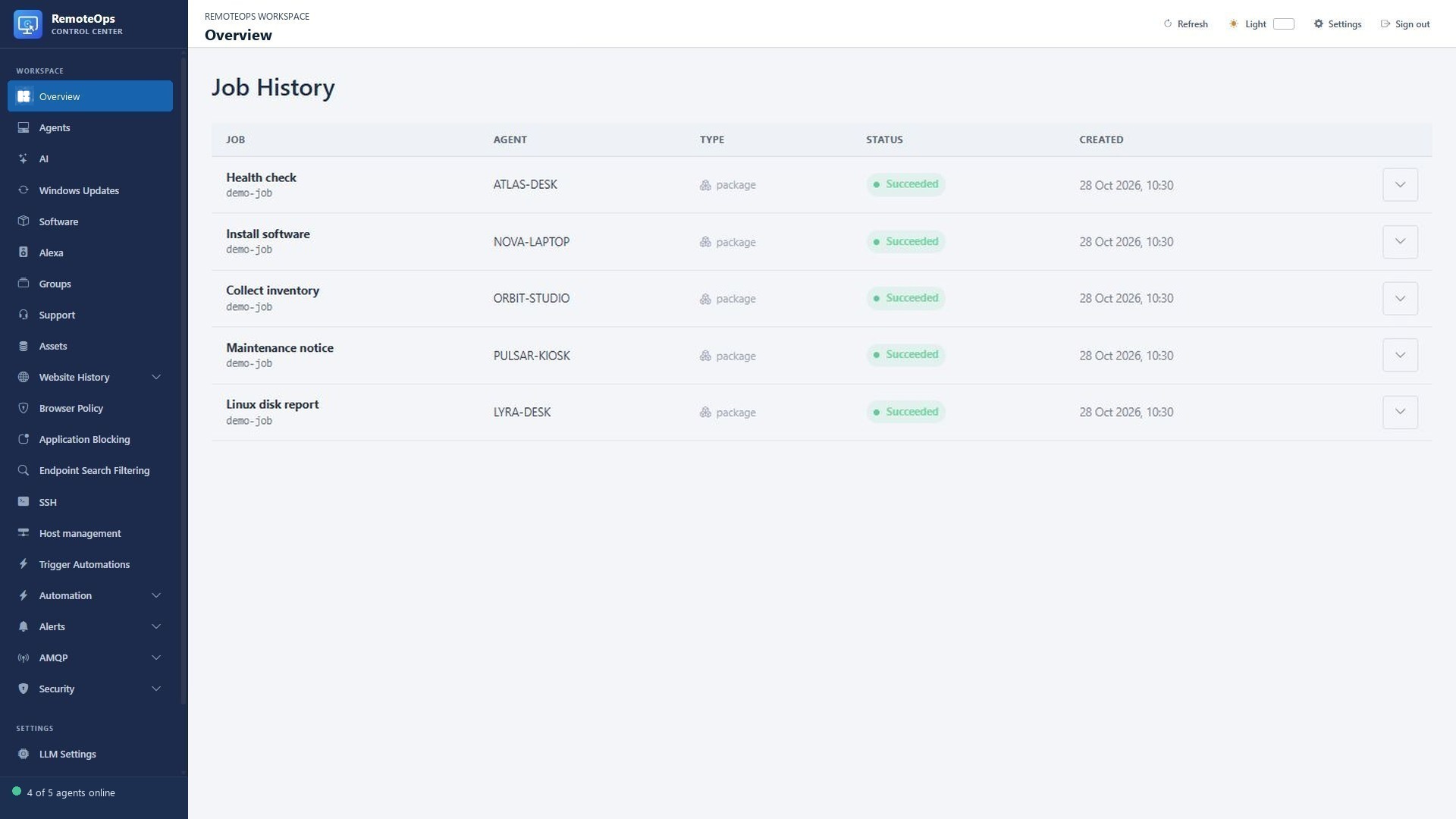
Use the task output to inspect the result. Delivery, a Yes/No response and a read receipt are different outcomes; do not infer that a user read a standard notice.
Related walkthroughs#
For illustrated Yes/No decisions and null handling, see User questions. For doorbell playback and frame capture, see Camera streams.
Pick a delivery channel#
Use Windows messages for the signed-in endpoint user, SMTP for reports outside the active desktop, Alexa for supported discovered devices, and RTSPS overlays for timely video events. Delivery channels have different prerequisites and acknowledgement semantics.
Windows notifications and replies#
Use the reserved notification task to show a Windows notification to the logged-in user on a named agent. The task runs in the interactive user session and does not require runas: user:
- task: notification
  agent: 'ATLAS-DESK'
  message: |
    hello
    this is a test
    this is a third line
message accepts a normal package output reference, so an earlier activity can generate the notification content:
- task: notification
  agent: 'ATLAS-DESK'
  message: '=activity_name.output'
The message is limited to 4,096 characters. The task returns displayed: true after Windows accepts the notification.
The default type: 'normal' follows the user's Windows notification settings; successful submission does not prove it was read. Add type: 'large' for a larger, centered, topmost custom window titled Notification. It stays visible for up to 15 seconds and can be dismissed by the recipient:
- task: notification
  agent: 'ATLAS-DESK'
  type: 'large'
  message: |
    Please come to the front door.
    Someone is waiting.
Use type: 'yes_or_no' to show the same large prompt with Yes and No buttons. It remains visible for up to two minutes. Its output contains response with "yes", "no", or null if it closes or expires without a reply:
- task: notification
  agent: 'ATLAS-DESK'
  type: 'yes_or_no'
  message: Do you want to continue?
Give the prompt a task name to reference its reply as =task_name.response. Notifications do not accept runas, ssh, or inputs; group can disambiguate the target agent.
Branch on a reply#
The reply is the string yes, no or JSON null. Convert it into explicit booleans before using a control-flow condition; a nonempty reply string is not automatically the boolean true.
- task: notification
  name: ask
  agent: 'ATLAS-DESK'
  type: yes_or_no
  message: Ready for the maintenance check?

- task: inline_powershell
  name: decision
  inputs:
    reply: '=ask.response'
    script: |
      return @{ shouldStop = ($reply -ne 'yes') }

- task: stop
  condition: '=decision.shouldStop'

- task: notification
  agent: 'ATLAS-DESK'
  type: normal
  message: The workflow will continue.
Email#
Use the server-side email task to send a message through the configured SMTP relay. It does not target an agent. recipient, cc, and bcc are comma-separated address lists; cc and bcc are optional. Set format: 'html' for a styled HTML message; it defaults to plain:
- task: email
  name: send_report
  subject: 'Daily report'
  recipient: 'admin@example.com'
  format: 'html'
  cc: 'user@example.com'
  bcc: 'audit@example.com,archive@example.com'
  data: |
    This is the first line.
    This is the second line.
All message fields accept normal output references, including subject: '=another_activity.subject', recipient: '=another_activity.recipient', and data: '=another_activity.output'. A successful task returns sent: true and To/CC/BCC recipient counts. HTML data should be HTML-escaped when it contains host or user-controlled values. Configure REMOTEOPS_SMTP_HOST, REMOTEOPS_SMTP_FROM, and optionally the SMTP port, security, username, and password documented in .env.example. Ask your RemoteOps administrator to configure the SMTP connection.
Secure video overlays#
Use the reserved rtsps_stream task to display an RTSPS/SRTP-capable stream to the logged-in user on a named Windows agent:
- task: rtsps_stream
  url: 'rtsps://camera.example.com/stream?enableSrtp'
  agent: 'ATLAS-DESK'
  display_for_seconds: '30'
  bell: 'true'
  max_age_seconds: '60'
The agent opens a centered, always-on-top video window. With bell: 'true', it plays a short ding-dong on the target as the window opens. Bell-enabled streams default to a 60-second freshness limit, so delayed doorbell triggers complete without showing a stale camera feed; set max_age_seconds (1–3600) to override that limit. Stream tasks are dispatched asynchronously: they do not hold up later package tasks, and multiple overlays can run concurrently subject to the target agent's four-job concurrency limit. The user can close a window with the top-right X button or Escape, and it closes automatically after display_for_seconds (1–3600). The task requires a logged-in interactive Windows user and does not accept runas, ssh, or inputs. The stream URL is redacted from the package activity trace.
RTSPS playback uses LibVLCSharp and the VideoLAN LibVLC runtime, distributed under LGPL-2.1-or-later. The compressed runtime is embedded in the single-file Windows agent, verified and extracted into the protected RemoteOps program-data directory during installation, and revalidated in the background whenever the agent service starts.
Prerequisites and interpretation#
Windows notification/video tasks need a logged-in interactive user. A standard notification follows Windows notification settings. Large messages are dismissible and time-limited; Yes/No questions can expire without a reply. Never equate Windows accepting a message with the user reading it. Verify per-device failures and do not automatically resend an interrupted prompt as though it were harmless duplication.