 RemoteOpsGet started
 REMOTE TOOLS
Temporary remote support
Guest access, temporary client connection and disconnect cleanup.
Examples use remoteops.example.com and fictional systems. Adapt them to your tenant.
Screen reference#
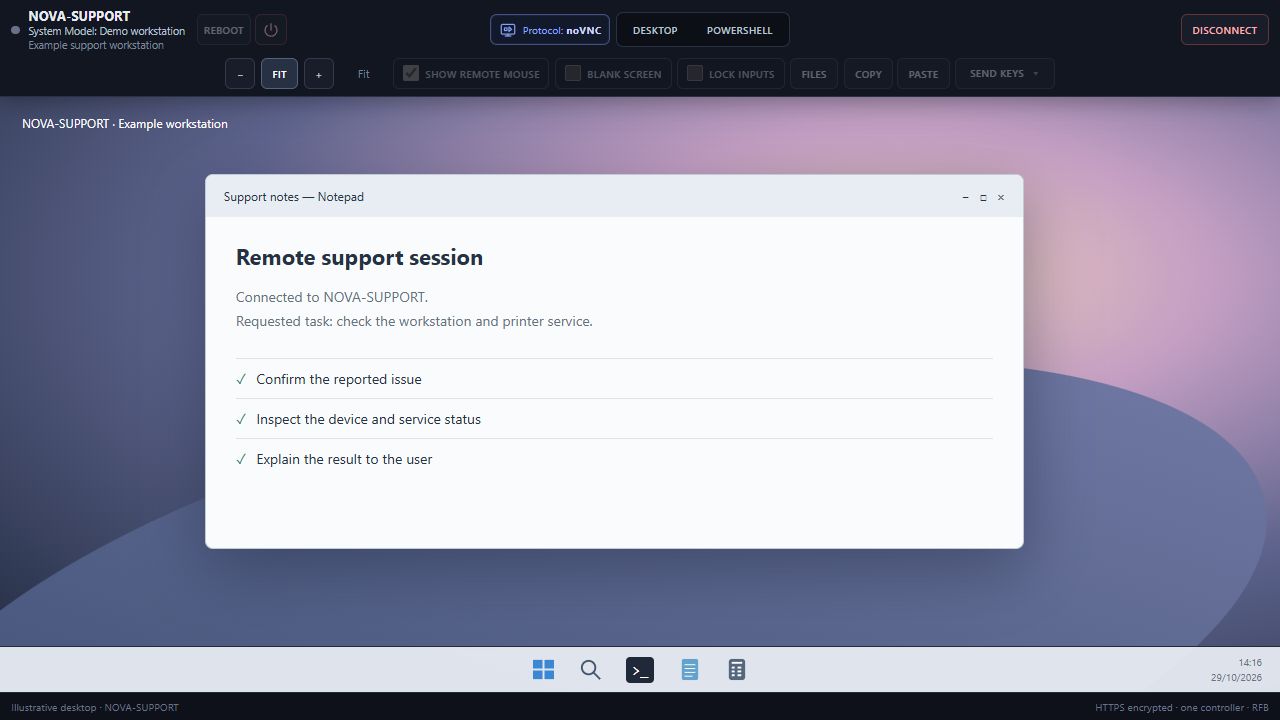
NOVA-SUPPORT is an illustrative workstation with a separate wallpaper and taskbar. The RemoteOps viewer controls are shown around it; the temporary support client and consent process are separate steps.
Use a support session for a support task#
Temporary support provides a guest support page and standalone support client for a person who needs assistance. It is separate from regular ongoing device enrollment. Start from the Support area of the intended tenant, create/use its support code and follow the page's connection instructions.
Suggested operator flow#
- Confirm the intended tenant and recipient/device before sharing a support code.
- Ask the person to open the tenant's support page and use its dedicated support client.
- Follow the client prompts and elevation requirements where applicable.
- Confirm the connected support session and expected screen before interacting.
- Perform the needed support work and disconnect when complete.
- Confirm local controls are restored and that temporary support cleanup has occurred.
Use view-only where observation is sufficient. Privacy/input controls have the same interactive-session boundaries described in Remote access. A support connection is not a substitute for verifying that a software change completed.
Troubleshooting#
Check code validity and the exact tenant address, client connectivity, signed-in Windows environment, elevation and helper/protection errors. A main portal login, support code and ordinary enrollment code are distinct credentials. Do not post live codes, session URLs containing credentials or customer desktop captures into public documentation.