 RemoteOpsGet started
 MONITOR AND RESPOND
Monitoring, transitions and alerts
Signals, scoping, baselines, cooldowns, Linux setup and captured trigger data.
Examples use remoteops.example.com and fictional systems. Adapt them to your tenant.
Screen reference#
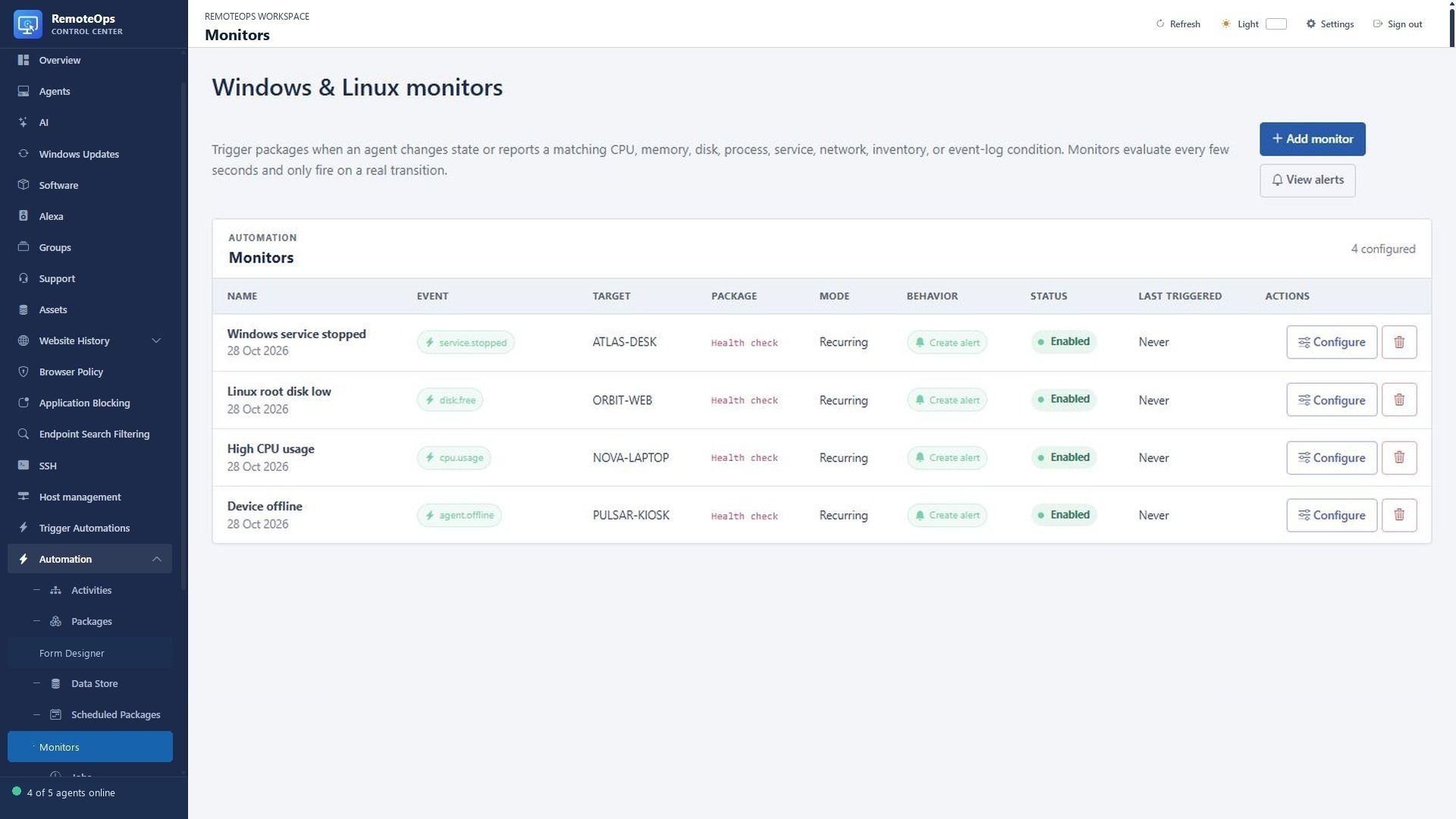
Name identifies the policy; Event shows selected signals; Target scopes the device/group/SSH host; Package is the response workflow; Mode controls recurring/once behavior; Behavior shows alert creation; Status enables the rule; Last triggered is the most recent firing.
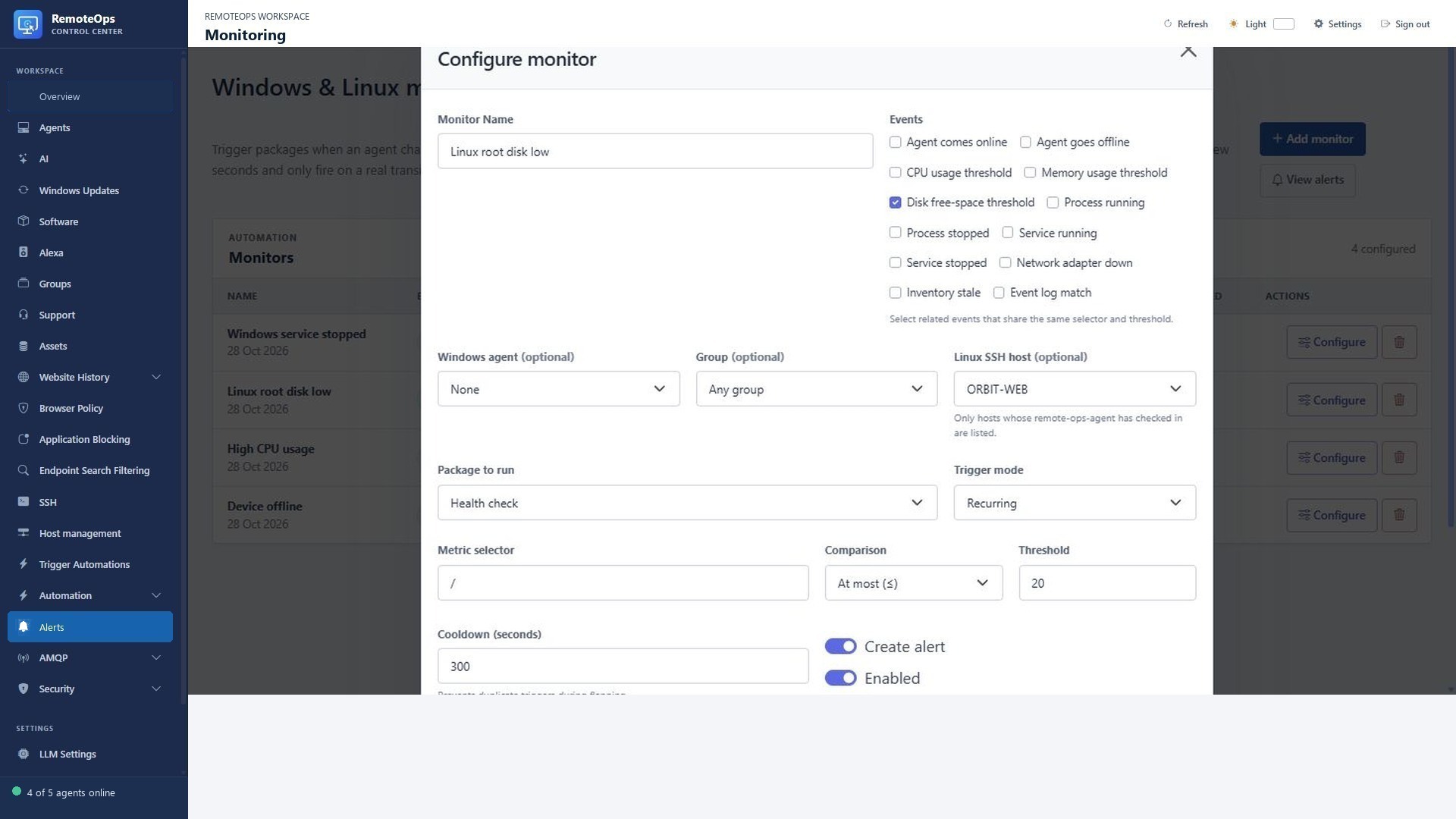
Choose event types, then a Windows device/group or eligible Linux SSH host. Metric selector identifies a drive, service, process or supported event target. Comparison and Threshold define the metric condition. Cooldown suppresses repeated triggers. Create alert and Enabled are separate switches.
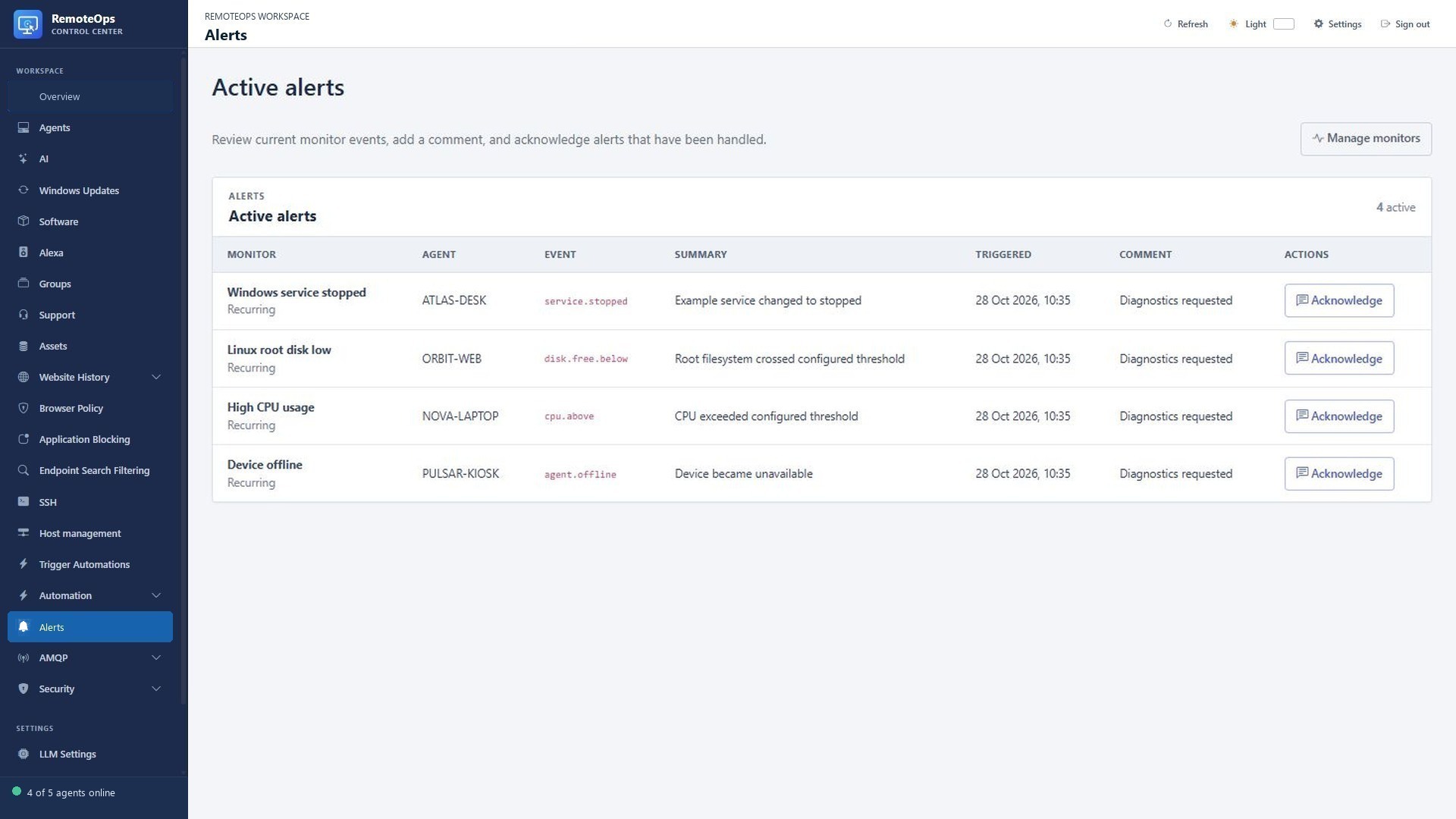
Monitor and Agent identify the source; Event and Summary describe the condition; Triggered timestamps it; Comment records follow-up. Acknowledge updates alert state. It does not restart a service or resolve the original condition.
Configure the response before the incident#
Choose the signal and scope, define the condition, select a package and decide whether to create an alert. Test with a limited target first. The first observed state establishes a baseline rather than triggering a fabricated transition.
The portal's Automation → Monitors section can trigger a package when an enrolled Windows agent or an installed Linux SSH monitoring agent changes state or reports a matching metric. The first observed state for each selected event is recorded without firing. Windows monitors can be scoped to one agent, one group, or all Windows agents. A Linux monitor is scoped to one SSH profile and can only be saved after that profile's remote-ops-agent has authenticated and checked in. A monitor may select compatible event pairs—online/offline, CPU/memory, process running/stopped, or service running/stopped—so either event can trigger the same package. Each event keeps an independent baseline, while once mode and cooldown apply to the monitor as a whole. Clear Create alert to run the package without creating an active alert.
Supported monitor event types are agent.online, agent.offline, cpu.usage, memory.usage, disk.free, process.running, process.stopped, service.running, service.stopped, network.adapter, inventory.stale, and eventlog.match. CPU and memory use a percentage threshold. Disk uses a drive selector and compares free-space percentage. Process and service monitors use a name selector, network monitors use an adapter selector and report up/down, inventory-stale uses an age threshold in seconds, and event-log matching uses a case-insensitive text selector against recent Application and System entries. Comparison operators are ==, !=, <, <=, >, and >=.
The server derives a compact monitoring policy separately for each agent. A SHA-256 hash is sent with each heartbeat and the policy itself is transferred only when that hash differs. Windows agents subscribe to native notifications for requested NIC changes, process starts/stops, service state changes, and new Application/System event-log records. The Linux remote-ops-agent subscribes to kernel netlink interface changes and samples /proc, /sys, and requested filesystems only while a matching monitor exists. CPU, memory, disk, process, and service checks run about every 30 seconds; NIC changes cause an immediate report. A disk-only monitor does not collect process, service, or network data. Agents with no applicable metric monitor collect and upload no monitoring telemetry. Online/offline uses the ordinary heartbeat, while inventory-stale uses the existing inventory timestamp, so neither requires a metrics upload. The server discards telemetry carrying an obsolete policy hash and clears stored metrics after the final applicable monitor is disabled or removed.
Linux monitoring is installed from the SSH profiles page with Install monitor. The control plane transfers one statically linked x86-64 binary and the portal CA over the existing encrypted SSH connection, creates a locked-down remote-ops-agent system user, writes a 0600 token configuration, and installs a hardened systemd unit. The service has no interactive shell, no Linux capabilities, no sudo rule, and write access only to /var/lib/remote-ops-agent. The saved SSH account must be root or have passwordless sudo for the one-time installation; ordinary monitoring then runs unprivileged. After a successful install, the action changes to Reinstall monitor. Uninstall monitor stops and removes the unit, binary, configuration, state directory, and remote-ops-agent account. Deleting an SSH profile performs the same remote cleanup first and keeps the profile if the cleanup cannot be completed. Linux supports online/offline, CPU, memory, disk-free, process, service, network-adapter, and inventory-stale monitors. Windows Event Log matching remains Windows-only.
Linux monitor 1.1.0 also collects graph statistics every 30 seconds, independently of alert policies: aggregate CPU utilization, memory usage, filesystem usage, whole-device disk read/write throughput, and per-interface receive/transmit throughput (excluding loopback). Existing hosts need Reinstall monitor to receive this collector. Use Graphs on an installed host in the SSH table to open the RRDtool graphs, select the last hour/day/week/month, or enable one-minute automatic refresh. CPU and I/O rates need two samples; counter resets, first observations, and interruptions longer than 90 seconds are unknown values rather than zeroes. A monitor restart starts a new counter baseline.
The backend stores fixed-size RRD files beside its SQLite database in <REMOTEOPS_DB_PATH>.statistics/ on the existing persistent data volume, with 30-second history for two days and 5-minute averages for 31 days. The graph catalog lives in linux_statistics_series; include both the database and this directory when moving an installation. Series names are hashed into filenames and each host is limited to 256 retained panels. Obsolete series and deleted agents' files are pruned on the next active statistics upload, at most once per hour. The authenticated portal proxies graph requests; monitored hosts need no extra listening port or graphing package. The server build requires librrd-dev, and its runtime image includes librrd8 and DejaVu fonts. This graph collection is separate from the policy-scoped alert telemetry described above.
Every transition configured to create an alert creates an entry in Automation → Alerts. Alerts retain the monitor, agent, event, timestamps, package job ID, and event details. Administrators can acknowledge an active alert with an optional comment, add comments later, or clear all acknowledged alerts. Acknowledging a recurring alert does not disable the monitor; a later matching transition creates a new alert. Online/offline and metric signals are evaluated by the server's monitor worker every five seconds; metric freshness is based on the agent's last metrics report.
A monitor-triggered package can expose its exact trigger context by putting the built-in monitor task first. It runs entirely in the Orchestrator and performs no additional agent request or network transfer:
- task: monitor

- task: inline_powershell
  name: format_alert
  inputs:
    device_name: '=monitor.device_name'
    event: '=monitor.event'
    observed_value: '=monitor.value'
    triggered_at: '=monitor.triggered_at'
    script: |
      return @{
        message = "$device_name triggered $event with value $observed_value at $triggered_at"
      }
The output includes name/monitor_name, monitor_id, event/event_type, device_id/agent_id, device_name/agent_name, group_id, group_name, package_name, selector, operator, threshold, the observed value, previous_state, state, triggered_at, triggered_at_utc, timezone, mode, cooldown_seconds, create_alert, alert_id, and summary. triggered_at uses the RemoteOps server's configured timezone and explicit UTC offset; triggered_at_utc is the same instant in UTC for integrations. Fields that do not apply are JSON null. The observed value is a number for CPU, memory, disk-free, and inventory age; a boolean for process, service, and event-log monitors; and a string for online/offline or network-adapter state. An optional explicit task name is allowed, but the unambiguous =monitor.output_name alias still works.
The context is captured when the monitor transition fires and persisted with the package job, so a retry uses the original trigger details rather than current telemetry. A package containing - task: monitor fails clearly if it is started manually, by schedule, or by webhook because those runs have no monitor trigger context. The task must be the first executable package task (after optional cron or webhook metadata) and accepts no execution fields.
Packages can also include the Orchestrator-side event task when they need an explicit event step in their workflow:
- task: event
  name: agent_event
  type: 'agent.online'
  agent: 'ATLAS-DESK'
  group: 'Workstations'
The task accepts any supported monitor event type, optional agent/group output references, and returns the resolved event scope without dispatching work to a Windows host. Monitor selectors, comparisons, and thresholds remain part of the monitor definition rather than the package task.
A practical response package#
Create a package that begins with monitor, formats the captured event, and emails the report. The context is persisted with the triggered job, so retries use the same event context rather than pretending it is a new reading.
- task: monitor

- task: inline_powershell
  name: report
  inputs:
    device: '=monitor.device_name'
    event: '=monitor.event'
    value: '=monitor.value'
    script: |
      return @{ text = "$device reported $event with value $value" }

- task: email
  recipient: admin@example.com
  subject: RemoteOps monitor event
  data: '=report.text'
Configure SMTP before using email. Do not place a monitor task in a package that is only intended for manual execution. Missing metrics may mean uncollected or stale data; inspect freshness and policy state.