 RemoteOpsGet started
 BUILD AUTOMATION
Develop PowerShell, Bash and Python activities
Reusable function contracts, parameters, structured results and targeting.
Examples use remoteops.example.com and fictional systems. Adapt them to your tenant.
Screen reference#
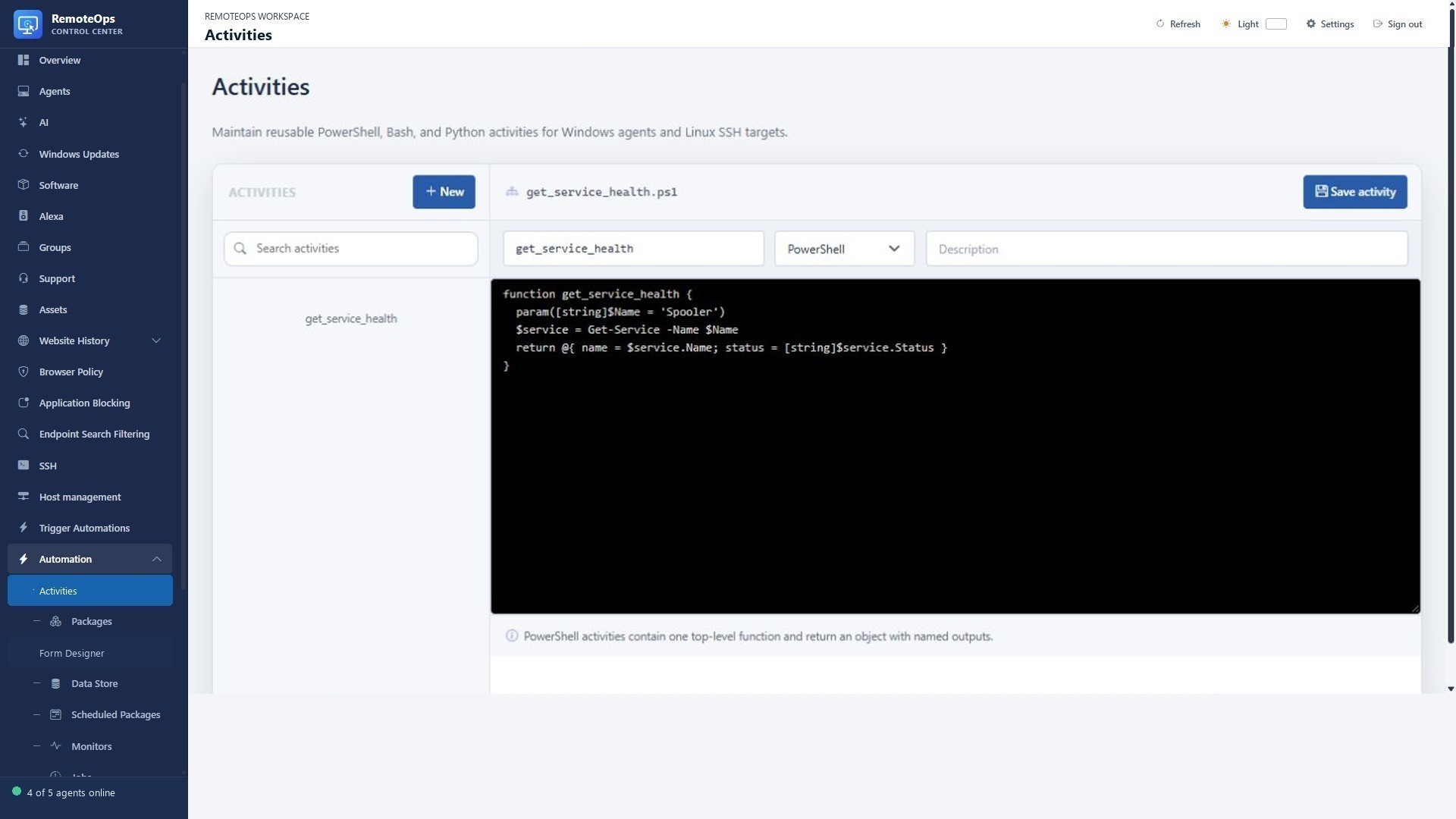
Use the left resource list to select the saved activity. Name, language and description sit above the source editor. PowerShell, Bash and Python have different execution targets and output contracts.
The activity contract#
An Activity contains one top-level function and no executable top-level statements. Choose the language for the target: PowerShell runs on a Windows agent, Bash/Python on an eligible saved private-key SSH profile. Create the Activity before referencing its exact saved name in a Package.
Parameters become package inputs. Return structured data for later tasks rather than asking another task to parse free-form status prose. Results include captured standard output, standard error, exit code and failure information as applicable. Keep changes idempotent because work can be delivered again after an interruption.
A useful Windows activity#
Save this PowerShell Activity as inspect_windows_service. It only reads service state.
function inspect_windows_service {
    param([string]$service_name)
    $service = Get-Service -Name $service_name -ErrorAction Stop
    return @{
        name = $service.Name
        status = [string]$service.Status
        running = $service.Status -eq 'Running'
    }
}
Invoke it from a package:
- task: inspect_windows_service
  name: inspect
  agent: 'ATLAS-DESK'
  runas: system
  continue_on_error: false
  inputs:
    service_name: Spooler

- task: notification
  agent: 'ATLAS-DESK'
  message: '=inspect.status'
Bash and Python results#
Bash/Python Activities may write one valid JSON object to stdout. Its top-level properties are promoted to named outputs alongside captured stdout/stderr/exitCode. Plain non-JSON output remains available as standardOutput. Do not mix debug lines with the JSON object when you need output promotion.
For a saved Python activity, use one top-level function and match its parameters to the configured inputs. The language's activity runner handles the invocation. For short self-contained scripts, use the built-in inline SSH task instead:
- task: python
  name: system_report
  ssh: ORBIT-WEB
  continue_on_error: false
  inputs:
    script: |
      import json, platform, shutil
      disk = shutil.disk_usage('/')
      print(json.dumps({
          'hostname': platform.node(),
          'free_bytes': disk.free,
          'free_percent': round(disk.free * 100 / disk.total, 2)
      }))
Inline PowerShell is different#
inline_powershell executes on the Orchestrator, not a Windows endpoint. It must not define agent, ssh or runas. Its named inputs are injected variables; do not redeclare them in a param block inside the inline script.
- task: inline_powershell
  name: format_report
  inputs:
    device_name: ATLAS-DESK
    script: |
      return @{ message = "Health report for $device_name" }
Development checklist#
- Confirm target type, exact saved Activity name, permissions and user context.
- Validate and normalise inputs before changing a system.
- Keep stdout focused; return explicit booleans/numbers for conditions.
- Fail clearly when a prerequisite is unavailable and set package failure policy deliberately.
- Avoid logging secrets, image data or excessive command output.
- Test on a fictional/demo target before a wider rollout and inspect Job History.
See Packages, Task reference and AI administration.