 RemoteOpsGet started
 MONITOR AND RESPOND
Linux and Windows performance graphs
Metric history, supported chart ranges, Linux monitor installation and Windows statistics settings.
Examples use remoteops.example.com and fictional systems. Adapt them to your tenant.
Screen reference#
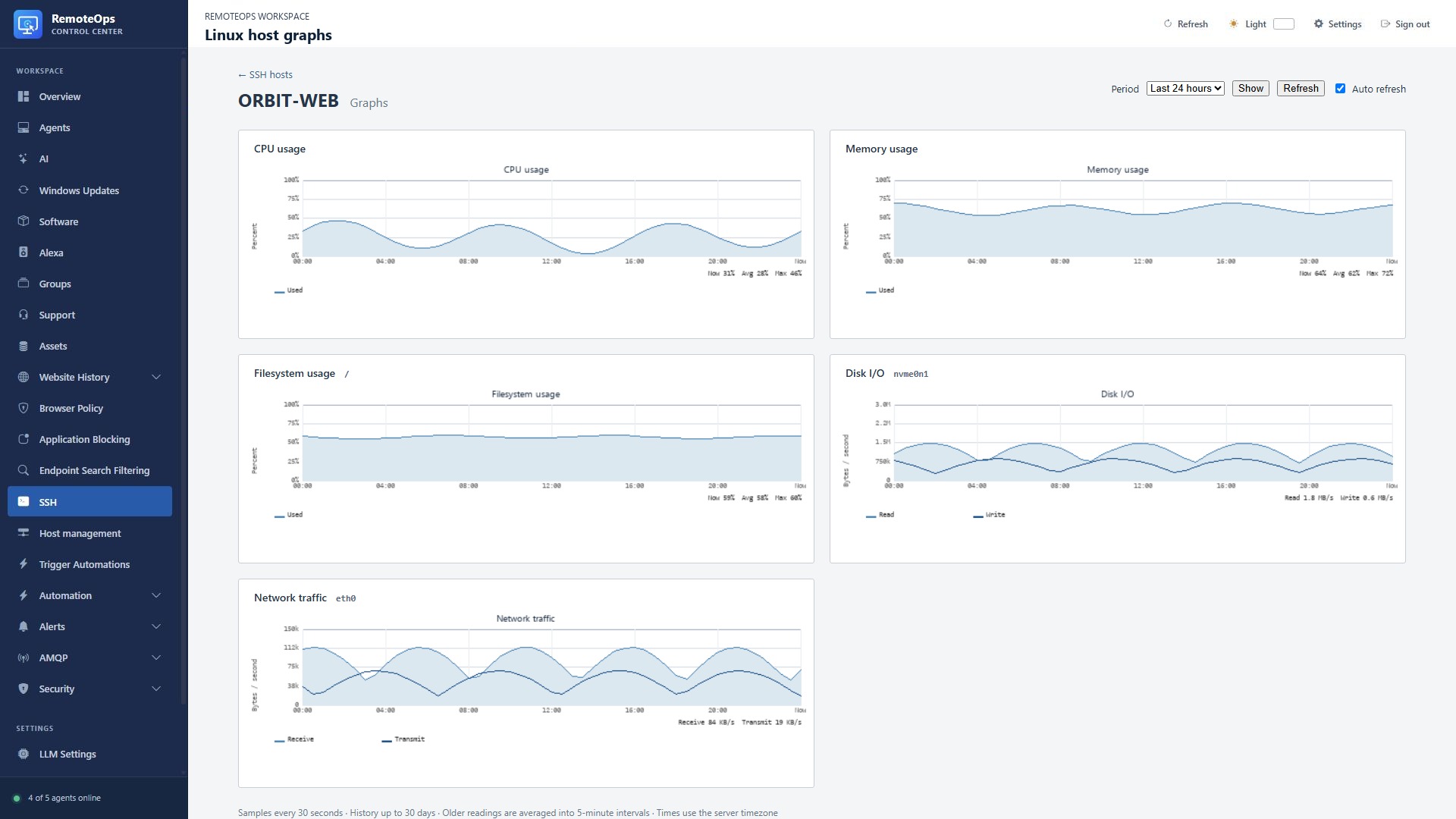
This full portal view shows CPU, memory, filesystem, disk I/O and network history for a fictional Linux host.
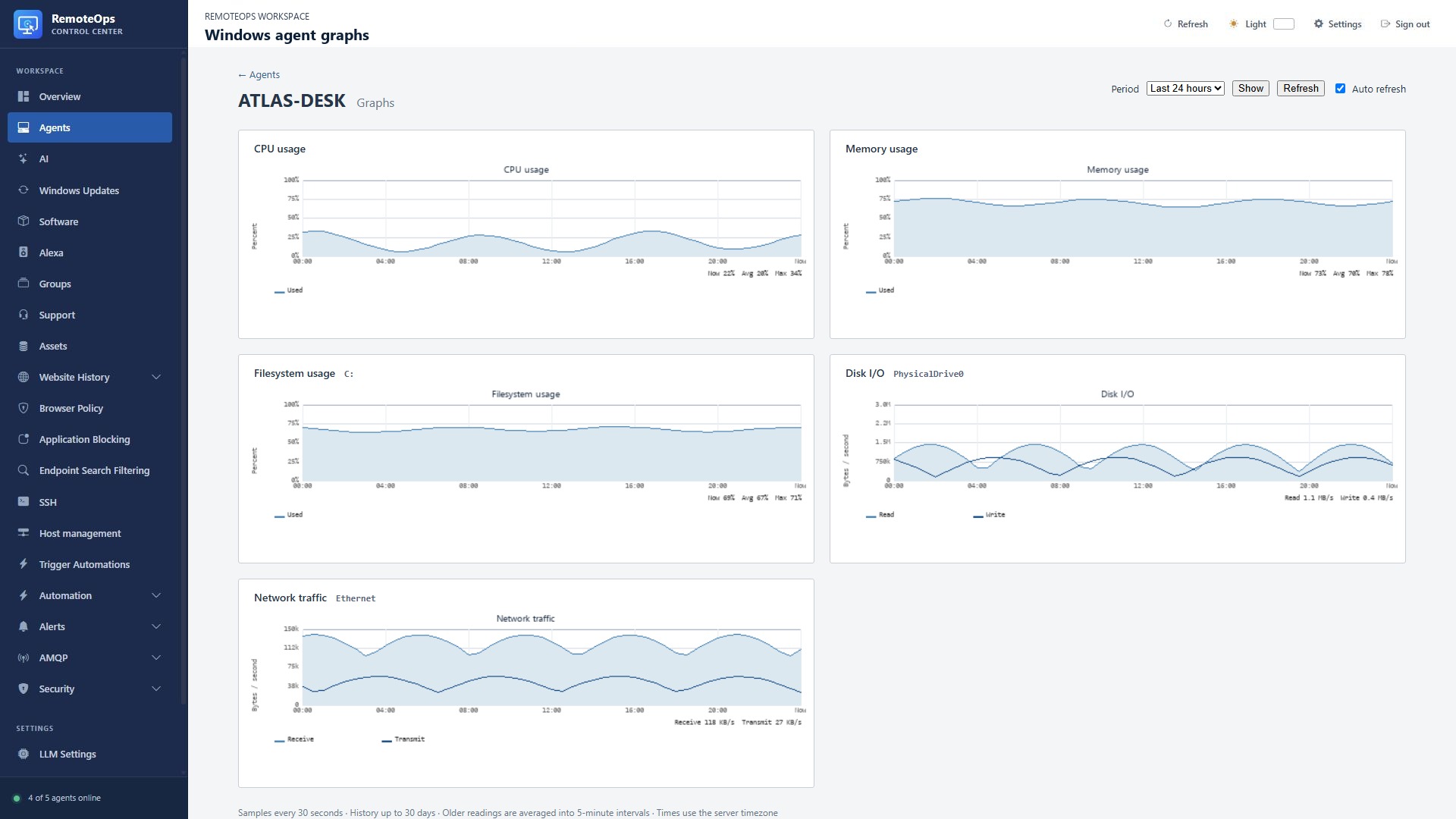
This full portal view shows the same graph types for a fictional Windows agent. Enable Collect performance statistics in Agents → Configure to populate this page.
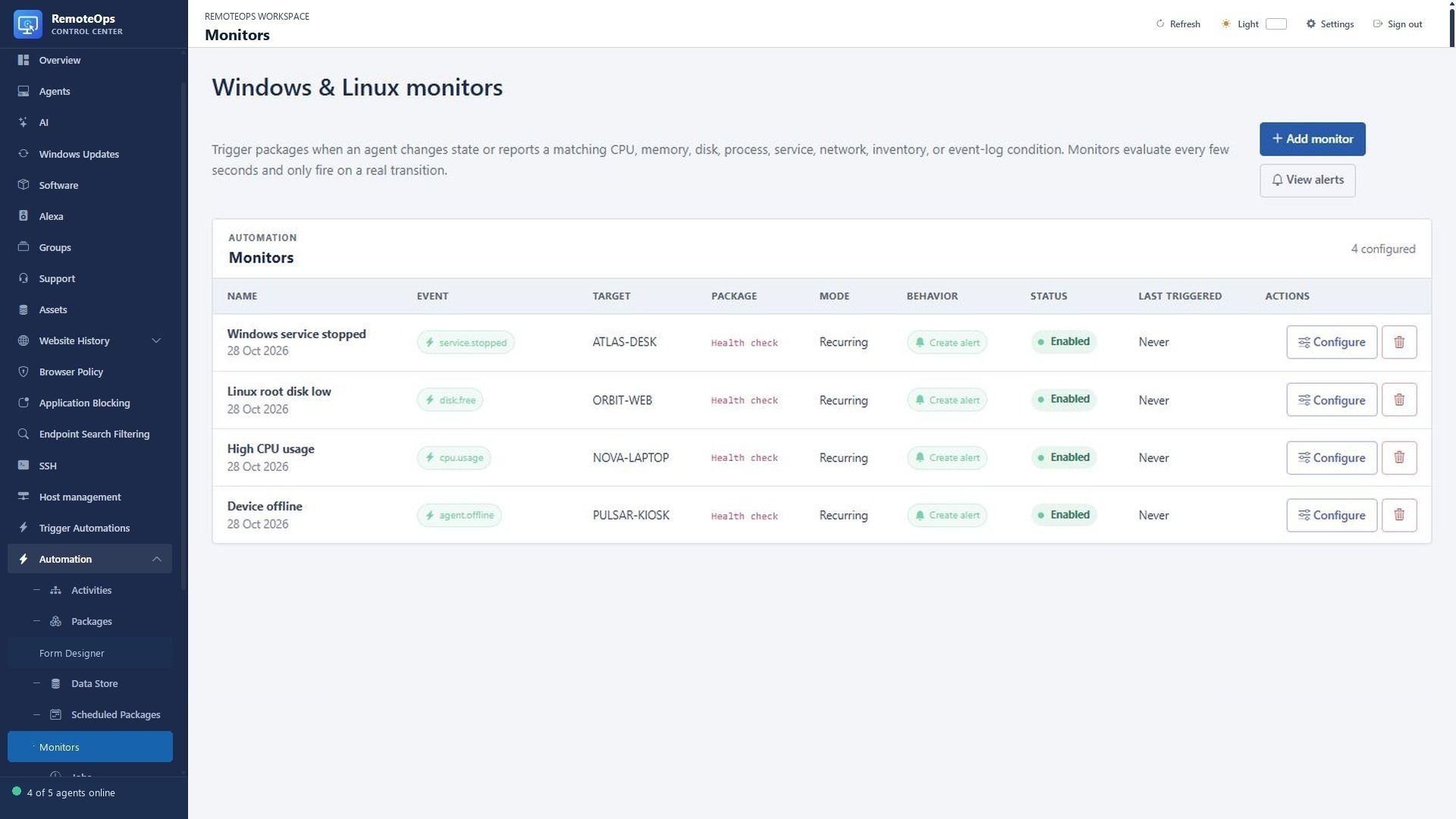
Windows and Linux monitors can evaluate thresholds and events, create alerts and trigger packages alongside the historical graph views.
What the graphs show#
Open SSH, select a monitored Linux host profile and choose Graphs. Windows hosts with performance collection enabled also have a Graphs action in the Agents list. Both pages show CPU, memory, filesystem usage, disk read/write activity and network receive/transmit traffic. Use the period selector for the last hour, 24 hours, 7 days or 30 days. Samples arrive about every 30 seconds and history is retained for up to 30 days. The charts are read-only views of collected samples, not remote command consoles.
The screenshots use fictional readings for ORBIT-WEB and ATLAS-DESK. They show the graph page inside the normal portal shell, including its navigation and host context. The sample lines demonstrate the real chart types and layout; they are not live telemetry.
Install and open the Linux monitor#
- Create and test an SSH profile for a supported Linux host.
- Select Install monitor. Initial installation requires root or passwordless sudo so the service can be provisioned. It then runs as the restricted
remote-ops-agentaccount. - Wait for the profile to show a successful monitor check-in. A host with no recent check-in may be marked stale.
- Open the profile's Graphs view, choose a period and select Show. A brand-new monitor needs time to collect enough samples for a useful timeline.
- If the monitor stops checking in, inspect host reachability and service status; use Reinstall monitor for the supported repair path. Uninstall removes the monitor from the remote host.
Each graph is based on samples actually collected in the chosen interval. Missing intervals remain gaps rather than being interpolated as healthy readings. If the last check-in is stale, use that freshness information when interpreting the end of a chart. The portal and SSH host clocks can differ, so compare displayed ranges with the host timezone when investigating an incident.
Enable Windows statistics#
In Agents, open Configure for the Windows device and enable Collect performance statistics. Save the setting and allow the agent to report its first samples. The Graphs action opens the same read-only chart page used for Linux hosts. Statistics collection is independent of alert monitor rules, and no samples are collected while this setting is off.
Windows monitors and alerts#
Windows also supports current CPU, memory and disk thresholds, plus availability, service, process, network, inventory-age and supported Windows event-log conditions. A matching rule can create an alert, start a package, or do both. The monitor list and alert view show the configured Windows policies and their state:
Performance graphs show historical readings; monitors evaluate current readings and events and can create alerts or start packages. Use both when you need a trend and an automated response.
For Windows, configure a monitor in Alerts → Monitors: choose the event and device/group scope, set the comparison and threshold where applicable, then select an optional response package and alert behavior. Windows monitor setup, supported conditions, cooldowns and response context are covered in Monitoring. Linux monitor installation is also described under SSH profiles.
Practical examples#
- Linux capacity trend: use the 7-day filesystem graph to see whether root usage has risen gradually or jumped during a short interval. Confirm the filesystem label and latest monitor check-in before planning cleanup.
- Linux network investigation: compare receive and transmit activity across the same time window as an incident report. A gap means the monitor did not provide a sample for that interval.
- Windows disk threshold: compare the filesystem history with a free-space monitor for the relevant drive. The graph shows the trend; the monitor can create an alert and start a package when its threshold is crossed.
- Windows service response: monitor a service transition and trigger a diagnostic package. Review the alert and linked job output before deciding whether to restart the service.