 RemoteOpsGet started
 BUILD AUTOMATION
Forms: design, data and interaction
Every control type, layout, typed choices, events, buttons and example workflows.
Examples use remoteops.example.com and fictional systems. Adapt them to your tenant.
Screen reference#
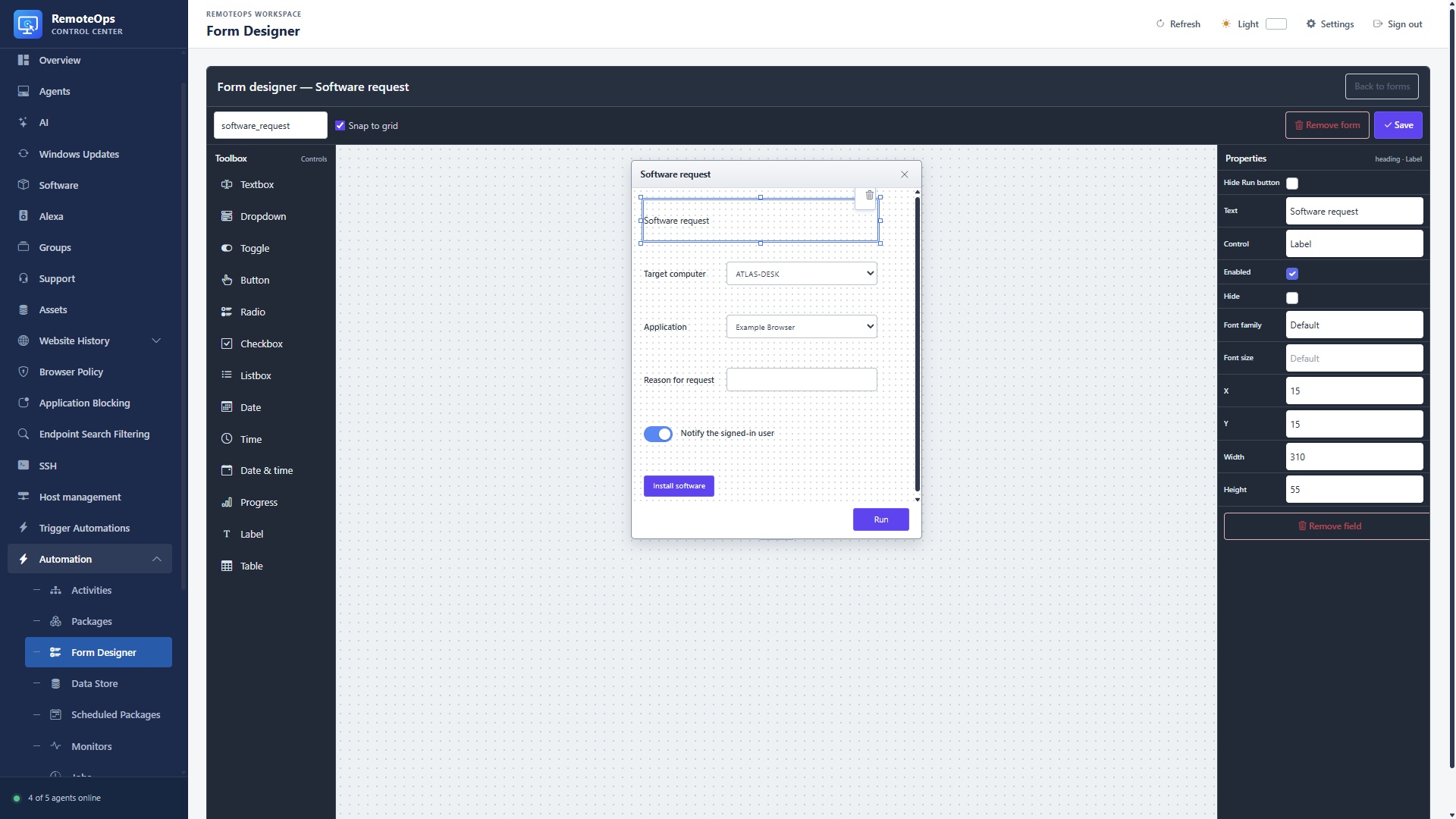
The left toolbox adds controls, the centre canvas positions them, and the right Properties panel edits the selection. Save stores the design; the preview Run button is not a live package run.
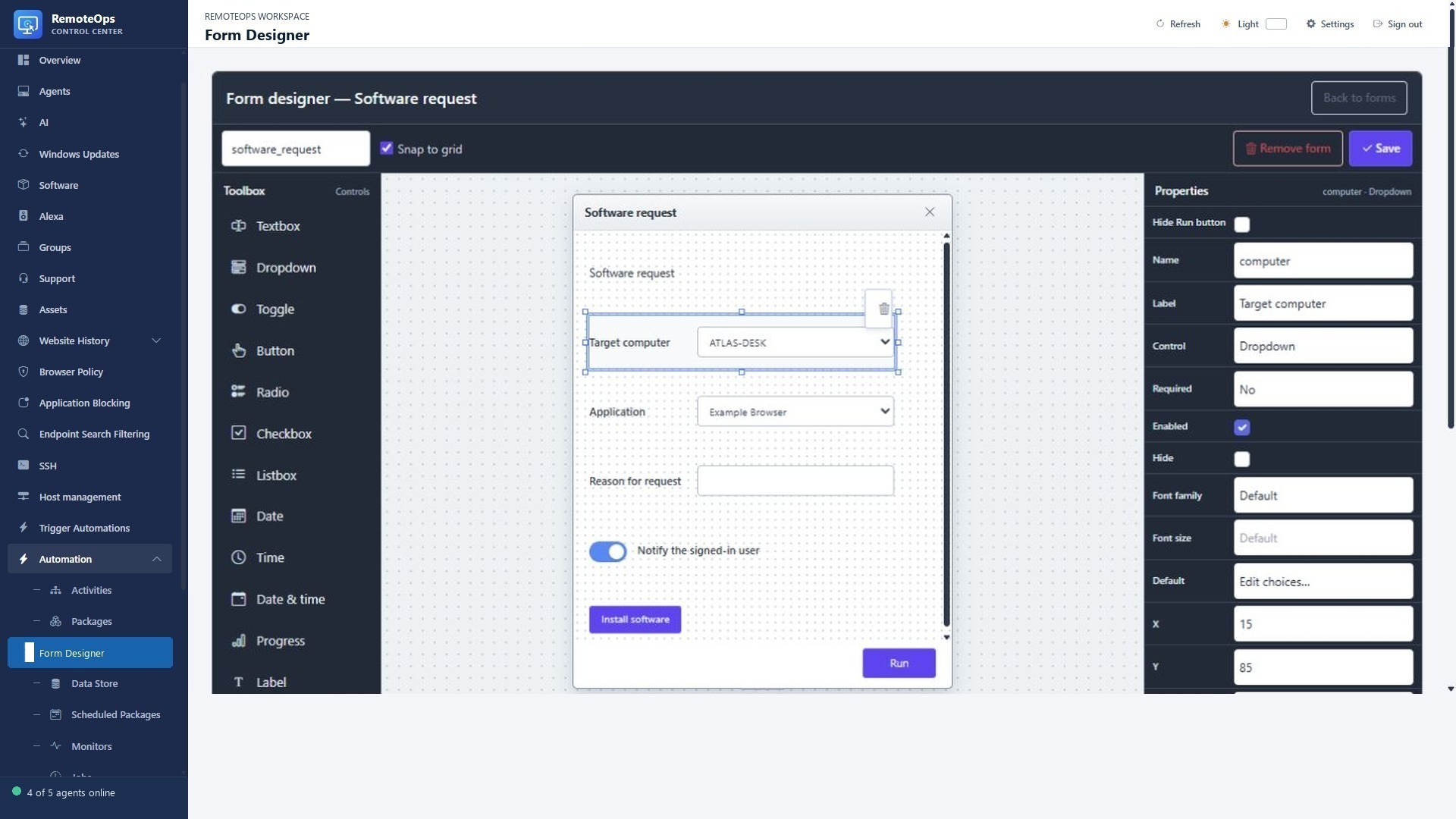
Name is the output key. Label is visible text. Required, Enabled and Hide control interaction. Geometry changes placement. Values source selects fixed JSON, earlier output or an activity-driven source. On change and Target connect supported callbacks.
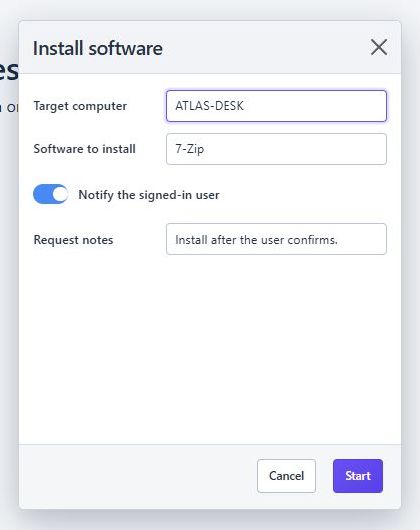
The operator enters values in the runtime form. Submitting returns structured field values to the package; cancellation must be handled by the workflow.
Where forms fit#
A form is an interactive step in a saved Package. It can collect values before later tasks execute or display data computed earlier in the same run. Forms live in a saved library and can be linked to packages; the visual designer edits the form definition. Trigger automation buttons launch eligible packages and continue their forms in the portal.
Build with the designer#
- Open Forms and create a named form, or open a saved package's form definition.
- Add controls from the toolbox. Give each control a unique field name.
- Set labels, type, defaults, choices, required/visible/enabled state and geometry.
- Arrange controls and use snap-to-grid where helpful. The runtime uses a fixed 384-pixel form width; layout must work at that width.
- Save the form and the package that uses it. A library form and its package are distinct saved resources.
- Run through Trigger automation and verify both the presented form and the typed outputs in Job History.
A complete form and notification package#
This example collects a target and message, then sends a notice. It does not install software or restart the computer.
- form: request
  height: 420
  fields:
    - name: device
      label: Target computer
      type: dropdown
      required: true
      values: '["ATLAS-DESK", "NOVA-LAPTOP"]'
    - name: message
      label: Message
      type: text
      required: true
      default: Maintenance will begin shortly.
    - name: prominent
      label: Use a prominent message
      type: toggle
      default: true

- task: inline_powershell
  name: choose_notice
  continue_on_error: false
  inputs:
    prominent: '=request.prominent'
    script: |
      return @{ type = $(if ($prominent) { 'large' } else { 'normal' }) }

- task: notification
  name: send_notice
  agent: '=request.device'
  type: '=choose_notice.type'
  message: '=request.message'
The form's values become named outputs such as =request.device. In an actual tenant, choices should be restricted to eligible known targets rather than accepting arbitrary untrusted host text.
Control reference#
| Type | Use | Value |
|---|---|---|
text |
Text input | String; blank when empty. |
toggle |
On/off switch | Boolean. |
checkbox |
Checked choice | Boolean. |
dropdown |
Compact choice | Selected configured value; multiple permits multiple selections. |
radio |
Visible mutually exclusive choices | One configured value. |
listbox |
Visible list | Single or multiple configured values. |
date |
Date selection | Valid date string. |
time |
Time selection | Valid time string. |
datetime |
Local date/time selection | Valid local datetime string. |
label |
Static display text | Display control, not editable input. |
button |
Event/action or explicit submit | Does not behave as an editable data field. |
progress |
Display progress | Integer progress value where configured. |
table |
Named-column result grid | Rows/columns for display; not an arbitrary input text area. |
Field properties#
| Property | Purpose |
|---|---|
name |
Unique field identifier and output name. |
label |
Display label; meaningful labels matter for accessibility. |
type |
One of the supported control types. |
required |
Require an admissible value on submission where supported. |
default |
Initial typed value; must match the field type. |
values |
Choices, rows, or an output reference to an admissible value source. |
columns |
Named table columns with key/label metadata. |
multiple |
Multiple selection on eligible choice controls. |
hide |
Hide the field while retaining its configured value behavior. |
enabled |
Enable/disable eligible controls. |
label_side |
Left/right placement for eligible checkbox/toggle labels. |
x, y, width, height |
Control geometry. Use consistent valid geometry for the layout. |
font_family, font_size |
Supported form/control typography overrides. |
server, activity, inputs |
Supported server-side value source or button action configuration. |
on_change |
Saved server activity to invoke on a field change. |
target, updates, target_data |
Supported result-to-field mapping or static button patches. |
text |
Button/display text where applicable. |
submit |
Explicit button submits the form when true. |
Unknown properties, duplicate names and incompatible type/property combinations are rejected. A table, for example, is a display-oriented control and does not accept arbitrary editable-field properties.
Typed choices#
Use objects with text and value when the user-facing label differs from the submitted value. Choice values can preserve JSON types. A value not in the configured choice list is rejected. Use JSON text for a static choices list, or an earlier output reference for a runtime list:
- form: choose_action
  fields:
    - name: priority
      label: Priority
      type: dropdown
      values: '[{"text":"Normal","value":1},{"text":"Urgent","value":2}]'
      default: 1
Tables and dynamic results#
- task: inline_powershell
  name: report
  inputs:
    script: |
      return @{ rows = @(
          @{ device = 'ATLAS-DESK'; status = 'Ready' },
          @{ device = 'NOVA-LAPTOP'; status = 'Review' }
      ) }

- form: review_report
  fields:
    - name: devices
      label: Device report
      type: table
      columns:
        - key: device
          label: Device
        - key: status
          label: Status
      values: '=report.rows'
Table rows are JSON objects. Column keys choose which properties appear and labels name the headers. Keep row data bounded; a form table is a review surface, not an unbounded inventory export.
Field-change and button activities#
A field's on_change names a server-side Activity. A button can name an activity. The activity receives the current values as form; its returned mapping can update named fields. This is separate from the form's final submission. A button's configured activity runs when the operator clicks it, not merely when the form is displayed.
The server field is a string: use server: orchestrator (the default) for an Orchestrator Activity, or an eligible exact Windows agent name for a supported agent-side source. It is not a boolean. Activity inputs can themselves use earlier outputs. Keep source and event activities fast, deterministic and safe to invoke repeatedly. Avoid putting an irreversible action behind a field-change event.
An event Activity can return a value update or a field-property mapping such as { enabled = $false }. Configure supported target mappings deliberately; do not assume that an arbitrary activity result can rewrite the whole form.
Static button updates#
- form: message_editor
  hide_run: true
  fields:
    - name: message
      label: Message
      type: text
    - name: fill_example
      label: Use example
      type: button
      target_data:
        message:
          text: Maintenance begins at 17:00.
          enabled: true
    - name: confirm
      label: Continue
      type: button
      submit: true
hide_run: true hides the default Run/Continue control; provide an explicit submit path when the workflow must continue. Cancel remains available. Static target_data must name existing compatible fields and supported properties. It is not arbitrary JavaScript execution.
State, validation and cancellation#
The server validates field types, allowed choices, required values and submission tokens. A submitted, cancelled or expired interaction must not be replayed. Hidden and disabled controls have defined server-side value handling; do not rely on a hidden control to protect a secret. A package waiting for a form is still a running workflow with its own lifetime/cancellation behavior. Review the result if the browser closes or a run is interrupted rather than starting a duplicate.
Geometry and fonts#
The designer can arrange controls with integer positions/sizes and saved form height. The runtime form canvas width is 384 pixels, and form height can be up to 4096 pixels. Supported fonts include system-ui, Arial, Verdana, Tahoma, Trebuchet MS, Georgia, Times New Roman and Courier New. Font sizes are bounded; inspect the preview at the intended device width. Supply integer geometry, not numeric strings or booleans.
Common mistakes#
- Forgetting to save both the form and the package.
- Referencing
=task.outputbefore that task has a usable result. - Supplying an unknown dropdown value or the wrong JSON type.
- Treating table rows as editable text fields.
- Hiding the Run button without an explicit submit button.
- Calling a change event that modifies a real system on every edit.
- Designing beyond the fixed canvas width and assuming desktop viewport width will expand it.
See Trigger automation, Packages and the Task reference.
Form limits and validation reference#
| Item | Bound |
|---|---|
| Form name | 64 characters; valid identifier. |
| Field name | 64 characters; unique valid identifier. |
| Field label / button text | Up to 256 characters. |
| Controls | Up to 128 fields per form. |
| Choices | Up to 512 choices per configured source. |
| Table | 1–64 named columns, up to 512 row objects. |
| Table cell | Text, number, boolean or null; no nested objects/arrays. Text is bounded to 16,384 bytes. |
| Geometry x/y | Integers from 0 to 2048. |
| Control width/height | Width 80–1024; height 24–512. All four geometry values must be supplied together. |
| Saved form geometry | Width 96–2048; height 200–4096 where supplied. The current runtime still presents a fixed 384px-wide canvas. |
| Font size | Integer from 8 to 72. |
Static target_data supports compatible text/label, enabled/hide and typed default patches on existing fields. A button cannot combine an Activity with static target_data, cannot define both updates and target_data, and an explicit submit button cannot also be a source/event/update action.
An actual field-change callback#
Save this PowerShell Activity as format_form_note. Its form input is the current value mapping. It returns an update for the named note field.
function format_form_note {
    param($form)
    return @{ note = "Selected device: $($form.device)" }
}
- form: choose_device
  fields:
    - name: device
      label: Device
      type: dropdown
      values: '["ATLAS-DESK", "NOVA-LAPTOP"]'
      server: orchestrator
      on_change: format_form_note
    - name: note
      label: Note
      type: text
server is a string, defaulting to orchestrator. The Activity must exist in the supported execution context. Form callbacks receive the current form mapping; source activities used to populate choices and button/change actions have distinct invocation timing. Events after cancellation or final submission are rejected rather than replayed.