 RemoteOpsGet started
 REMOTE TOOLS
File management and transfers
Local/remote panes, Windows transfers, SCP, large files and operation results.
Examples use remoteops.example.com and fictional systems. Adapt them to your tenant.
Screen reference#
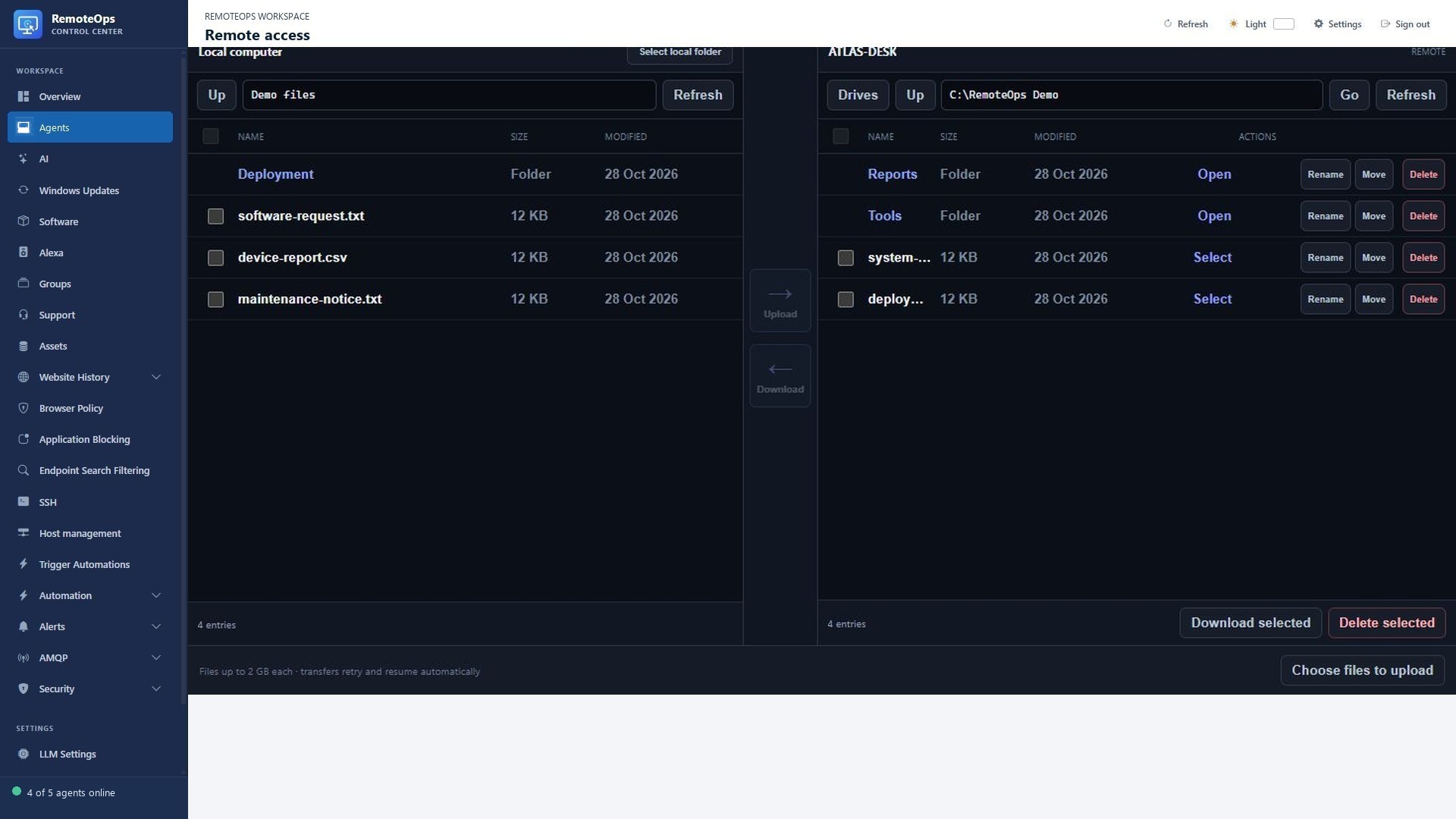
The local side shows the browser-approved folder. The remote path and file list identify the destination. Name, size and modified time help identify entries. Use the row or selection actions for transfer, rename, move and delete.
Open files without opening a desktop#
Use the standalone File Browser action for a Windows device, or File transfer on an SSH profile/session. The local pane uses an explicitly selected browser-accessible folder; the target pane displays the remote filesystem. Remote access rights come from the relevant Windows service or SSH account.
Upload#
- Choose Select local folder and approve the intended folder in the browser.
- Navigate to the target drive/folder; verify the target path before transfer.
- Select local files and use Upload, or use supported drag-and-drop transfer.
- Wait for the acknowledged result and confirm the target listing.
Windows transfers support individual files up to 2 GB using acknowledged 4 MB chunks, automatic upload retry and in-session offset recovery. This does not imply that a transfer can resume indefinitely after every browser/session loss. SCP transfers use the existing SSH connection and stream data through the service.
Download#
Select remote files and use Download selected or the transfer arrow. Multi-select is supported for remote downloads. The selected local folder determines where supported browser-folder transfers can write. Browser permissions and download behavior can differ between browsers.
Rename, move and delete#
Use the remote row actions or supported drag-and-drop onto destination folders. Deletion is permanent. SSH folder deletion supports empty folders; do not assume recursive removal. Changing a path is not the same as copying its contents. Inspect the result and refreshed listing after a rename/move, particularly on disconnected or permission-limited hosts.
Windows and SSH differences#
| Area | Windows | SSH |
|---|---|---|
| Target access | Agent file helper | Saved SSH connection/account |
| Transport | RemoteOps acknowledged transfer protocol | SCP over SSH |
| Navigation | Drives and Windows paths | SSH filesystem paths/home |
| Common limits | Up to 2 GB per file | Up to 2 GB per file; target permissions apply |
| Local access | Explicit browser folder selection | Explicit browser folder selection |
Troubleshooting#
Check target connectivity, destination existence, free space, OS permissions and filename/path quoting. A browser cannot freely enumerate your local disks without permission. If a large upload is interrupted, check its reported offset/result and current session before restarting it. Do not treat a refreshed file listing alone as a content-integrity hash comparison.