 RemoteOpsGet started
 BUILD AUTOMATION
Trigger automation buttons
Operator buttons, coordinators, forms, timeouts and execution history.
Examples use remoteops.example.com and fictional systems. Adapt them to your tenant.
Screen reference#
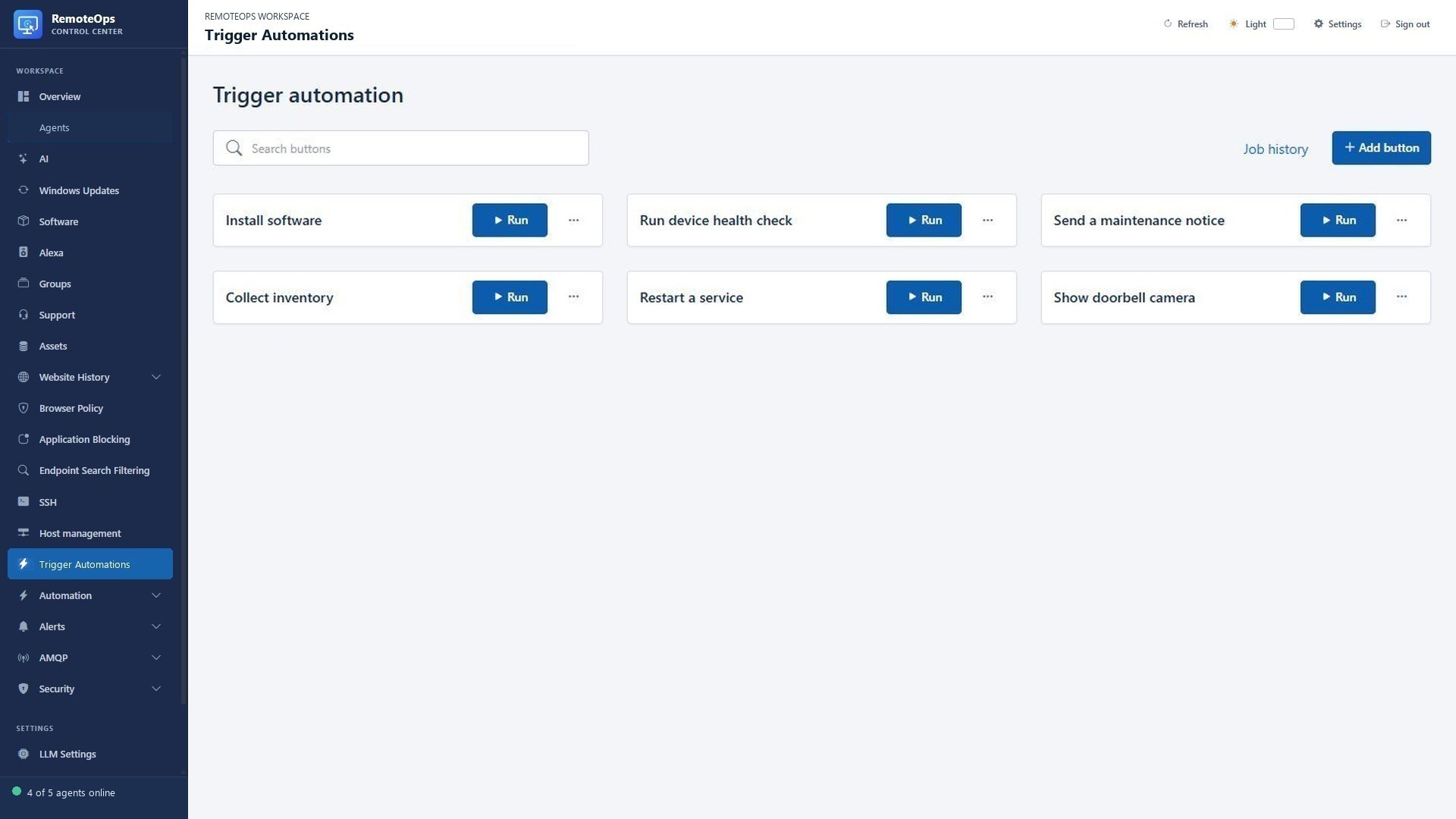
Each named button invokes its configured package and target/default coordinator. The button name should describe the work. A form, if configured, gathers operator input before the workflow continues.
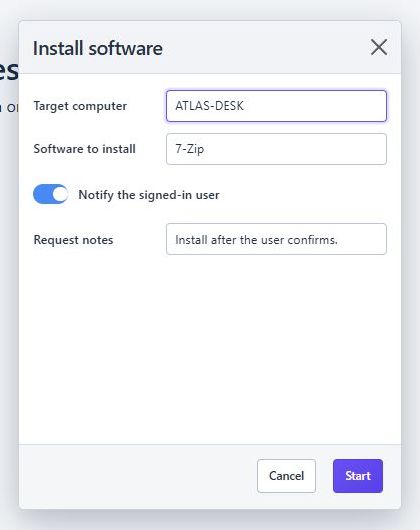
The package can present the saved form, validate values and pass them into later tasks.
Give a package a useful front door#
Trigger automation buttons let an operator run a named saved package without reopening the YAML editor. A button stores its label, optional description, selected package, coordinator/default target and timeout.
Create a button#
- Save and test a package.
- Open Trigger automation and choose Add button.
- Give it an outcome-oriented label, such as Run device health check.
- Select its saved package.
- Choose Orchestrator for cross-target packages that specify agent/SSH targets on tasks, or the intended eligible default agent.
- Set the allowed timeout and save.
Run and complete forms#
Search for the button, verify its target/description, then choose Run. If the package has interactive forms, complete them in the presented modal. A no-input confirmation can still require explicit submission. Follow the status and then open Job history for outputs and failures. Do not click repeatedly while a run is starting.
Buttons can become unavailable if a referenced package/target is removed or the service cannot load their configuration. Edit the button to select an eligible existing resource. Removing a button does not mean deleting its package.
Reuse from AI#
The AI can discover eligible saved buttons by label and run a matching button using its saved target and timeout. Form-enabled runs continue the form workflow rather than inventing missing inputs. Out-of-scope, dynamic/group targeting and other unsupported AI button runs may require the Trigger automation page. See AI administration.
Good button examples#
- Collect a read-only workstation health report.
- Request an approved application through a form.
- Send a maintenance notice to a selected known device.
- Collect Linux disk/service diagnostics and email a report.
- Display a fresh camera feed for a door event.
Use clear names and constrained form choices. Keep credentials in Key Vault and reusable non-secret state in Data Store.