 RemoteOpsGet started
 REFERENCE
Product screen reference
Screens and control-by-control explanations for the portal, remote tools, updates, forms, monitoring and AI.
Examples use remoteops.example.com and fictional systems. Adapt them to your tenant.
Use these screens to identify the controls referenced in each guide. Select any image to open the full-size viewer.
Front Door stream on an example desktop#
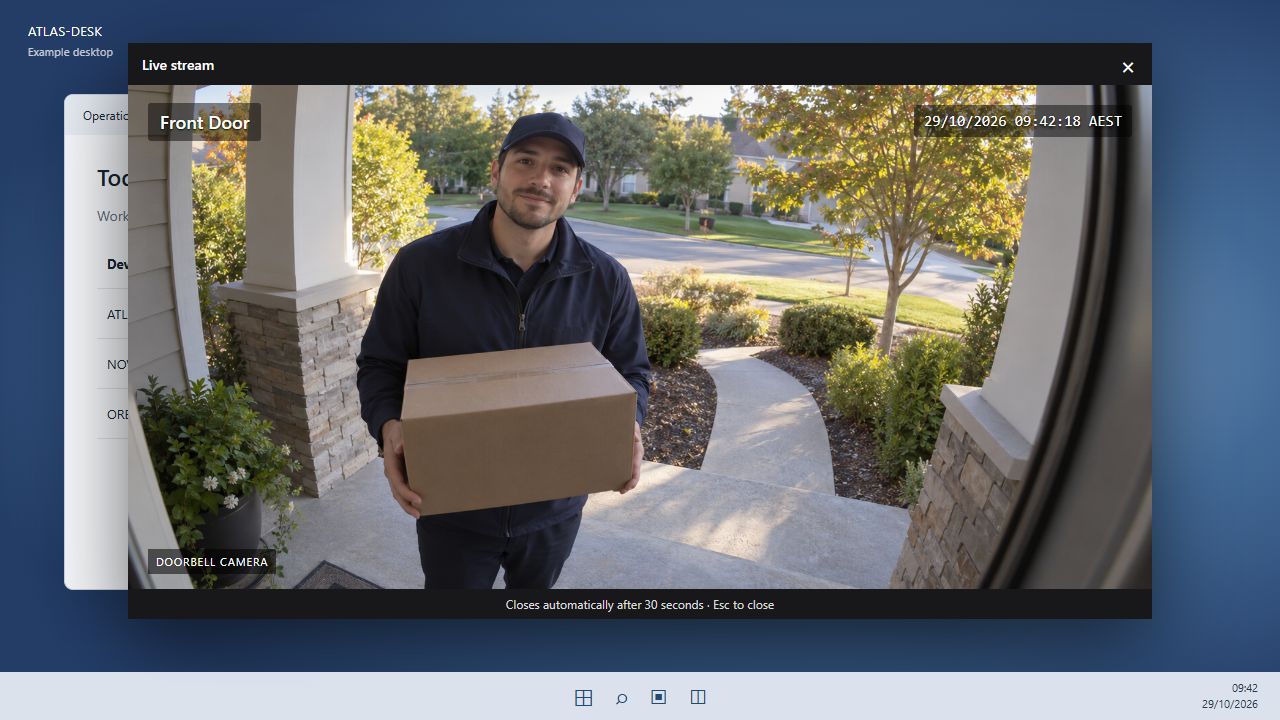
Fictional camera scene. The feed includes a Front Door label and an example date/time overlay. The player shows the timed desktop-window experience.
Ask before opening the Front Door camera#
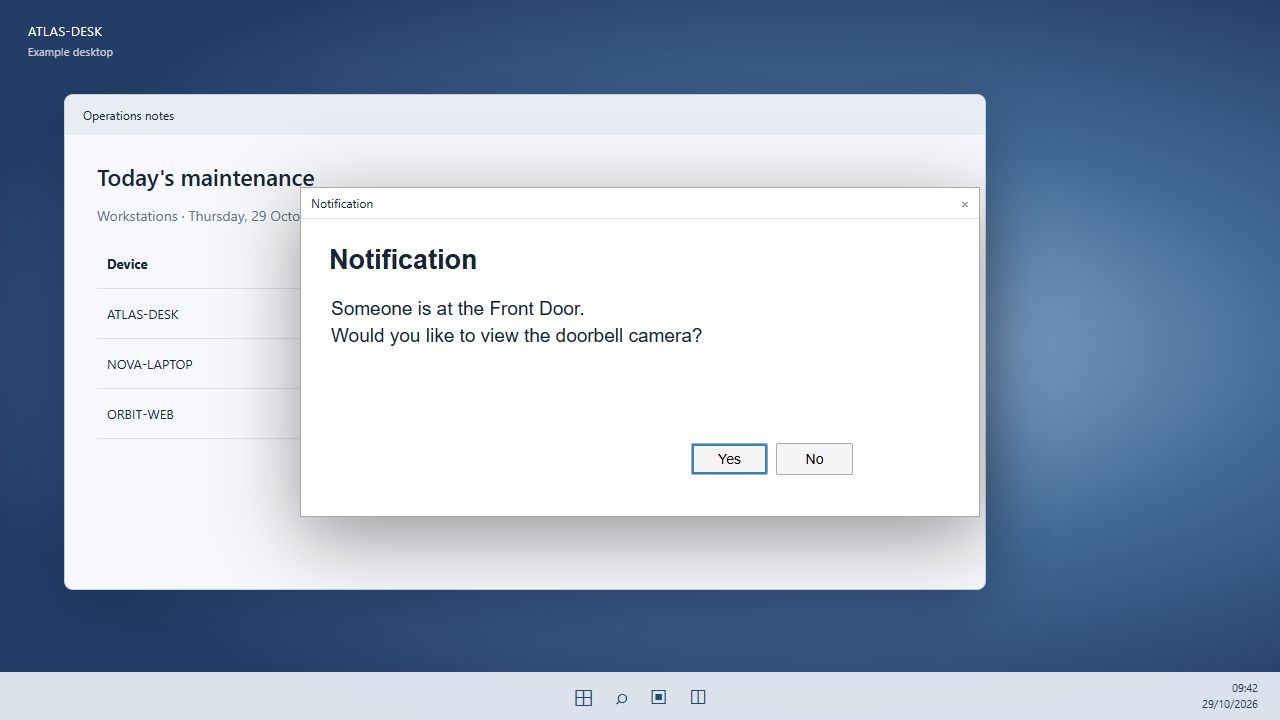
A Yes/No question can control whether the later display step is attempted. The complete decision recipe below handles No and no response.
Frame capture and vision-summary example#
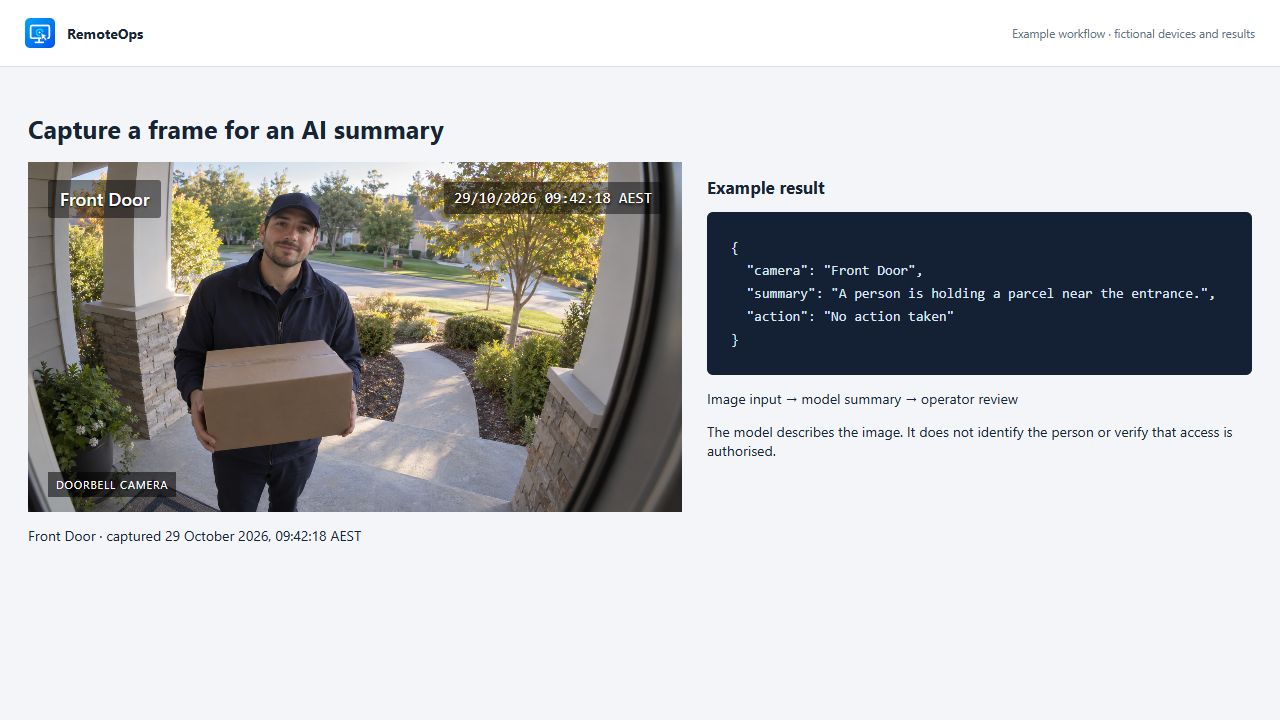
Capture returns image data for a later task. A model summary is separate from the live player and requires an eligible image-capable connection.
Maintenance question on an example desktop#
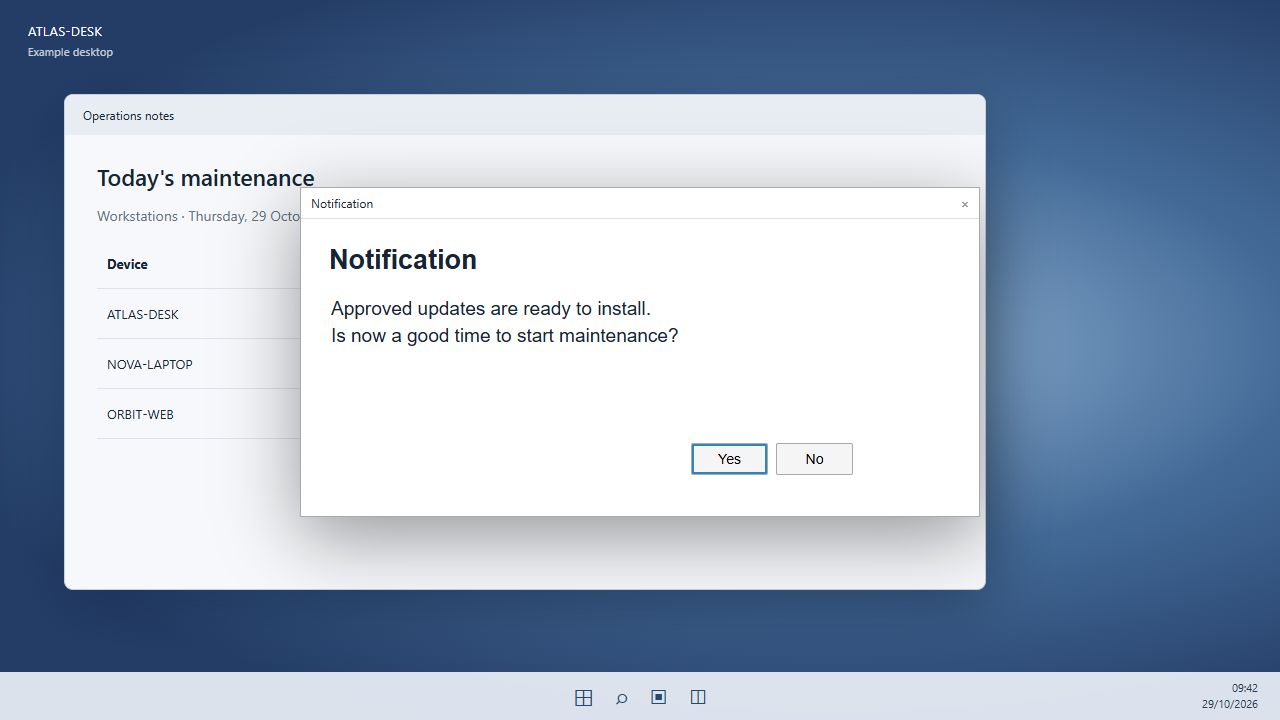
The user sees Notification, the message, and separate Yes and No buttons. The workflow handles the actual response.
Large completion notice#
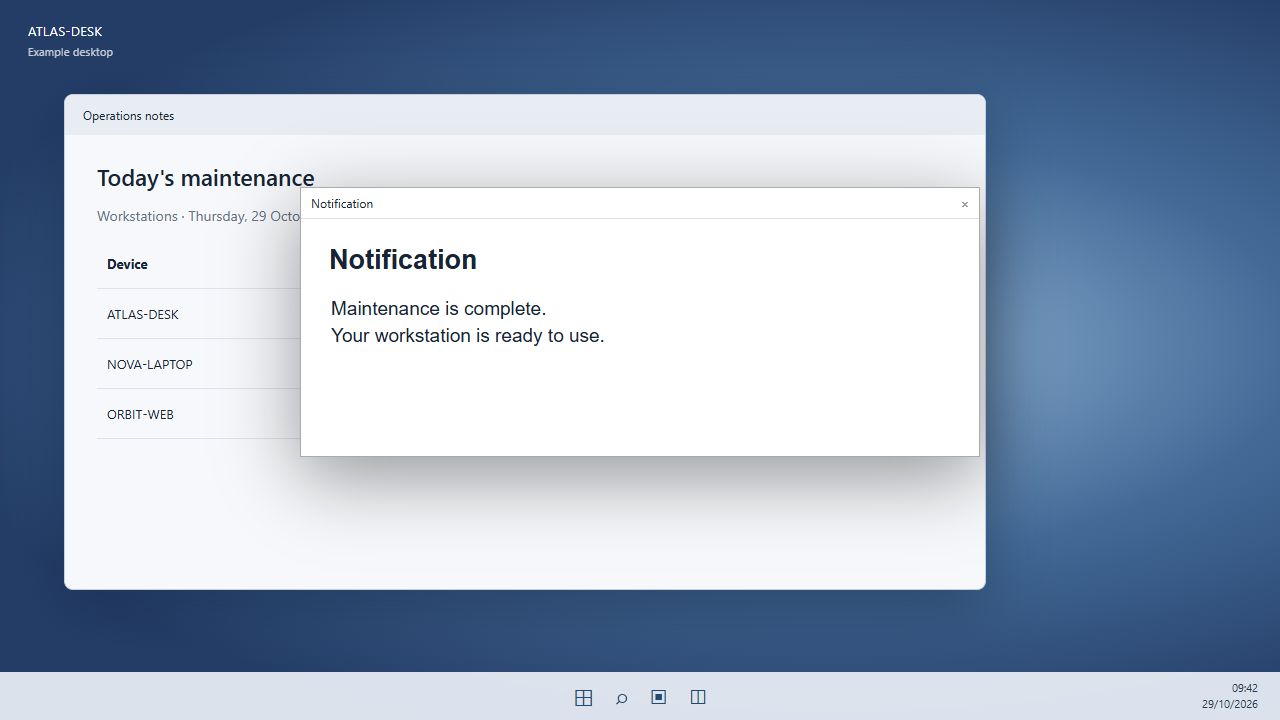
A large notification presents the result to the signed-in user without asking for a Yes/No response.
HTTPS webhook request and accepted-job response#
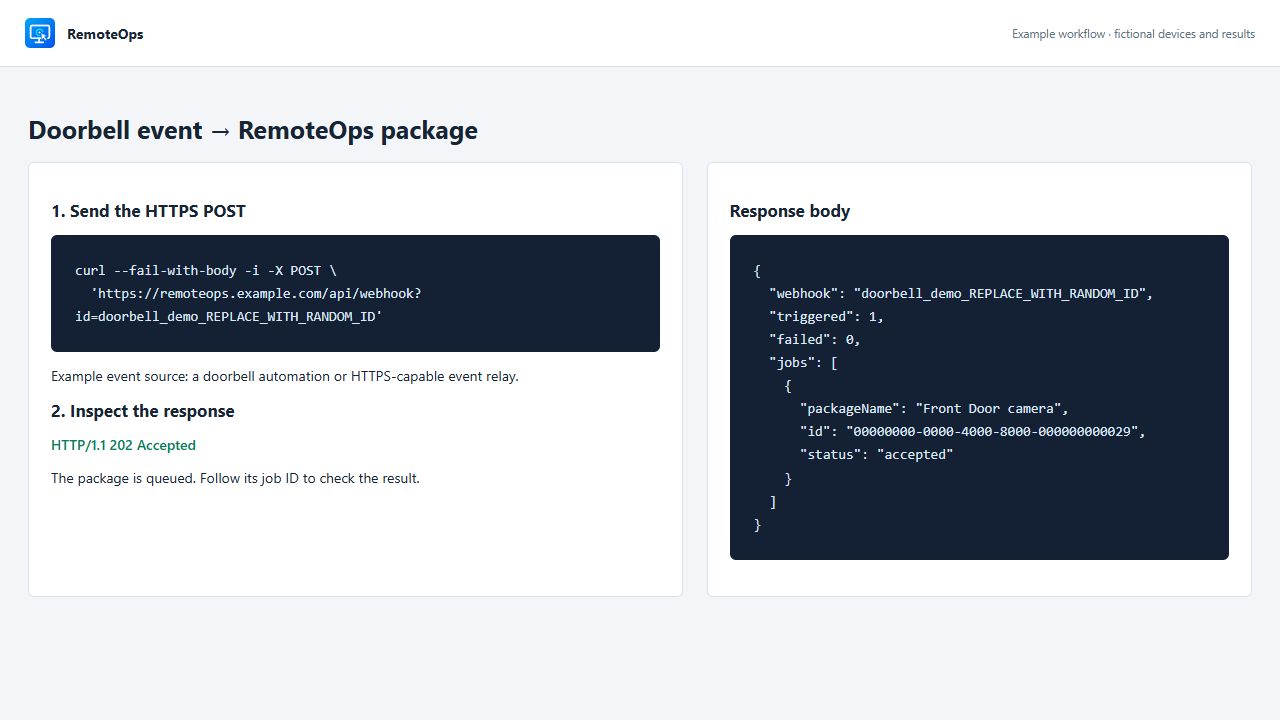
The example response matches the product response fields. Accepted means the saved package started, not that its endpoint action completed.
Webhook source and job status#
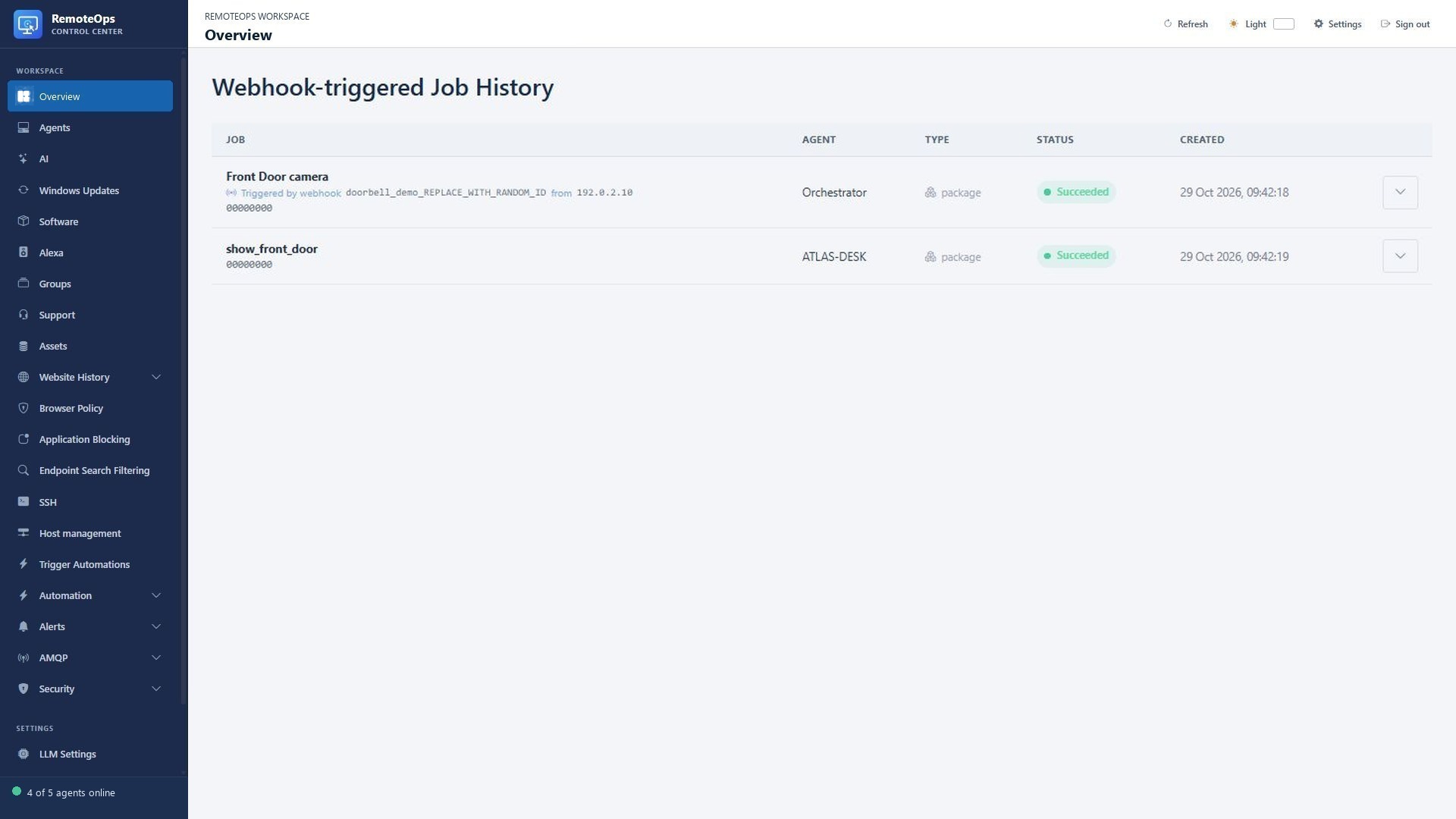
The triggering webhook and source IP appear on the job row. These fictional records illustrate how to follow the returned job ID.
Dispatch output and endpoint child job#
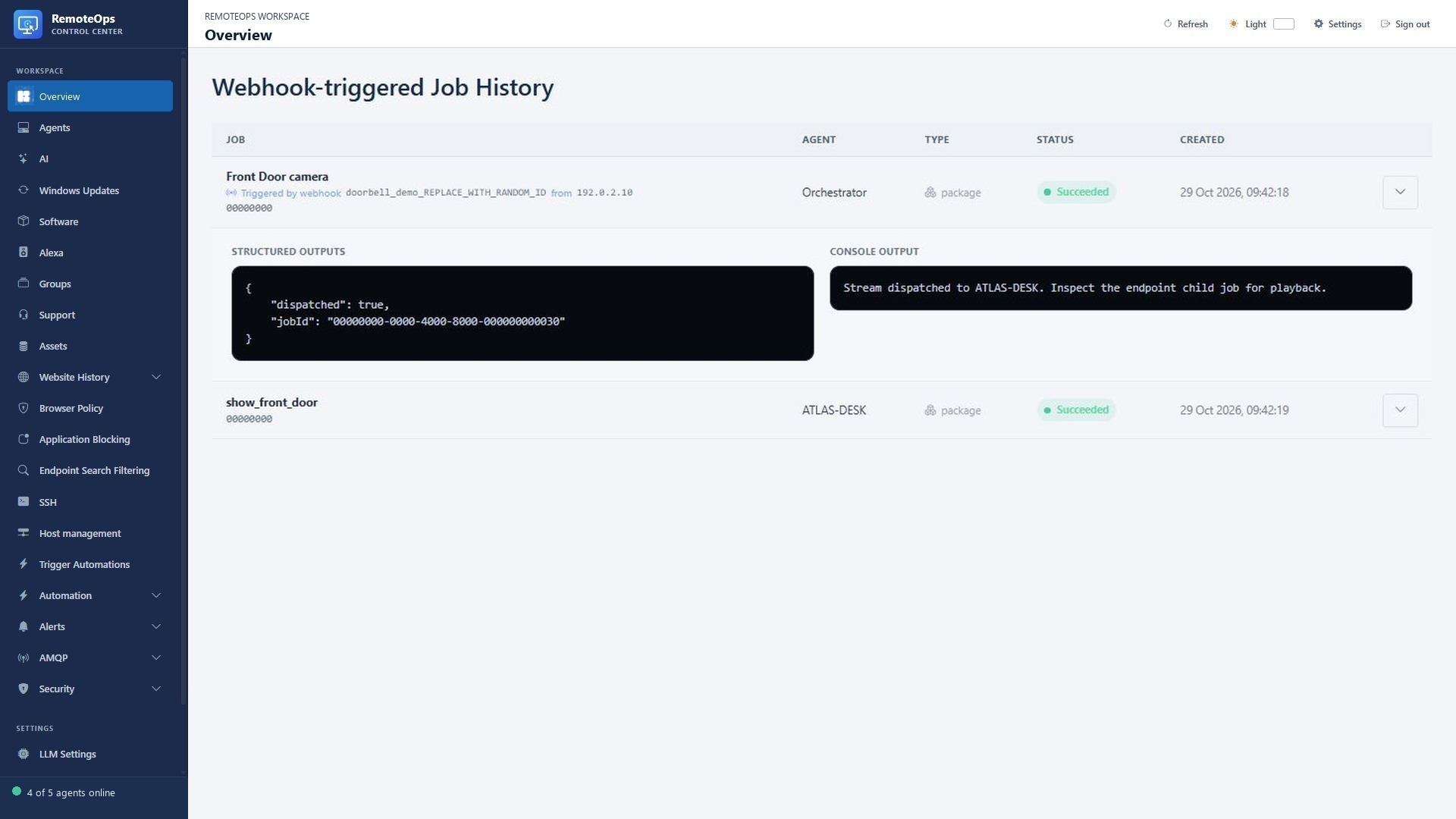
Expand the parent job to read the dispatched result and child job ID, then inspect the endpoint job for the actual helper result.
Main portal#
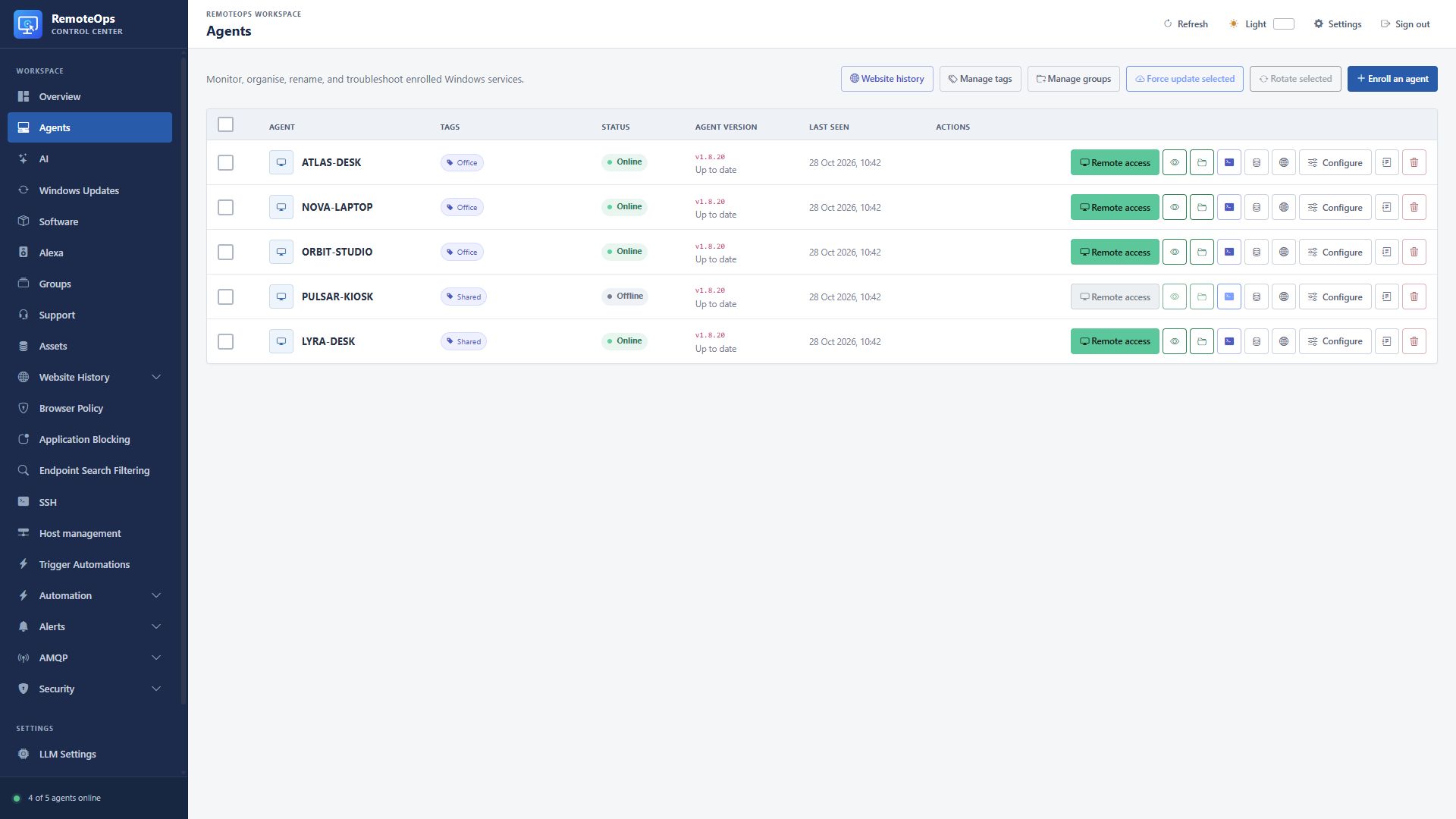
The agent table is the starting point for Windows support. Each row links the device to its remote tools, policies and inventory.
Visual cron schedule and run history#
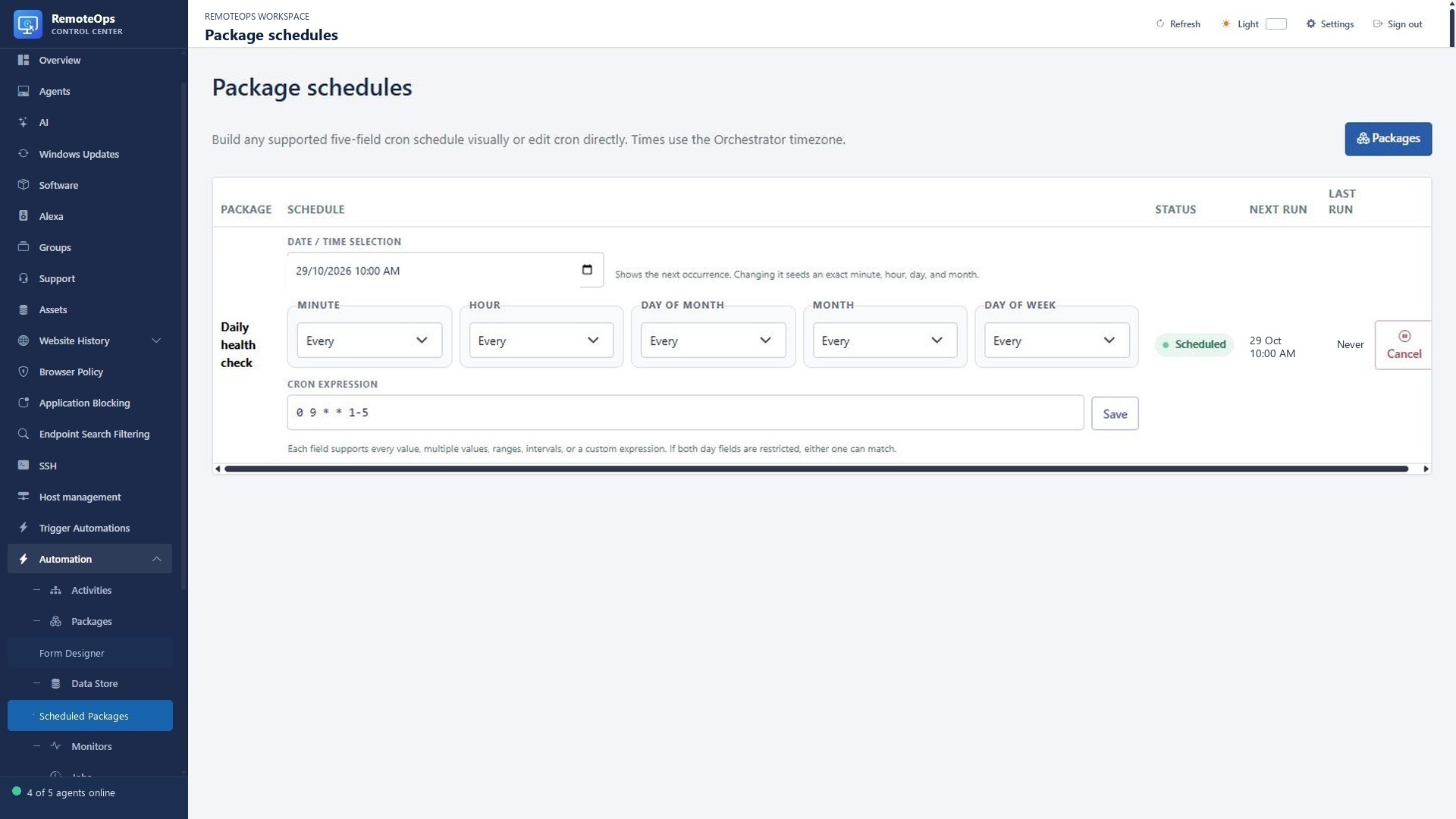
Package identifies the workflow. Schedule edits its five-field cron expression. Status enables or cancels future runs. Next run is the next calculated occurrence and Last run is the latest trigger. Editing a schedule does not prove that its next job will succeed.
Alexa account connection#
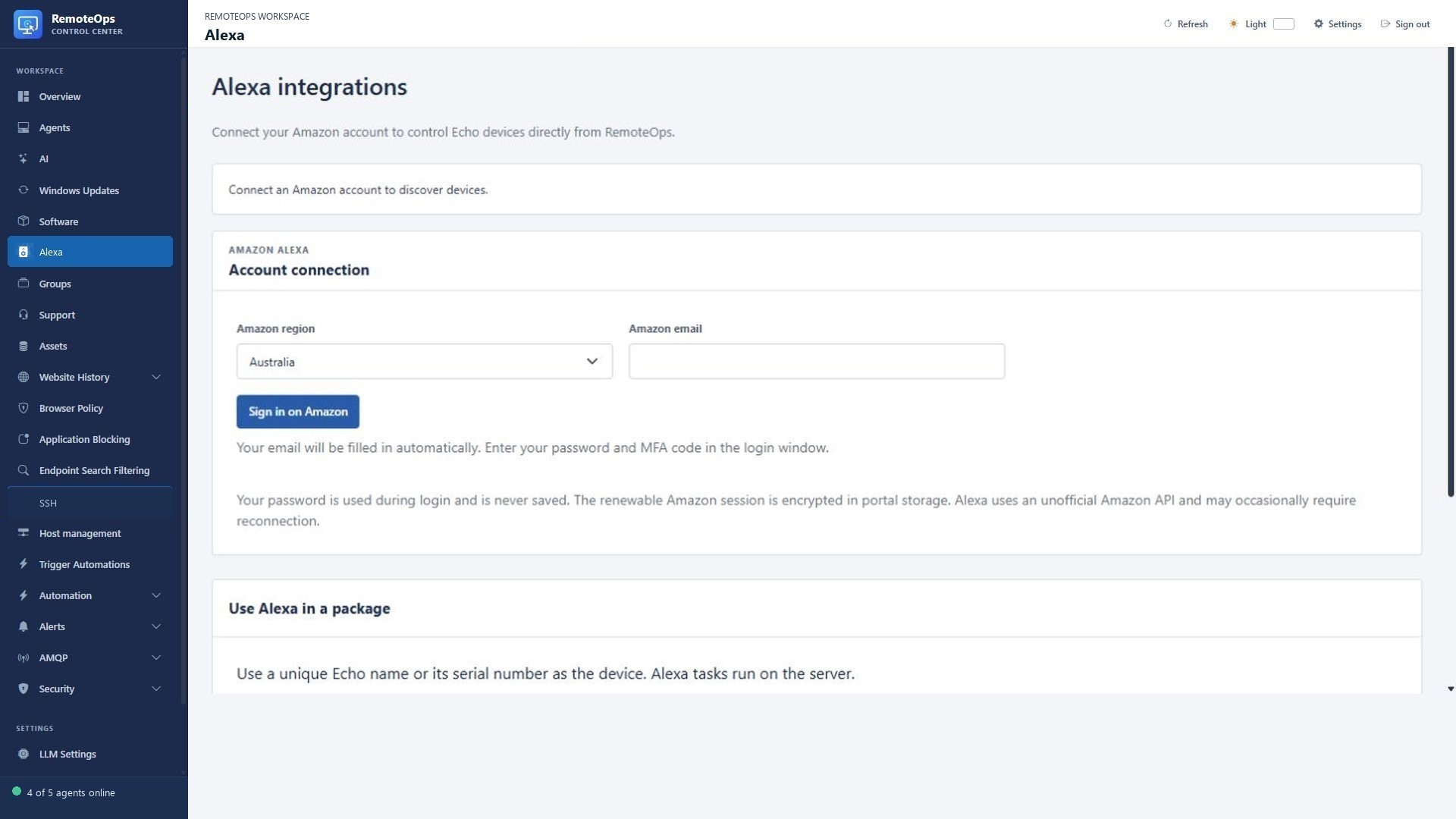
Choose the Amazon region and account email, then complete sign-in and MFA in the Amazon window. Device discovery and playback controls appear after connection. This example does not connect an account.
Alexa announcement package task#
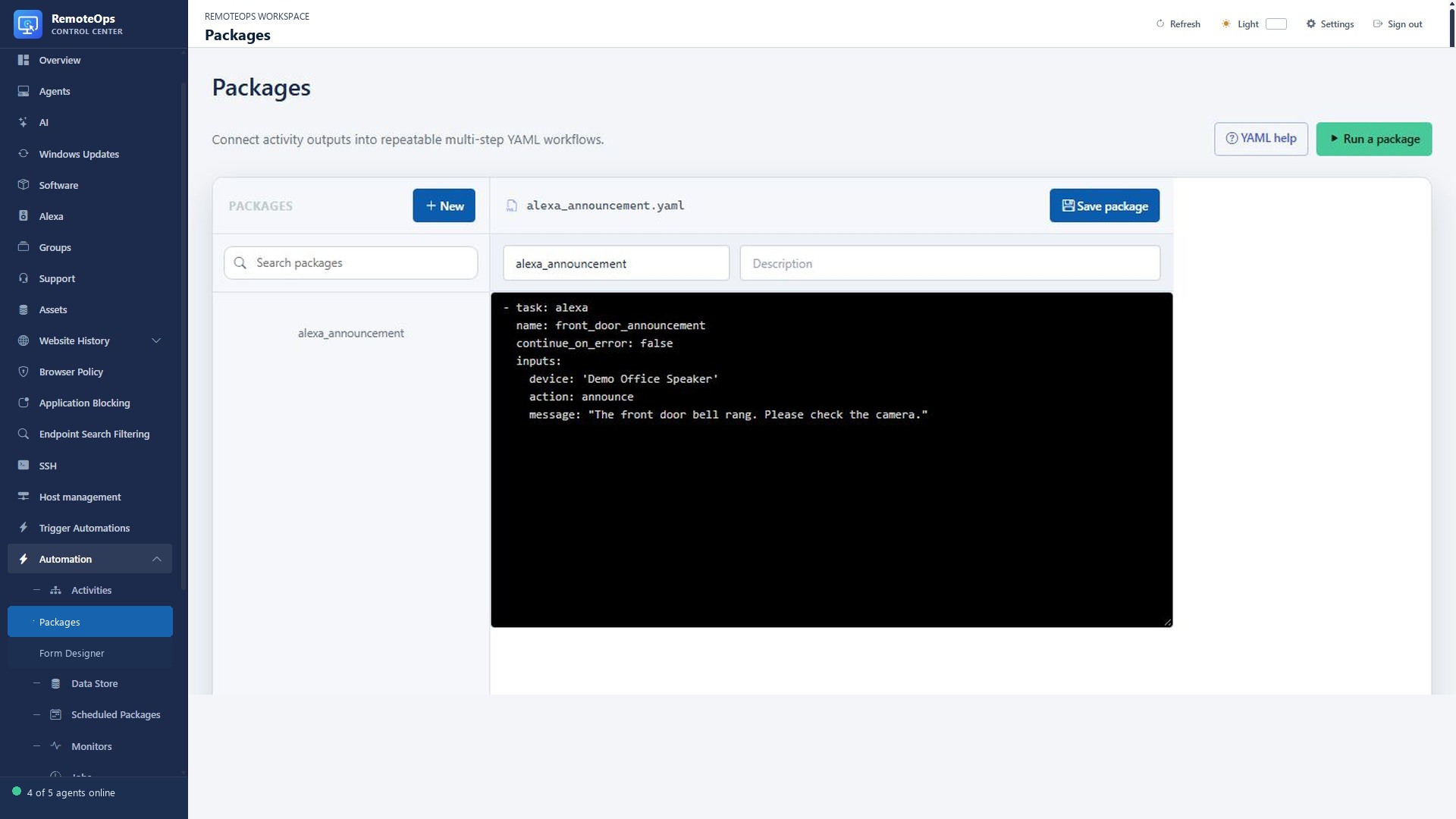
This package calls the Alexa task with the announce action, a selected demo speaker and a spoken message. The text-to-speech task runs on the coordinator; it is not an endpoint command.
Enrollment tokens and Windows agent download#
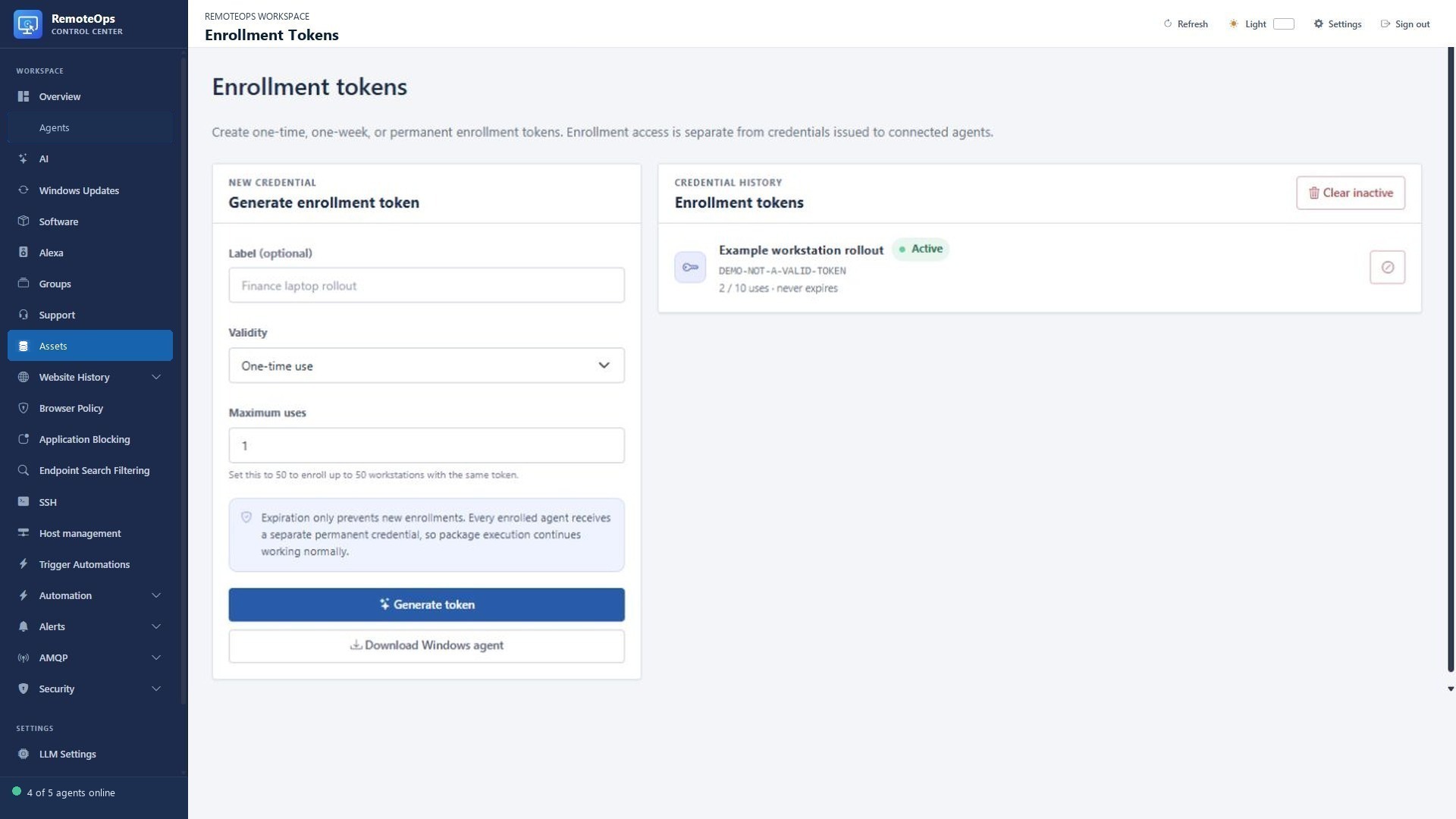
In Enrollment Tokens, choose a label, validity and maximum uses. Generate the token and copy it into the installer. Download Windows agent retrieves the installer; generating a token does not install anything.
Asset database columns#
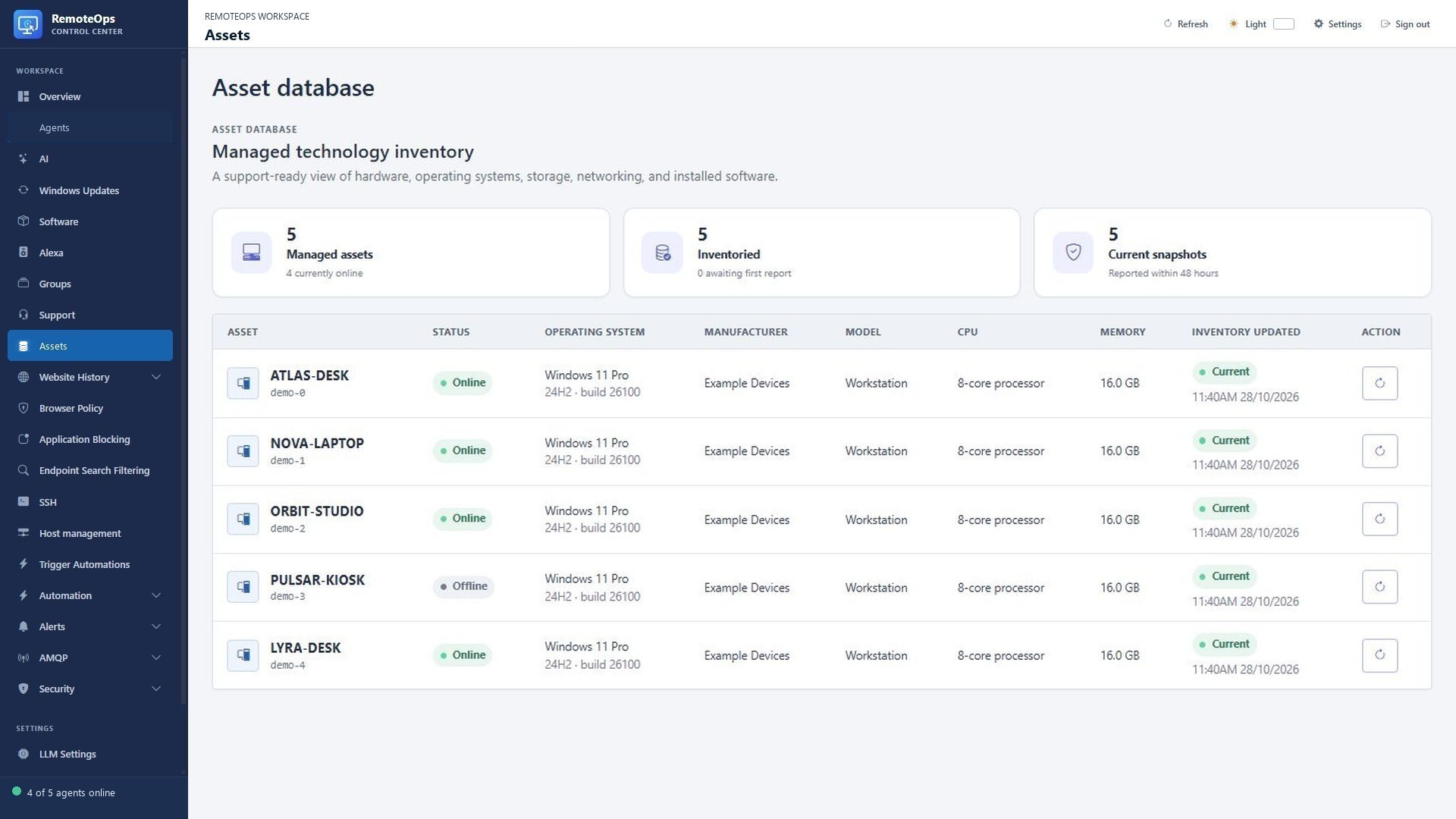
Operating system includes the reported version/build. Manufacturer, Model, CPU and Memory describe the last inventory snapshot. Inventory updated reports its timestamp and freshness. The refresh action requests a new collection; it does not make old inventory current immediately.
Windows Updates device table#
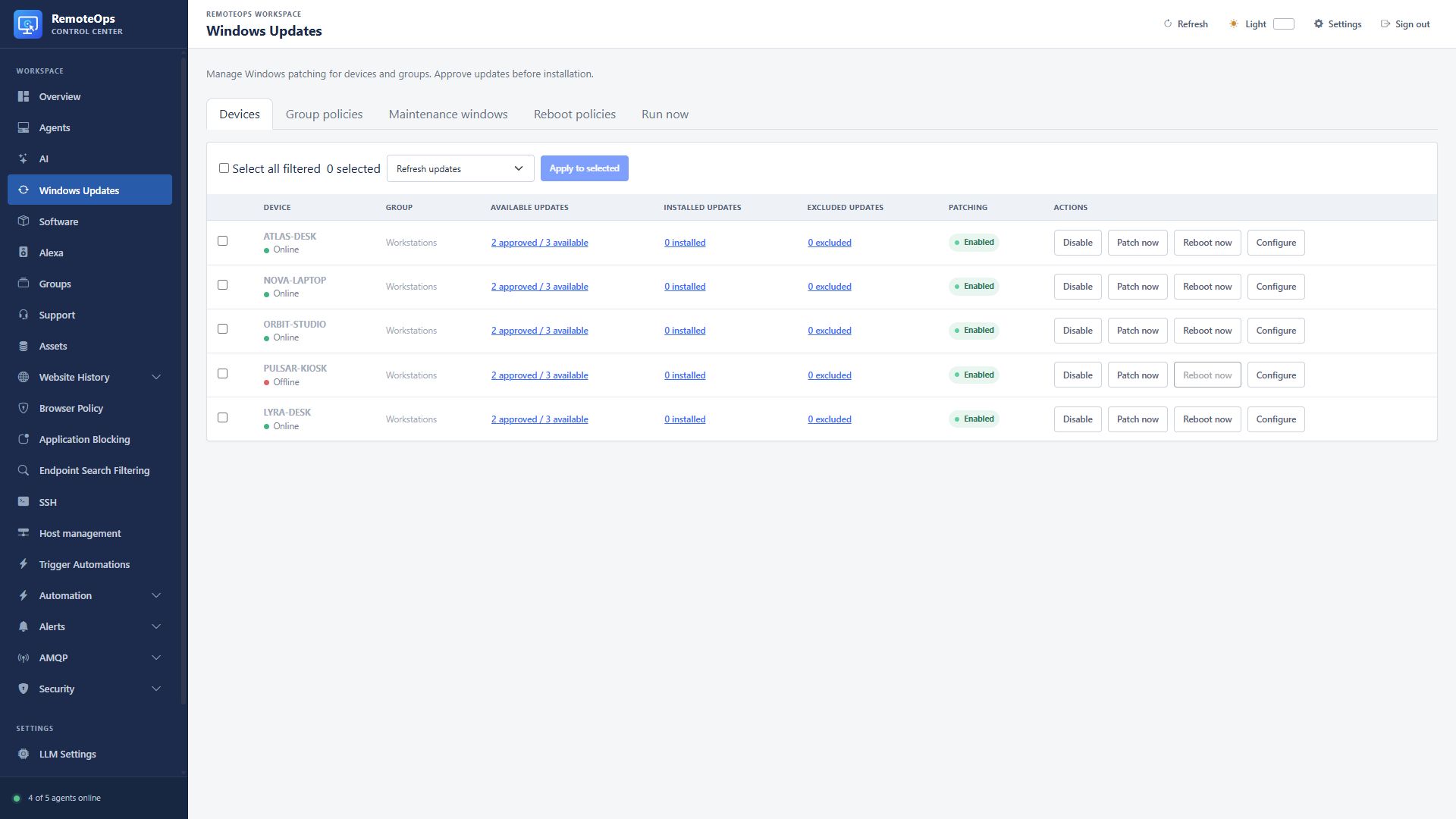
Available updates opens the approval list; Installed updates and Excluded updates open their respective lists. Patching is the effective enabled state. Patch now requires an eligible agent and approved available updates. Configure opens the device policy.
Approval and exclusion controls#
Windows Update names the revision. Status distinguishes pending approval, approved, installed and excluded records. Priority shows RemoteOps priority and the reported Microsoft severity. Actions approve, unapprove or exclude an eligible revision.
Device patching settings#
Windows patching, Auto approve, Maintenance window and Reboot window can inherit group policy or use supported device overrides. An approval permits installation; the maintenance policy determines when it can proceed.
Software device selection#
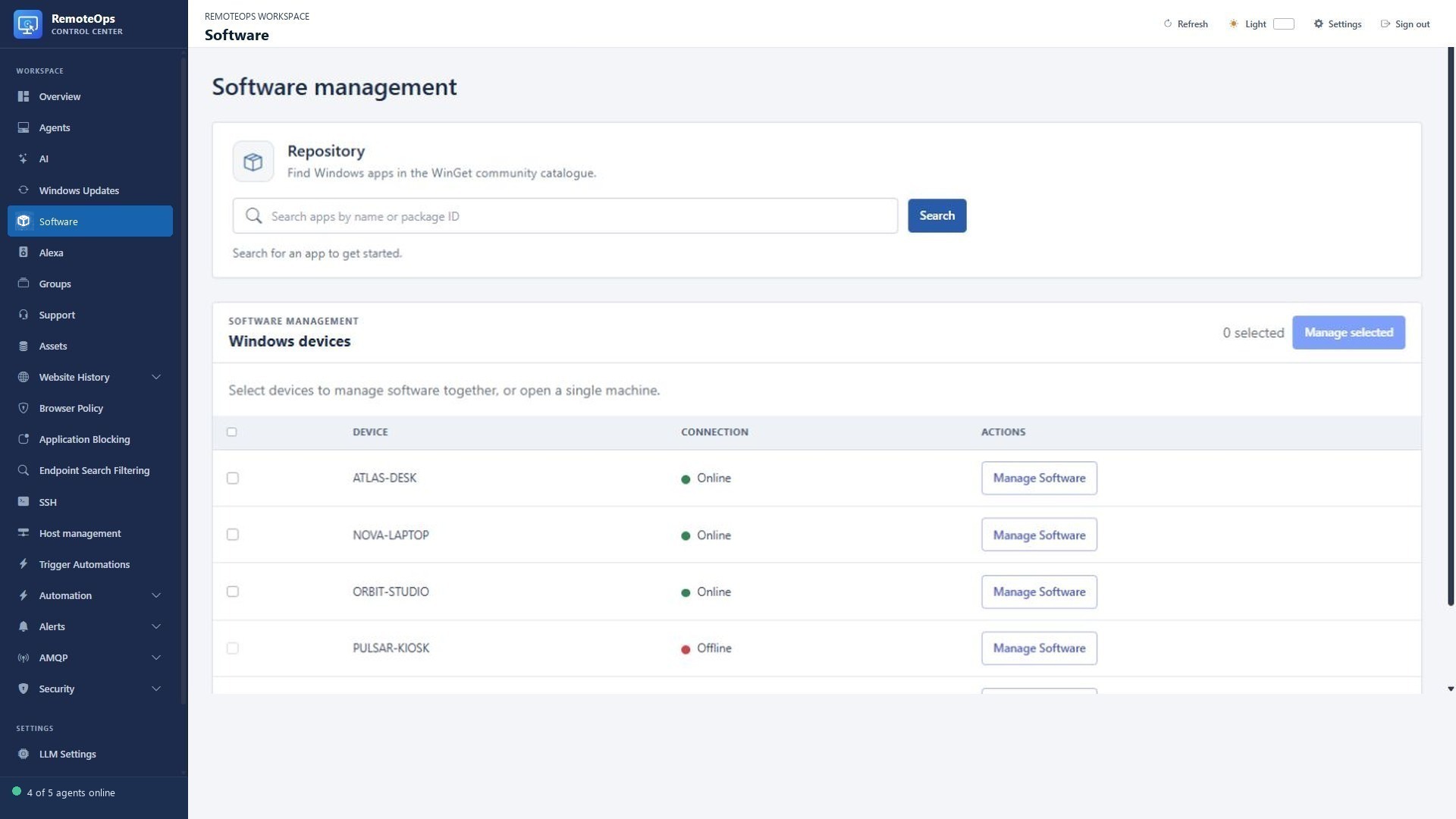
Select online Windows devices using the checkboxes, then Manage selected; Manage Software opens one device. Offline devices cannot accept a live deployment.
Software repository results#
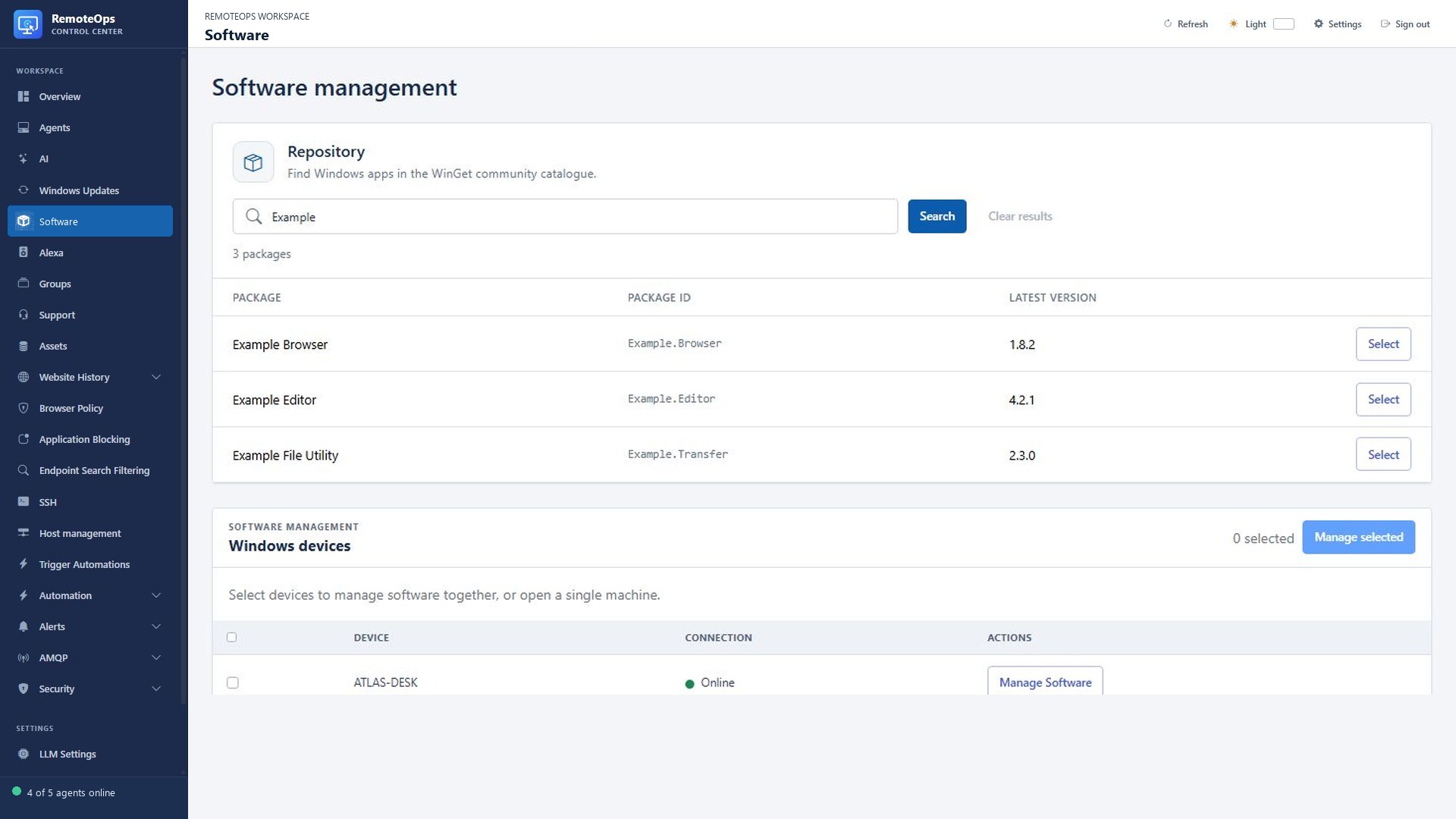
Package is the display name, Package ID is the WinGet identifier, Latest version is the catalogue version, and Select chooses the package. These example package records are fictional. Catalogue results do not prove the app is installed on a device.
Remote desktop viewer#
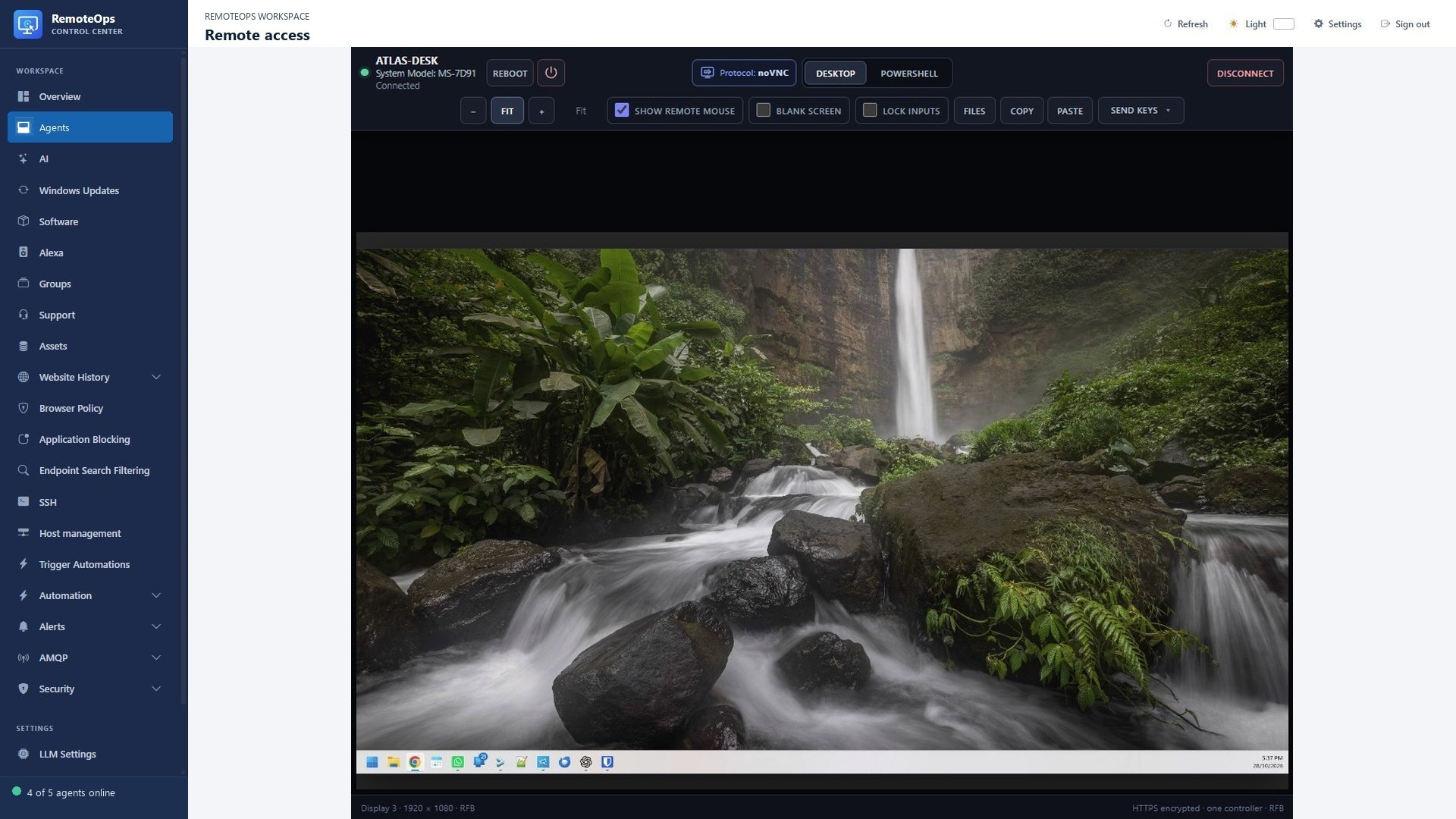
The viewer toolbar provides session controls above the endpoint screen. Use the selected screen, fit mode and privacy controls appropriate to the support task.
PowerShell console#
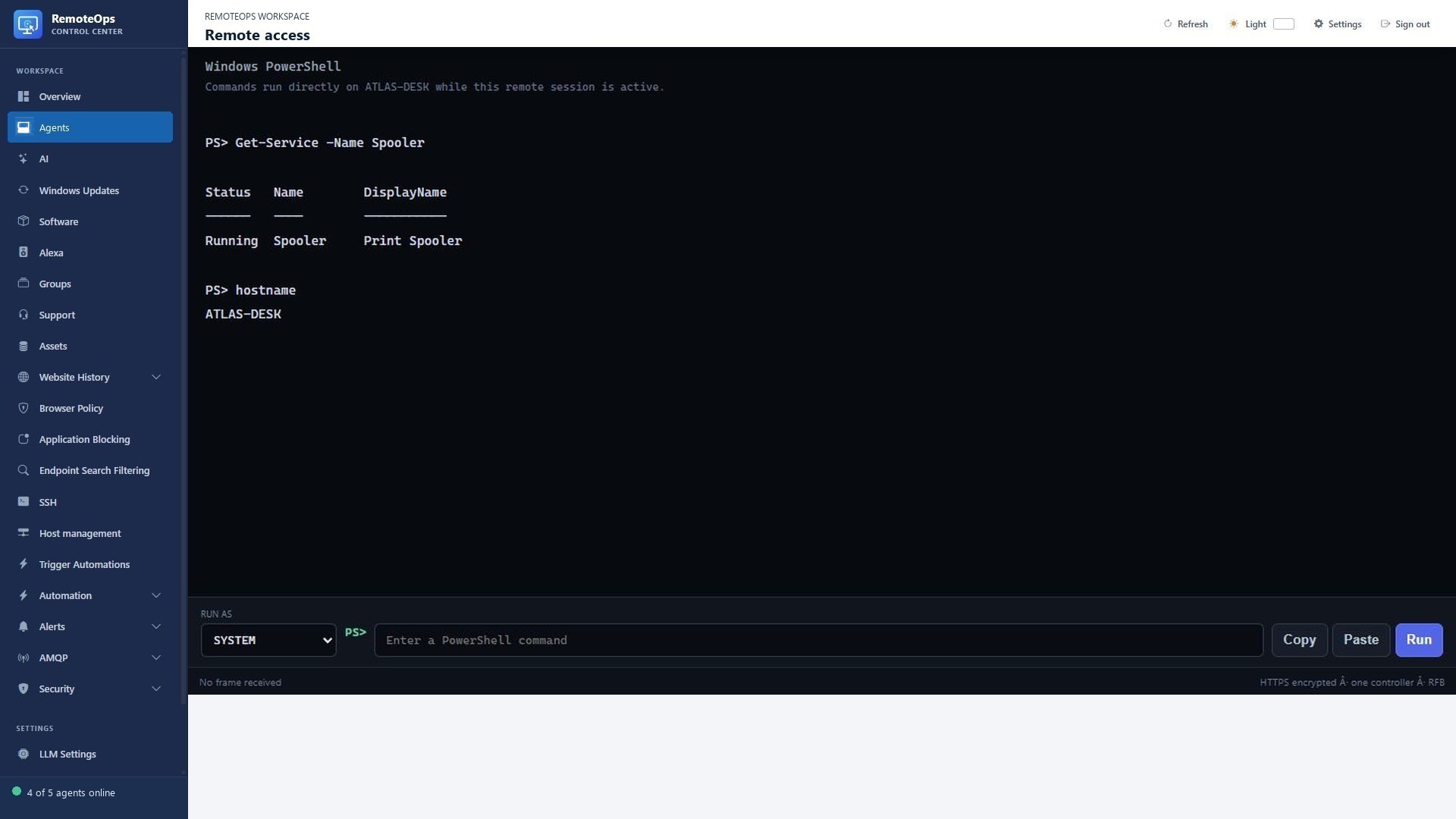
Choose the execution context before running commands. Read the console output and errors; a working desktop session does not prove a command succeeded.
File browser alongside remote access#
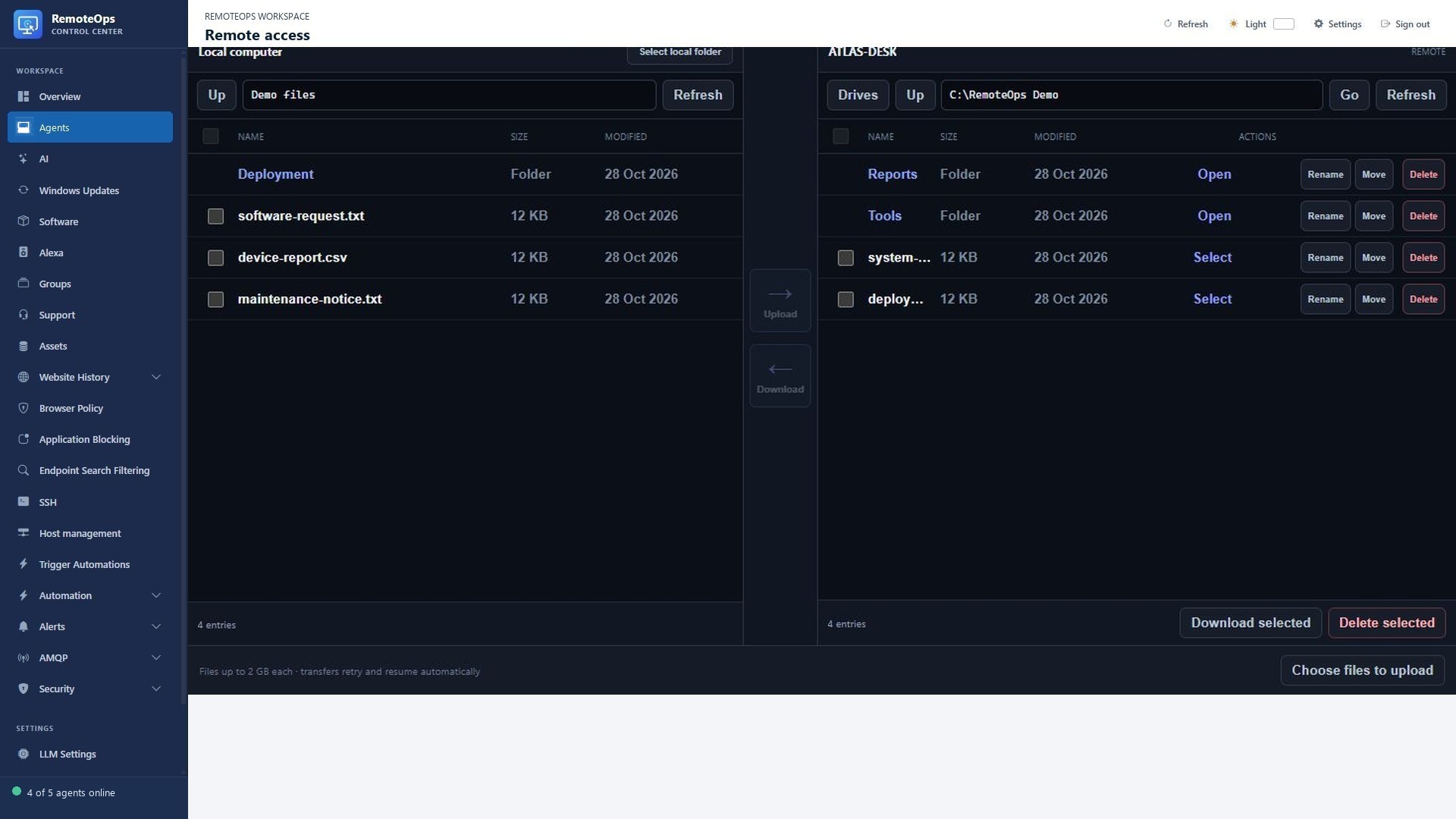
The file workspace uses a local pane and remote pane. Check the destination path before uploading, moving or deleting a selection.
Saved SSH profiles#
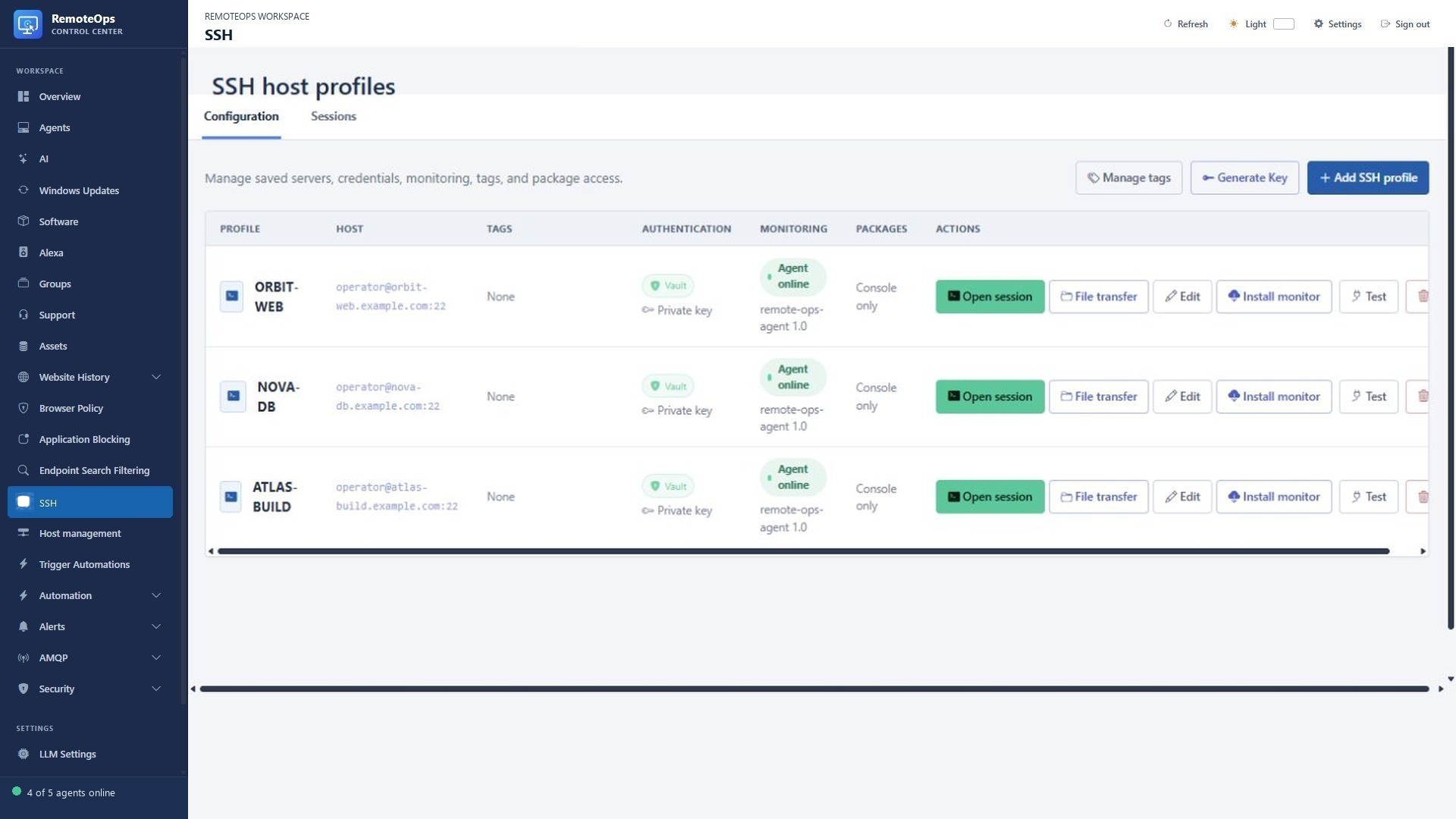
The profile list brings together host identity, authentication, session actions and Linux monitoring status. Saved profile credentials do not change the permissions of the remote operating-system account.
Tabbed terminal workspace#
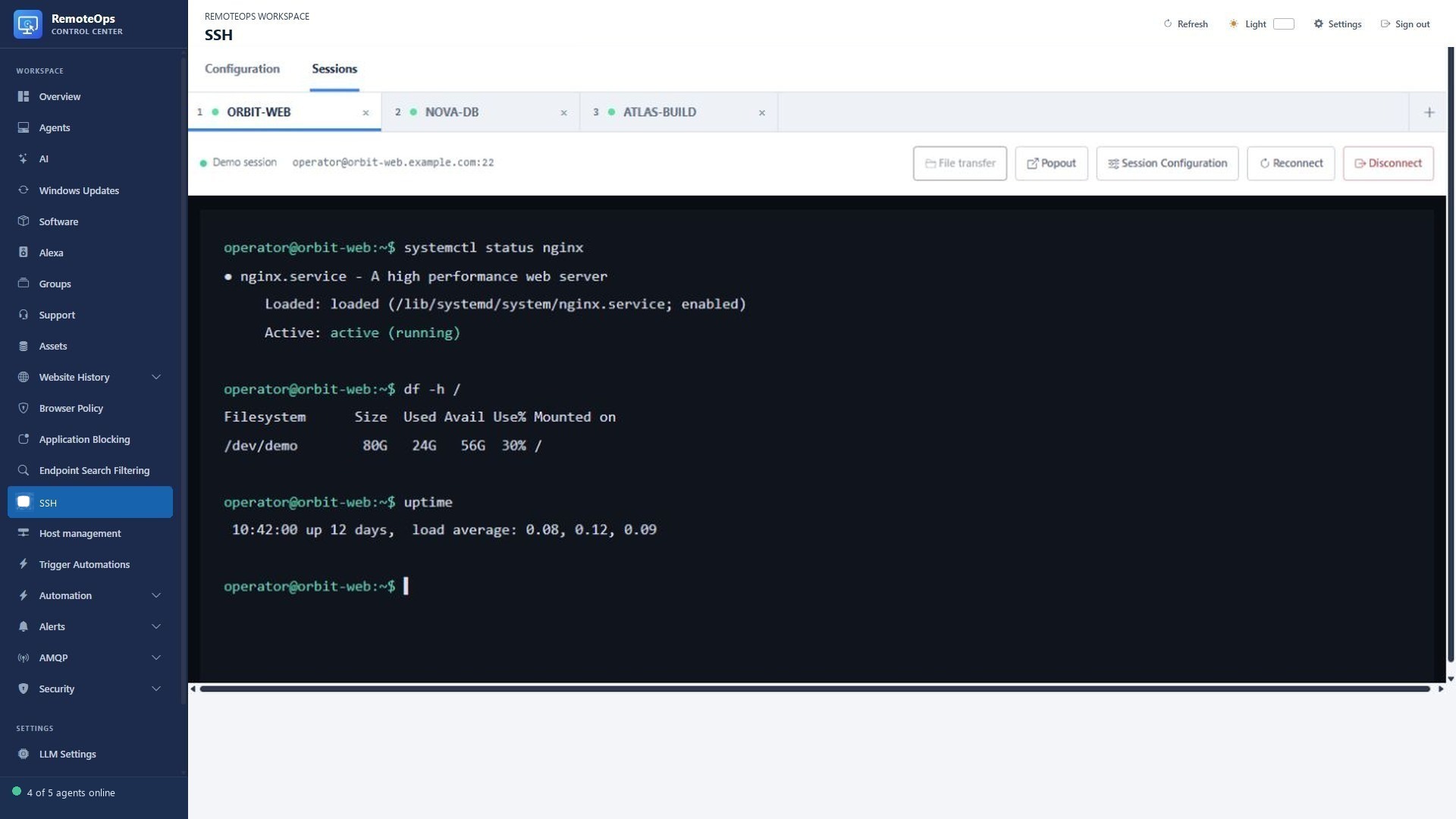
The session tabs switch between hosts. Confirm the selected host before entering a command. File transfer and appearance actions apply to the active session.
Browsing history columns and collection controls#
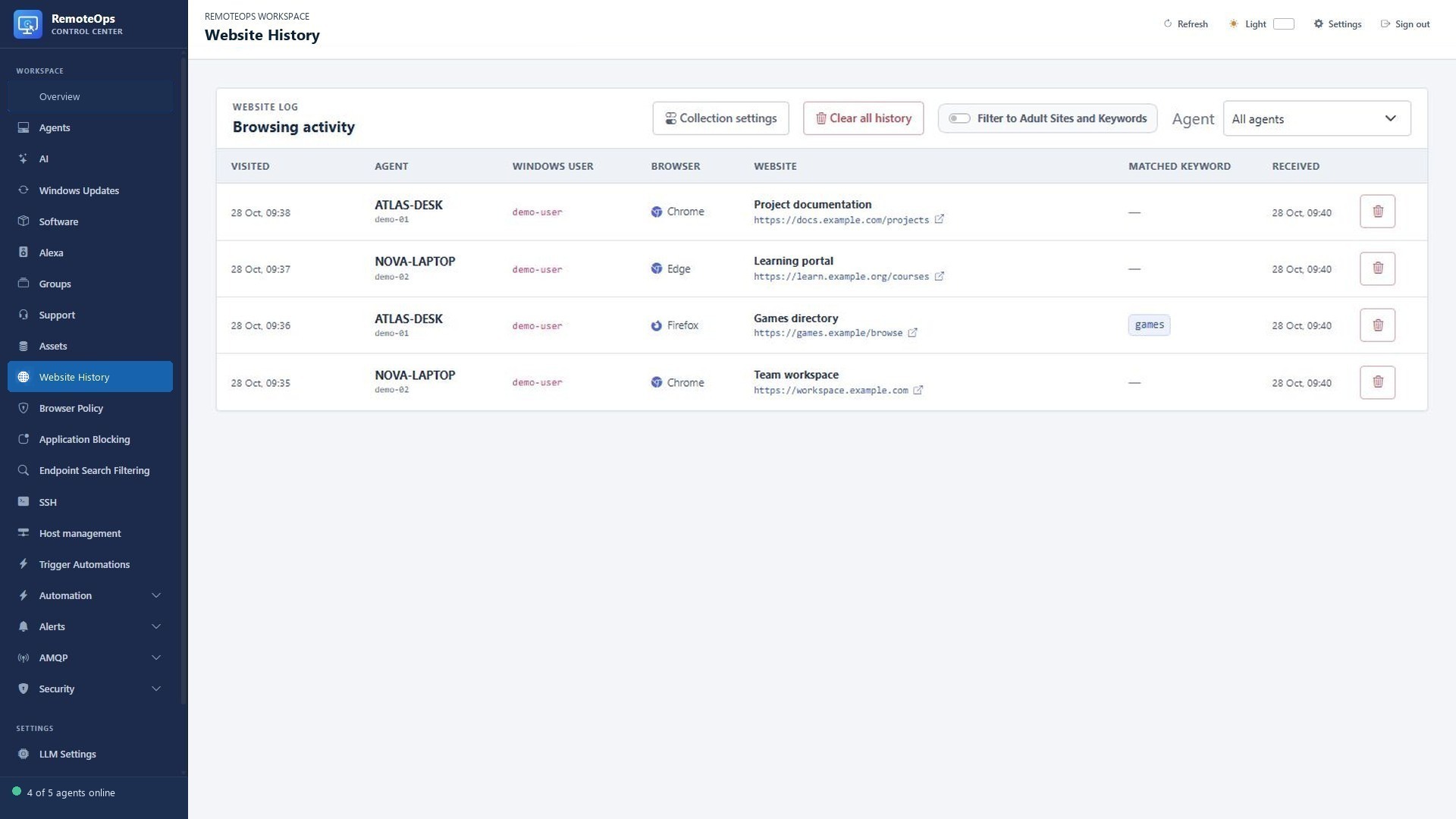
Review device/user, browser, title, URL and visit time together. Collection controls request or clear history. A matching page record is evidence of saved browser history, not evidence of all traffic or incognito activity.
Website policy rules#
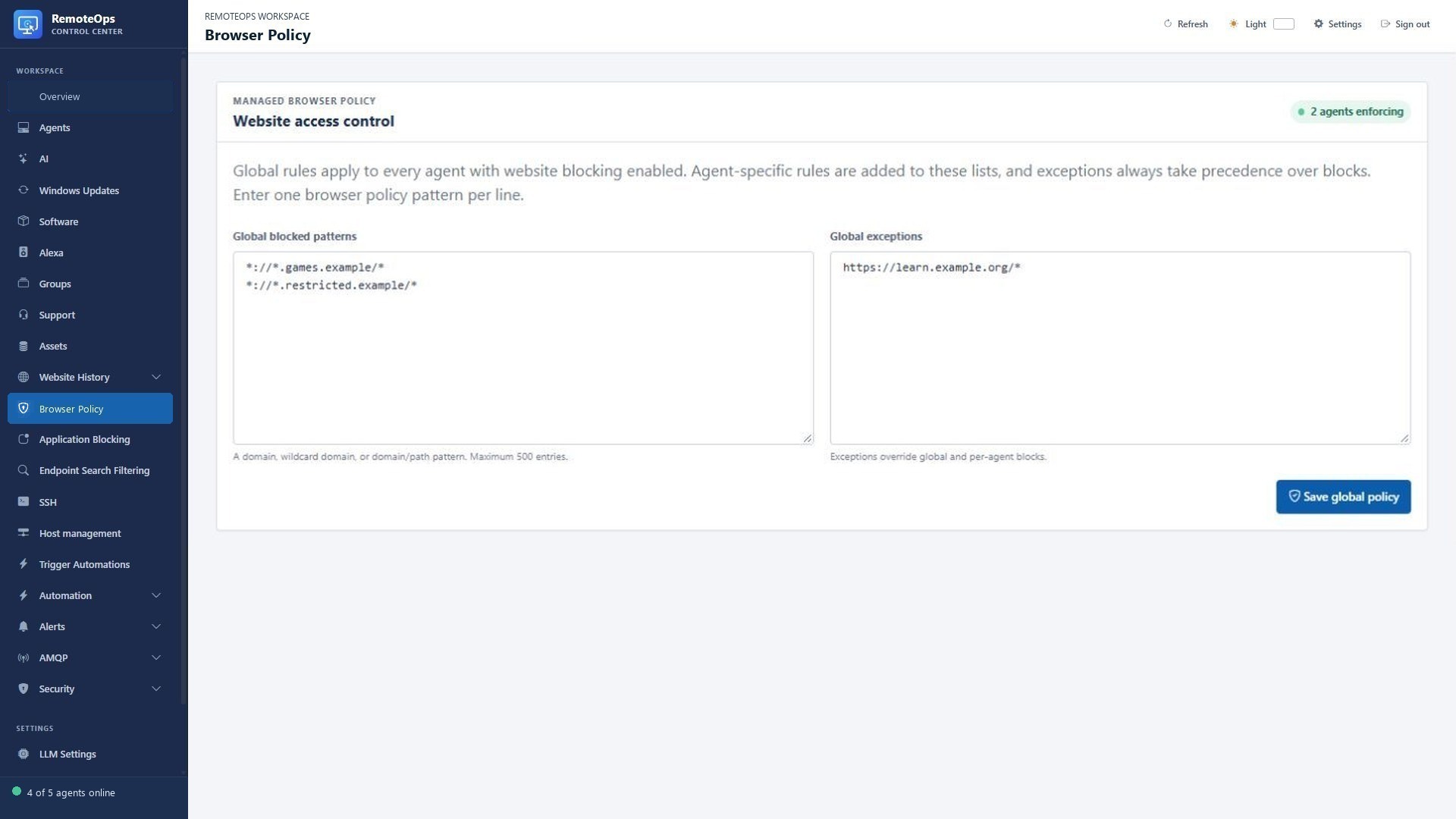
Blocked URLs define the deny rules. Allowed exceptions override matching block rules. Global policy and endpoint additions are configured independently.
Search filtering settings#
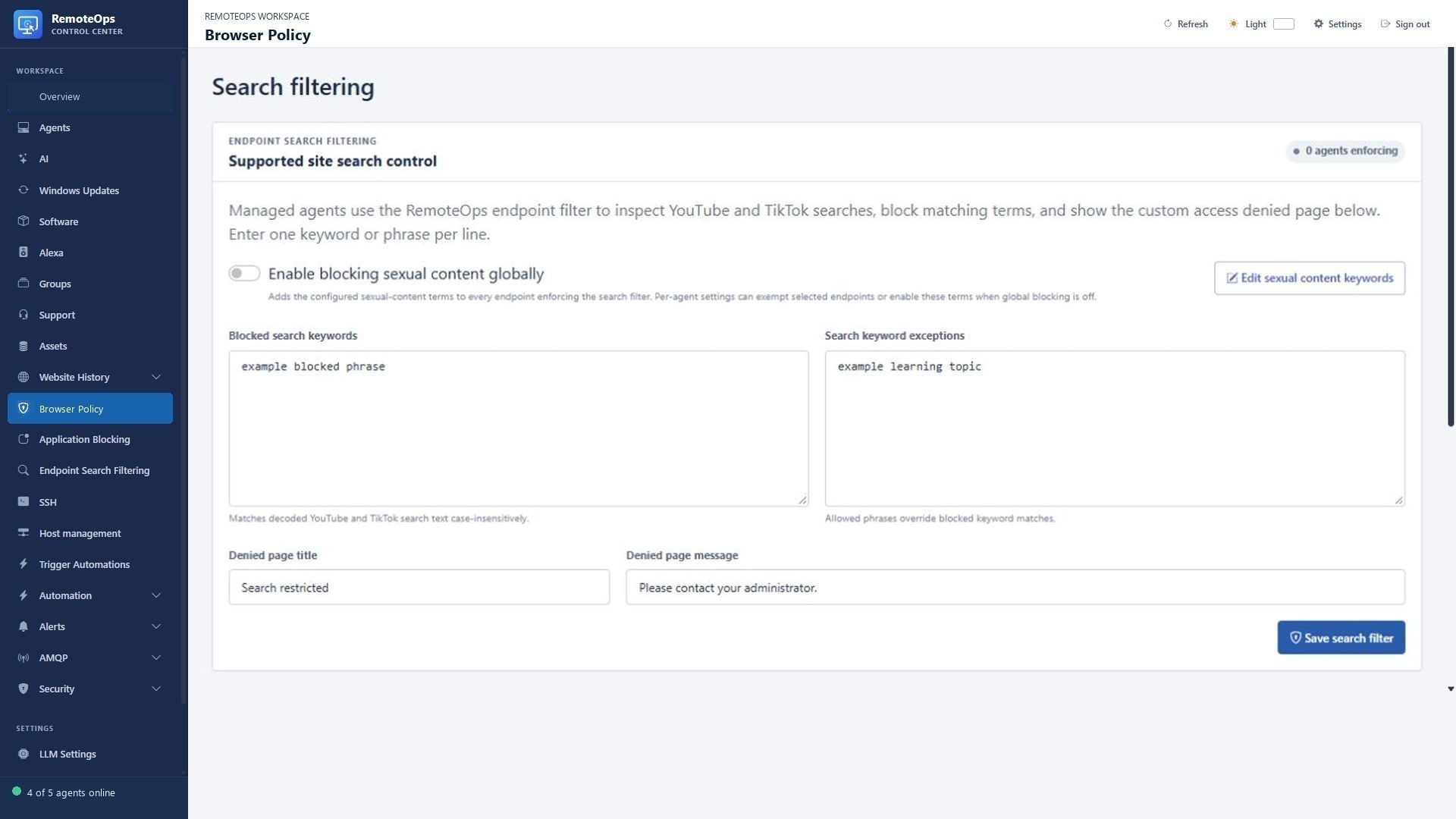
Blocked search keywords are matched against supported searches. Search keyword exceptions take precedence. Denied page title and message control what the user sees. Endpoint enforcement is enabled per device.
Application blocking policy#
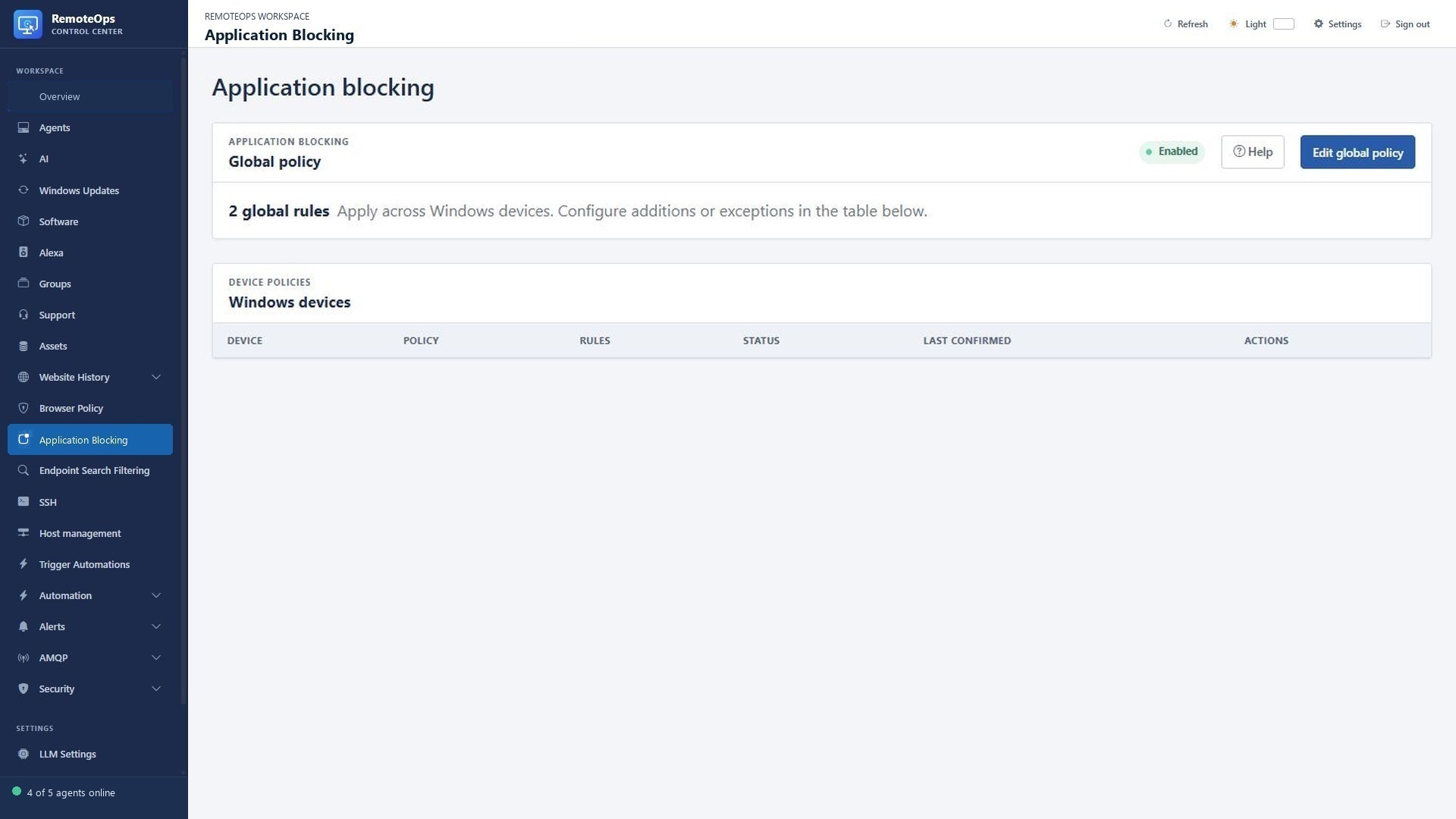
The global policy defines shared Windows application rules. Per-device configuration controls inheritance and exceptions. A launch block does not terminate a process that is already running.
Activity editor#
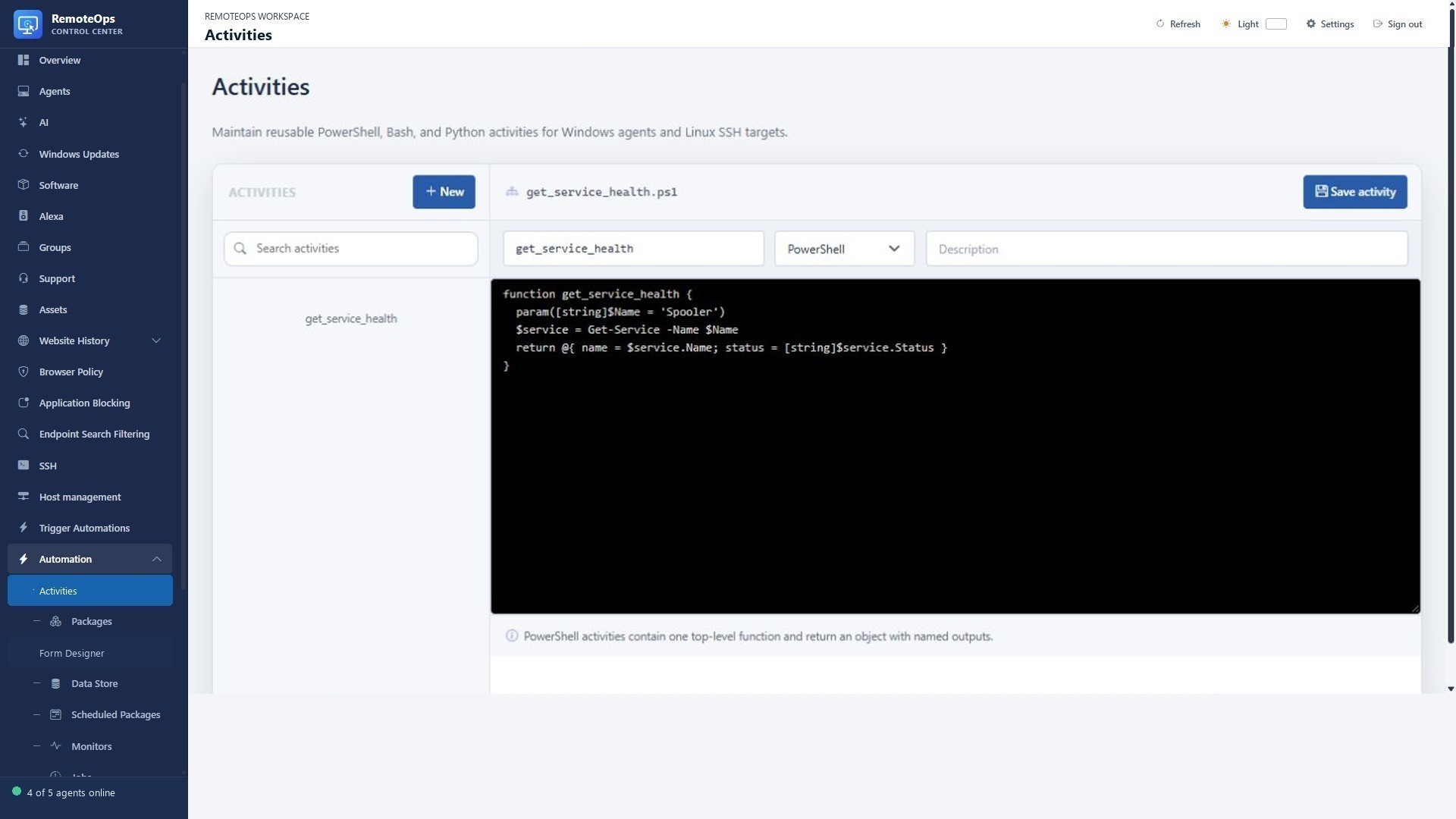
Use the left resource list to select the saved activity. Name, language and description sit above the source editor. PowerShell, Bash and Python have different execution targets and output contracts.
Package editor#
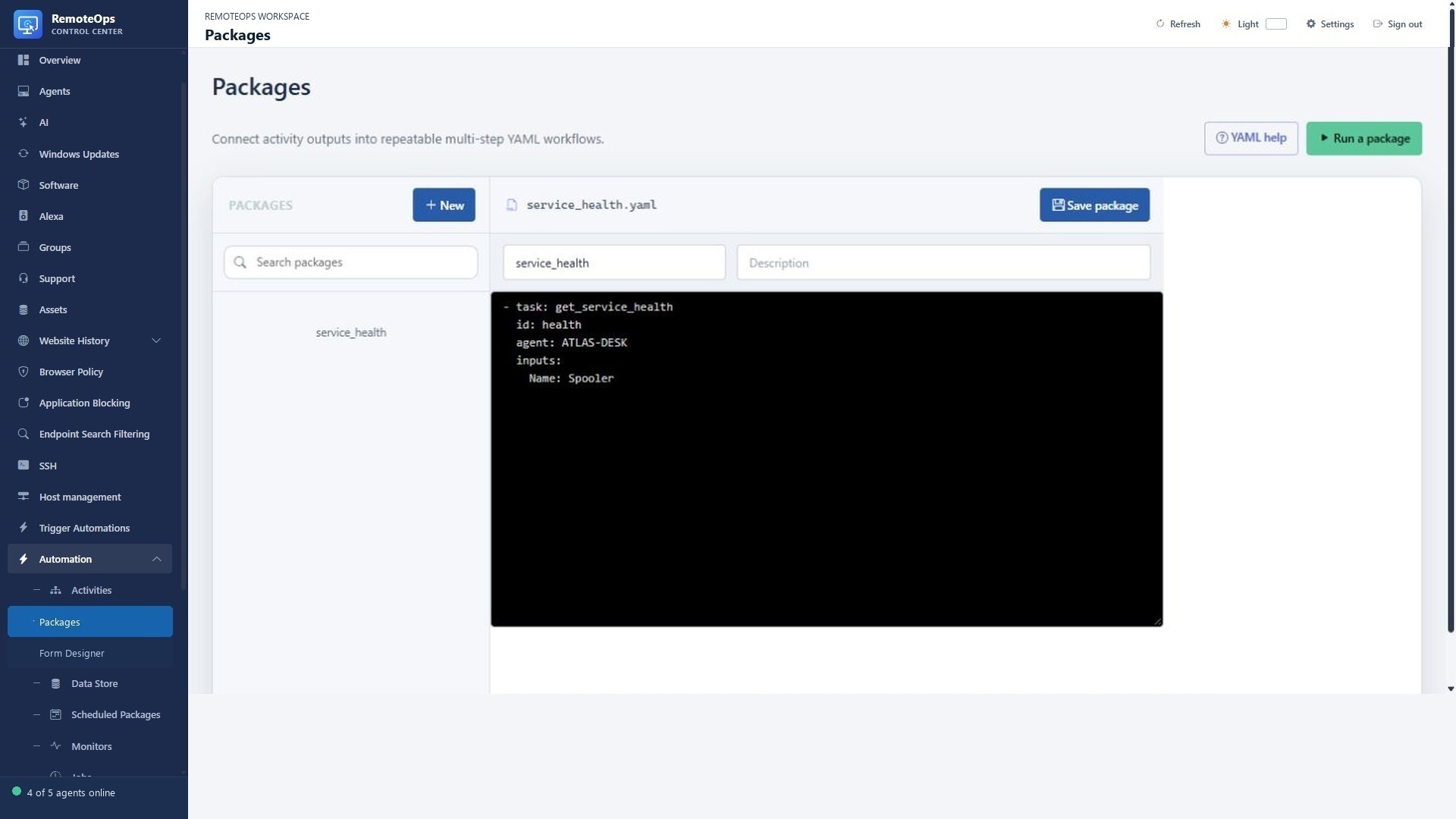
The resource list selects the package. The YAML editor defines task order, input mapping and targets. The task palette provides built-in task entries; saving the package does not execute it.
Package Job History#
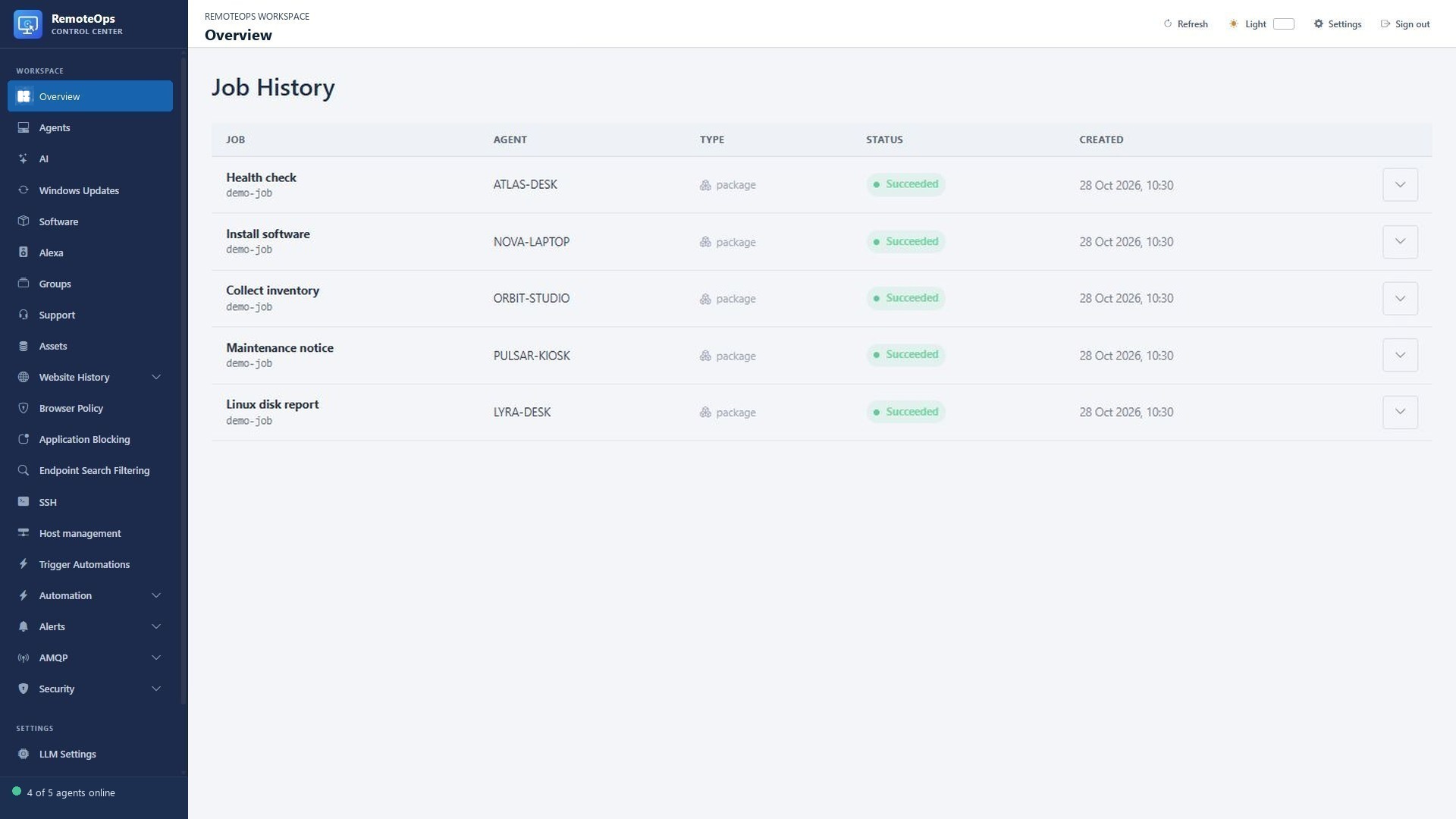
Job rows show the package, target, kind, status and timestamps. Expand the job to inspect task traces, structured outputs, console output and errors.
Form Designer toolbox and canvas#
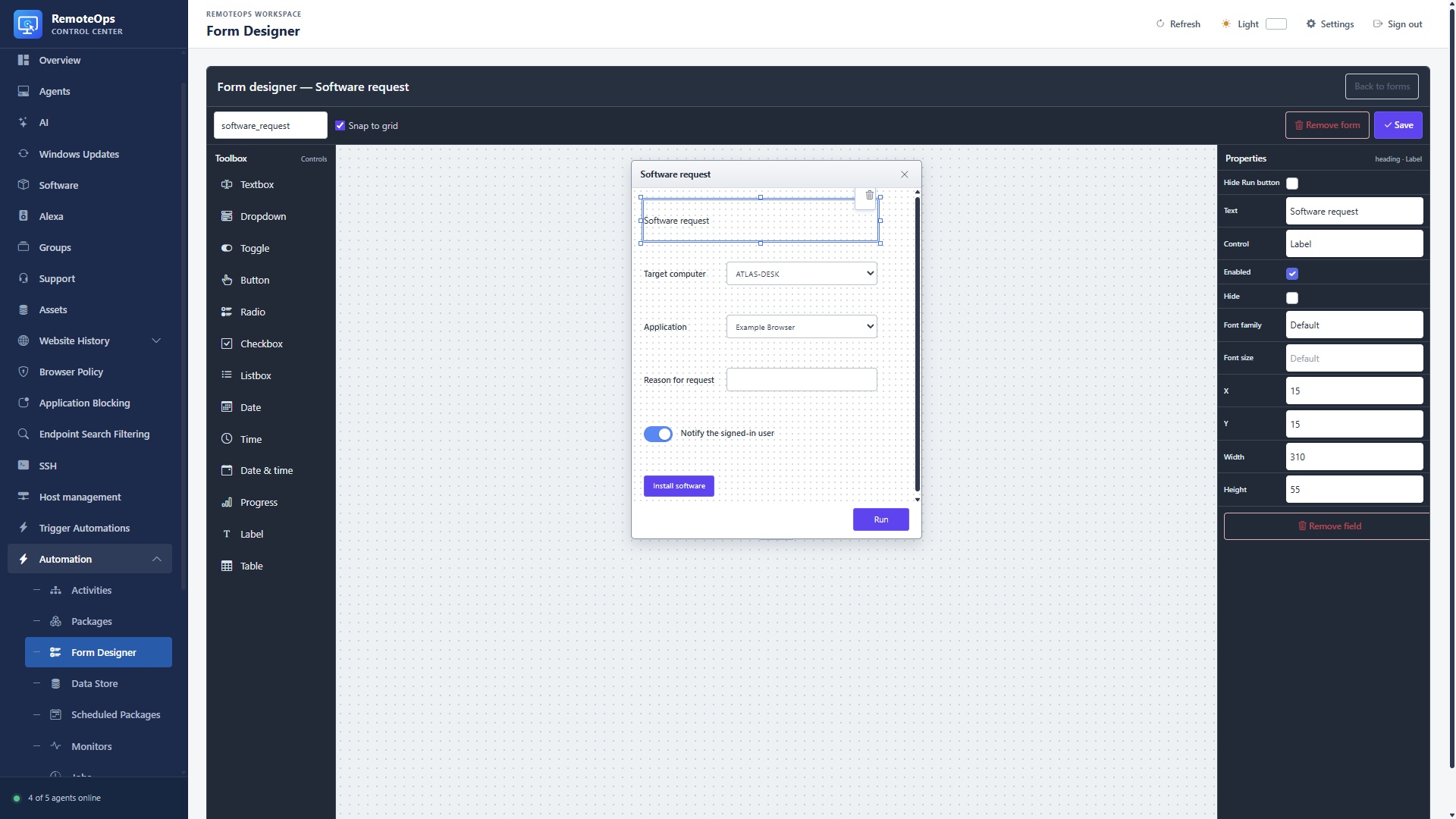
The left toolbox adds controls, the centre canvas positions them, and the right Properties panel edits the selection. Save stores the design; the preview Run button is not a live package run.
Dropdown properties and values sources#
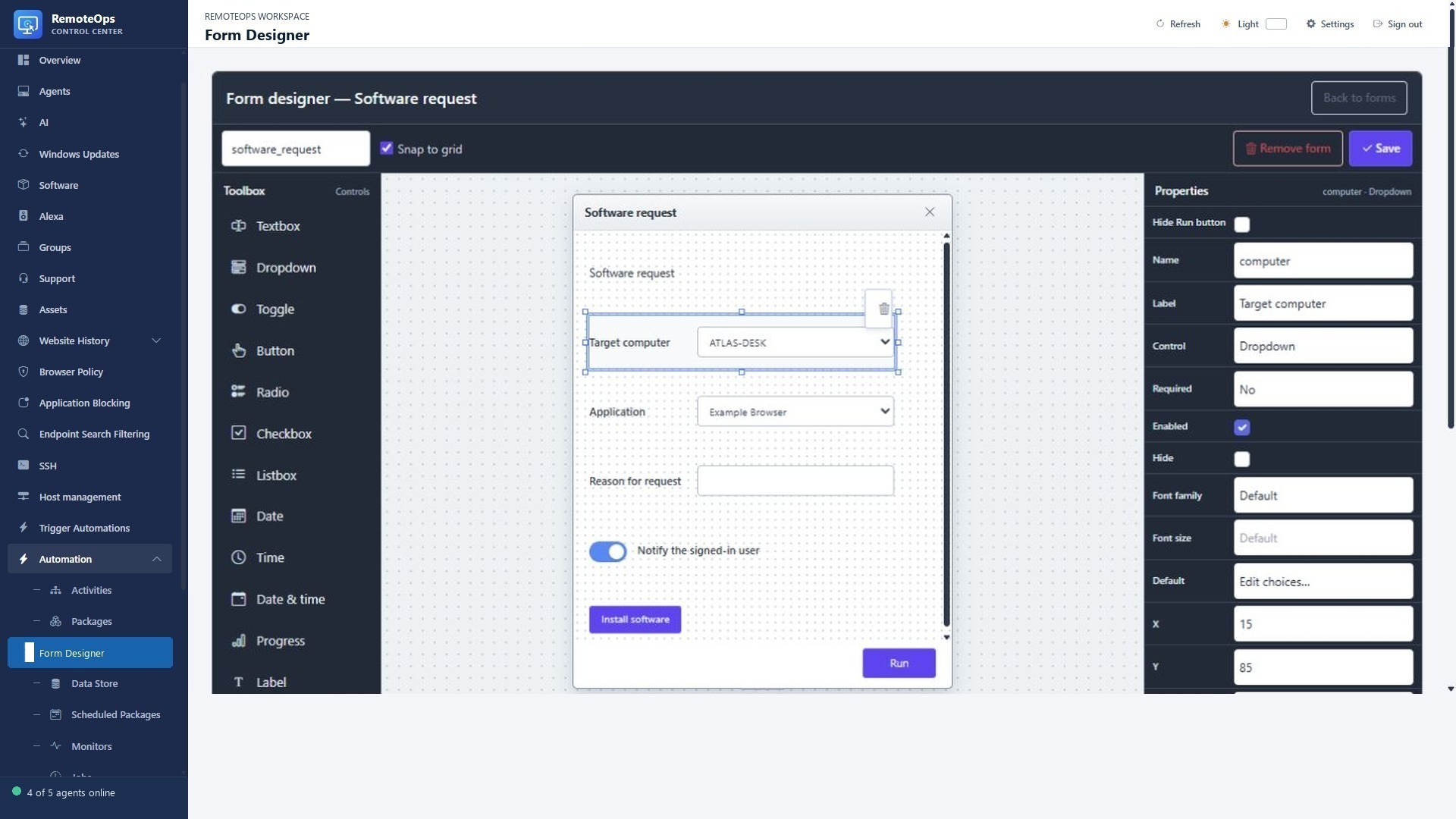
Name is the output key. Label is visible text. Required, Enabled and Hide control interaction. Geometry changes placement. Values source selects fixed JSON, earlier output or an activity-driven source. On change and Target connect supported callbacks.
Form runtime#
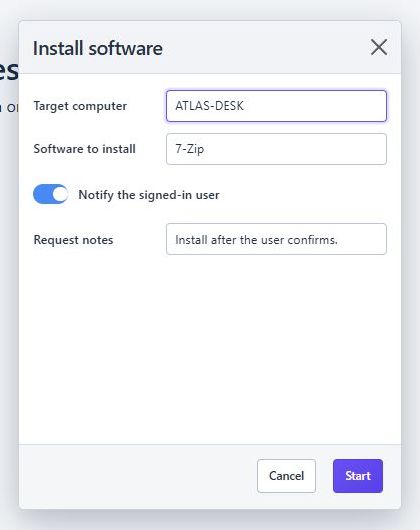
The operator enters values in the runtime form. Submitting returns structured field values to the package; cancellation must be handled by the workflow.
Trigger automation buttons#
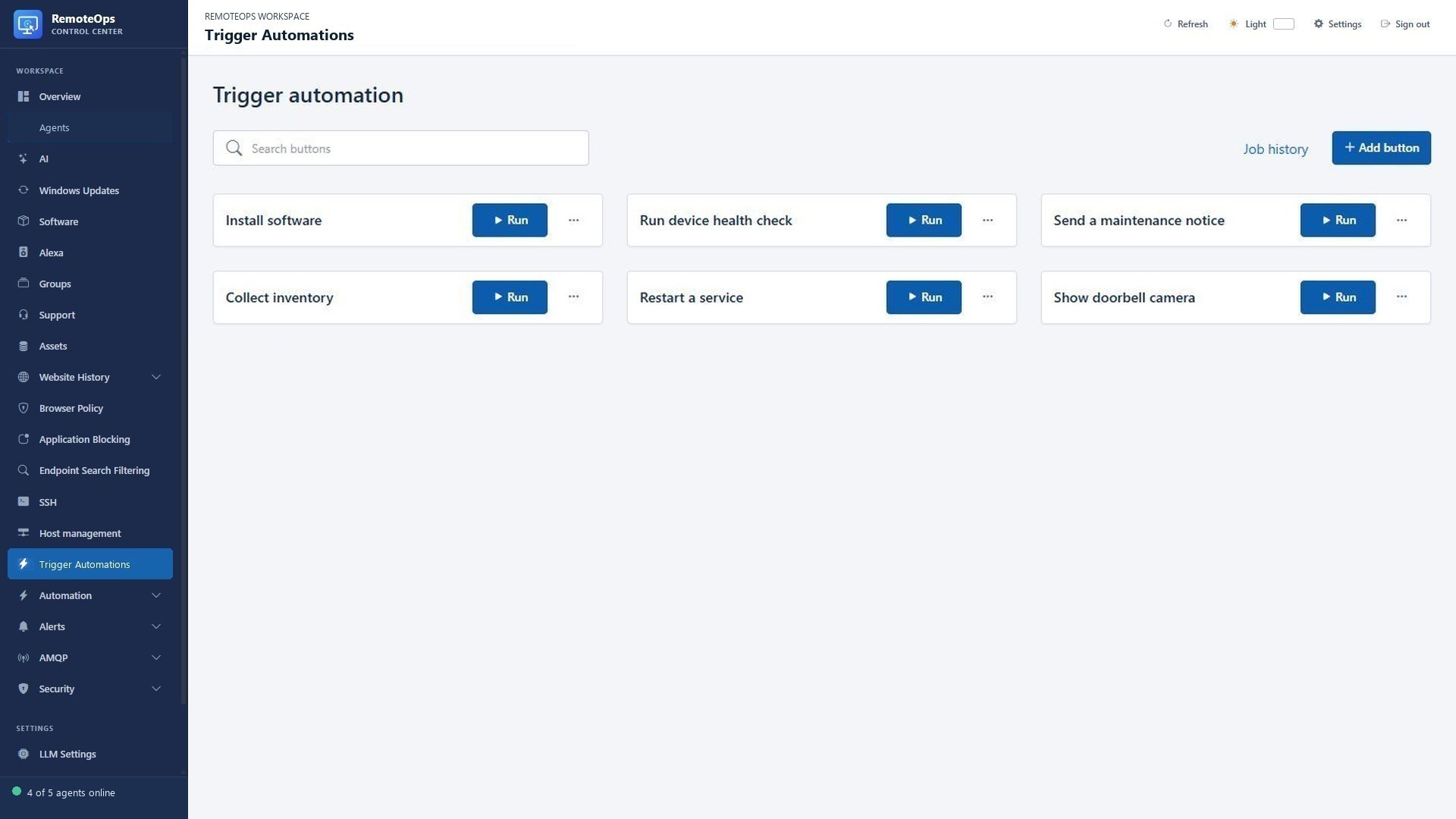
Each named button invokes its configured package and target/default coordinator. The button name should describe the work. A form, if configured, gathers operator input before the workflow continues.
Monitor list columns#
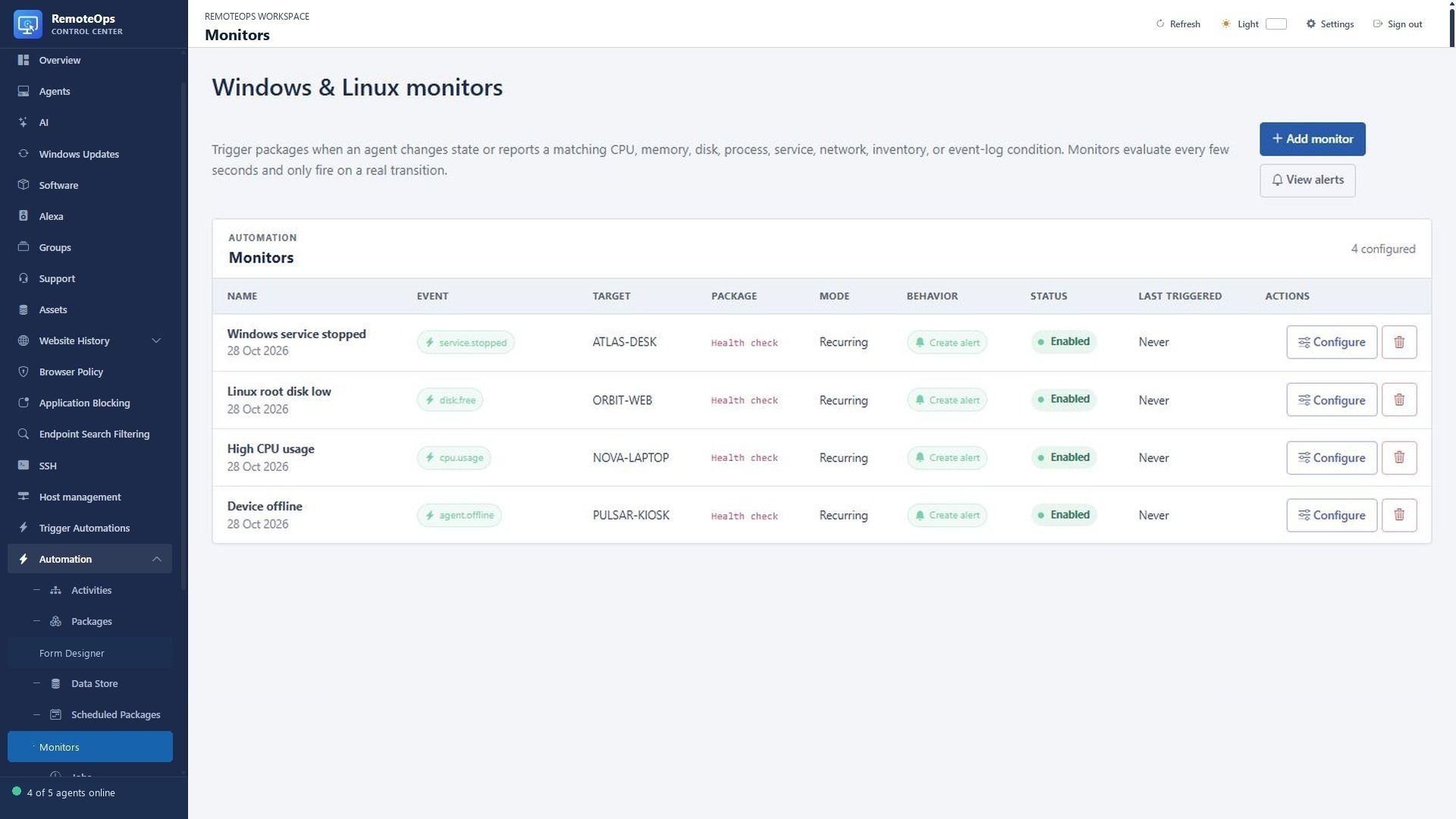
Name identifies the policy; Event shows selected signals; Target scopes the device/group/SSH host; Package is the response workflow; Mode controls recurring/once behavior; Behavior shows alert creation; Status enables the rule; Last triggered is the most recent firing.
Monitor condition and response settings#
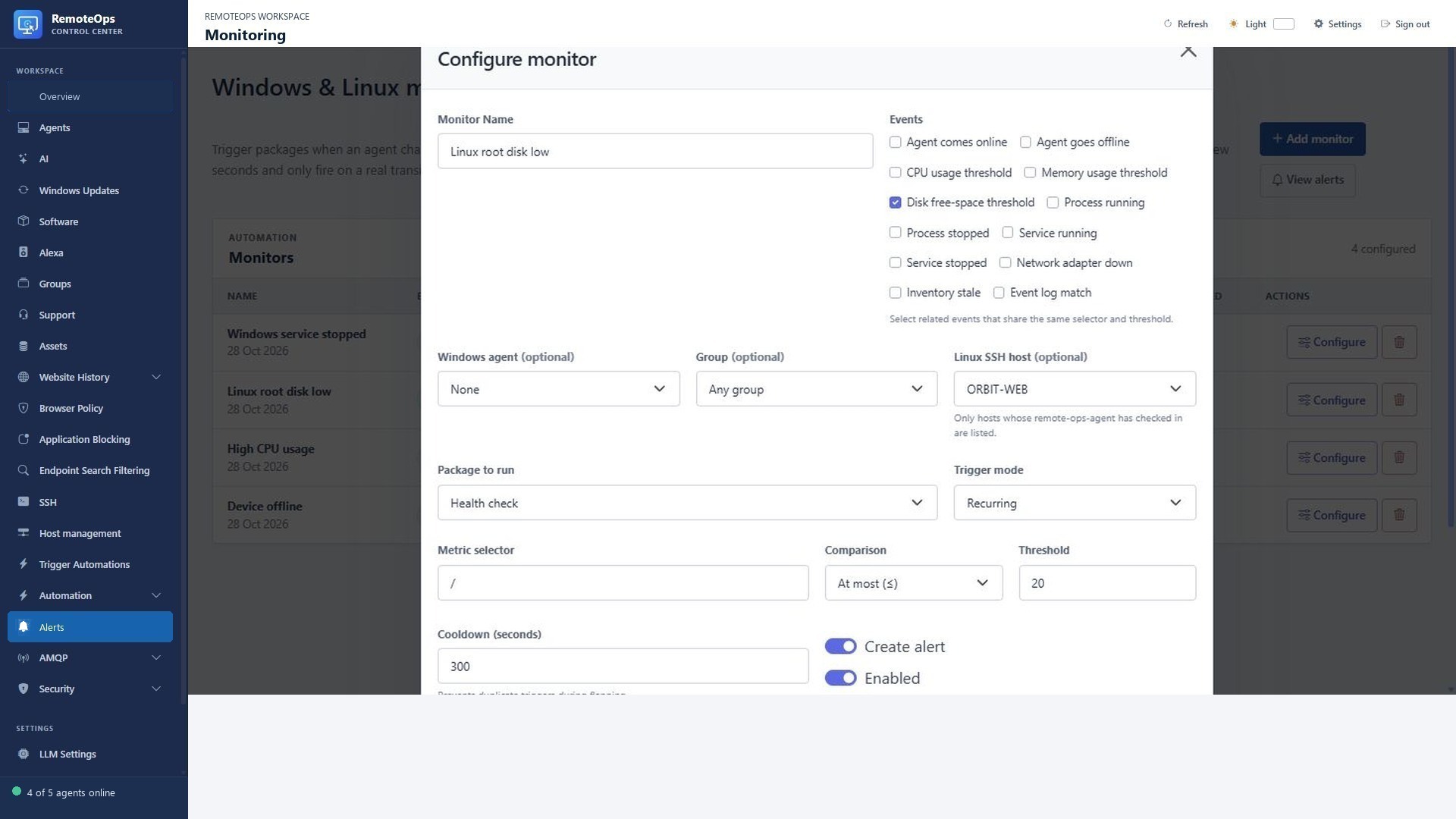
Choose event types, then a Windows device/group or eligible Linux SSH host. Metric selector identifies a drive, service, process or supported event target. Comparison and Threshold define the metric condition. Cooldown suppresses repeated triggers. Create alert and Enabled are separate switches.
Alert list columns#
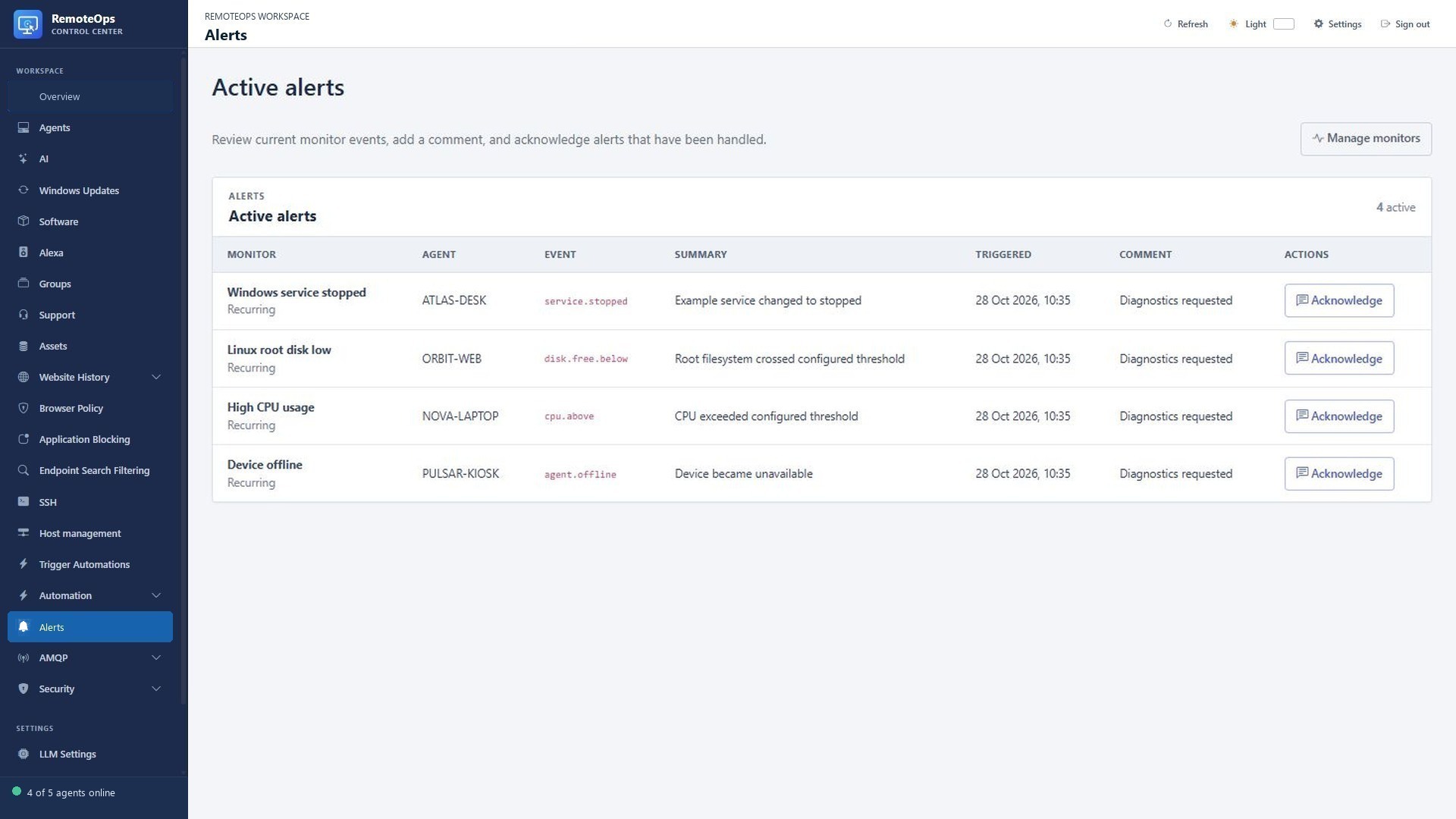
Monitor and Agent identify the source; Event and Summary describe the condition; Triggered timestamps it; Comment records follow-up. Acknowledge updates alert state. It does not restart a service or resolve the original condition.
Linux performance graphs#
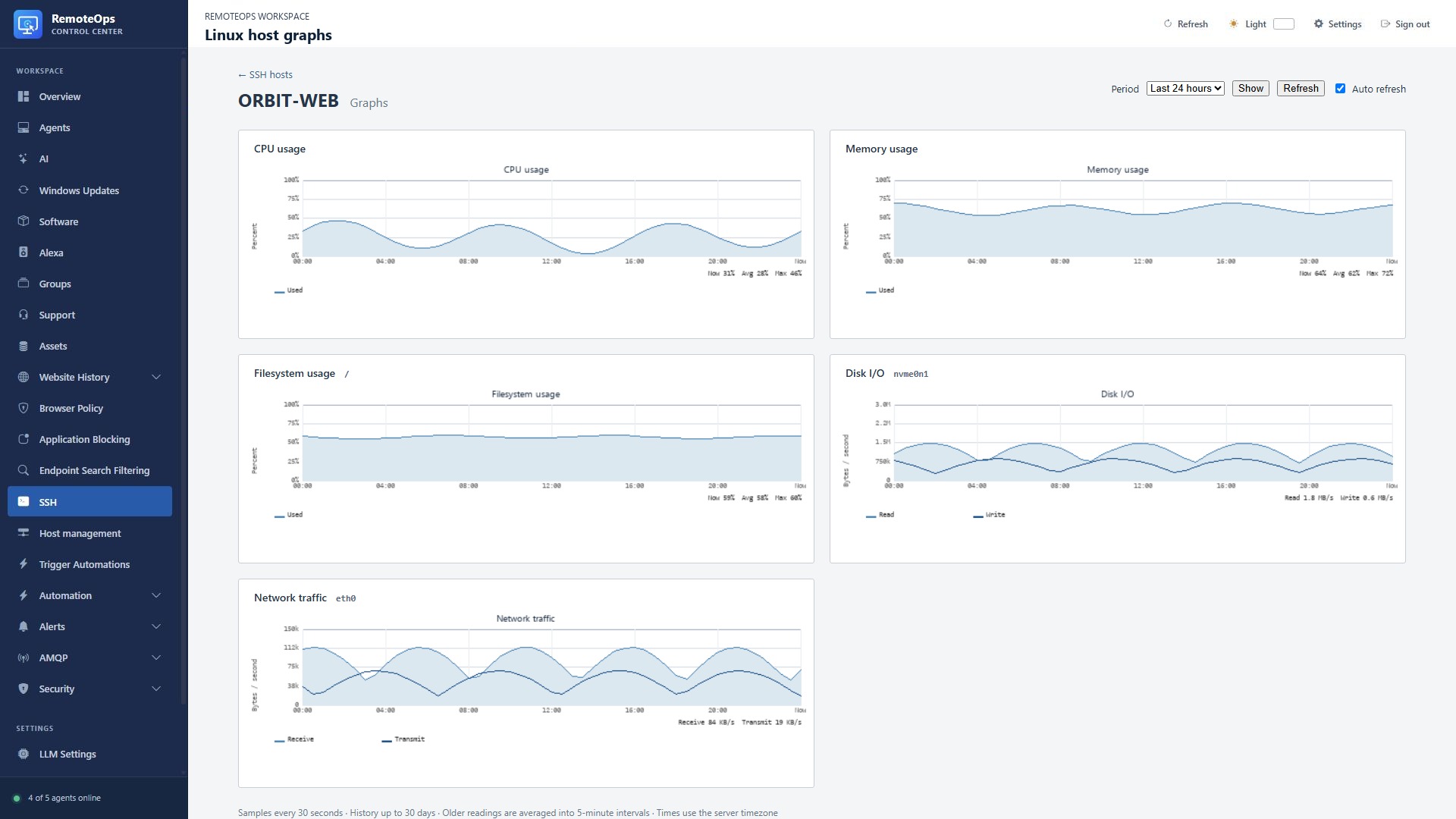
This full portal view shows CPU, memory, filesystem, disk I/O and network history for a fictional Linux host.
Windows agent performance graphs#
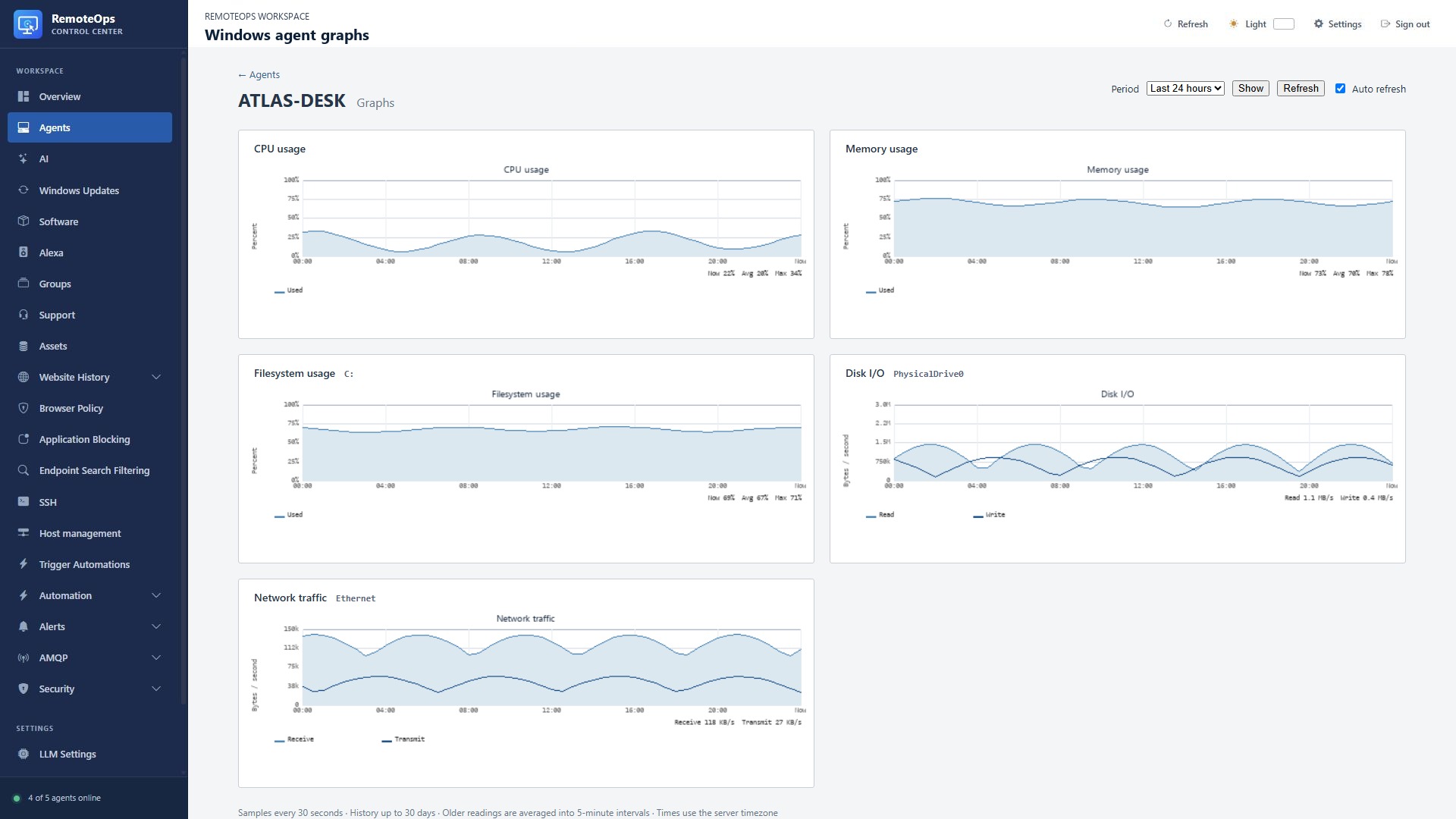
This full portal view shows the same graph types for a fictional Windows agent. Enable Collect performance statistics in Agents → Configure to populate this page.
Notification package configuration#
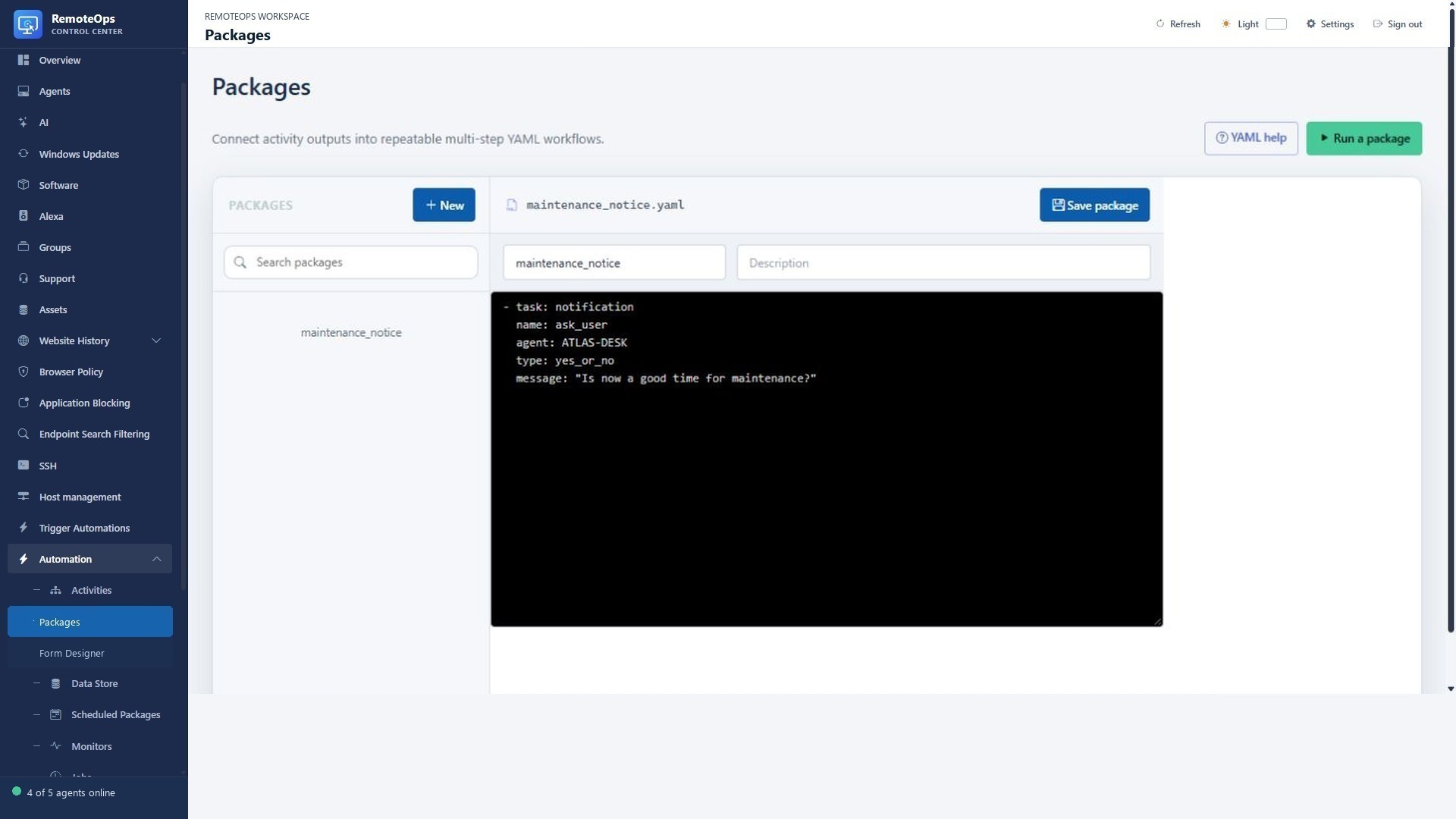
This package asks a Yes/No question on ATLAS-DESK. The real user-facing notice appears on the endpoint; this screenshot shows its workflow configuration, not a delivered notification.
Windows investigation result table#
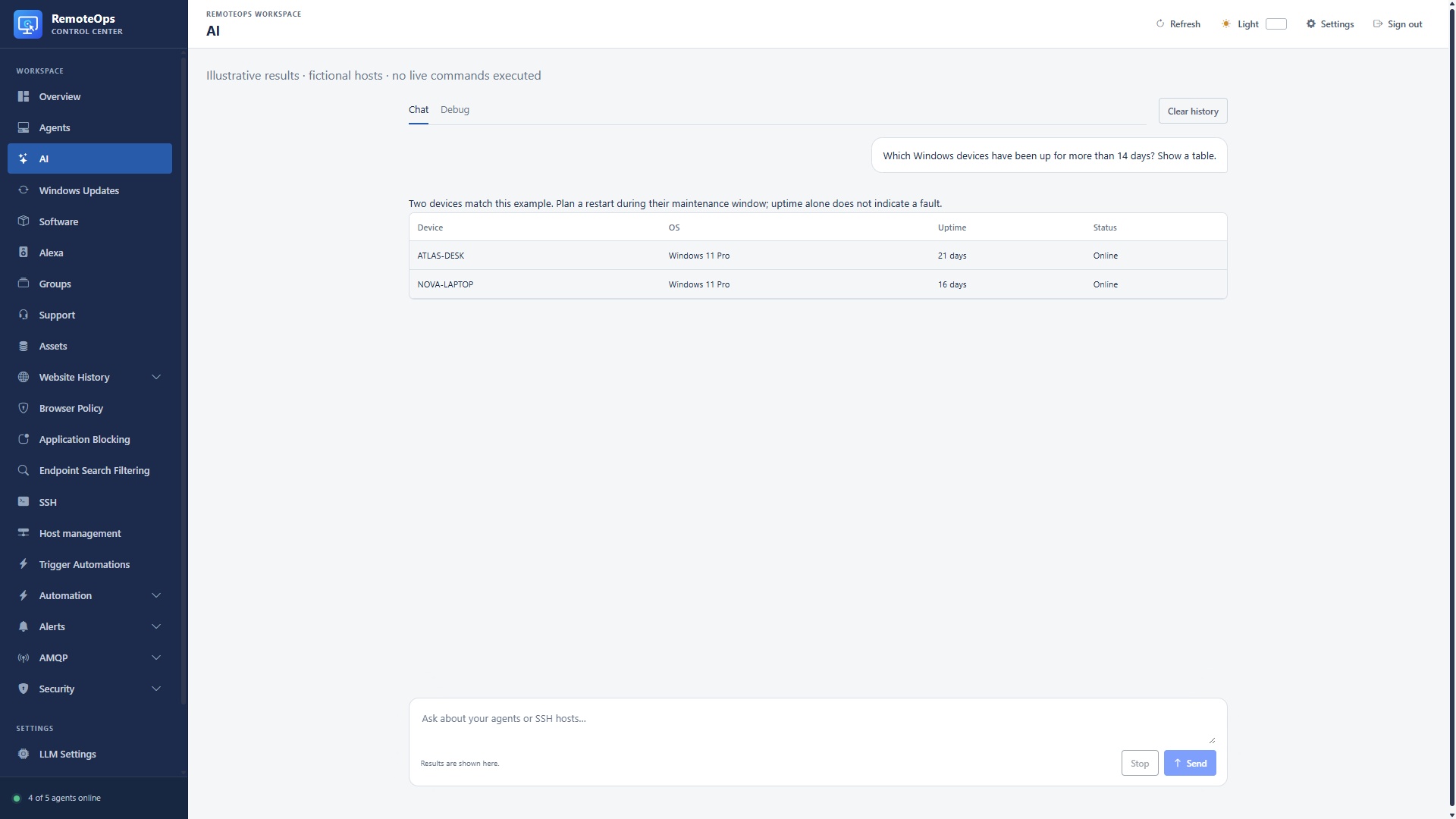
Example prompt: find Windows devices with more than 14 days of uptime. Device identifies the agent; OS is the reported operating system; Uptime is elapsed time since startup; Status is current presence. These are illustrative results from fictional hosts.
Linux disk and service investigation#
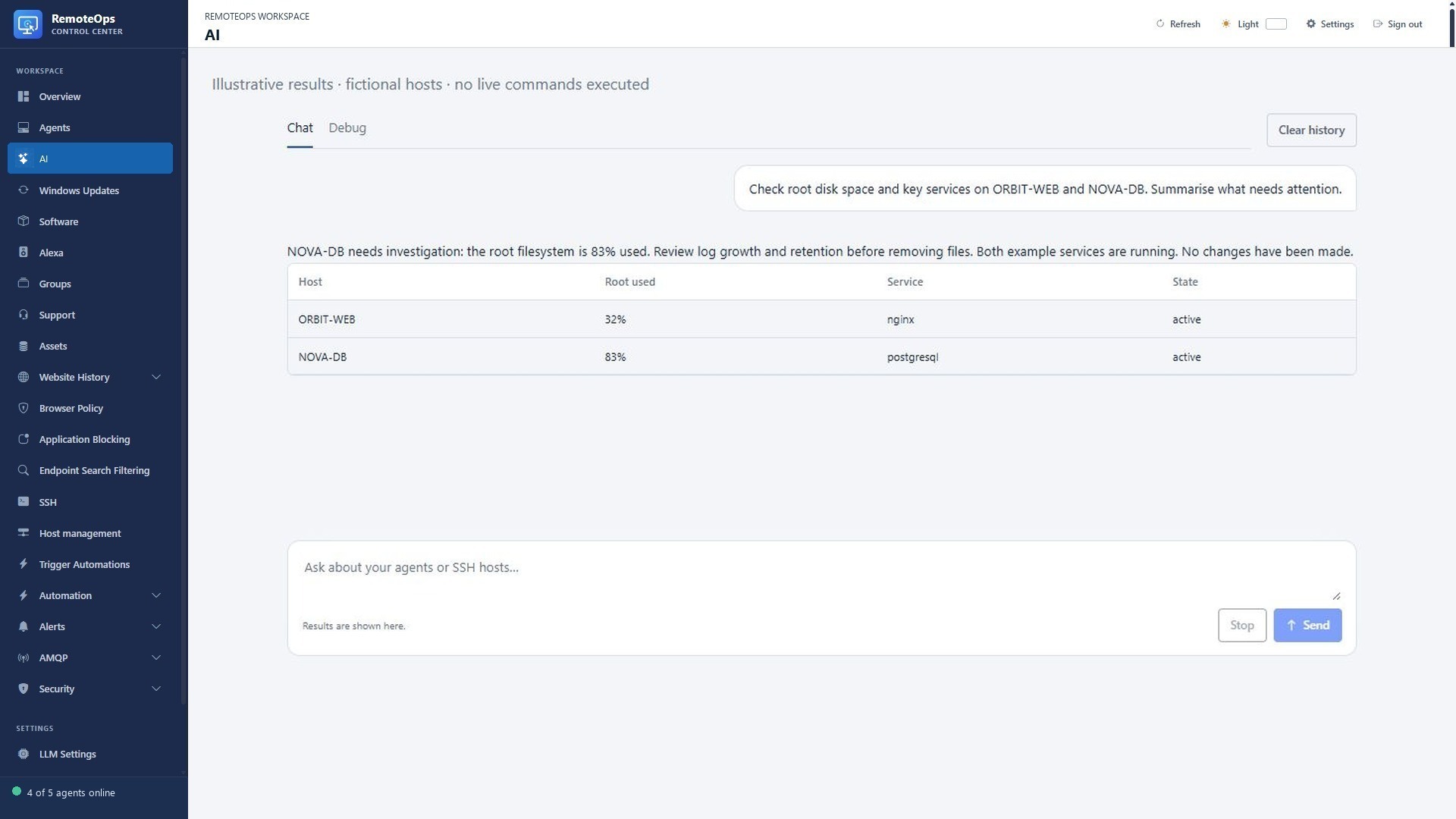
Example prompt: check root disk usage and key services. Host identifies the SSH target, Root used is filesystem utilisation, Service is the checked unit and State is its result. Ask for diagnostics before choosing a remediation.
Model connections and tool configuration#
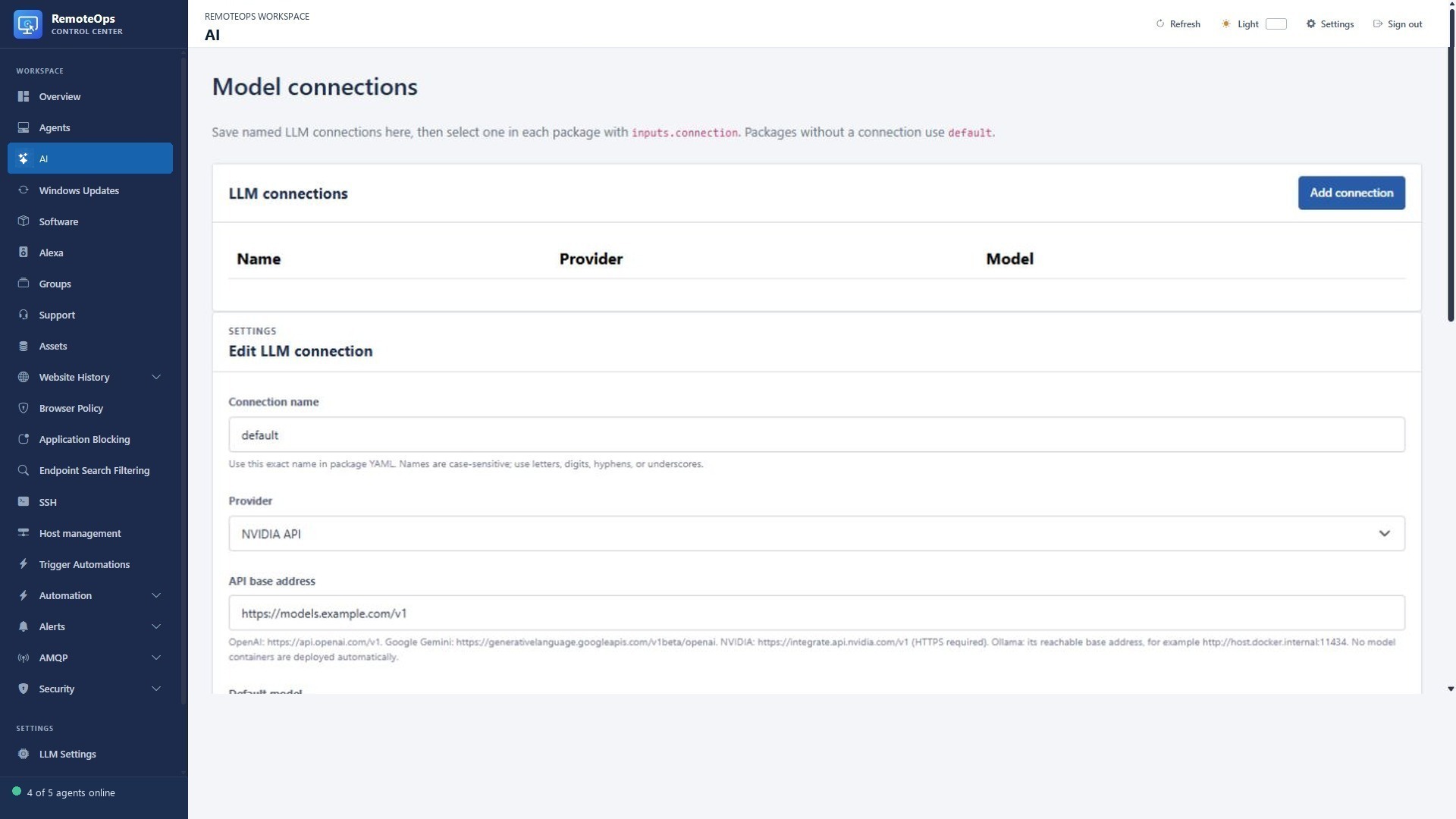
Model tools require a configured connection and permitted tool scope. A configured model is not evidence of endpoint connectivity or command completion.
Key Vault fields#
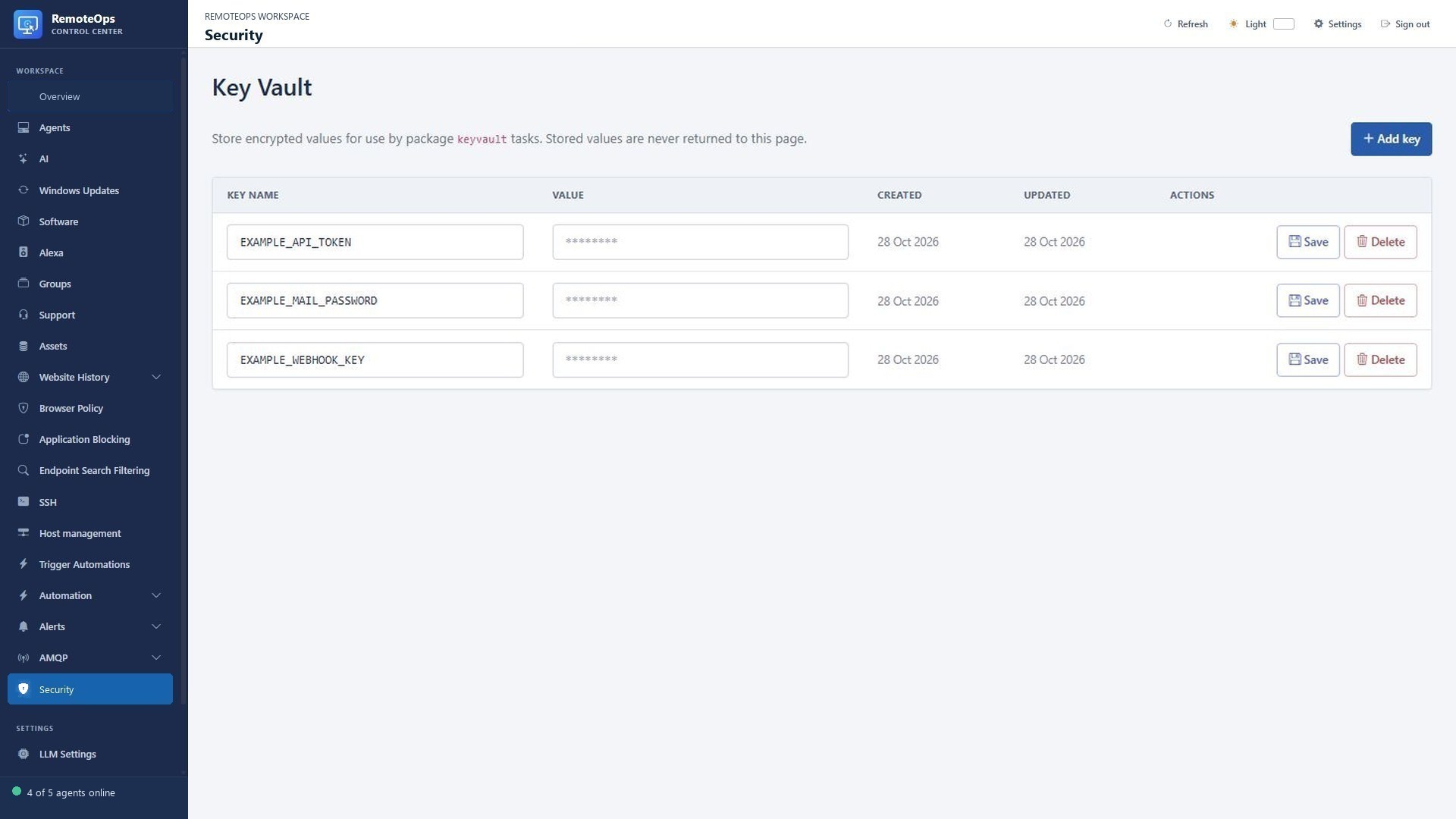
Key name is the workflow lookup name. Value shows a placeholder rather than the stored secret. Created and Updated show entry timestamps. Typing into Value replaces the stored value when saved.
Data Store fields#
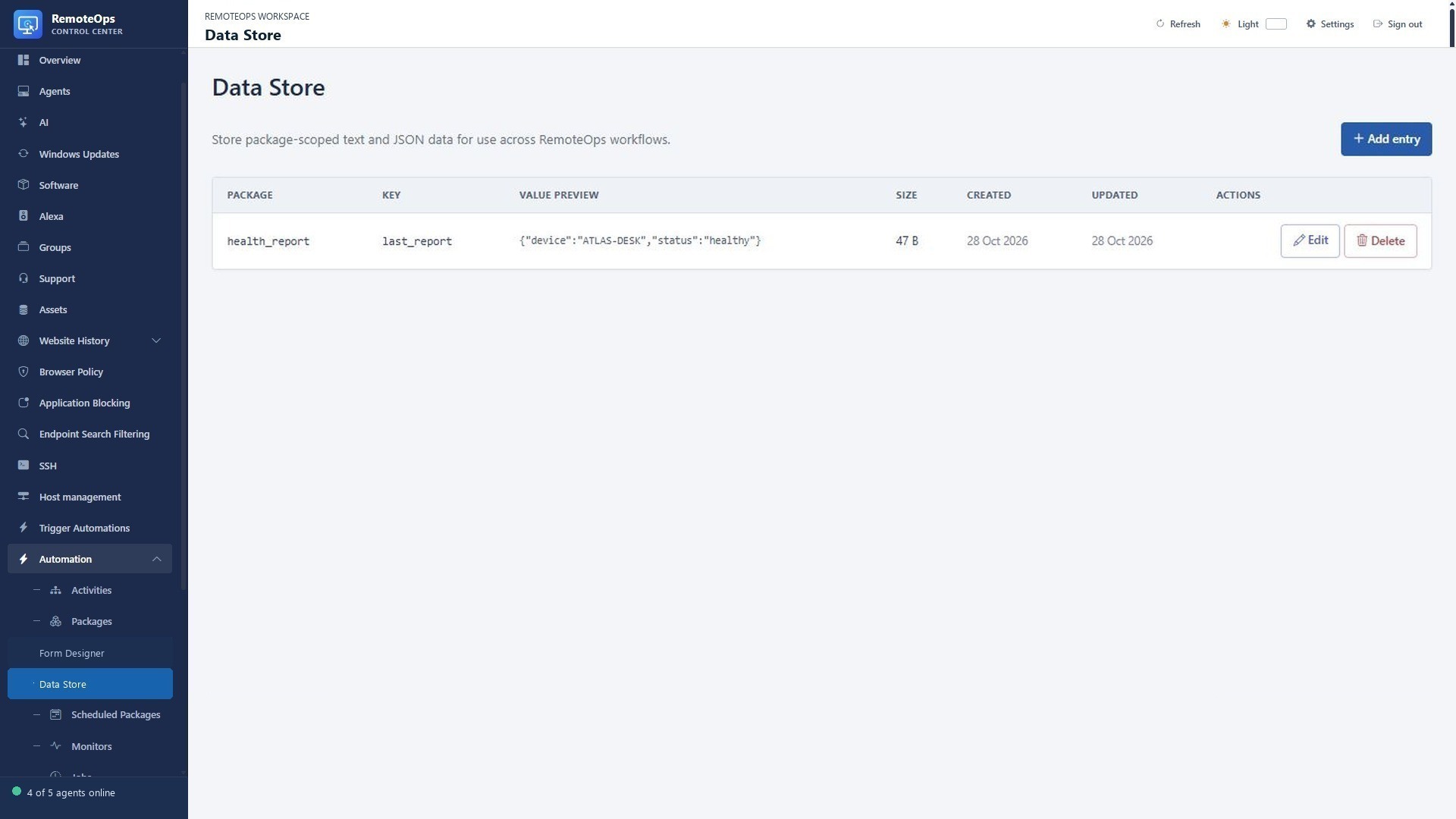
Package scopes the value. Key identifies it. Value preview displays the stored text/JSON, so never store secrets here. Size is the encoded value size; timestamps record creation and change.
Administrator audit columns#
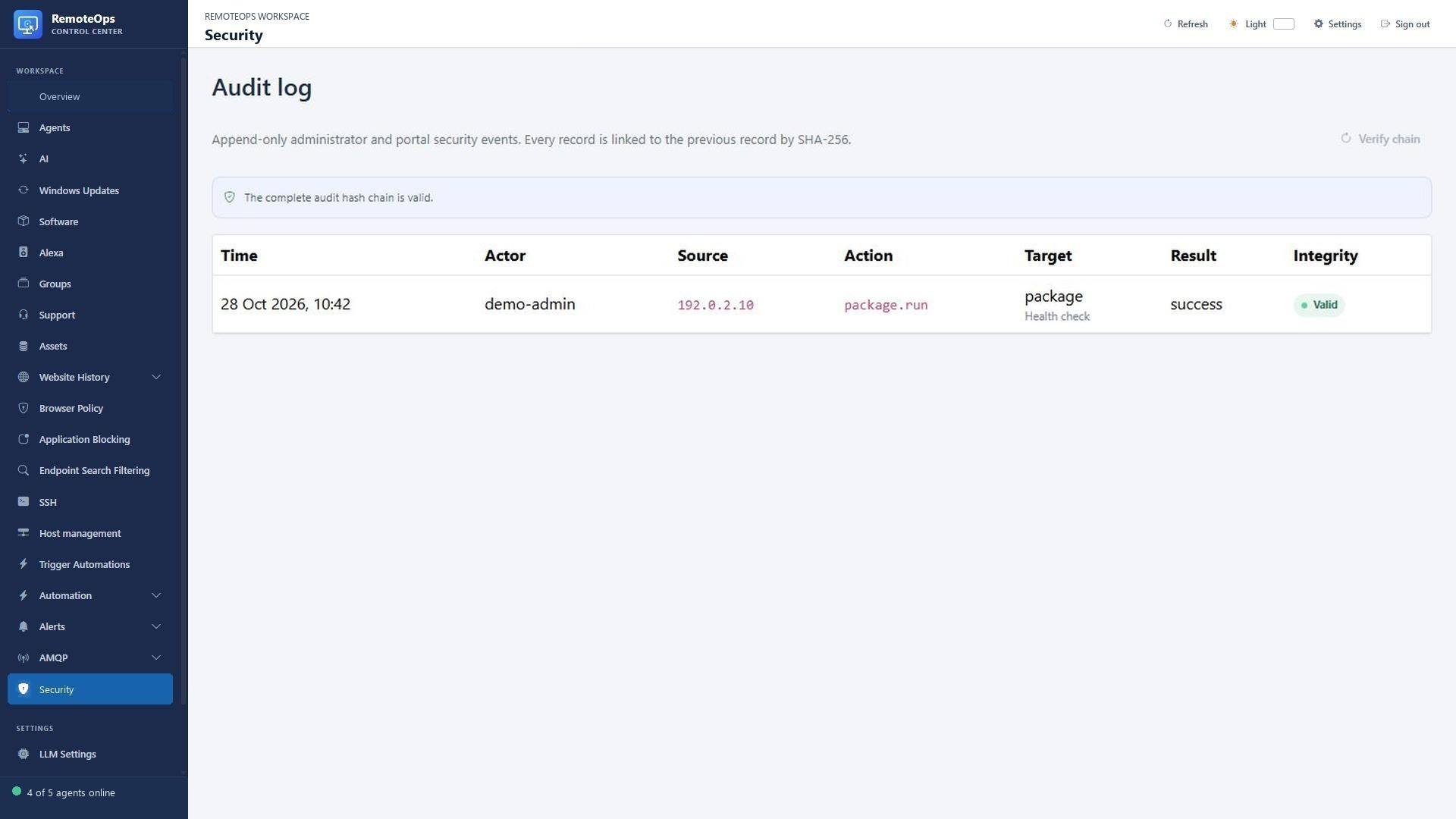
Time, Actor, Source, Action, Target and Result identify the administrative event. Integrity reports hash-chain verification; a valid chain does not prove that an action was appropriate.
Temporary support workstation example#
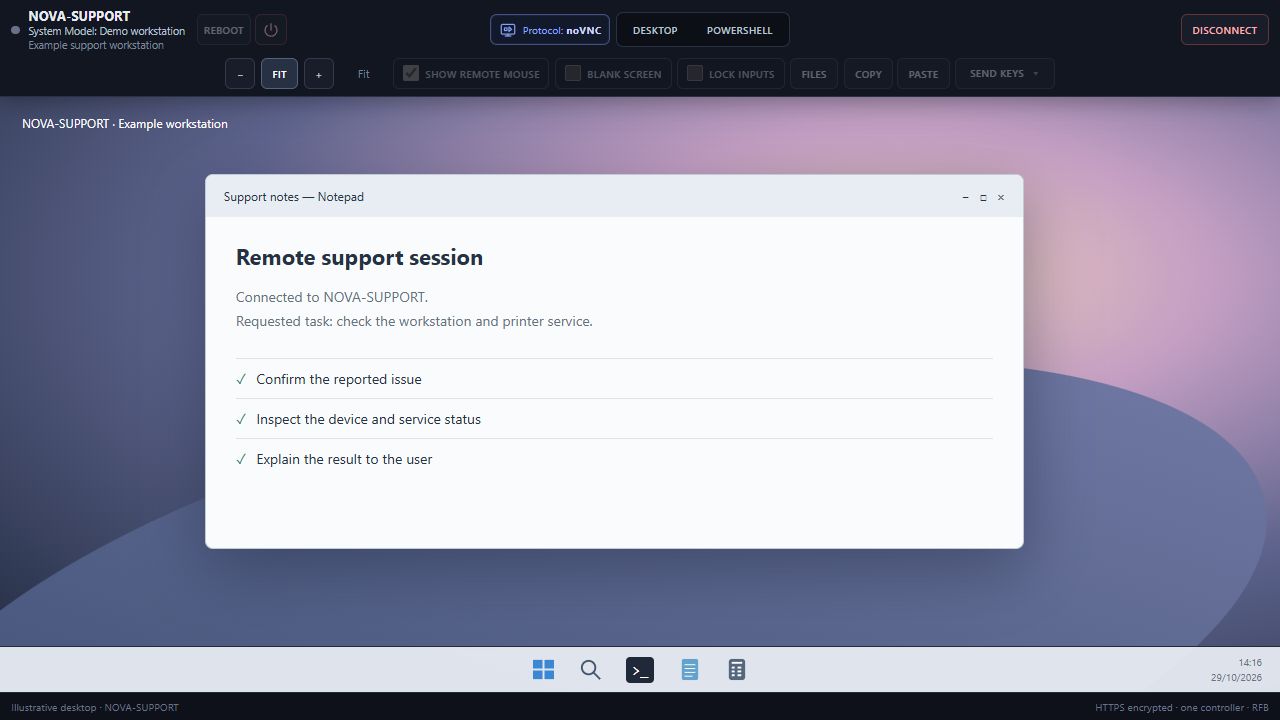
NOVA-SUPPORT is an illustrative workstation with a separate wallpaper and taskbar. The RemoteOps viewer controls are shown around it; the temporary support client and consent process are separate steps.