 RemoteOpsGet started
 BUILD AUTOMATION
Develop packages and control data flow
YAML structure, task execution, outputs, targeting, conditions and retries.
Examples use remoteops.example.com and fictional systems. Adapt them to your tenant.
Screen reference#
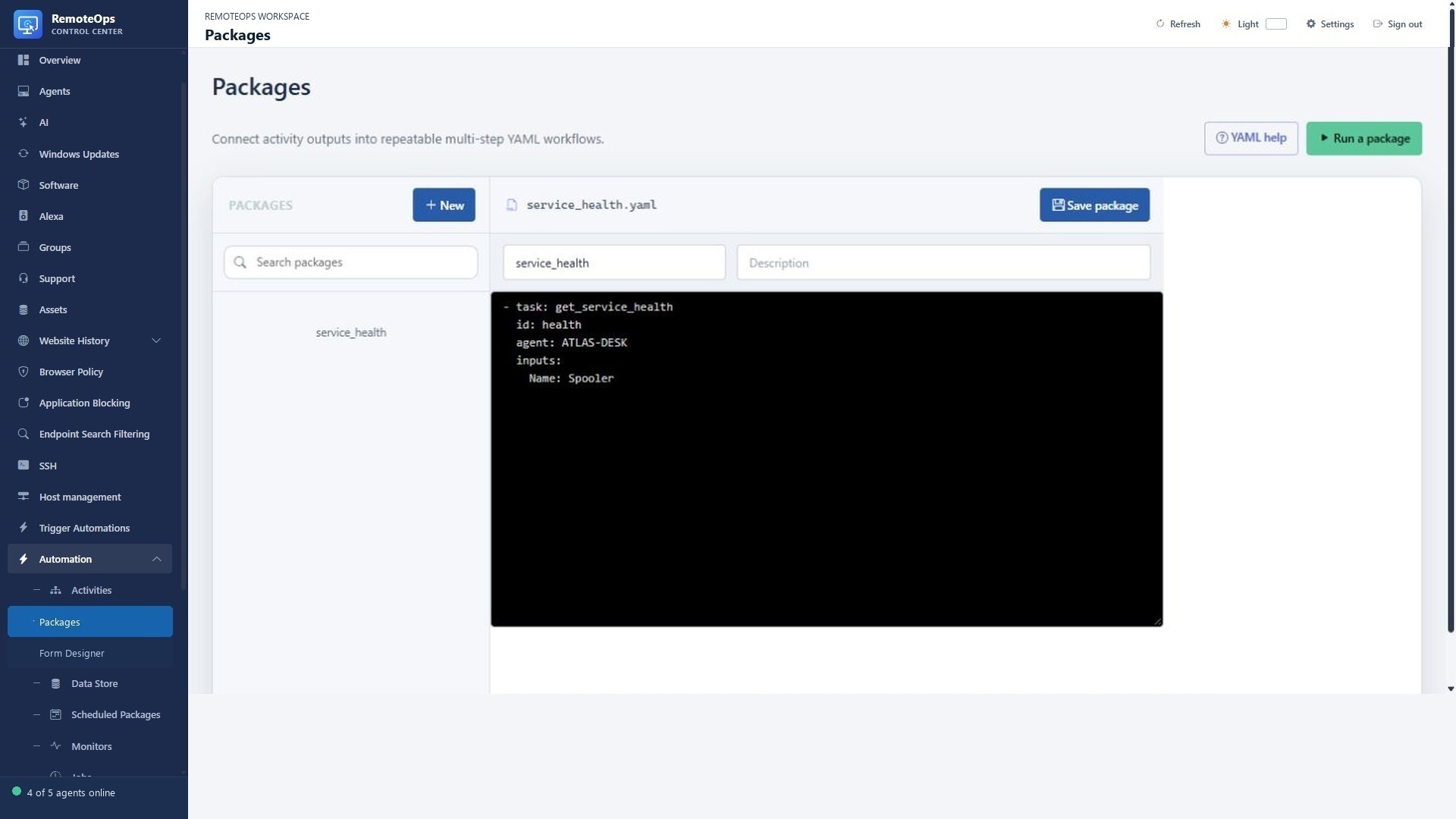
The resource list selects the package. The YAML editor defines task order, input mapping and targets. The task palette provides built-in task entries; saving the package does not execute it.
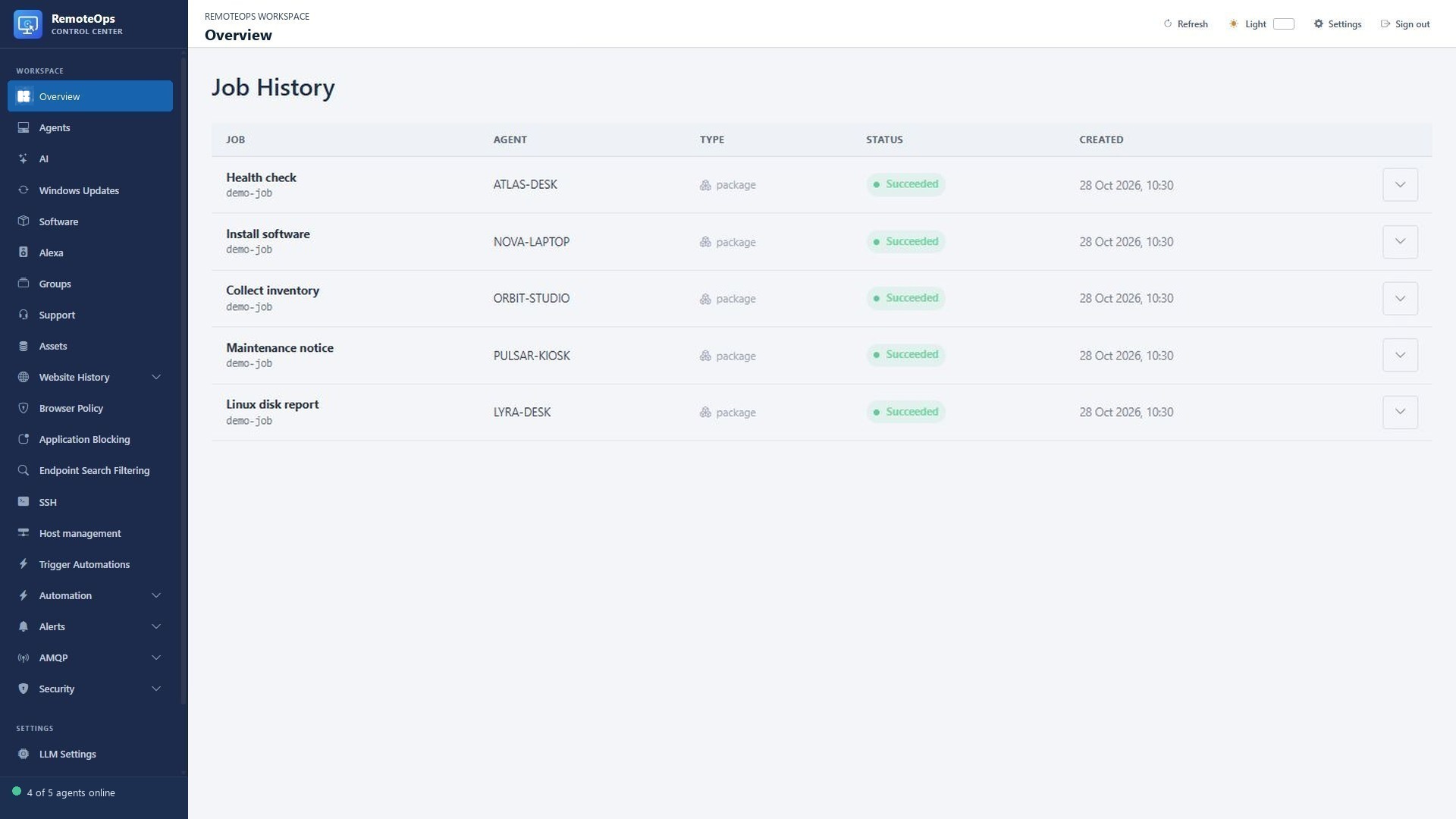
Job rows show the package, target, kind, status and timestamps. Expand the job to inspect task traces, structured outputs, console output and errors.
Related walkthroughs#
Use the Built-in task walkthrough to choose a task by purpose, then the Full field reference for exact authoring keys.
A package is an execution plan#
Packages connect tasks, targets and JSON data. They can run on the coordinator and dispatch work to Windows agents or saved SSH targets. Use unique task names whenever the same activity appears more than once. An example containing a saved Activity name requires that Activity to exist first; built-in tasks do not require creating an Activity.
A complete starter package#
This package does not change system configuration; it formats a message on the coordinator and sends it to the signed-in user of a fictional Windows device. Replace the device before running.
- timeout: 300

- task: inline_powershell
  name: prepare
  continue_on_error: false
  inputs:
    device: 'ATLAS-DESK'
    script: |
      return @{ message = "Hello from the workflow for $device" }

- task: notification
  name: tell_user
  agent: 'ATLAS-DESK'
  type: large
  message: '=prepare.message'
Inputs, outputs and runtime references#
An activity contains exactly one top-level function and no executable top-level statements. PowerShell activities run on Windows agents. Bash and Python activities run through saved private-key SSH profiles.
Activity parameters are package inputs. The function returns an object whose properties become named outputs. Every activity result is serialized to JSON, so strings, arrays, objects, booleans, and numbers can be passed between tasks.
Bash and Python SSH activities can expose named outputs by writing one valid JSON object to standard output. Its properties are promoted into the task output alongside standardOutput, standardError, and exitCode, so a report containing {"uname":"Linux ..."} is available as =task_name.uname. Ordinary non-JSON console output remains available through standardOutput.
Output references use the following form:
=task_name.output_name
Tasks may include a skip condition containing a boolean, an earlier output reference, or a comma-separated group of braced output references. Multiple conditions use logical OR. A skipped task is recorded in the activity trace and later references to its outputs resolve to JSON null.
Package definitions reject references to undeclared task names, malformed output references, and packages containing more than 100 tasks. A reference to a declared task that has not executed yet resolves to JSON null; this permits self-referencing and forward-referencing inputs in goto loops. Once the source task runs, the reference resolves to its latest output. In the portal Packages editor, hover a task: name to see the saved activity or built-in task's available YAML fields, supported types or values when known, and outputs; inline_powershell is intentionally excluded because its contract is script-defined.
The agent field on a Windows activity, rtsps_stream, or notification task may also be an output reference. The referenced output must resolve to a non-empty agent display name when that task is reached:
- task: inventory_computer
  agent: '=select_target.agentName'
  inputs: {}
The ssh field on a Bash or Python activity may likewise be an output reference that resolves to a private-key SSH profile name at execution time. This supports selecting profiles from an earlier agents task with type: ssh:
- task: linux_system_report
  name: report
  ssh: '=select_target.agentName'
  inputs: {}
Output references are also accepted by runtime-valued task fields: group, runas, notification message/type, RTSP url/display_for_seconds/bell/max_age_seconds, email subject/recipient/cc/bcc/data, Key Vault action/key/value, Data Store package/key/value, and agent-enumeration type/group/status/tags. Resolved values retain their JSON type and are checked against the destination field when the task executes. Workflow-structure fields (task, name, activity, continue_on_error, package cron, and webhook) remain literal so the execution graph can be validated before it starts.
Built-in agent and SSH enumeration#
The Orchestrator-side agents task returns a JSON array of enrolled, non-uninstalled Windows agents by default. Each item includes type: agent, id, name, status, online, group, groupId, groupName, tags, operatingSystem, version, agentVersion, powerShellVersion, systemModel, enrollment/heartbeat timestamps, and recovery/debug details.
- task: agents
  name: online_Workstations_servers
  group: 'Workstations'
  status: 'online'
  tags: 'pdc,servers'
All filters are optional and case-insensitive. status accepts online or offline. Every comma-separated tag is required, so the example returns only online members of Workstations having both pdc and servers. The task output itself is the JSON array; use =online_Workstations_servers.agents to pass that array to an input or =online_Workstations_servers.count to pass its length. The agents task runs entirely in the Orchestrator and accepts only name, type, group, status, and tags.
Set type: ssh to return saved SSH profiles instead. SSH tags share the agent tag catalogue and can be assigned on the SSH page. For SSH results, online means the profile's resolved host and TCP port accepted a connection during the task; it does not assert that saved authentication succeeded. SSH items include type: ssh, id, name, hostname, resolvedHostname, port, username, authType, packageEligible, status, online, tags, and timestamps. group does not apply to SSH profiles. Omitting type remains equivalent to type: agent.
- task: agents
  name: online_servers
  type: 'ssh'
  status: 'online'
  tags: 'pdc,servers'
Agent display names are unique within a group, not across the entire portal. A package agent: target without group: must match exactly one active agent; if the same name exists in more than one group, add a group selector. For example, agent: 'jordan-pc' with group: 'Workstations' runs only the jordan-pc agent in the Workstations group.
Shared state and secrets#
Use store_data and get_data for non-secret strings/JSON across runs. Use keyvault for credentials. Do not save a literal secret permanently in package YAML just because an execution trace redacts some fields. See Key Vault and Data Store.
Parallel tasks and control flow#
Set parallel: true (or parallel: 'true') on any executable task to force asynchronous execution on a separate coordinator thread. The coordinator immediately advances to the next independent task, whether or not that task also sets parallel. The default, and parallel: false, waits for the task to finish.
- task: test
  agent: 'NOVA-LAPTOP'
  parallel: 'true'

- task: test2
  agent: 'NOVA-LAPTOP'
  parallel: 'true'
Output references in inputs, targets, skip expressions, or conditions wait for the outstanding parallel batch before resolving their values. The package waits for all pending tasks before completing. goto and stop always wait for pending work and apply control flow in package order, including when marked parallel. At most 16 parallel tasks are dispatched per batch; larger batches wait before dispatching more. Traces retain dispatch order. Parallel tasks follow the existing continue_on_error policy and share the package deadline and cancellation signal; a terminal task failure cancels outstanding work. Windows execution also respects the target agent's configured job concurrency limit. Use the Orchestrator package runner for parallel execution.
For an inline_powershell consumer, declare dependencies as input references, for example value: '=producer.result', and read the injected $value variable directly in the script. Do not redeclare injected input variables in a param(...) block, which replaces their values. References embedded in script text are not interpreted as dependencies. The consumer waits even when it also sets parallel: true; after resolving its inputs, it launches asynchronously.
Built-in package control flow#
Use the Orchestrator-side goto task to return to a previously named package task. Its activity value is the earlier task's name. The condition may be the literal true/false or one earlier output reference:
- task: check_status
  name: inspect
  agent: 'NOVA-LAPTOP'
  inputs: {}

- task: goto
  name: inspect_again
  activity: inspect
  condition: '=inspect.tryAgain'
Use stop to end the package successfully when its condition resolves true:
- task: stop
  name: finish_when_ready
  condition: '=inspect.finished'
A referenced condition is true only when the output is the boolean true or the string "true". A false goto or stop condition continues with the following task. Control-flow tasks run entirely in the Orchestrator and do not accept agent, ssh, runas, skip, continue_on_error, or inputs.
All executable tasks continue after errors by default, including agents, Key Vault, Data Store, email, notifications, RTSP dispatch, inline PowerShell, SSH activities, and Windows activities. Set continue_on_error: false on a task when its failure must stop the package. This covers input/output-reference resolution, target resolution, dispatch, and task execution failures. A failed task is traced with continuedOnError: true, its output becomes JSON null, and execution advances to the next task. Administrator cancellation, the package-wide timeout, and the execution-count safety limit always remain terminal. RTSP overlays are asynchronous, so the default covers queue/dispatch failure; an overlay failure reported later by the agent cannot retroactively change the already-advanced package.
Each evaluated step—including normal activities, skipped activities, goto, and stop—counts toward a hard limit of 4,096 executions per package job. The job fails before a 4,097th step can run, preventing an unbounded goto loop.
Jobs default to a 300-second overall timeout. A leading - timeout: 86400 metadata entry can set a package's timeout from 1 to 86400 seconds, allowing long Linux SSH backups to finish. Inline PowerShell steps remain limited to one hour. The package editor Run button uses the YAML timeout. An explicit timeout supplied in the Run dialog or a manual API request overrides YAML.
Authoring fields#
| Field | Meaning |
|---|---|
task |
Saved activity name or built-in task keyword. |
name |
Unique step identifier used in references. |
agent / ssh |
Target Windows display name or eligible saved SSH profile. |
group |
Optional Windows-target disambiguation where supported. |
runas |
Windows SYSTEM/user choice on tasks that support it. |
inputs |
Task-specific values and output references. |
skip |
Literal boolean, reference or OR group. |
continue_on_error |
Defaults to true for ordinary failures; set false for required steps. |
parallel |
Asynchronous execution where supported. |
cron, webhook, timeout |
Package metadata; keep structural fields literal. |
Run, inspect and retry#
Save the package, select its coordinator/default target and submit once. The Orchestrator coordinator supports cross-target workflows and built-ins. Follow the job from queued to running and terminal status. Inspect each task's exit code, output, error and trace. Cancel or partially retry when appropriate, understanding that a retry can repeat an already applied change. Define activities so repeated execution is safe.
Validation limits#
Packages reject undeclared task references and malformed output references. There are at most 100 declared tasks, and the runtime loop guard permits at most 4,096 evaluated steps including skipped/control-flow steps. Names and references have bounded length. Inline scripts are limited to 256 KiB. Bounded output may be truncated; inspect the flags rather than assuming the entire result was returned.
Useful workflows to build#
- Windows service check → conditional remediation → result notification.
- Linux disk report → formatted email → saved non-secret checkpoint.
- Form choice → user question → software request → verification report.
- Monitor event → captured trigger context → diagnostic collection → email.
- Camera capture → configured LLM analysis → cautious text report.
Every supported built-in's contract, fields, outputs and example appear in the Task reference.