 RemoteOpsGet started
 ACCESS POLICIES
Website, search and application filtering
Three different policy systems, inheritance, exceptions and enforcement status.
Examples use remoteops.example.com and fictional systems. Adapt them to your tenant.
Screen reference#
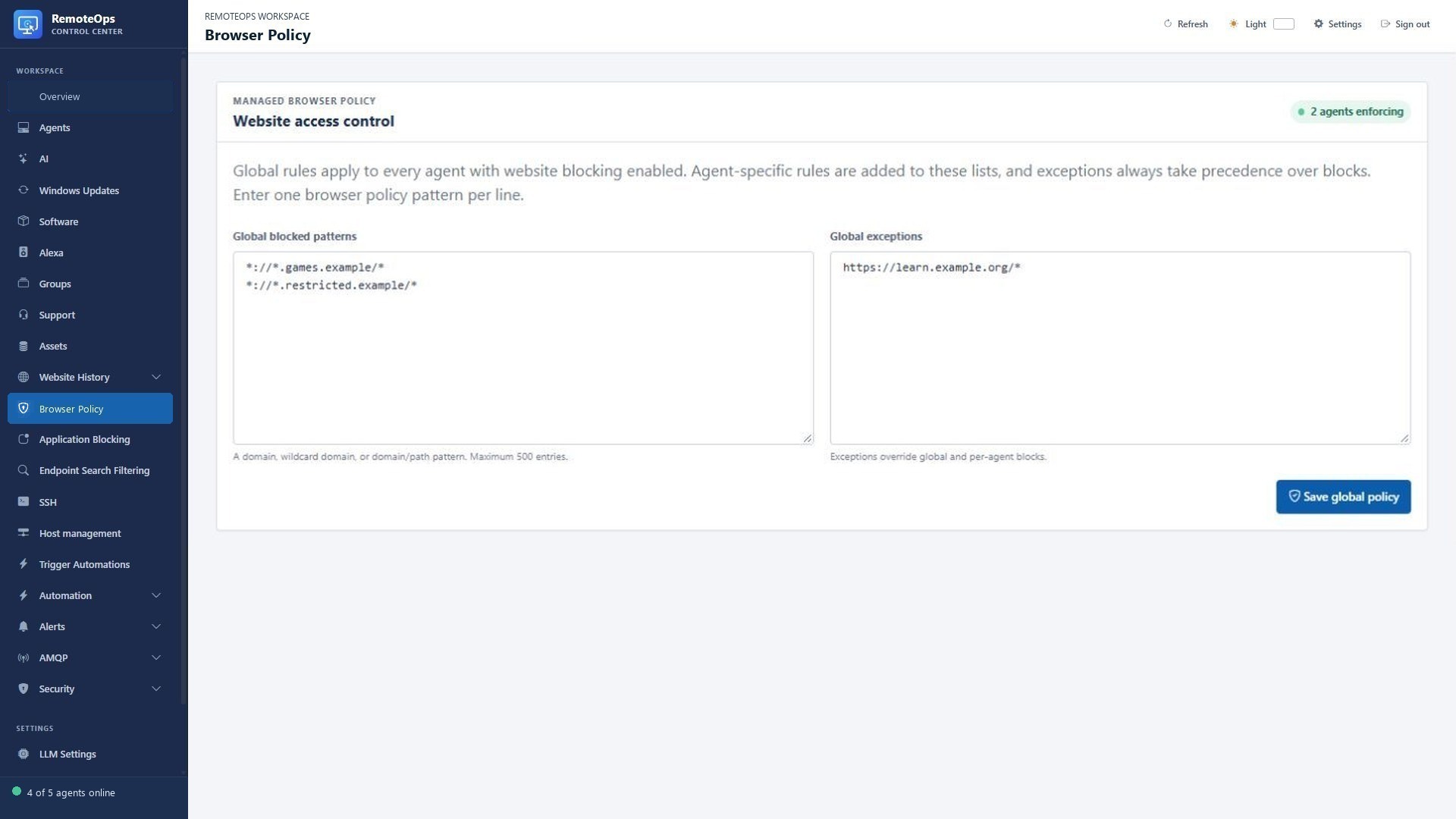
Blocked URLs define the deny rules. Allowed exceptions override matching block rules. Global policy and endpoint additions are configured independently.
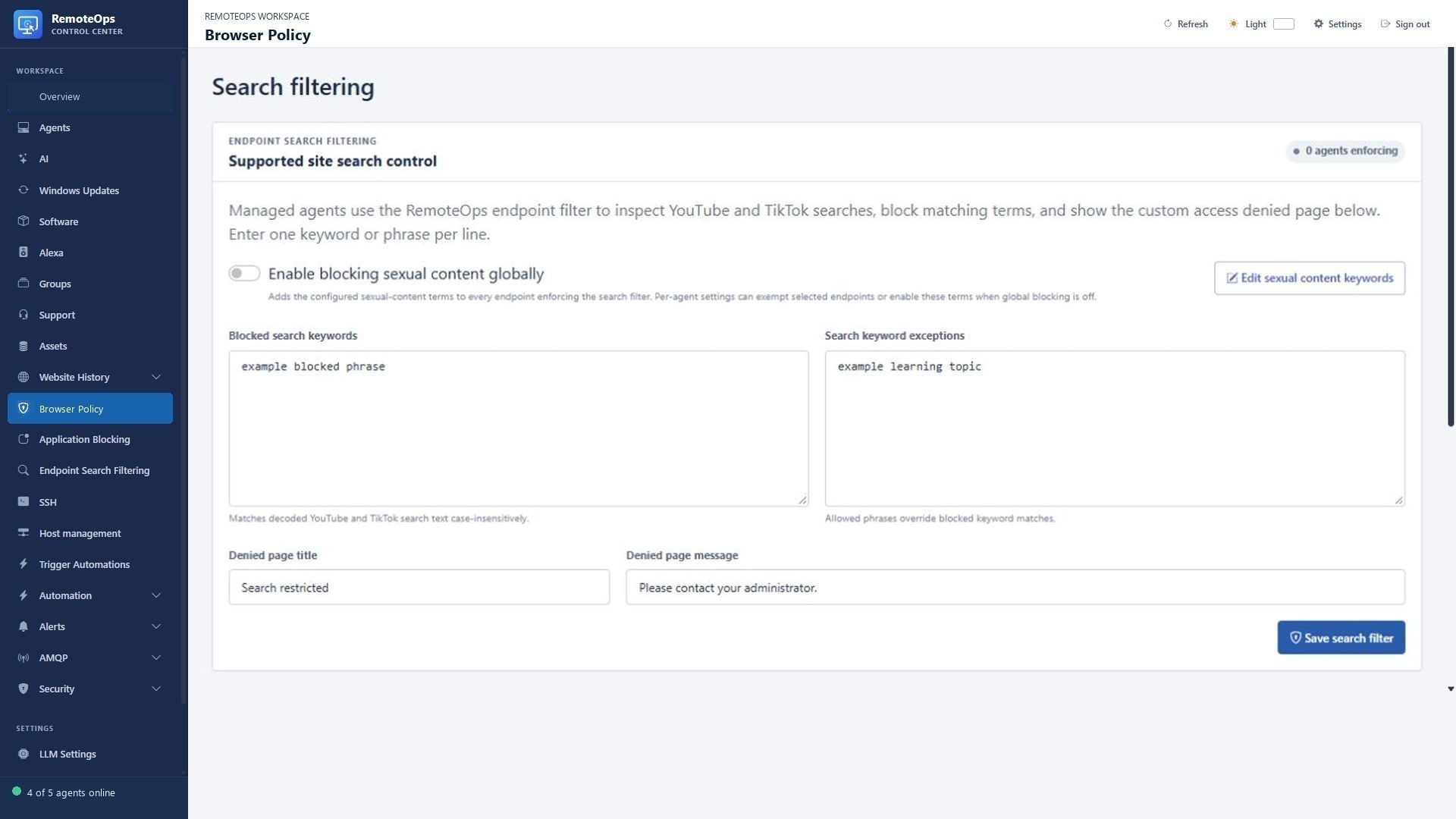
Blocked search keywords are matched against supported searches. Search keyword exceptions take precedence. Denied page title and message control what the user sees. Endpoint enforcement is enabled per device.
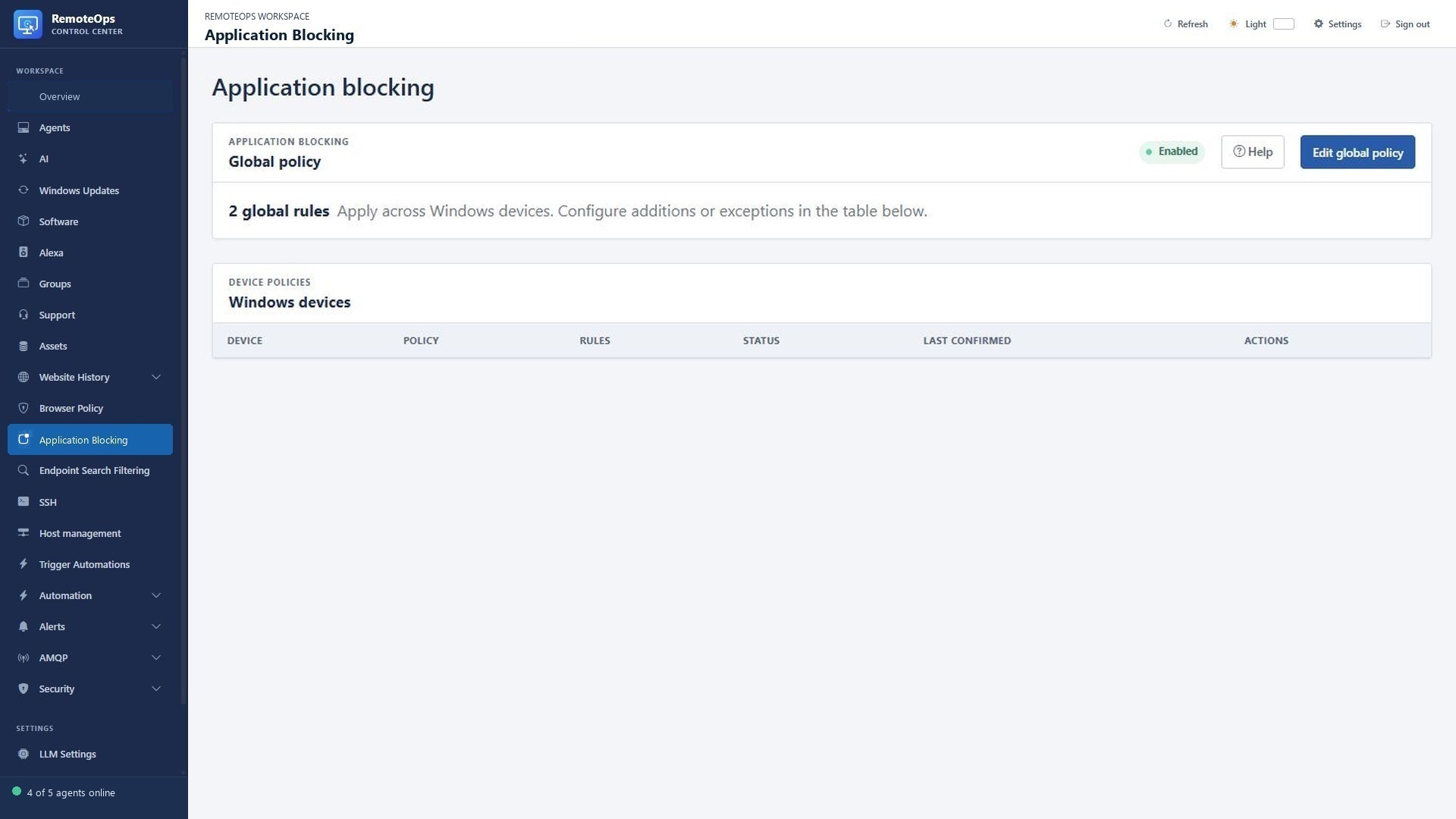
The global policy defines shared Windows application rules. Per-device configuration controls inheritance and exceptions. A launch block does not terminate a process that is already running.
Three different controls#
| Control | What it inspects | How to use it |
|---|---|---|
| Website access policy | Managed browser URL patterns | Block domains/paths and define allow exceptions. |
| Endpoint search filter | Supported YouTube/TikTok search text | Match search phrases, allow exceptions and show a configured denied page. |
| Application blocking | Supported Windows launch rules | Deny selected executable/package identities through AppLocker. |
Browser-history keyword classification is a separate reporting feature. Classifying a URL does not block it. A history exemption does not grant access through a blocking policy.
Website policies#
Enter one browser policy pattern per line in Access Control. Global and device-specific blocks combine. Allow exceptions override block matches, including a broad domain exception that can override a narrower path block. Enable or disable enforcement per device without losing the saved rule lists. Chrome, Edge and Firefox use their managed browser policies.
After saving, check Last applied and policy errors. Policy refresh may close supported browsers to activate the changes; Chrome/Edge are relaunched with session restoration, while Firefox may need reopening. This is separate from history collection, which does not close browsers.
Supported-site search filtering#
Open Endpoint search filtering. Configure blocked keywords/phrases and allowed search exceptions. Search matching operates on decoded supported YouTube and TikTok search text, case-insensitively. Exceptions override matches. Configure the denied-page title and message shown for blocked requests.
Manage sexual-content keyword terms separately. Global enablement applies those terms to enforcing endpoints. Device settings can inherit, force the terms when global blocking is off, or exempt a device. Device-specific blocked terms and exceptions supplement the global search configuration.
Check per-device enforcement, last-applied time and errors. This feature is supported-site search filtering, not a claim to classify all content on the entire internet. Browser URL policies, endpoint filtering and OS policy compatibility each have their own requirements.
Windows application blocking#
<p><a href="/?view=application-blocking">Application Blocking</a> prevents selected Windows applications from launching and tells the user: <strong>“This application was blocked by the administration policy.”</strong> Already-running applications are not terminated.</p>
<h3>Global and device policies</h3>
<p>Use <strong>Edit global policy</strong> to maintain a shared block list for Windows devices. Enable the global policy to apply it. New devices inherit it automatically. Use search, column filters, sorting, and pagination in the device table to find a computer, then select <strong>Configure</strong>.</p>
<div><table><thead><tr><th>Device setting</th><th>Behavior</th></tr></thead><tbody>
  <tr><td>Use global policy</td><td>Follow the global enable switch and rules. Saved device rules are retained.</td></tr>
  <tr><td>Global policy + device rules</td><td>Add the device's rules to enabled global rules. Device rules still apply when global blocking is off.</td></tr>
  <tr><td>Device rules only</td><td>Apply only that device's rules, excluding global rules.</td></tr>
  <tr><td>Disable blocking on this device</td><td>Exclude both global and device rules, retaining saved device rules.</td></tr>
</tbody></table></div>
<p>Global and device lists each accept up to 200 rules, with a maximum of <strong>200 unique active rules per device</strong>. Duplicate rules are merged case-insensitively. A save that would exceed the combined limit is rejected without changing the saved policy.</p>
<h3>Rule formats</h3>
<p>Paste one application per line. Executable names, full Windows paths, and 64-character AppLocker hashes are detected automatically; no prefix is needed. Quoted paths and hashes with a leading <code>0x</code> are accepted. Explicit <code>exe:</code>, <code>path:</code>, and <code>hash:</code> prefixes also work. Each normalized rule can contain up to 500 characters.</p>
<div><table><thead><tr><th>Rule</th><th>Example</th><th>Match</th></tr></thead><tbody>
  <tr><td>Executable name</td><td><code>youtube.exe</code></td><td>This executable filename in any folder. Renaming can bypass it.</td></tr>
  <tr><td>Exact executable path</td><td><code>C:\Apps\YouTube\youtube.exe</code></td><td>This exact location. A copy elsewhere can bypass it.</td></tr>
  <tr><td>AppLocker file hash</td><td>64 hexadecimal characters</td><td>This executable version, including renamed copies. New versions need a new hash.</td></tr>
  <tr><td>Packaged app identity</td><td><code>package:Vendor.YouTube</code></td><td>The exact Appx/MSIX package Name, across versions.</td></tr>
</tbody></table></div>
<p>For hash rules, get the SHA256 <strong>Hash.Data</strong> value from <code>Get-AppLockerFileInformation -Path 'C:\Apps\app.exe' | Select-Object -ExpandProperty Hash</code> and remove its leading <code>0x</code>. AppLocker uses an Authenticode image hash; a normal <code>Get-FileHash</code> checksum is different. Find packaged app names with <code>Get-AppxPackage | Select-Object Name</code>.</p>
<h3>Confirmation and requirements</h3>
<p>Changes reach devices on their next check-in. <strong>Pending</strong> means the device has not confirmed the current policy; <strong>Applied</strong> means the reported policy hash matches the active rules. <strong>Disabled</strong> means the device confirmed that no active blocking rules apply. The table shows the last confirmation time. Open Configure to see any full policy error.</p>
<p>Devices need agent 1.8.29 or later and Windows AppLocker. Existing Exe/Appx rules or audit mode are reported as conflicts. MDM-enrolled devices need their application policy managed through MDM because local AppLocker tools cannot verify CSP policies. Rules target interactive users; service and recovery processes remain outside these deny rules.</p>
<p>Rules persist while a device is offline. Disabling blocking removes owned rules when the agent next checks in. The custom notification requires the running agent and an active user session; repeated attempts for the same user and rule are limited to one notification per ten seconds. Windows may also show its standard blocked-application message.</p>
<p>Browser-installed YouTube apps may share Chrome or Edge's executable. Use Browser Policy to block their website. This is an explicit application deny list; it does not provide a default-deny approval workflow.</p>
Test a policy change#
- Start with a limited test group and a known example rule.
- Verify that the agent has confirmed the new policy and inspect errors.
- Test one blocked case and one allowed exception in the supported browser/application.
- Confirm that expected work sites and applications still function.
- Apply the tested rule to the intended wider scope.
See Browser history for classification and clearing, and Troubleshooting for pending policy and user-session issues.