 RemoteOpsGet started
 MONITOR AND RESPOND
Camera streams, doorbells and frame capture
Timed Windows video overlays, doorbell events, freshness limits, frame capture and vision workflows.
Examples use remoteops.example.com and fictional systems. Adapt them to your tenant.
Screen reference#
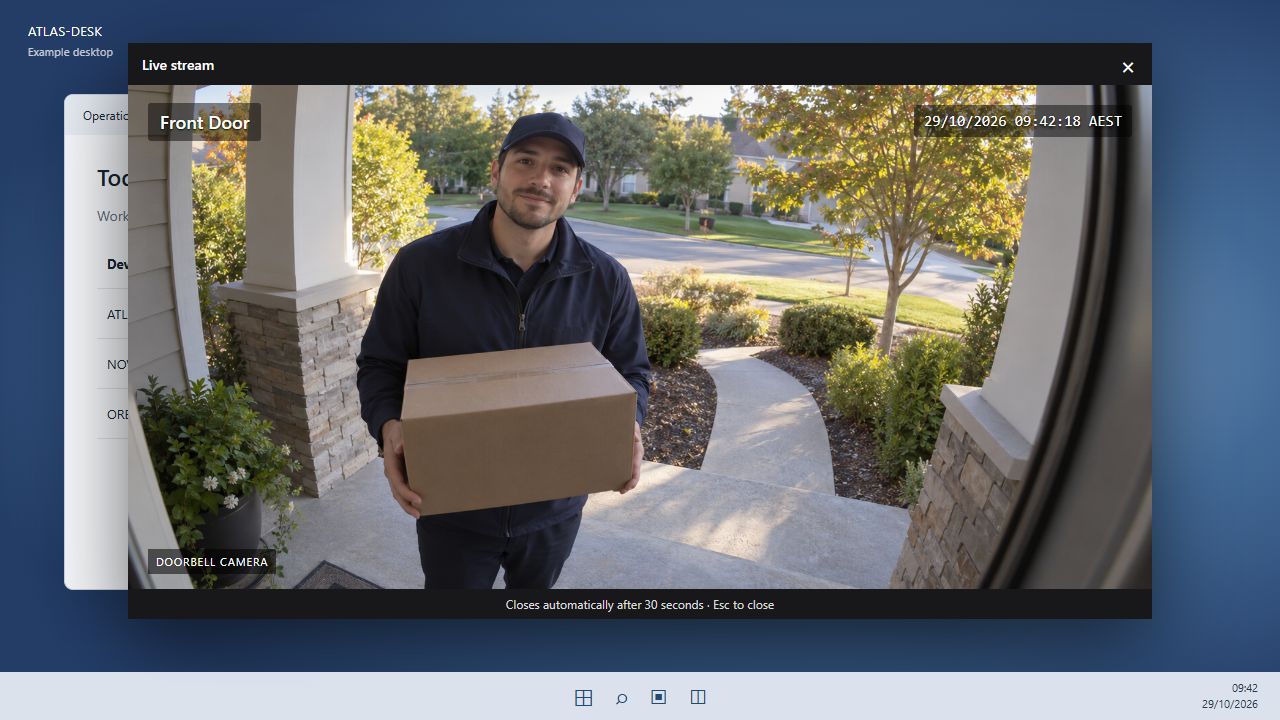
Fictional camera scene. The feed includes a Front Door label and an example date/time overlay. The player shows the timed desktop-window experience.
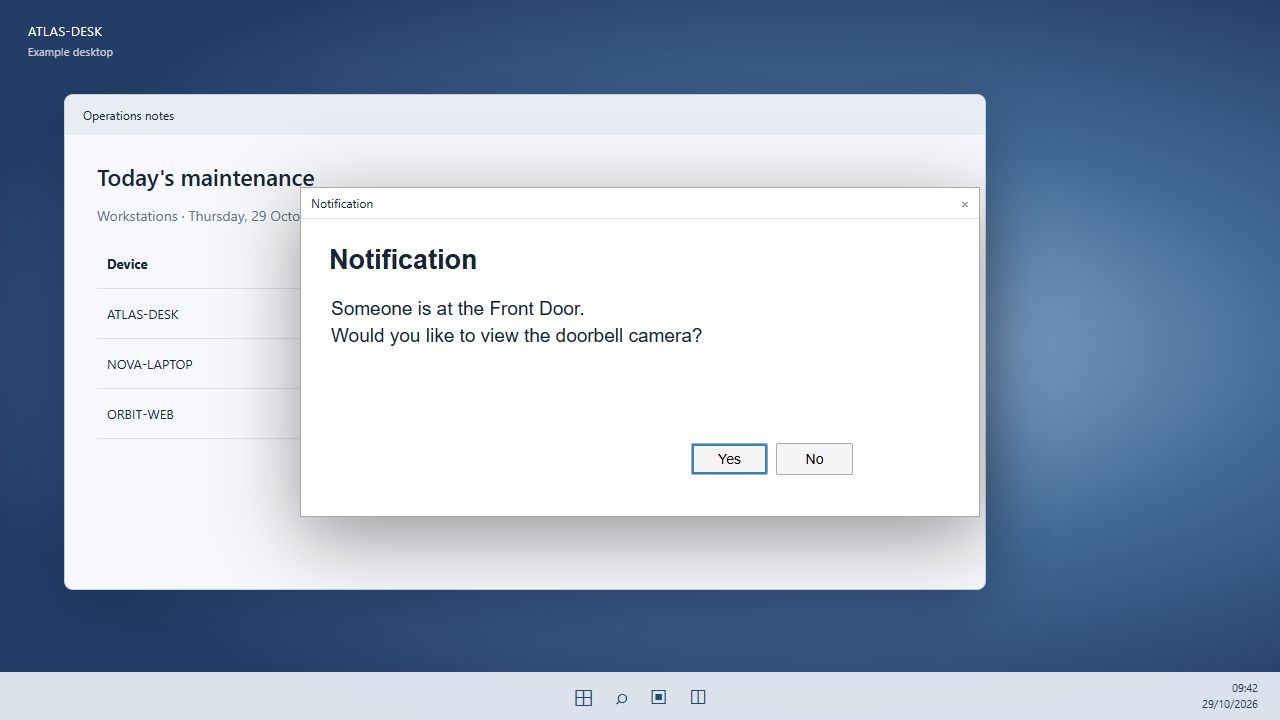
A Yes/No question can control whether the later display step is attempted. The complete decision recipe below handles No and no response.
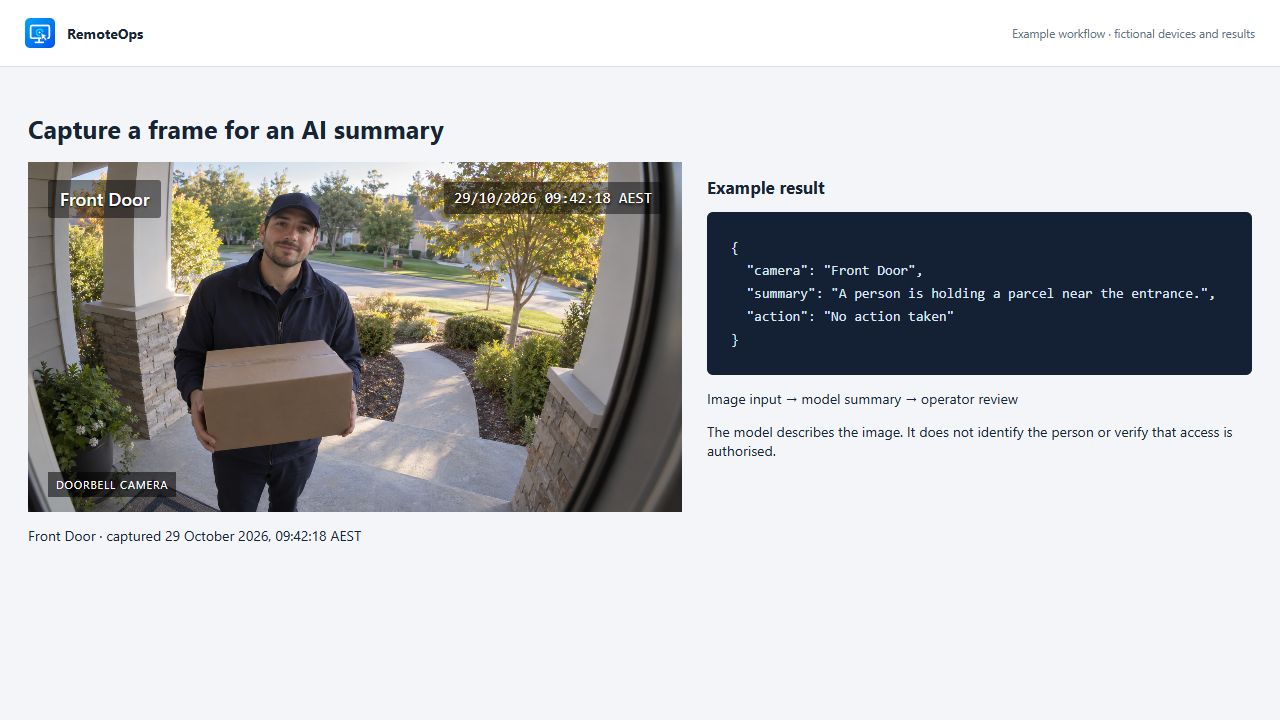
Capture returns image data for a later task. A model summary is separate from the live player and requires an eligible image-capable connection.
Image analysis example#
Camera images to an AI storm check shows a fictional lightning scene, the image-input package and sample structured results.
Two camera tasks, two different jobs#
| Capability | Built-in | Where it runs | What it returns |
|---|---|---|---|
| Show a timed live camera window to a person | rtsps_stream |
Interactive Windows session on the selected agent | Dispatch acknowledgement and child job ID |
| Capture one image for a report or model | capture-rtsp-frame |
Orchestrator | JPEG data URL, capture time, transport and byte count |
The live overlay accepts rtsps://. Single-frame capture accepts supported RTSP and RTSPS sources. Neither task discovers cameras or supplies camera credentials. Use a stream address supplied by your camera system and reachable from the machine performing the work.
The images in this guide use a generated fictional Front Door scene and a fixed example timestamp. They illustrate the user experience; no customer feed was opened. Front Door, the timestamp and the doorbell badge are shown as camera-feed overlays in the example. rtsps_stream does not have task fields that add camera names or timestamps to a feed.
Show a Front Door stream on a Windows desktop#
Save a package with an exact Windows device name. That device must be online with a logged-in interactive user. Test the stream with a permitted test camera before attaching an external trigger.
- task: rtsps_stream
  name: front_door
  agent: 'ATLAS-DESK'
  url: 'rtsps://camera.example.com:7441/front-door?enableSrtp'
  display_for_seconds: 30
  bell: true
  max_age_seconds: 60
  continue_on_error: false
camera.example.com is a placeholder, not a working stream. Replace it with your own authorised test source. The optional ?enableSrtp suffix is camera-system specific, not a universal requirement for RTSPS.
The target opens the Live stream window over the desktop. The stream window can be moved using its title bar. The user can close it with × or Escape; the display timer also closes it. bell: true plays the built-in ding-dong when the window opens. It does not send an Alexa announcement or depend on a web browser tab being open.
Stream settings#
| Field | Meaning | Constraints and practical effect |
|---|---|---|
agent |
Exact Windows agent display name or resolved output reference | Use group to disambiguate duplicate names |
url |
Camera playback address | Absolute rtsps:// URL, up to 2,048 characters |
display_for_seconds |
Duration of the overlay | Integer 1–3,600; does not define a recording duration |
bell |
Play the local doorbell sound | Boolean; optional |
max_age_seconds |
Suppress a late-dispatched event | Integer 1–3,600; bell-enabled overlays default to 60 seconds |
skip |
Skip this task when its resolved condition is true | Boolean/output-reference rules follow the task reference |
continue_on_error |
Continue after a task failure | Set false for prerequisites on which later steps depend |
Use these as top-level package fields. Do not add ssh or an explicit runas to this interactive task. Runtime-valued fields can use supported earlier-output references. Keep the task keyword itself literal.
Dispatch is not playback confirmation#
The package receives dispatched and a child jobId. The task is dispatched asynchronously, so subsequent steps do not wait for the person to watch the stream. Inspect the endpoint job for playback or startup errors. A successful dispatch does not prove a person saw the video.
The current agent handles stale events separately: its endpoint result can report displayed: false, skipped: true, stale: true, maxAgeSeconds and ageSeconds. This is an intentional stale-event outcome, not proof of a broken feed. The freshness check uses job age; it does not inspect a camera's embedded timestamp or prove that the camera source itself is live.
Freshness, concurrency and closing#
A doorbell event delayed by a disconnected endpoint should not surprise someone much later. Keep the normal 60-second bell freshness limit unless the workflow needs a different bound. Multiple dispatched overlays may run subject to the endpoint's job concurrency limit. Debounce a noisy event at its source rather than deliberately flooding the desktop with windows.
The duration applies to the individual overlay. Closing it does not cancel another overlay, acknowledge a portal alert, unlock a door or dismiss unrelated notifications.
Doorbell webhook: event to desktop#
An external doorbell automation or event relay sends an HTTPS POST to the package webhook. The package selects the target and camera; the caller does not supply a stream URL in the request body.
- webhook: doorbell_demo_REPLACE_WITH_RANDOM_ID
- timeout: 300
- task: rtsps_stream
  name: show_front_door
  agent: 'ATLAS-DESK'
  url: 'rtsps://camera.example.com:7441/front-door?enableSrtp'
  display_for_seconds: 30
  bell: true
  max_age_seconds: 60
  continue_on_error: false
curl --fail-with-body -i -X POST \
  'https://remoteops.example.com/api/webhook?id=doorbell_demo_REPLACE_WITH_RANDOM_ID'
The example ID is deliberately recognisable and must be replaced. The webhook ID authorises the trigger. Use a long unpredictable value, HTTPS, and an event relay that keeps its configuration private. See Webhooks for response fields, retries, one-to-many dispatch and tracing.
Ask before opening the camera#
Use a named notification task with type: yes_or_no. The package can inspect the response, stop for No/close/timeout, and open the stream only for an explicit Yes. This is separate from the overlay's ordinary close controls.
- timeout: 300
- task: notification
  name: view_camera
  agent: 'ATLAS-DESK'
  type: yes_or_no
  message: |
    Someone is at the Front Door.
    Would you like to view the doorbell camera?
  continue_on_error: false
- task: inline_powershell
  name: decision
  inputs:
    reply: '=view_camera.response'
    script: |
      return @{ stop = ($reply -ne 'yes') }
- task: stop
  condition: '=decision.stop'
- task: rtsps_stream
  name: show_front_door
  agent: 'ATLAS-DESK'
  url: 'rtsps://camera.example.com:7441/front-door?enableSrtp'
  display_for_seconds: 30
  bell: false
  max_age_seconds: 180
  continue_on_error: false
The question can wait for up to two minutes. This example allows a bounded three-minute freshness window for the later display and omits a second bell. Adjust that policy deliberately; an unanswered prompt does not authorise the camera step.
Capture one frame#
Use frame capture when the next task needs an image rather than a video window. The Orchestrator needs network access and valid credentials for the source. The Windows endpoint does not need to open a player for this task.
- task: capture-rtsp-frame
  name: front_door_frame
  continue_on_error: false
  inputs:
    url: 'rtsps://camera.example.com:7441/front-door?enableSrtp'
    timeout_seconds: 20
The alias capture_rtsp_frame is also accepted. timeout_seconds is 1–60, default 30. Outputs are image (a JPEG base64 data URL), captured_at (UTC timestamp), transport and bytes. This does not record a clip or show a notification. Use the returned data URL directly instead of copying it into public logs or documentation.
Describe a frame with a vision model#
- task: capture-rtsp-frame
  name: front_door_frame
  continue_on_error: false
  inputs:
    url: 'rtsps://camera.example.com:7441/front-door?enableSrtp'
    timeout_seconds: 20
- task: llm
  name: describe_frame
  continue_on_error: false
  inputs:
    connection: vision_demo
    prompt: |
      Briefly describe visible objects and activity at this entrance.
      Do not identify the person or infer whether entry is authorised.
    images:
      - '=front_door_frame.image'
- task: notification
  name: tell_operator
  agent: 'ATLAS-DESK'
  type: large
  message: '=describe_frame.text'
Create an eligible image-capable model connection named vision_demo first, or replace that connection name. A model description can be wrong. This recipe presents information to an operator; it does not perform an access-control decision.
Camera troubleshooting#
| Symptom | Check |
|---|---|
| No desktop window | Target online state, logged-in user, endpoint child-job result and stale-event outcome |
| Stream fails to open | Exact RTSPS address, source credentials, network route, camera transport support and media runtime/helper error |
| Old event is skipped | Job age and configured max_age_seconds; avoid removing freshness limits to hide delivery delays |
| No bell | bell value and endpoint sound environment; the sound is local to the Windows user session |
| Frame capture fails but overlay works | Orchestrator-to-camera reachability differs from Windows-to-camera reachability |
| Model cannot use the image | Connection supports image input, capture succeeded, and the image output reference is correct |
| Too many popups | Debounce/rate-limit the event source and inspect repeated webhook deliveries |