 RemoteOpsGet started
 MANAGE DEVICES
Software inventory and deployment
System/user inventory, WinGet deployment, removal and per-device outcomes.
Examples use remoteops.example.com and fictional systems. Adapt them to your tenant.
Screen reference#
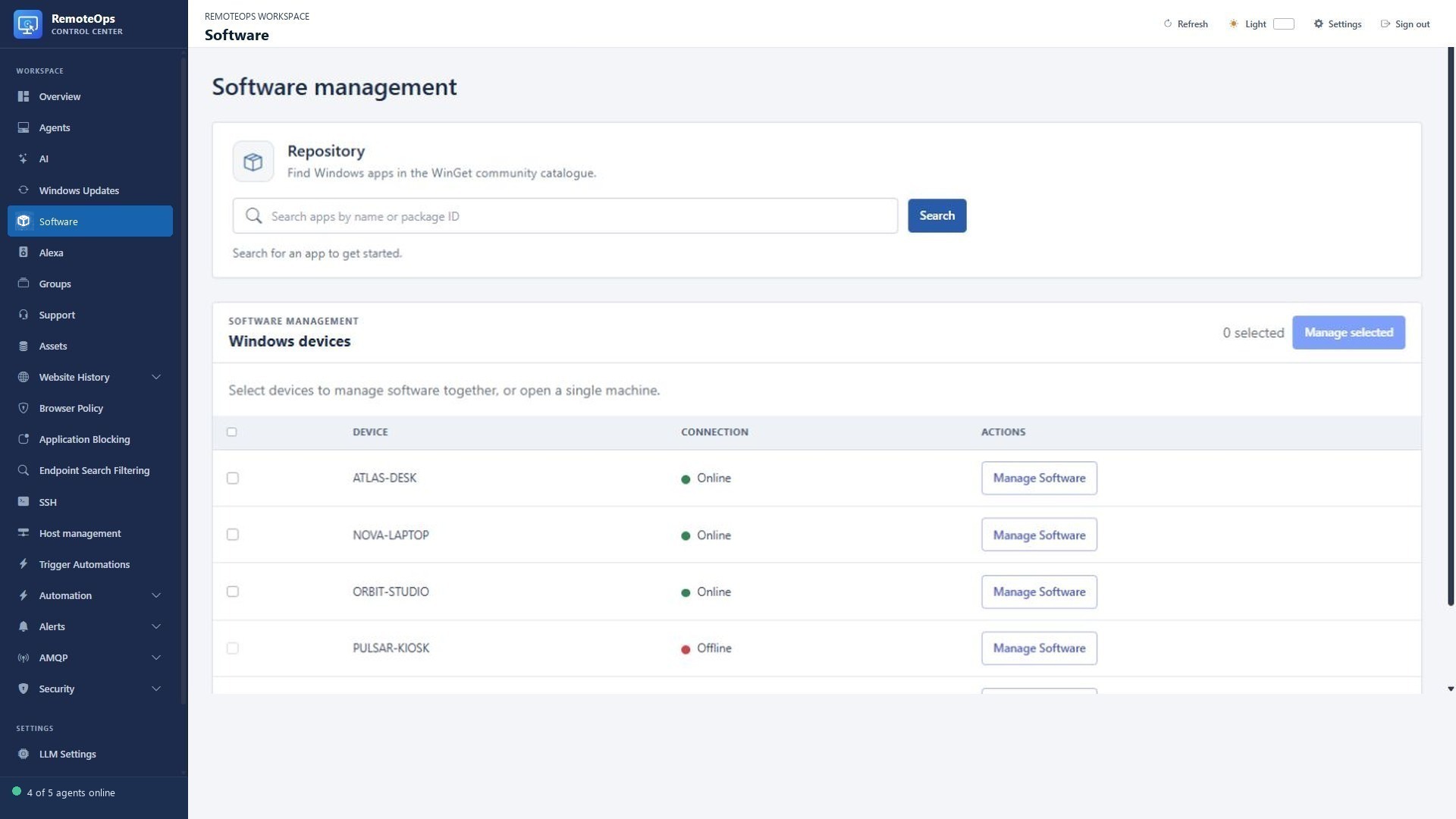
Select online Windows devices using the checkboxes, then Manage selected; Manage Software opens one device. Offline devices cannot accept a live deployment.
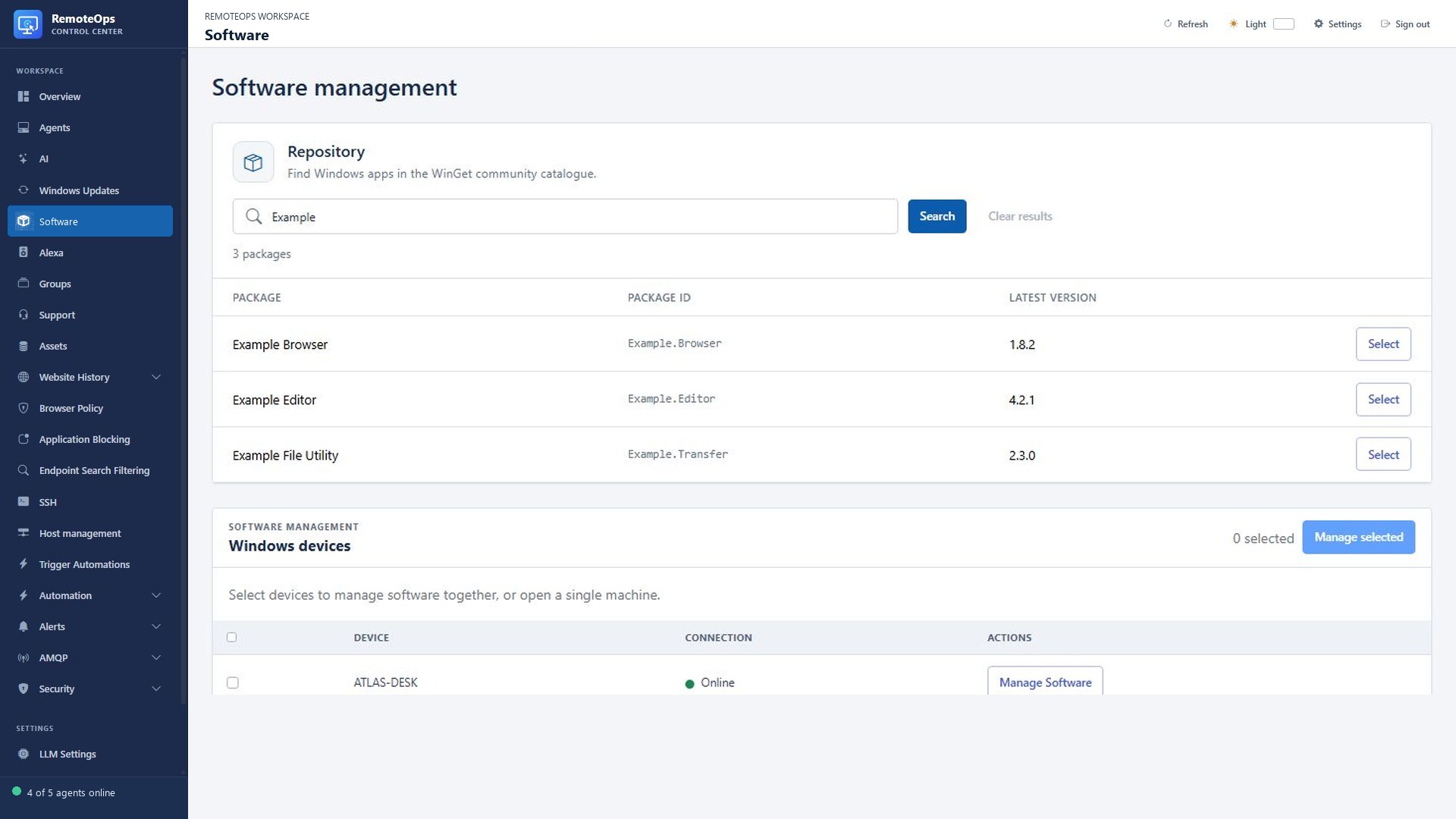
Package is the display name, Package ID is the WinGet identifier, Latest version is the catalogue version, and Select chooses the package. These example package records are fictional. Catalogue results do not prove the app is installed on a device.
Inventory is separate from deployment#
The Software view lists installed applications for a device. Refresh System-wide or Current user inventory as appropriate. A product installed for the user does not necessarily appear in machine-wide inventory and vice versa.
The Software section lists installed applications for each Windows device. Refresh System-wide or Current user inventory, uninstall an entry, or select up to 200 online devices and install/remove an exact WinGet package in one request. The deployment dialog explicitly selects SYSTEM or current-user execution. Each device has a separate status and result.
Deploy a package#
- Select the intended online devices, up to the supported 200-device limit.
- Choose the exact WinGet package identifier and installation/removal action.
- Explicitly choose SYSTEM or current-user execution.
- Submit once and inspect the individual request/result for each device.
- Refresh inventory to confirm the resulting installed state.
Machine operations use SYSTEM. Current-user operations require the relevant signed-in user context. Machine installation can provision verified PowerShell 7 and WinGet prerequisites where required. An offline or busy device may reject a bulk admission request rather than silently succeeding.
Removal#
Select an inventory entry to uninstall, or use exact-package removal for selected devices. An installer can require interaction or a restart; the process exit status, operation diagnostics and verified software report determine the reported outcome. A successful request submission is not proof of removal.
Practical examples#
- Roll out an approved archive utility to a selected workstation group.
- Remove an obsolete package from devices where inventory confirms it is present.
- Offer an approved application request through a form and a package workflow.
- Ask the AI to list matching installed software first, then explicitly request changes on exact targets.
Troubleshooting#
Check exact package ID, package scope, signed-in user, prerequisite bootstrap diagnostics, offline/busy status, and the operation's stderr/failure reason. Review inventory freshness before concluding that a deployment has not changed the application state.