 RemoteOpsGet started
 MANAGE DEVICES
Windows update management
Approvals, exclusions, policy inheritance, maintenance and reboot behavior.
Examples use remoteops.example.com and fictional systems. Adapt them to your tenant.
Screen reference#
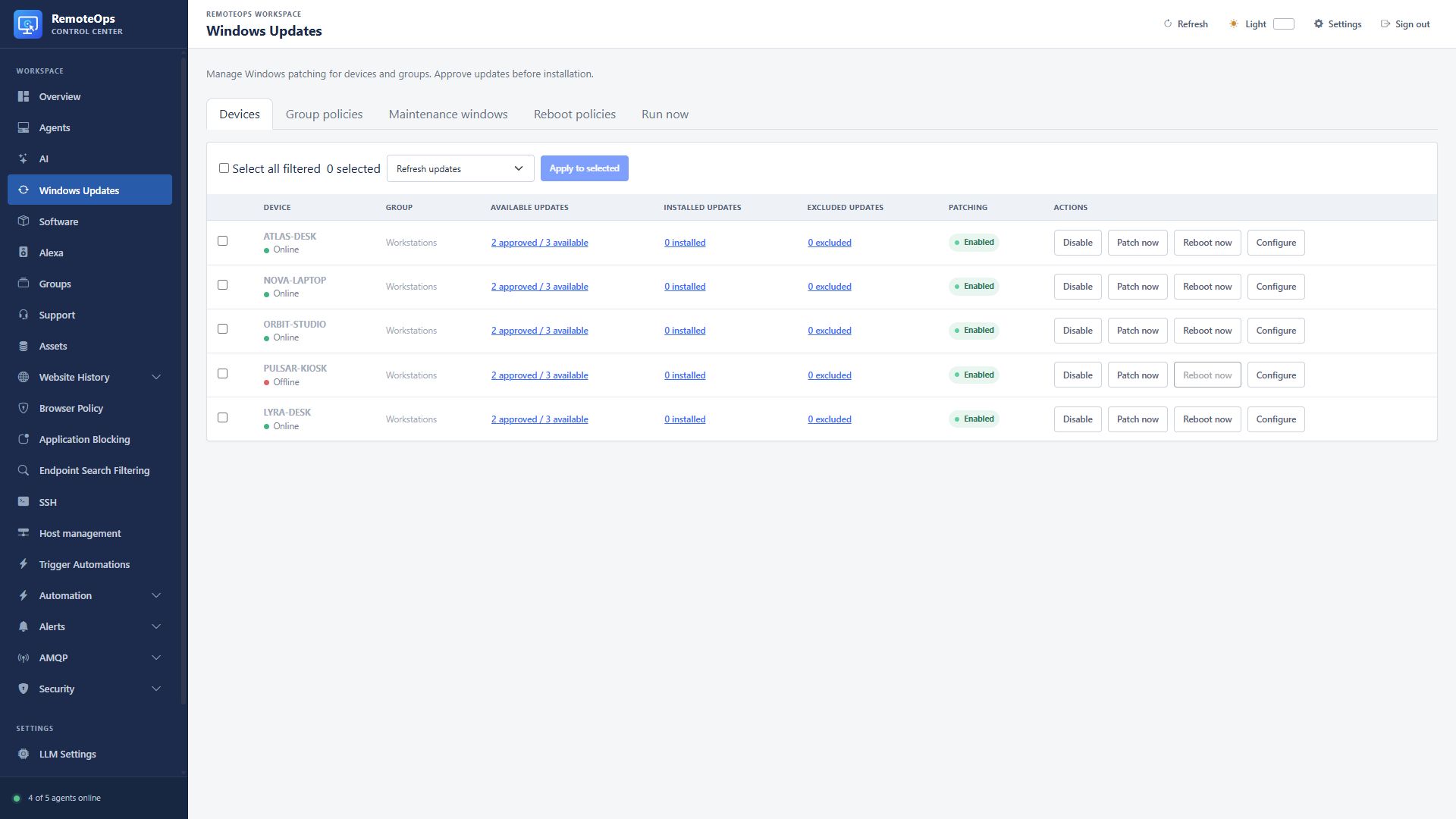
Available updates opens the approval list; Installed updates and Excluded updates open their respective lists. Patching is the effective enabled state. Patch now requires an eligible agent and approved available updates. Configure opens the device policy.
Windows Update names the revision. Status distinguishes pending approval, approved, installed and excluded records. Priority shows RemoteOps priority and the reported Microsoft severity. Actions approve, unapprove or exclude an eligible revision.
Windows patching, Auto approve, Maintenance window and Reboot window can inherit group policy or use supported device overrides. An approval permits installation; the maintenance policy determines when it can proceed.
Scan, approve, install#
The Updates page separates update inventory from installation policy. Review the device's update list and current status before starting work. Exclusions override approvals.
The Updates section lists Windows devices with column filters, online/offline indicators, available updates, patching status, and Patch now. Use Enable or Disable in the device list to override patching without changing its maintenance window. Open available updates to approve individual updates, Approve selected, or Exclude selected. Refresh updates requests a fresh device scan; offline devices scan when they reconnect. Immediate scan requests require agent 1.8.21 or newer. Approvals apply to a device and the exact Windows update revision. Exclusions take precedence over approval.
The No group policy applies to ungrouped devices. Assigning a device to a group switches inherited settings and exclusions to that group; explicit device overrides remain in effect.
Group policies and device configuration include Auto approve with selectable update categories. Devices can inherit the group policy, disable auto approval, or choose their own categories. All categories approves every applicable update, including future categories and updates without category information. Updates matching a selected category, priority and Microsoft severity are automatically approved using Windows Update metadata, including newly reported revisions. Existing policies without priority filters continue to accept all priorities. Select operational priorities Critical, High, Normal and/or Low, independently select Microsoft severities Critical, Important, Moderate and/or Low, and explicitly choose whether to include updates without recognised Microsoft severity; an empty priority selection approves nothing automatically. Exclusions still take precedence. Disabling auto approval or changing categories removes automatic approvals while preserving manual approvals. Installation follows the maintenance window or Patch now. After upgrading the agent and server, refresh device inventory to populate Microsoft severity and classification IDs. The inventory shows both operational priority and Microsoft severity. Critical/Important/Moderate/Low severity maps to Critical/High/Normal/Low priority; unrated Critical Updates or Security Updates map to High, and other unrated updates default to Normal. Higher-priority eligible updates install first within the campaign, retaining request order for ties and using fresh metadata after reboot or restart. Priority does not bypass maintenance or reboot windows.
Patching is disabled by default. Groups can enable patching and set a maintenance window; devices can inherit these settings or override them. Maintenance windows use device local time. Scheduled patching and Patch now install only approved, applicable, non-excluded updates and never automatically restart the device. Inventory is collected even when patching is disabled. This requires an agent built with Windows update support.
Operator workflow#
- Refresh the device's update inventory and check when it last reported.
- Review categories, operational priority and Microsoft severity.
- Approve required revisions or configure auto-approval filters. Exclude updates that must not install.
- Check group inheritance, device overrides, patching enablement and the effective maintenance window.
- Use scheduled patching or Patch now, then follow the campaign/job result.
- Review pending restart status and the configured reboot behavior before treating patching as complete.
Interpreting results#
A requested update can become inapplicable after a new scan or another installation. A stale inventory is not proof that the same revision is still installable. Review the actual device result, update errors and restart state. Patch now still requires applicable approved, non-excluded work and respects current device/job admission rules.
If policy changes do not appear to take effect, refresh inventory and inspect explicit overrides. An empty auto-approval priority selection approves nothing automatically. Removing an automatic approval policy does not remove separately granted manual approvals.