 RemoteOpsGet started
 GETTING STARTED
Start with RemoteOps
The first device, the first remote session and the first automation.
Examples use remoteops.example.com and fictional systems. Adapt them to your tenant.
Screen reference#
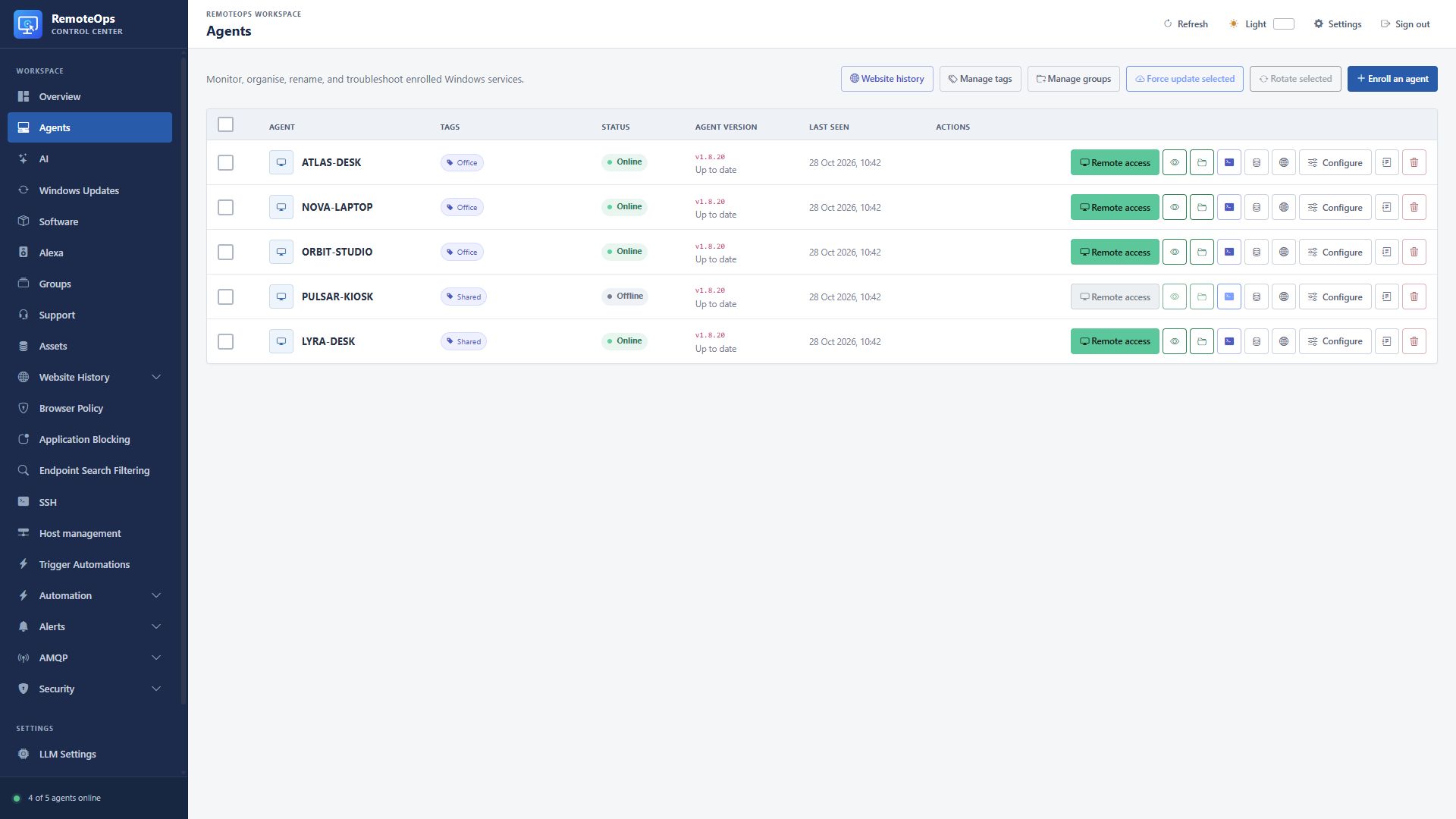
The agent table is the starting point for Windows support. Each row links the device to its remote tools, policies and inventory.
What RemoteOps connects#
RemoteOps brings managed Windows endpoints and SSH-accessible hosts into one administrative workspace. Windows uses the installed RemoteOps agent. Linux and other SSH hosts use saved SSH profiles; supported Linux hosts can also run the lightweight monitoring agent. The portal brings remote access, inventory, monitoring, policies and automation together.
This handbook uses a fictional tenant, https://remoteops.example.com, Windows devices ATLAS-DESK and NOVA-LAPTOP, SSH host ORBIT-WEB, and group Workstations. These examples do not identify production systems. Replace every example host, device, recipient and credential before use.
Your first Windows device#
- Sign in to your tenant portal and open Enrollment tokens.
- Create a code with the lifetime and usage allowance appropriate for your rollout.
- Download
RemoteOps.Agent.exefromhttps://remoteops.example.com/downloads/. - Run the installer as administrator. Confirm the tenant address, code, display name and optional group.
- After installation, confirm the device is online and inspect both its main and recovery agent versions.
- Open its inventory, then start a remote session or a harmless PowerShell query to check the management path.
The installation guide covers interactive installation, PowerShell, command line, GPO, services, network requirements, update and uninstall checks.
Your first SSH host#
Open SSH, create a named profile and enter its hostname, port, username and authentication method. Test the connection if a saved credential supports it, or open a terminal and provide a password when prompted. Start with a read-only command such as hostname or uptime. See SSH workspaces for tabs, known-host handling, keys, file transfer and Linux monitoring.
Your first useful automation#
Create an Activity for a repeated operation, put it in a Package, and expose it as a Trigger automation button. Start with a device health report rather than a disruptive change. Add a form when the operator needs to choose a target or provide a value. Add a notification or email when someone needs the result.
Where to go next#
| Goal | Guide |
|---|---|
| Help someone at their computer | Remote access |
| Move files | File management |
| Review browsing | Browser history |
| Set access policies | Content filtering |
| Install applications or updates | Software, Windows updates |
| Build a reusable workflow | Activities, Packages, Forms |
| Connect external systems | Integrations |
| Use AI for administration | AI guide, AI tool reference |
Separate the three layers#
An Activity is reusable executable code. A Package coordinates tasks, targets and data flow. A Form is the operator-facing interface that supplies inputs or displays data during the workflow. A Trigger automation button launches the saved package with its configured coordinator and timeout. These are separate resources: saving an Activity or Package does not by itself run it.