 RemoteOpsGet started
 REMOTE TOOLS
Remote desktop and PowerShell
Session controls, privacy, input, clipboard, execution context and support.
Examples use remoteops.example.com and fictional systems. Adapt them to your tenant.
Screen reference#
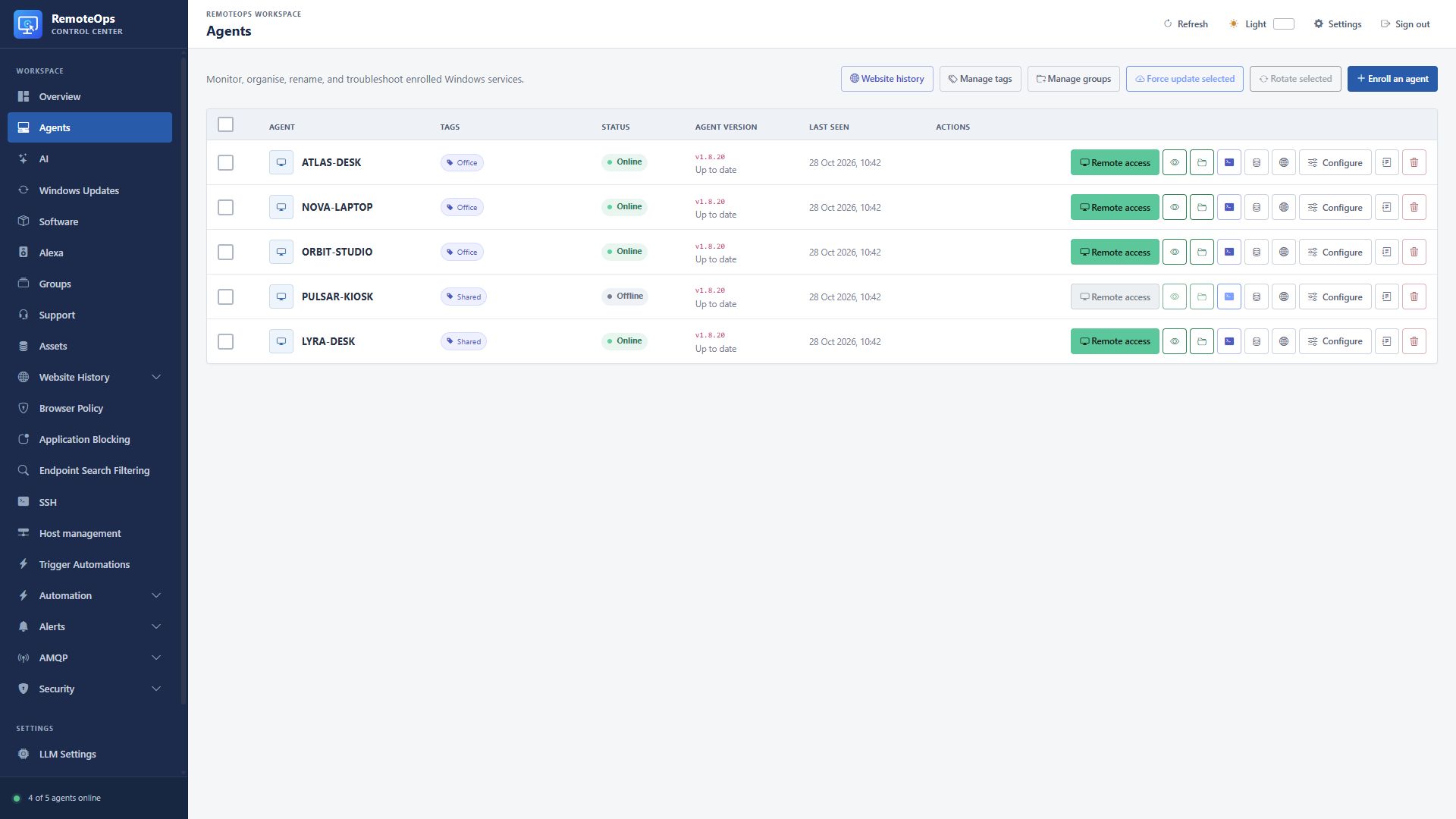
Use Remote access for the combined viewer. The adjacent eye, folder and terminal actions open view-only, files and PowerShell. Disabled actions indicate that the device cannot currently accept the session.
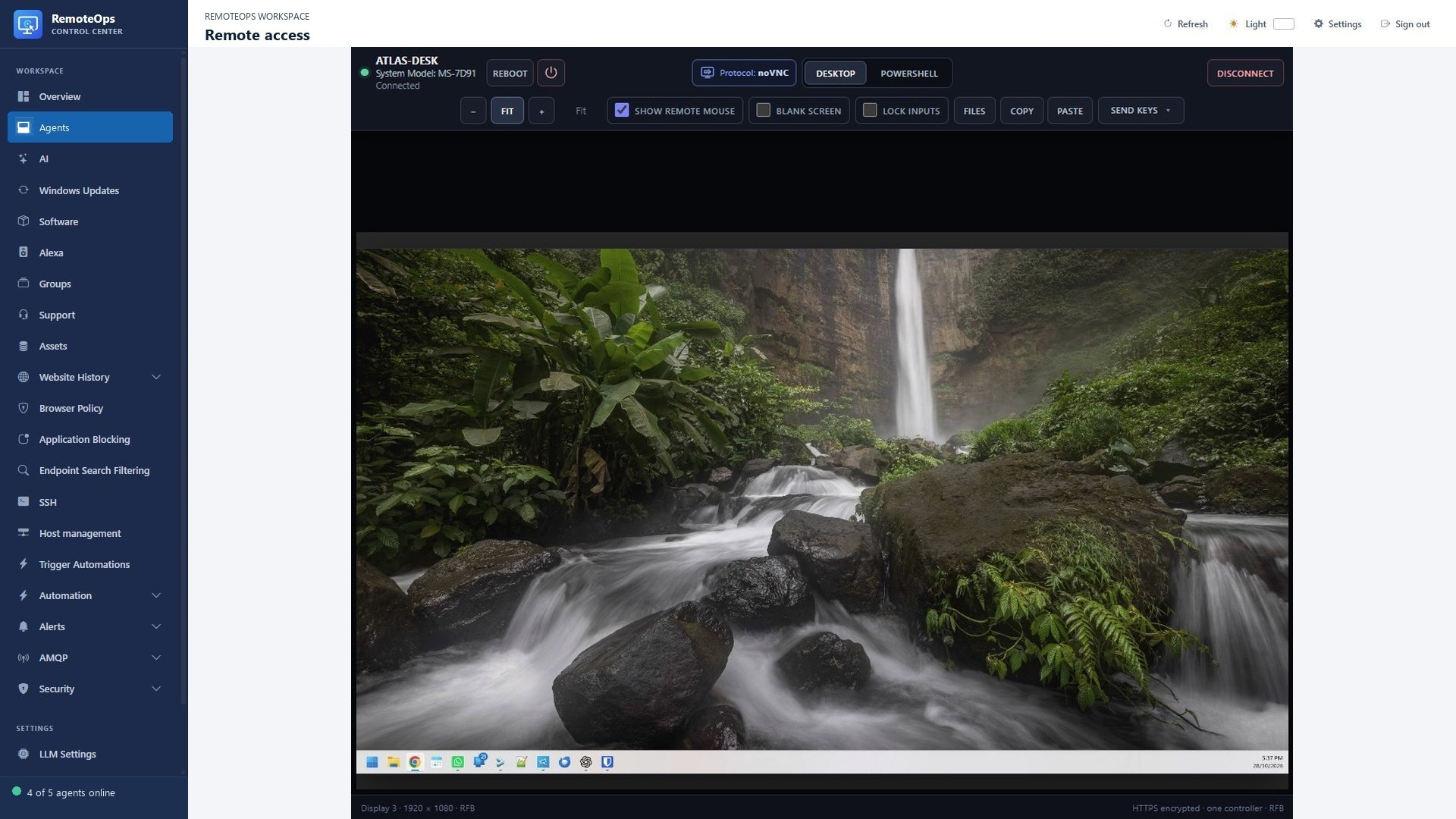
The viewer toolbar provides session controls above the endpoint screen. Use the selected screen, fit mode and privacy controls appropriate to the support task.
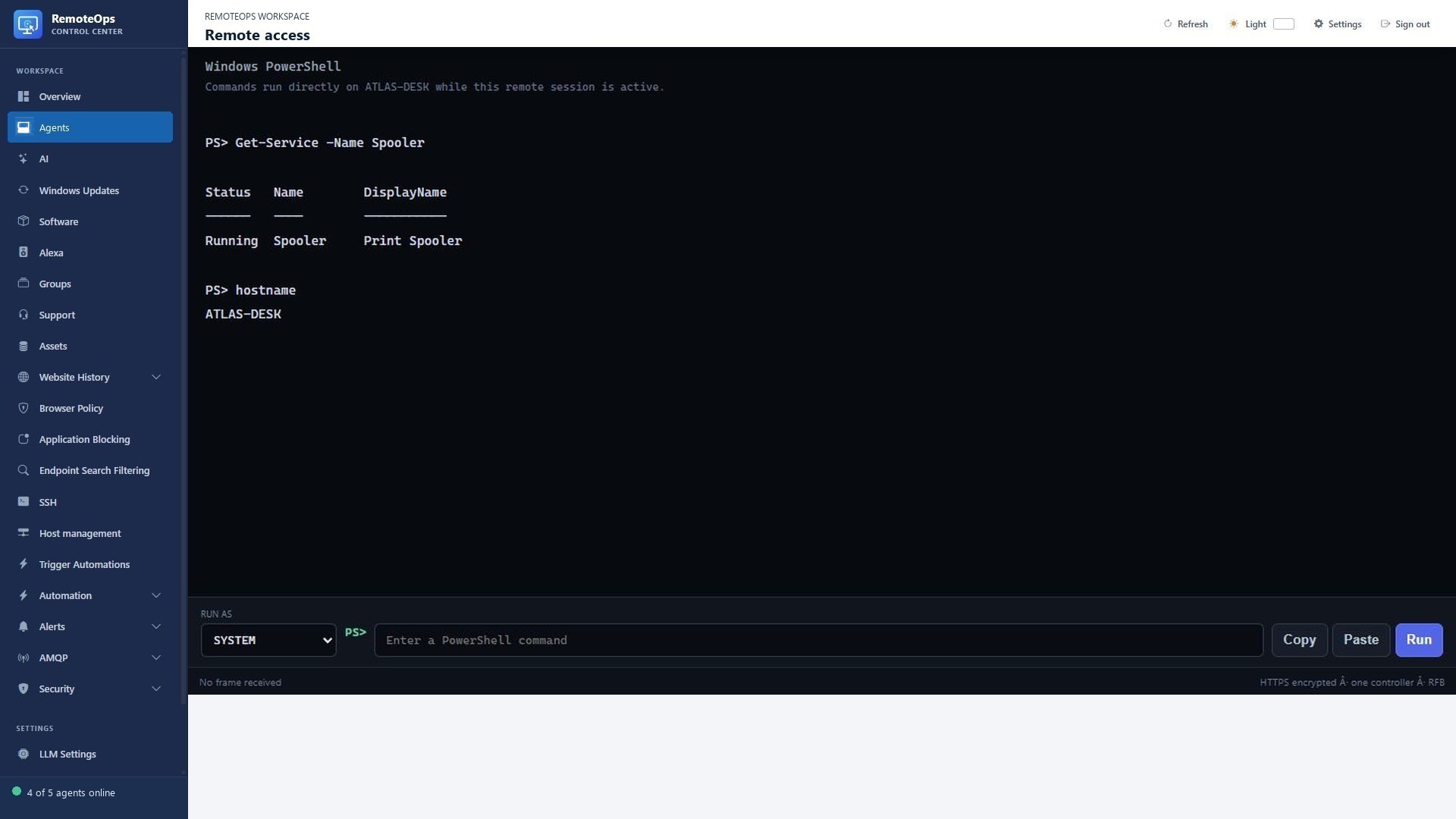
Choose the execution context before running commands. Read the console output and errors; a working desktop session does not prove a command succeeded.
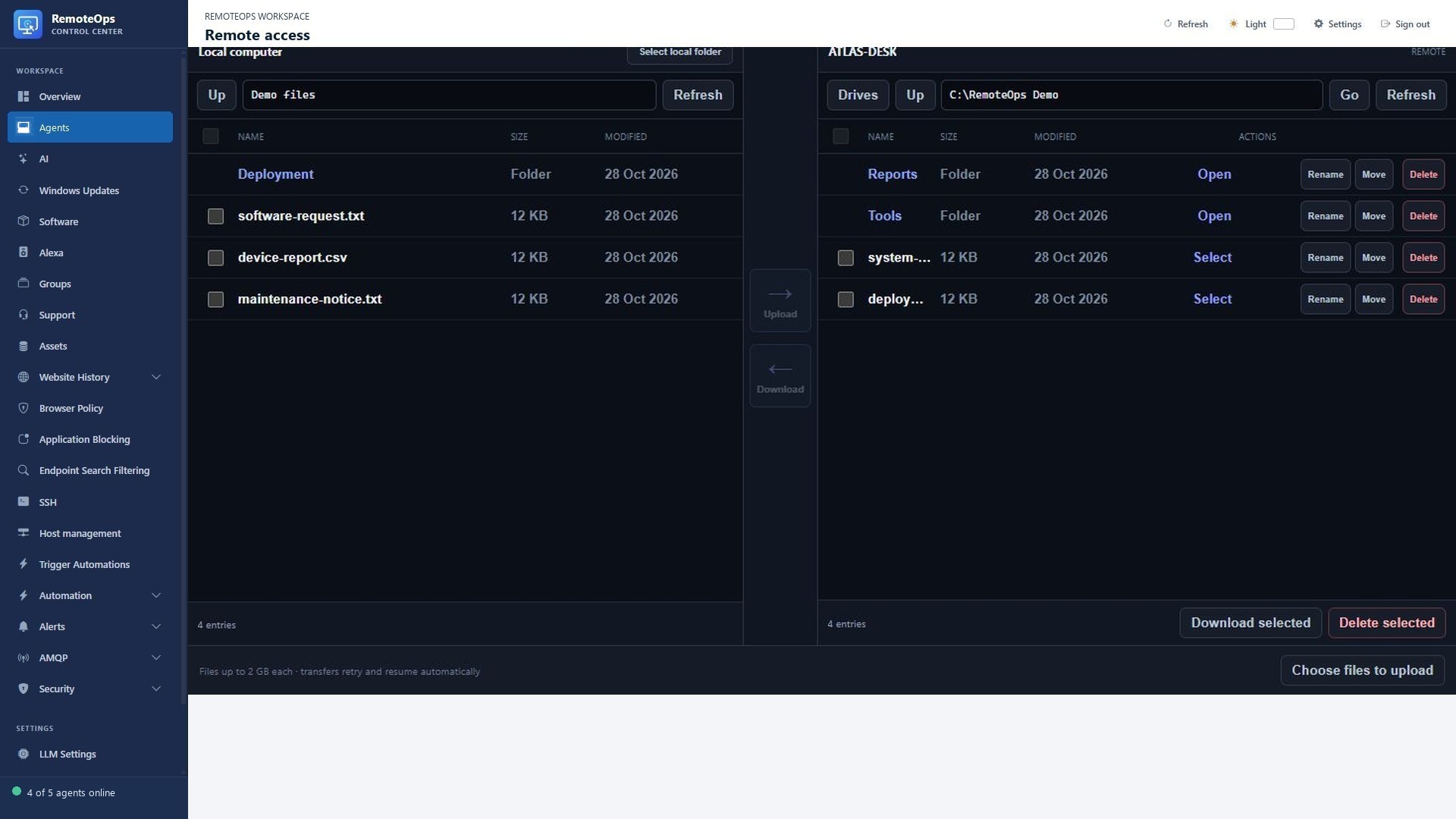
The file workspace uses a local pane and remote pane. Check the destination path before uploading, moving or deleting a selection.
Start a session#
Open the device's remote-access action from the portal. Choose interactive desktop, view-only or a remote tool as appropriate. The Windows device needs the working main agent and an available interactive environment for desktop capture/input. A locked or security desktop may have different interaction behavior.
- Interactive remote desktop and view-only desktop modes, using noVNC/RFB by default with a per-agent legacy RemoteOps transport override
- Automatic stream reconnection while the viewer remains open
- Remote PowerShell console with captured history
- Secure Attention, workstation lock, restart, and shutdown controls
- Clipboard synchronization and special-key controls
- Show remote mouse in interactive sessions: unchecked hides the target's system cursor; disconnect restores it. This control is hidden in view-only mode
- Blank Screen in interactive sessions: blacks out every physical target display while capture exclusion keeps the underlying desktop visible to the remote operator
- Lock Inputs in interactive sessions: blocks the target user's physical keyboard and mouse while input injected by the remote operator remains available
- Scaling to resized browser windows
- Standalone File Browser access without displaying the desktop
- Local-folder and remote-folder panes for upload and download workflows
- Multi-select remote downloads and permanent deletion
- File and folder rename, delete, and move operations
- Drag-and-drop moves onto remote folders
- Upload and download of individual files up to 2 GB using acknowledged 4 MB chunks
- Automatic upload retries and in-session offset recovery
noVNC/RFB is the default for new sessions and agents. The Use old RemoteOps protocol switch is stored independently for each agent and applies to future sessions. Agents older than 1.7.0 safely fall back to the old transport until they update. RFB is carried only inside the authenticated RemoteOps TLS WebSocket, with no TCP VNC listener or separate VNC password. noVNC's license details are recorded in third-party notices.
Target-side file operations run in the background without opening Explorer, showing dialogs, or changing application focus. Browser security requires the administrator to select the local folder explicitly; RemoteOps cannot enumerate arbitrary local drives without that permission.
Blank Screen and Lock Inputs are session-scoped and require agent 1.6.9 or later. The privacy overlay stays above newly opened windows while remaining absent from remote capture; local pointer movement is clamped while input lock is enabled, but remote movement still works. Turning off either control restores it immediately. Disconnect, helper exit, workstation lock, Secure Attention, and a stale viewer lease all fail safe: the privacy overlay closes and local input is restored. Blank Screen requires Windows 10 version 2004 or later with desktop composition because older capture-affinity behavior could also hide the screen from the remote operator. Windows can release an input lock for system security sequences such as Ctrl+Alt+Delete.
PowerShell console#
Choose PowerShell in the remote workspace. Select SYSTEM for machine administration or logged-in user for user-scoped work. Commands have the permissions of that context. Keep output focused and verify errors. A logged-in user's applications, profile and mapped resources differ from SYSTEM.
# Read-only example: inspect a Windows service.
Get-Service -Name Spooler | Select-Object Name, Status, StartType
# Read-only example: report OS identity and uptime information.
Get-CimInstance Win32_OperatingSystem |
    Select-Object Caption, Version, LastBootUpTime
Temporary support#
Temporary support uses a guest support page and dedicated support client rather than requiring the normal ongoing enrollment flow. Use a support code from the intended tenant, follow the support connection flow, and verify disconnect cleanup. Do not publish or reuse a production support code as a documentation example.
Session checklist#
Confirm the correct device and execution context. Prefer view-only when observing. Use screen blanking/input lock only when needed for the session. Disconnect when complete, and verify that local input and screen visibility have returned. A session being open does not establish that every command completed successfully; inspect each result.