 RemoteOpsGet started
 MONITOR AND RESPOND
User questions, notifications and reply handling
Normal notices, large popups, Yes/No replies, timeouts and explicit workflow decisions.
Examples use remoteops.example.com and fictional systems. Adapt them to your tenant.
Screen reference#
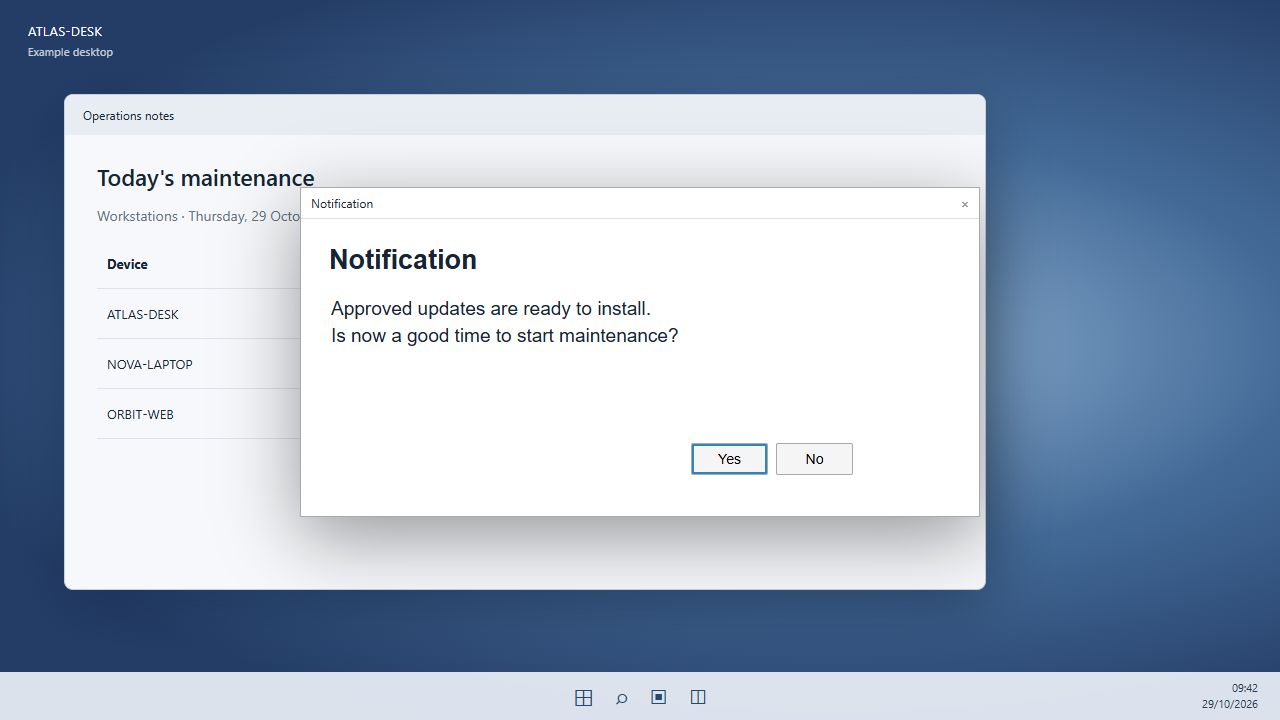
The user sees Notification, the message, and separate Yes and No buttons. The workflow handles the actual response.
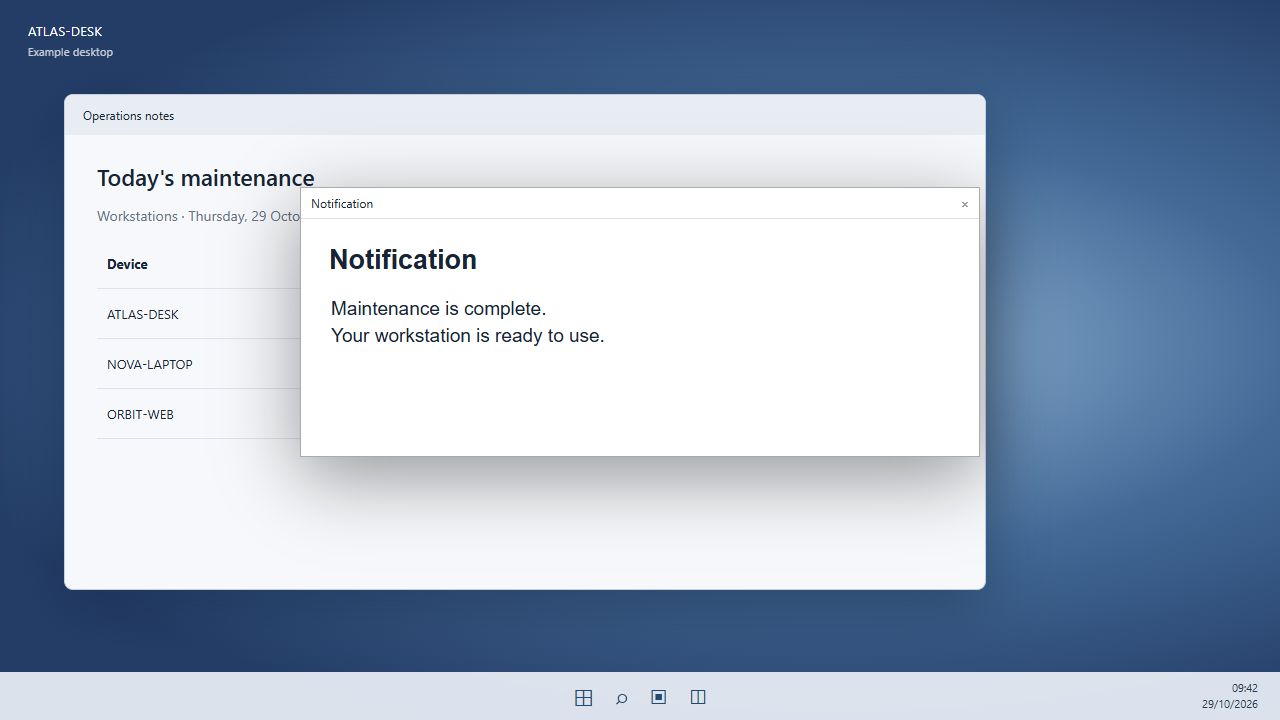
A large notification presents the result to the signed-in user without asking for a Yes/No response.
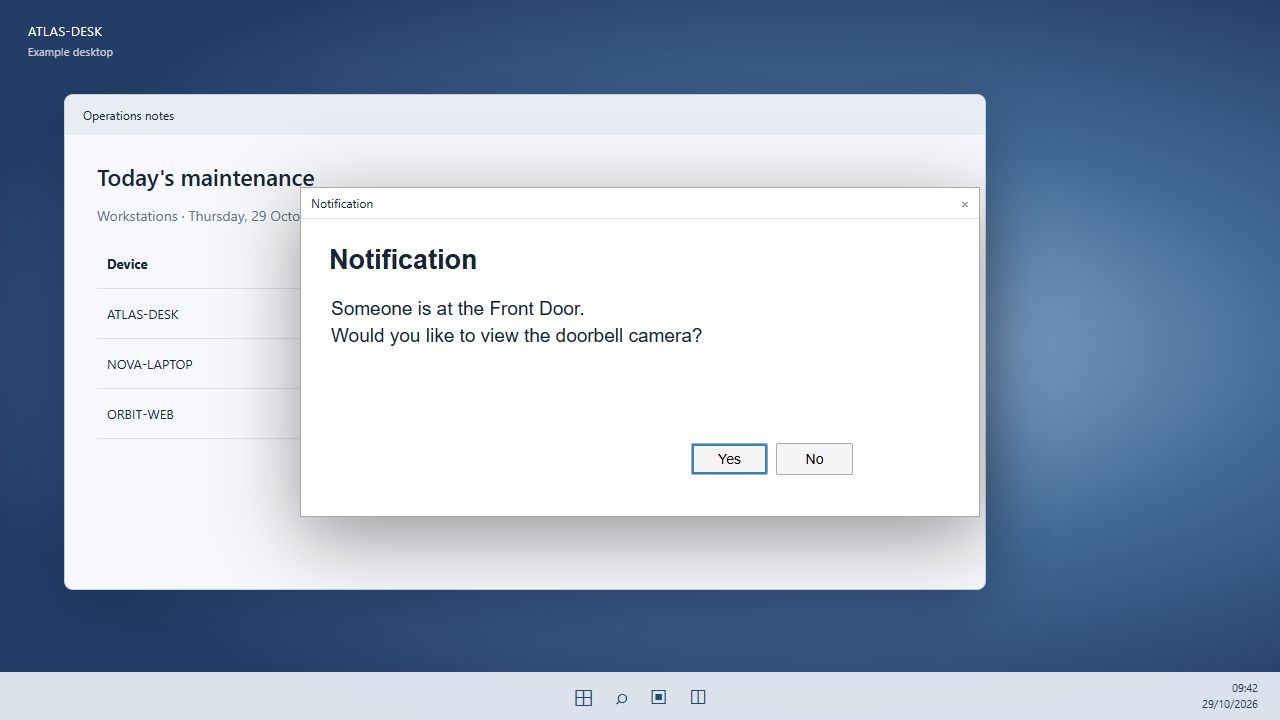
The message states the action the following step will perform. These are illustrative desktop layouts using fictional content.
Choose the right notification#
type |
User experience | Reply and timing |
|---|---|---|
normal |
Windows notification, subject to the user's notification settings | No Yes/No reply; acceptance is not a read receipt |
large |
Centred topmost window titled Notification | Up to 15 seconds; recipient can dismiss it |
yes_or_no |
Large window with Yes and No buttons | Up to two minutes; returns yes, no, or null |
Use the exact value yes_or_no, not yesno or yes/no. A notification needs a logged-in interactive Windows user. The task manages that session context; do not add ssh, inputs or runas to it.
Send a question#
- task: notification
  name: maintenance_question
  agent: 'ATLAS-DESK'
  type: yes_or_no
  message: |
    Approved updates are ready to install.
    Is now a good time to start maintenance?
  continue_on_error: false
The message is limited to 4,096 characters. Multiline messages are supported. A long large-window message uses a scrollable read-only body. Normal notifications follow Windows' presentation rules and may show less text.
The prompt has separate Yes and No buttons. An explicit Yes returns "yes"; an explicit No returns "no". Closing or expiring without a response returns JSON null. The helper binds Enter to Yes and Escape to No. Do not interpret displayed/accepted as consent.
Response contract#
{
  "displayed": true,
  "type": "yes_or_no",
  "response": "yes",
  "messageLength": 88
}
This is an illustrative shape; messageLength depends on the actual message. Use =maintenance_question.response in later steps. With continue_on_error: false, a launch failure prevents dependent steps from continuing. A null reply is a possible completed task outcome and still needs an explicit workflow decision.
Continue only after an explicit Yes#
This complete example asks permission before a software inventory scan. It does not install updates just because its message mentions maintenance.
- timeout: 300
- task: notification
  name: consent
  agent: 'ATLAS-DESK'
  type: yes_or_no
  message: 'May I collect the installed software inventory now?'
  continue_on_error: false
- task: inline_powershell
  name: decision
  inputs:
    answer: '=consent.response'
    script: |
      return @{ stop = ($answer -ne 'yes') }
- task: stop
  name: stop_without_consent
  condition: '=decision.stop'
- task: RemoteOpsSoftware
  name: scan_software
  agent: 'ATLAS-DESK'
  continue_on_error: false
  inputs:
    Operation: scan
    Scope: machine
- task: notification
  name: finished
  agent: 'ATLAS-DESK'
  type: large
  message: 'The software inventory scan has finished. Your workstation is ready to use.'
inline_powershell performs the response comparison on the Orchestrator. RemoteOpsSoftware performs the device operation on ATLAS-DESK. The stop task ends the package successfully when its condition is true. A stopped package is not evidence that the later operation ran: inspect its task trace.
Decision table#
| Result | Decision | Later operation |
|---|---|---|
yes |
Continue | Eligible task is attempted |
no |
Stop | Not attempted |
| null | Stop | Not attempted |
| Notification launch error | Fail prerequisite | Not attempted |
Build the message from earlier output#
- task: inline_powershell
  name: prepare_notice
  inputs:
    script: |
      return @{ message = 'Maintenance is complete. Your workstation is ready to use.' }
- task: notification
  name: show_notice
  agent: 'ATLAS-DESK'
  type: large
  message: '=prepare_notice.message'
Use a named task and supported output references rather than inserting unescaped JSON or assuming the notification expands arbitrary template syntax. group can disambiguate identical device names. Message, type and agent can use supported resolved output references, whose types are validated when the task is reached.
Doorbell questions and other uses#
- Ask whether to display a Front Door camera before opening the overlay.
- Ask the signed-in user whether a support task can begin now.
- Announce a maintenance window with a normal notice, then report the outcome with a larger notice.
- Ask for an explicit answer before a package enters its next operational step.
Questions do not create a general approval system, record a signed agreement or authorise arbitrary later actions. Keep the prompt's wording specific to what the package actually does. See Camera streams, Notifications and Job History.
Diagnose a missing reply#
Check that the target is online with a logged-in interactive user. Check the exact type, task name, output reference, message size and package timeout. A package timeout shorter than the response window can interrupt the helper. No active interactive session produces a launch failure rather than an invisible approval. Re-sending a question can create another prompt, so inspect the previous job before retrying.